How to Split Large EDB Files during Export to Avoid Mailbox Size Limits?
Managing a huge Exchange database can slow down your server, make backups take forever and be a nightmare to fix if it gets corrupted. To avoid these risks, administrators usually split big files into smaller and more manageable ones. This not only keeps the system running fast and makes data easier to organize, but it also prevents the database from automatically shutting down if it hits its size limit.
Easy Methods to Split Large EDB Files
Split EDB Using Exchange Server
You can reduce the size of your database by exporting mailboxes into PST files. To do this, you can use the Exchange Admin Center (EAC) or the Exchange Management Shell (EMS).
Before you start, make sure that you have these two things ready:
- Permission:
Your user account must be assigned the “Mailbox Import Export” role.
- Storage Folder:
You need to create a shared network folder (using a UNC path, like \\Server\Folder\) to save the PST files.
Once these steps are complete, you can start splitting your large database files.
Split Exchange EDB File through EAC
Step 1:Firstly, open the Exchange Admin Center (EAC) on your server.
Step 2:
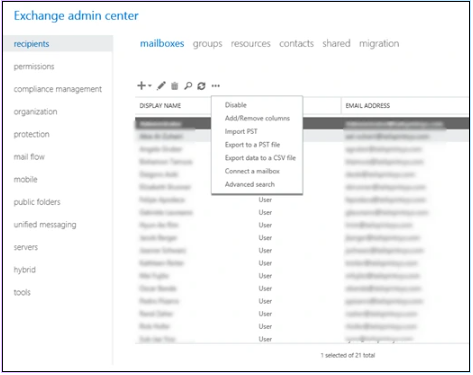
Then, go to Recipients and then click on Mailboxes.
Step 3:
Choose the mailbox you want to move. Now, click the More options icon (three dots) and select Export to a PST file.
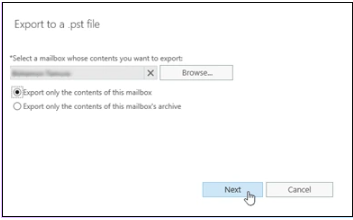
Step 4:Use the Browse button to pick the mailbox you want to export. Choose your export settings and click Next.
Step 5:Type in the network folder path (the UNC path) where you want to save the file and click Next.
Step 6:
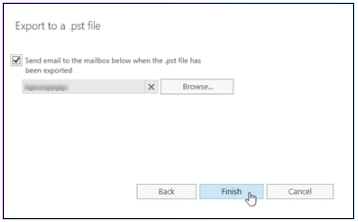
If you want a confirmation email when it is done, check the box and select who should receive the alert. Click Finish to start the export.
Split Exchange EDB File through EMSIf you prefer using commands, follow these simple steps:
Step 1:
Open the Exchange Management Shell.
Step 2:
Run this command:
New-MailboxExportRequest -Mailbox “mailbox-name” -FilePath “\\Server\Folder\filename.pst”
(Note: Replace “UNC-file-path” with the network folder path you set up earlier.)
This method works for both ExchangeOffline and Exchange Online. Once the export is finished, you get a compact PST file that you can archive, share or move back into a live Exchange serverSplit EDB Using Outlook
Outlook ’s built-in Import/Export feature use to Split Large EDB file .Your Outlook connect with Exchange Server Account associated with EDB file .You export mailbox to PST following steps below
Step 1:
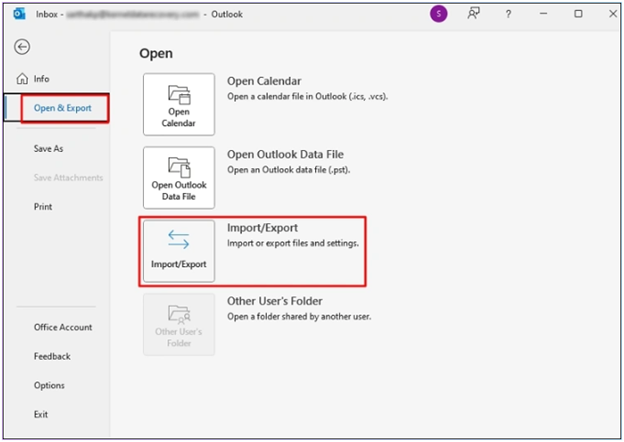
Open Outlook click File tab and select Open & Export> Import/Export.
Step2:choose Export to file option and click Next
Step3:
Choose Outlook Data File (.pst), then click Next.
Step4 :
Choose mailbox to export and check Include subfolder and click Next.
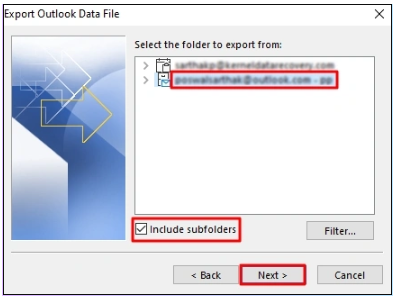
Step5:Select Browse , choose location to save PST file and click Finish
Split EDB Files with a Professional Tool
Manual methods are slow, strain your server, and cannot handle disconnected mailboxes. Use the professional Goldytools EDB to PSTconverter tool for a faster solution. It quickly converts large or corrupt EDB files from any Exchange version without data loss. You can filter specific data, save emails in various formats (like PDF or MSG) and use a built-in feature to automatically split large results into smaller, manageable PST files easily.
Conclusion
In this blog, you can choose whichever method works best for you. Keep in mind that manual steps are often slow and only work under specific conditions. For an easier and faster solution, try the trial version of Goldytools EDB to PSTconverter tool. It also works for data recovery which allow you to get back lost or deleted information from a corrupted database.

