Avoid using Scanpst.exe to repair OST files!
One of the most popular programs for managing personal information, Microsoft Outlook is used by people all around the world to keep their data organised, including emails, schedules, contacts, tasks, notes, events, and more.
Outlook makes considerable use of two types of files: OST (Offline Outlook File) and PST (Personal Storage Table). An offline format for storing Exchange mailbox data in Microsoft Outlook is an OST file. It saves a downloaded version of the mailbox in addition to the real copy. Users can utilise this to carry on with their job when internet connectivity is poor or unavailable.
However, what occurs if these OST files are corrupted? Many users try to fix these files by using the Scanpst.exe scan. But it might or might not work each time. The reasons to avoid using Scanpst.exe to repair OST files will be discussed in this article.
What causes the OST file to become corrupted?
It becomes essential to understand the causes in order to prevent future OST file damage. These are the causes of OST file corruption:
- The main cause of an OST file becoming corrupted could be a virus or a bug.
- The file is impacted whenever Outlook is not closed correctly.
- There is a size limit for every file. Files may become inaccessible whenever data exceeds the size restriction.
- Outlook is incompatible with some add-ons and extensions.
- OST files may potentially be harmed by frequent disruptions brought on by power outages or poor internet connectivity.
Scanpst.exe: What is it?
When Outlook files become corrupted, damaged, or unreadable, Scanpst.exe or Inbox Repair Tool helps identify the underlying source of the problem before fixing it.
Why not use Scanpst.exe to fix the OST file?
One of the most popular fixes for problems with any Outlook data file is Scanpst.exe. It may be able to identify and fix some little problems, but this isn’t always the case. As the name implies, an application called Scanpst.exe was created especially to address problems with PST files. The tool’s primary purpose is not to fix mistakes in an OST. It is advised to start over from scratch because the files include cache data.
What other options are there?
There are still ways to repair the OST file damage. These potential solutions can be used to accomplish this:
Rebuild the OST file
Scanpst.exe cannot fix significant corruptions in OST files. Rebuilding the OST file is the best approach. When the file is closed, Outlook will recreate it from the server if the user renames it to “.old.”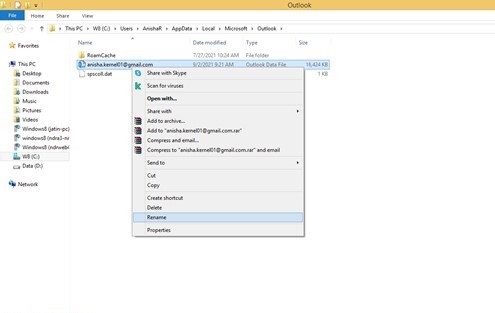
Convert OST to PST files
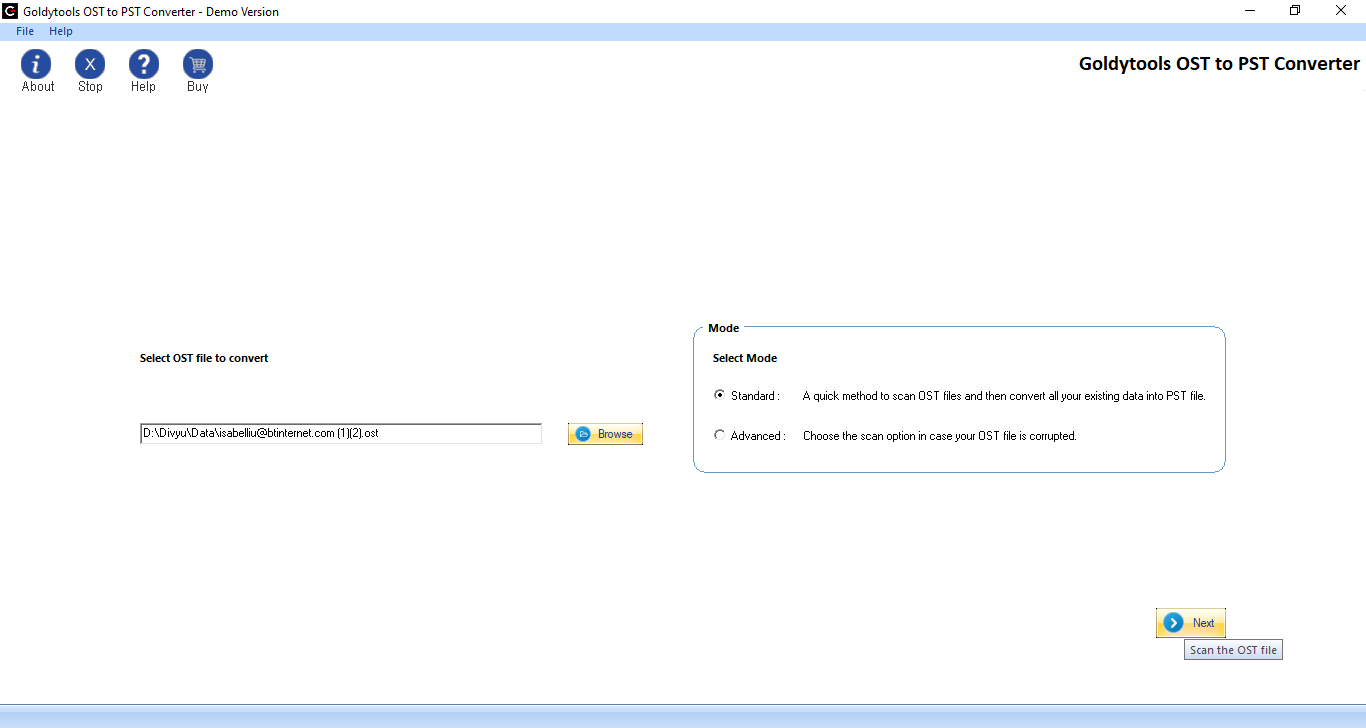
Converting corrupted OST files to PST, which would enable users to retrieve all information, is a workable approach. You should use expert software to finish this crucial activity because you are working with private and sensitive data. Here, GoldyTools OST to PST Converter uses its sophisticated characteristics to do the necessary tasks.
- All Outlook versions are compatible with the easy and seamless OST to PST conversion process.
- The application is able to fix corrupt OST files.
- For every mailbox item, a thorough preview is displayed.
- In the OST file, users can locate a certain item.
- Effortlessly convert OST to PST without needing an Exchange profile or Server connection
- It is possible to convert OST emails into many different formats, such as PST, MBOX, MSG, HTML, PDF, EML, and many more.
- Depending on their size, the converted PST files can potentially be divided into smaller ones.
In conclusion
Scanpst.exe is designed to fix PST file issues, but it can also be used to fix OST files. While this check might fix small flaws in OST files, it is completely impractical for handling larger problems. OST files need to be rebuilt from scratch in order to be repaired; this can be accomplished by renaming the file as ‘Old’. When you have a reliable internet connection, this method works. Converting OST files to PST is an additional method. A professional tool such as the GoldyTools must be used for this.

