How to Find Outlook OST File Location in Windows?
Finding your Outlook data doesn’t have to be a technical headache. When you use Outlook with accounts like Office 365, Exchange, or Gmail (IMAP), the app creates a special file on your computer called an OST file.
This file is a local copy of everything in your inbox. It allows you to read emails, draft replies and check your calendar even when you are not connected to the internet. Once you go back online, Outlook syncs those changes automatically. Check out a simple guide on how to find Outlook OST file location and why it matters.
How to Find OST File Location?
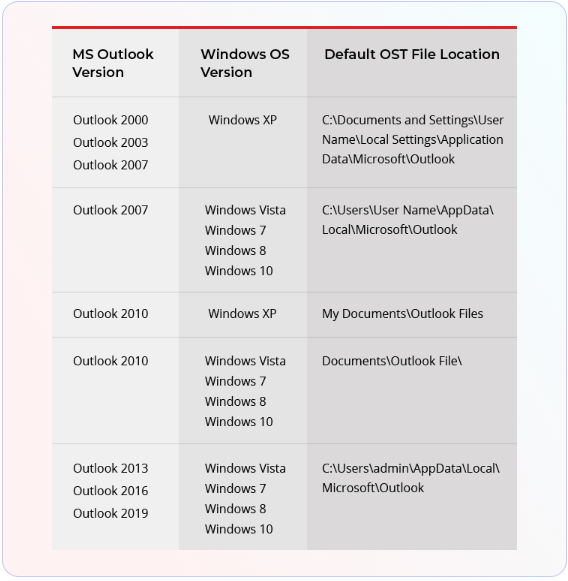
OST file stored in AppData folder of Windows user Profile .However Exact location vary depending on version Microsoft Outlook and Windows operating system install on computer
Browse to Default OST file Location
You check table below to find default OST file location on Windows Windows XP, 7, 8, 8.1, 10, or 11 system
Methods to Find Your OST File
Regardless of which version of Windows you use (XP, 7, 10, or 11), these are the fastest ways to find your data.
Method 1: The “Right-Click” Shortcut
This is the quickest trick and works for almost everyone
- First of all, open Outlook.
- On the left side of the screen, look at your Email Address (the top-level folder).
- Then, right-click on your email address.
- Now, select Open File Location.
- A folder window will pop up that highlights your OST file immediately.
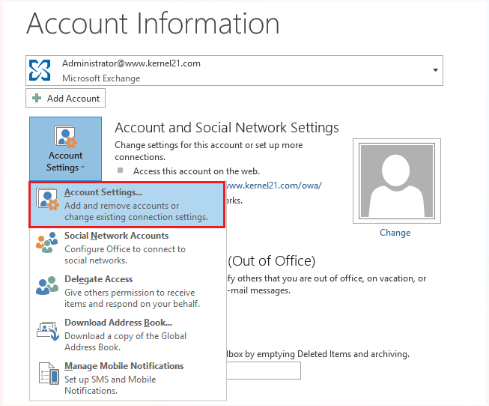
Method 2: Using Outlook Settings
If Method 1 does not work, you can find the path through the menu:
For Outlook 2013, 2016, 2019, and 2021:
- Firstly, click File in the top left corner.
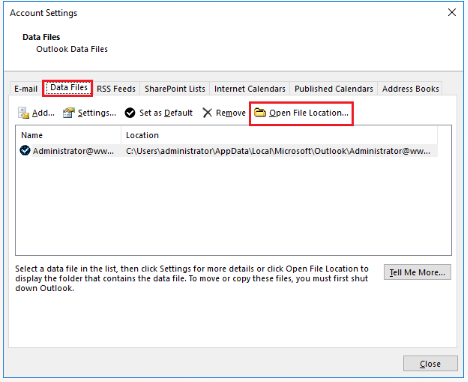
- Then, click Info, then Account Settings and select Account Settings again from the dropdown.
- In the window that opens, click the Data Files tab.
- First of all, go to File > Info > Account Settings.
- After that, pick your account from the list and click Change.
- Now, click More Settings and go to the Advanced tab.
- Lastly, click Offline Folder File Settings to see the file path
- Do Not Delete It Blindly:
If you delete an OST file, Outlook will try to download everything from the server again. You might lose your data if the server is empty.
- Back it Up:
Before you move or change your OST file, it is better to copy it to a USB drive or a different folder just in case.
- Converting Data:
If your Outlook do not open at all, you might need to use an online converter like Goldytools to get your emails out of the OST file so that you can read them again
For Outlook 2010:
What If You Can’t Find the File?
Sometimes the folders that hold these files are hidden by Windows. If you are struggling to see them, you might need a professional tool. Tools like Goldytools Converter for OST are designed to scan your computer and find these files automatically. They can also help you turn an OST file into a PST file which is easier to move to a different computer or a new email account.
Important Tips for Safety
Conclusion
Finding your OST file is mostly about knowing which menu to click. No matter you use the Right-Click shortcut or the Account Settings menu, the file is usually tucked away in your computer’s AppData folder. Once you get OST file location, you can manage your storage better or move your data to a brand new PC. If you do not get the file, you can try the free version of Goldytools OST to PST Converter to get them automatically

