How to Fix Outlook Error 0x80049dd3?
Many Outlook users are currently facing a frustrating “Access Denied” error which is mainly identified by the code 0x80049dd3. This issue usually triggers when you try to open an email, sign into your account or sync your calendar and contacts. This error occurs when Outlook has trouble verifying your login credentials with the server which leads to a loop where the app asks you to sign in but then fails to complete the process. This blog explains why this verification failure happens and gives you easy steps to resolve the error.
Troubleshooting Methods to Resolve Outlook Error0x80049dd3
Method 1 – Repair or Reinstall Outlook (MS Office)
If Outlook is acting up because its files are damaged, you can often fix it by repairing the app or reinstalling it. Here is how to do a repair:
- Open the Control Panel:
First of all, go to Programs, then Programs & Features and select Uninstall a program.
- Select Office:
Find Microsoft Office in your list of apps and click the Change button.
- Follow the Prompts:
Click through the instructions on your screen to let the computer fix Office and Outlook automatically.
If repairing the app does not work, try uninstalling Microsoft Office and then installing it again for a fresh start.
Method 2 – Clear Cached Credentials
- Open Credential Manager:
Firstly, go to the Control Panel, click User Accounts and then select Credential Manager.
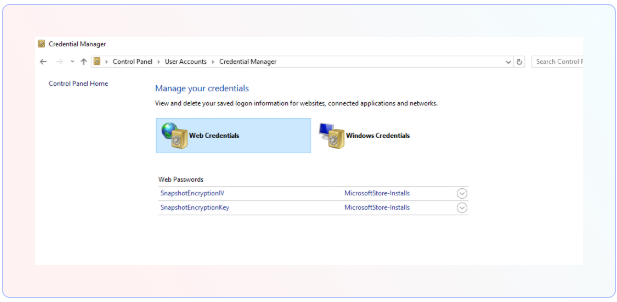
- Find Office Entries:
After that, click on the Windows Credentials tab and look for anything related to Outlook or Microsoft Office.
- Remove the Info:
Click on those entries to open them up and select Remove or Remove from Vault.
- Restart and Sign In:
Now, close and reopen Outlook. It will ask for your password again; just sign in normally to create a fresh, working connection.
Method 3 – Repair Corrupt PST File
Outlook saves your emails and data in a file on your computer called a PST file. If this file gets damaged, you won’t be able to see your messages. To fix this, you can use a built-in tool called ScanPST.exe to scan and repair the file. But, this tool only works for small, simple problems and often fails if the file is very large or badly broken.
If the standard tool does not work, you can use a powerful Goldytools PST Repair tool. This software is designed to handle much tougher repairs, no matter how big the file is. It recovers everything like your emails, attachments, and calendar. Then, it puts them into a brand-new, healthy file while keeping all your folders exactly where they were. It works on any version of Outlook and is a reliable way to get your data back when the basic methods fail.
Conclusion
The 0x80049dd3 error can block you from opening your emails or sending and receiving messages. You have seen various ways above to fix this. But, if the problem is caused by a damaged PST file, the most reliable solution is to try the free version of Goldytools PST Viewer tool which helps you to safely fix your data and restores all your emails and folders without losing any data.

