How to Fix “PST is Not an Outlook Data File” Error?
Outlook uses a file called a PST to save a copy of your emails, contacts and calendar directly on your computer. But, these files can sometimes break. One common problem is an error message that says PST is Not an Outlook Data File. When this happens, Outlook refuses to open the file and you will not be able to see any of your emails. Continue reading to know more.
Methods to Fix PST is Not an Outlook Data File Error
Method 1: Restart Your System
No matter how small the computer problem looks, the first thing you should always try is a restart.
When you reboot your computer, it refreshes the whole system and closes all the apps running in the background. Sometimes, another program might be trapped or stuck using your PST file by mistake. Restarting forces that program to let go, which often fixes the error immediately. If a quick restart does not do the trick, you can move on to the next step.
Method 2: Reduce PST File Size
Older versions of Outlook struggle if a PST file is bigger than 2GB, but newer versions have a limit of 50GB. If your file gets too big, it can cause errors. Check your file size. If it is over the limit, you need to shrink it.
Step 1:First of all, open Outlook, click File, then select Account Settings and click Account Settings again.
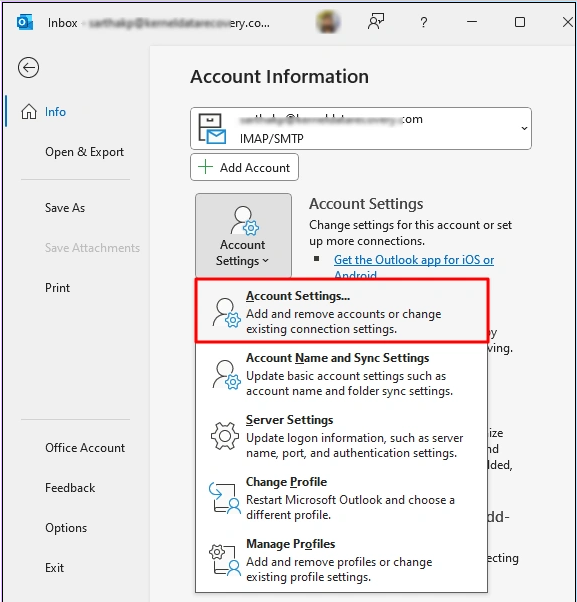
Step 2: After that, hit the Data Files tab and double click the PST file you want to fix.
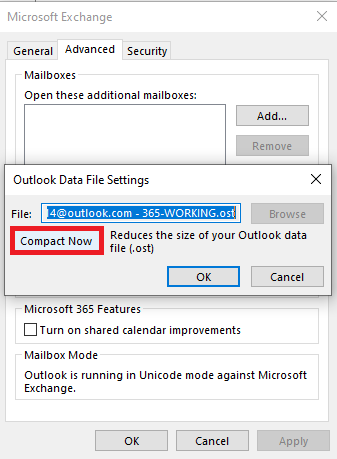
Step 3: Now, tap the Compact Now button to shrink the file.
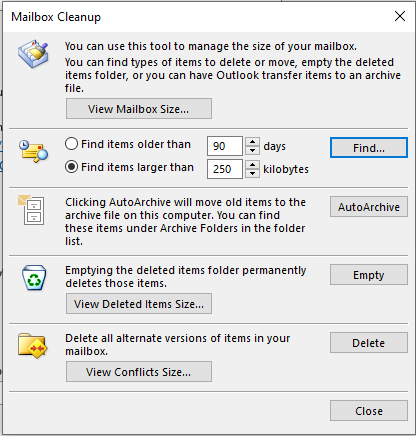
Apart from compacting, you can also use the Mailbox Cleanup tool by going to File>Tools>Mailbox Cleanup to delete old items and save space.
Method 3: Update and Repair Outlook
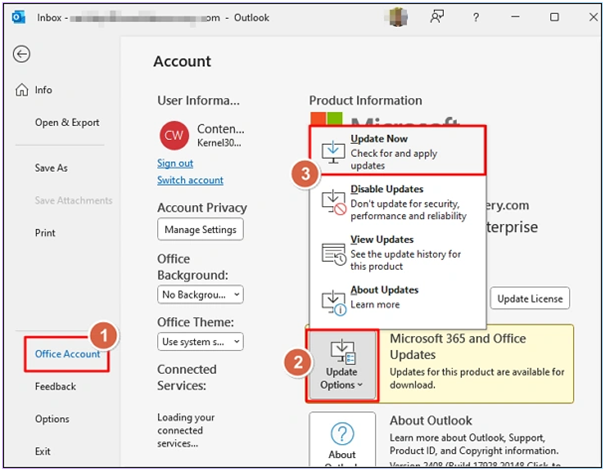
To update Outlook, follow these steps: Open Outlook, click File>Office Account>Update Options>Update Now.
If updating does not fix the problem, you can try repairing the entire Microsoft Office program:
Step 1: Firstly, open your Control Panel and click on Programs and Features.
Step 2: Then, find your Microsoft Office app in the list and right click it.
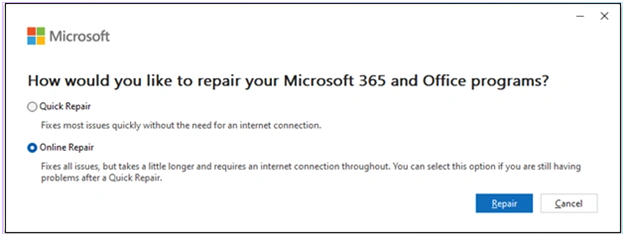
Step 3:Now, select Change then choose a repair method like Quick Repair or Online Repair.
Method 4: Repair PST with ScanPST
If the other methods did not work, your PST file might be corrupted. Follow these steps to use the built-in repair tool:
Step 1:First of all, find the Inbox Repair Tool which is also called ScanPST.exe on your computer and open it.
Step 2: TapBrowse and select the broken PST file.
Step 3: Click Start to scan the file for errors.
Step 4: If the tool finds errors, click Repair to fix them.
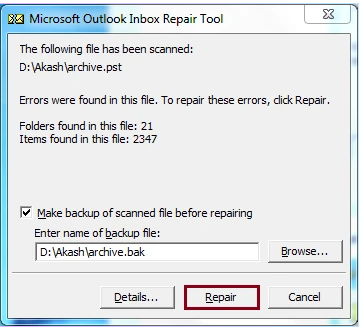
The ScanPST.exe tool only works for minor damage and files smaller than 2GB.
If your file is very large or badly broken, you should use a professional repair tool like Goldytools Outlook PST Repair. This tool is highly powerful and can fix major corruption without losing your data. It safely recovers your emails and keeps your folders exactly the way they were.
Conclusion
There are several ways to fix PST is not an Outlook data file error. Try the simple steps first to get your emails back. For minor damage, use the built-in ScanPST.exe tool. For larger or badly broken files, you can try the free version of Goldytools Outlook PST Repair to recover your data safely.

