Outlook Error: There was a problem loading this app| [Fixed]
In summary, a large percentage of Outlook users encounter When an issue arises during the app’s attempt to load, sign in, sync data, or update, the error message “There was a problem loading this app” appears. Nonetheless, there are numerous trustworthy options that support the restoration of the Outlook workflow. This article describes the error’s causes as well as how to fix it step-by-step. Use GoldyTools for OST to PST Converter if you need to quickly and safely backup an Outlook OST file.
As one of the most popular email programs, Microsoft Outlook occasionally displays errors like other programs. When users open Outlook, they frequently encounter one of the most annoying error messages: “There was a problem loading this app.” Workflow is typically disrupted by this error message, which prevents users from accessing their Outlook mailbox items.
This guide will assist you in effectively troubleshooting if you’re experiencing the same issue. Let’s start by going over the causes of the “There was a problem loading this app” error!!!
Reasons for Outlook’s “There Was a Problem Loading This App” Error
- Outlook is outdated.
- Network Issues
- Add-ins Conflicts
- Problems with Outlook accounts
- Outlook profile corruption
You now understand why the error happens. So, let’s look at some effective solutions to help you solve the problem.
How to Resolve Outlook’s “There Was a Problem Loading This App” Error
These dependable techniques will help you fix the Outlook error “There was a problem loading this app.”
Method 1. Update to the Most Recent Version of Outlook
Updates are frequently released by Microsoft to address bugs and enhance Outlook functionality. To fix problems like “There was a problem loading this app,” update your Outlook. Here’s how to do it:
- Launch Outlook, and choose Office Account from the File menu.
- After choosing Update Options, click Update Now.
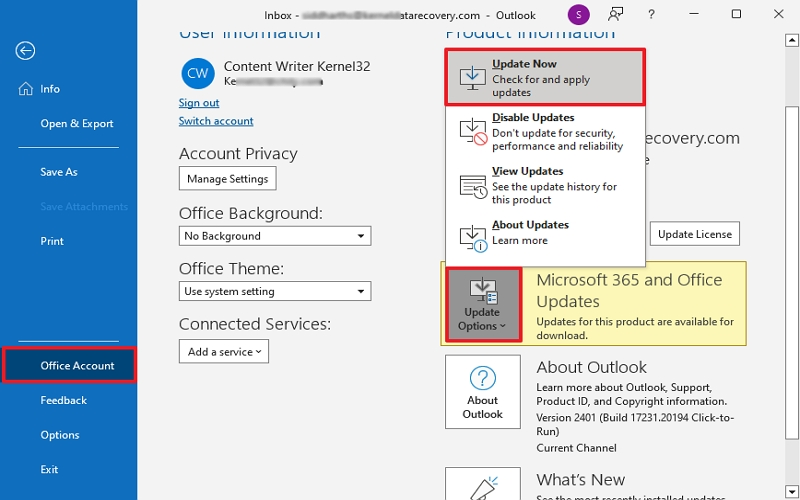
Once updated, open Outlook and look for the error.
Method 2: Verify Your Internet Connection
For Outlook to function properly, from loading to sending and receiving emails, a reliable internet connection is required. Therefore, check your internet connection regularly. Restart your router if you discover a problem, and if it continues, ask your internet service provider to troubleshoot.
Method 3: Fix Your Outlook Profile
This error may frequently occur when your Outlook profile is compromised. As a result, fixing the profile can frequently fix the problem. The steps to take are as follows:
- Click on Show Profiles after opening Control Panel and choosing Mail.
- Click Repair after choosing your profile.
- To finish the procedure and restart Outlook, adhere to the instructions.
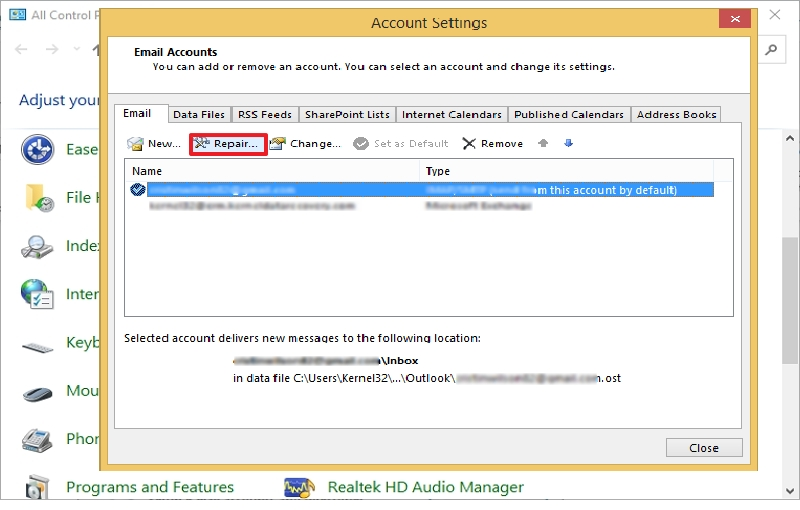
Therefore, you can fix corrupted files and get Outlook back up and running by repairing your profile.
Method 4: Empty the Outlook Cache
To improve speed, Outlook keeps temporary files in its cache; however, these files may eventually become corrupted and display this error. Thus, the following steps are as follows:
- Press Windows + R, close Outlook, type %localappdata%\Microsoft\Outlook, and click OK.
- Restart Outlook after selecting every piece of data in the RoamCache folder and deleting it.
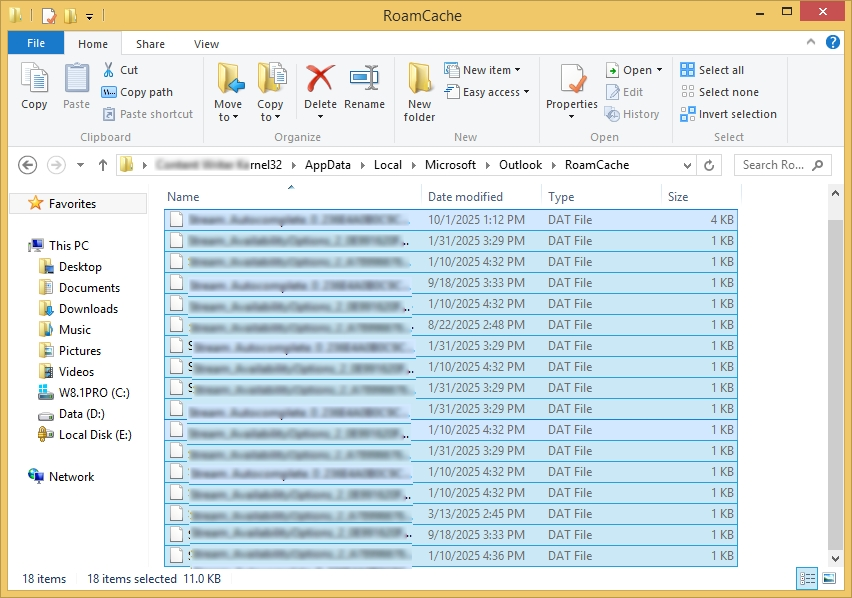
Note: Try to delete only the content, instead of the folder itself. Disabling add-ins, checking account settings, fixing the Office suite, etc., might be helpful if you’re still occasionally getting the error “There was a problem loading this app in Outlook.”
Method 5: Turn Off Difficult Add-ins
Add-ins typically make Outlook operations easier, but occasionally they disrupt and interfere with functionality. If Outlook repeatedly displays the “There was a problem loading this app” error, there may be a problem with the add-ins. Turn off add-ins by following these steps to troubleshoot:
- Go to the File menu, then Options, after launching Outlook in Safe Mode.
- After choosing Add-ins, press the Go button.
- Restart Outlook after disabling all add-ins.
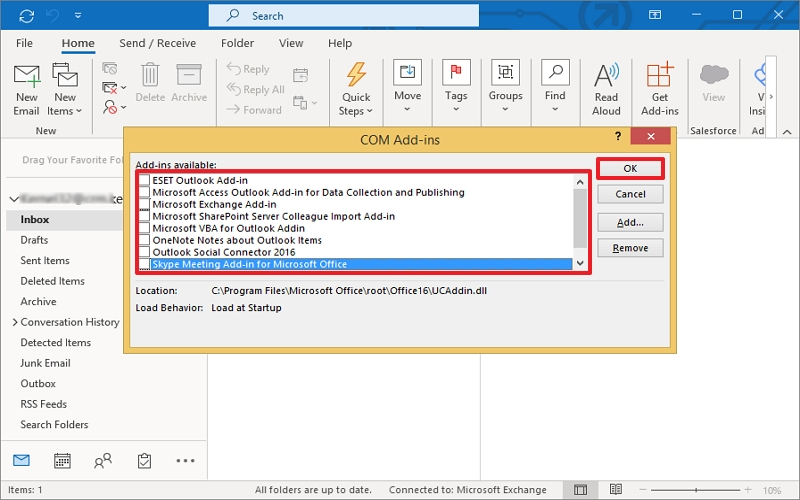
Re-enable each add-in individually to find the issue if the “There was a problem loading this app” error goes away.
Method 6: Check the Settings of Your Outlook Account
Outlook loading issues can also be caused by incorrect account settings or misconfiguration. Thus, confirm that the settings for your email account are set up correctly. Follow these steps:
- Launch Outlook, select Account Settings from the File menu. After selecting Account Settings.
- Click Change after selecting your account.
- Make sure the server is configured correctly.
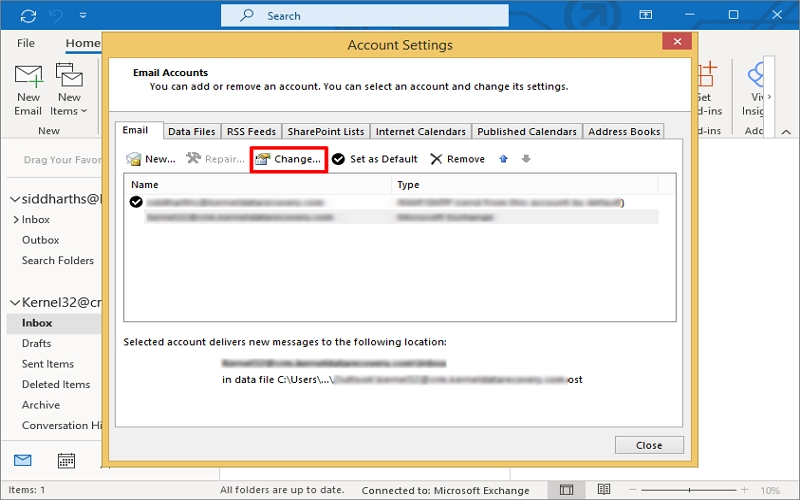
To make sure everything is configured correctly, test the connection.
Note: You can get in touch with Microsoft Support if you have attempted all of the fixes and the error still occurs. Microsoft Support can be contacted via the Outlook app’s support features or via their official website.
Extra Advice to Avoid Outlook Errors
Following the resolution of the “There was a problem loading this app” issue, you should take the following actions to prevent similar errors in the future:
- Keep your operating system up to date and make use of a reliable internet connection.
- Update Outlook frequently to prevent bugs and compatibility problems.
- Control Outlook add-ins to maintain consistency.
- To enhance performance, make your Outlook data files smaller.
- Back up your data on a regular basis to avoid losing it in the event of an unexpected problem.
Note: An OST file repair might be the best option if you’ve noticed that Outlook isn’t functioning properly.
How Can I Quickly and Safely Backup Outlook OST Data?
When users experience Outlook errors and OST file corruption, OST file backup is essential. A backup effectively protects users from serious data loss. How, though, would they generate an OST file?
Goldytools OST to PST Converter now makes it simple to create an OST file backup. This program saves all the data from corrupted, damaged, orphaned, and healthy OST files into various formats, including PST, MSG, DOC,RTF,HTML and PDF. It offers the ability to move OST backups directly to different cloud platforms in addition to saving them to a local file.
To make your backup complete, this tool offers numerous other sophisticated features like no file size restriction, batch support, detailed preview, intelligent filters for selective data conversion, etc.
In conclusion
Outlook’s “There was a problem loading this app” error is initially unsettling, but you can resolve it on your own. Simply follow the instructions in this guide to update Outlook, fix your profile, disable add-ins, etc., and resume using Outlook without any problems.
Recall that many of these problems can be avoided in the future with proper maintenance and updates. Use the suggested OST converter tool if you want to back up your OST file, recover deleted OST data, or move them to Office 365 for easier management. Get the free trial version of the utility right now to experience it first hand!

