Troubleshooting the Outlook Error 500: ‘Something Went Wrong’
In this blog you will learn about Error 500: “Something Went Wrong” in Outlook abruptly stops daily email correspondence. It prevents users from successfully accessing, reading, or responding to emails. To comprehend its causes and 100% effective cures, read the article. Additionally, to protect against data loss, think about using the automatic Kernel for OST to PST Converter utility to backup the OST file.
Nearly all Outlook users have at some point faced Error 500: “Something Went Wrong.” It causes disruptions in email communication and limits users’ ability to send, receive, or access emails.
Additionally, it delays crucial assignments and deadlines, which results in a tense and frightening circumstance. Therefore, in order to prevent more delays and preserve an effective workflow, this issue must be resolved as soon as possible.
Don’t worry if you’ve run into this problem! To learn how to diagnose and resolve Microsoft Error 500: “Something Went Wrong,”
Typical Causes of Outlook Error 500: “Something Went Wrong”
The Outlook Error 500: ‘Something Went Wrong’ may occur due to numerous reasons. The following are some typical causes:
- Due to maintenance or an outage, Microsoft servers may be momentarily unavailable.
- Outlook error 500 may be caused by a poor or erratic internet connection.
- Your ability to connect to the server may also be impacted by a corrupted Outlook profile.
- Outlook error code 500 may be caused by incorrect email or server settings in your Outlook account.
- Firewall or antivirus software may prevent Outlook from connecting correctly.
- Error 500: “Something Went Wrong” can also be caused by a corrupted or destroyed OST or PST file in Outlook.
Step by Step Procedure to Fix Outlook Error 500: Something Went Wrong
Use these techniques to successfully resolve Outlook Error 500: “Something Went Wrong”:
Approach 1: Verify Your Internet Connection
Outlook is unable to connect to the servers due to a weak or erratic internet connection, which causes a number of problems, including error code 500. Thus, confirm that you are linked to a reliable network. To check your connection, run a speed test on a regular basis. Additionally, if there are problems with your existing network, consider connecting to another one.
Approach 2. Verify the status of the Microsoft server
Sometimes, maintenance tasks cause Microsoft’s email server to go down. Thus, you verify the health of Microsoft services. Wait for Microsoft to fix any reported outages. To learn more, you can also ask questions on several forums regarding the server outage and Outlook Error 500: “Something Went Wrong.”
Approach 3: Update and Fix Outlook
You may experience a number of problems, such as error code 500, if your Outlook is out of current, but updating it occasionally resolves all of these problems. The actions to take are as follows:
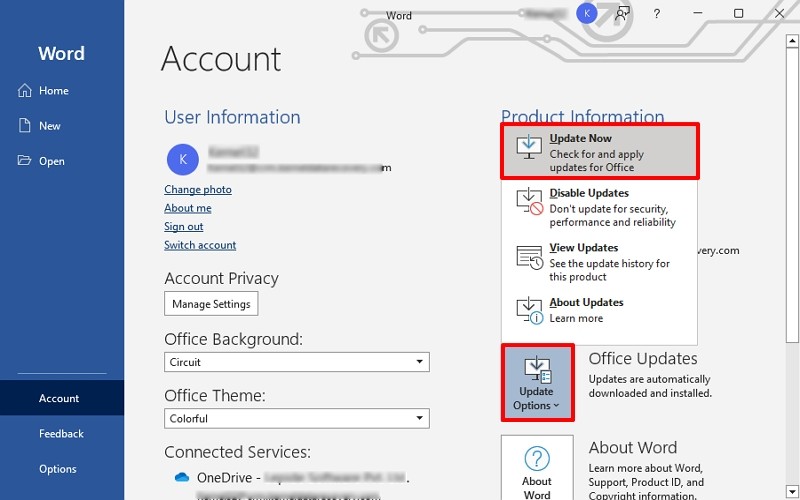
- Launch Outlook, choose Office Account from the File menu.
- Select Update Now by tapping on the Update option.
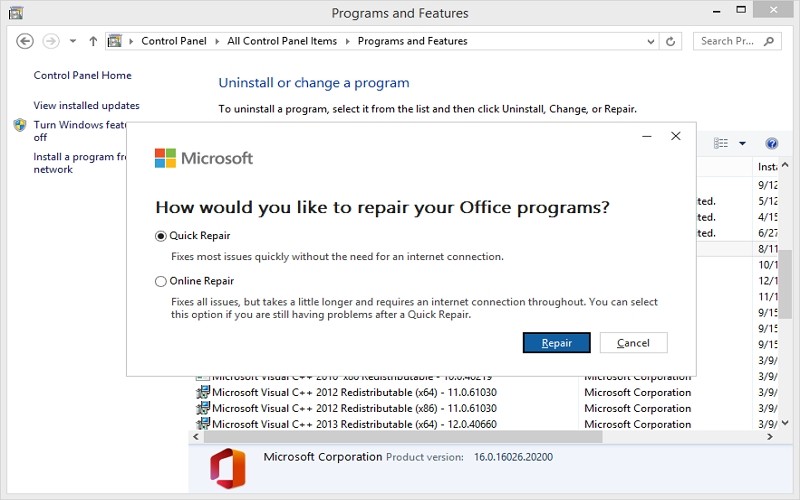
- Navigate to Programs and Features after opening the Control Panel.
- Click Change after selecting Microsoft Office, then select Quick Repair.
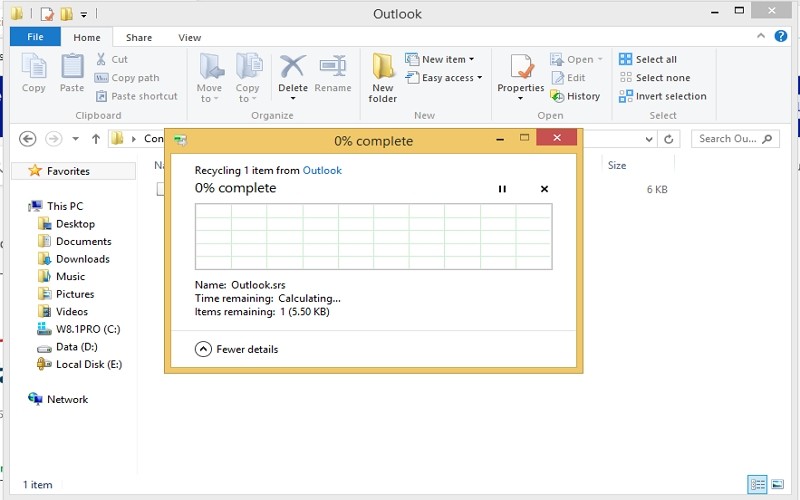
- Locate C:\Users\[YourName]\ AppData\Local\Microsoft\Outlook\RoamCache/. in File Explorer.
- Click the Delete button after selecting every file.
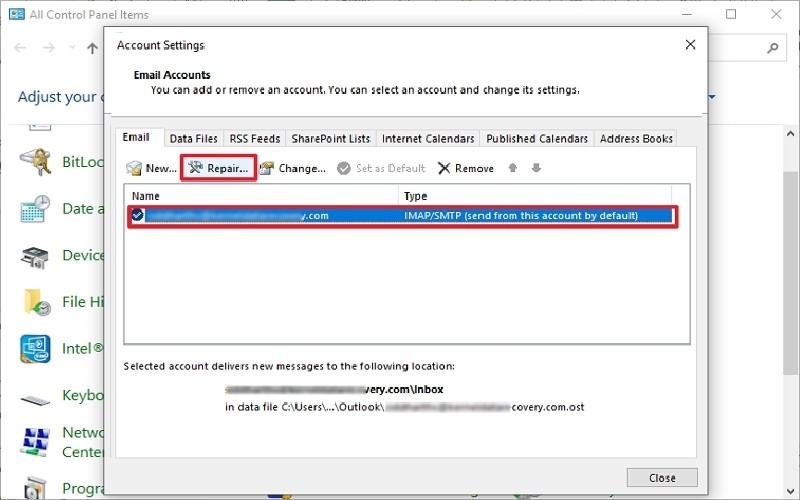
- Click Show Profiles after opening Control Panel and selecting Mail.
- Click Repair after selecting your Outlook profile.
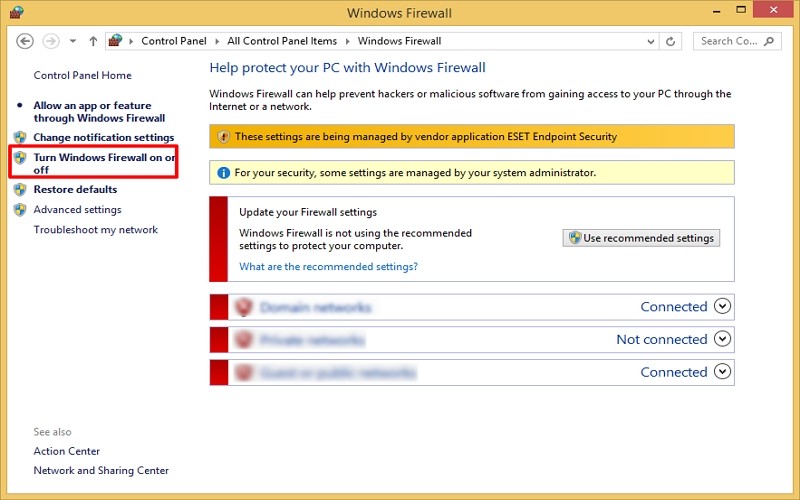
- Navigate to the Control Panel and select Windows Firewall.
- To disable Windows Firewall, select Turn Windows Firewall on or off and follow the additional instructions.
- Go to File > Options after opening Outlook.
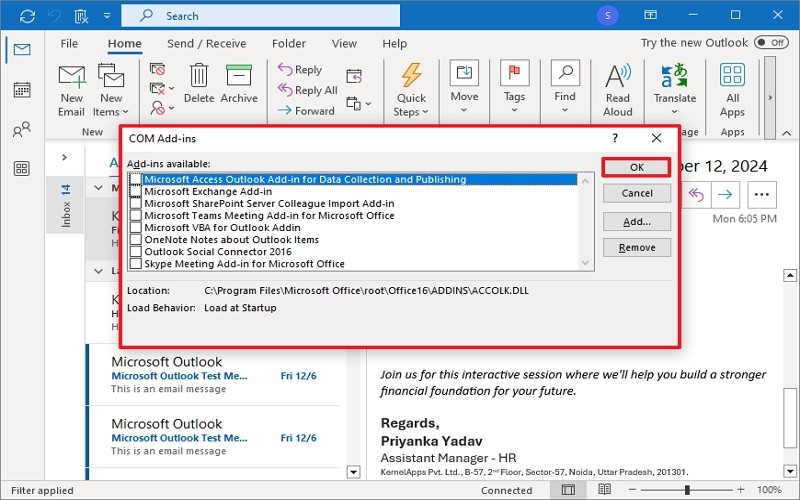
- After choosing Add-ins, click Go to turn off every add-in.
- After closing Outlook, navigate to the AppData folder in File Explorer and change the name.
- If you restart Outlook, the server will immediately download all of the data into a new OST file.
- Update Outlook frequently to improve security and performance.
- Regularly check the settings of your Outlook account.
- To prevent data loss while troubleshooting, make a backup of your Outlook data.
- To fix transient server-side problems, log out and then back in.
- When troubleshooting Outlook issues, restart the operating system first.
- Update your web browser.
- Verify the service status of Microsoft.
- Remove the cookies and cache from the browser.
- Try using Incognito mode or a different browser.
- Turn off browser add-ons and extensions.
- Log out of your account, then log back in.
- Verify that you have the appropriate permissions for your account.
- Try using a different network (e.g., mobile data instead of Wi-Fi).
Restart Outlook and search for issues after the updates are finished. If the error still occurs, fix the Outlook installation.
The steps to fix Outlook are as follows:
Restart Outlook once the repair has been completed.
Note: Try Online Repair if Quick Repair doesn’t functioning.
Approach 4: Delete Outlook’s Cookies and Cache
Over time, data stored in Outlook’s cache may also be compromised. Many common issues, such as Outlook error 500, can be resolved by clearing these cache files. Use the procedures listed below to accomplish the same:
Approach 5. Repair Outlook Profile
Outlook Error 500: “Something Went Wrong” is one of the many problems caused by a corrupted Outlook profile. Repairing or recreating your profile may fix the problem. Use the procedures listed below to achieve the same:
Open Outlook after the fault has been correctly fixed to check if it persists.
Approach 6: Temporarily disable your firewall or antivirus software
The main factor preventing Outlook from connecting to its servers is frequently a firewall or antivirus program. To fix error code 500, temporarily disable them by doing the following:
Approach 7. Turn Off Outlook Add-ins
Outlook add-ins improve quick email operations, however some of them frequently get out-of-date or corrupted. Therefore, you can easily resolve your Outlook error 500 by disabling them. The actions to take are as follows:
Approach 8: Fix OST/PST Files That Are Corrupted
The OST file may occasionally become corrupted if you’re using cached Exchange Mode. Error code 500 can be fixed by deleting or copying it:
Verify whether all of the current data is there or if anything was overlooked after the synchronization process is finished. If it is absent, fix the OST file and import the missing information into Outlook once more. It is also advised that you make a backup of your OST file to prevent future data loss problems.
Easy OST file backup | Expert Solution
If you want to fix Outlook problem 500, you must backup your OST files. Use the Import/Export option if you can still access your Outlook account. However, utilize the GoldyTools for OST to PST Converter application if your Outlook prevents you from using this feature or if you wish to backup large or enormous OST files.
It enables you to add several OST files like healthy, corrupted, damaged, orphaned at once and store them in PST format so you can export them from Outlook once more. Additionally, it offers a variety of file-saving formats, including MSG, EML, MBOX, PSF, DOC, and more. With the tool, you can move OST directly to IMAP servers and any other cloud, including Live Exchange. With premium features like split PST files, live preview, and sophisticated filters, it is the most dependable option for both experienced and inexperienced users.
Other Advice for Preventing Outlook Error 500: “Something Went Wrong”
To reduce the likelihood of running into Error code 500: “Something Went Wrong” again once you’ve successfully fixed the problem and backed up OST files:
Note: This error is usually a server side problem if you’re using Outlook for Web (OWA). It can be brought on by a server outage, browser problems, network problems, and many more. To resolve Outlook for Web Error 500, “Something Went Wrong”:
Final Thought:
Nobody wants to experience Outlook Error 500: “Something Went Wrong.” Now that you know everything there is to know about this error, including its causes and practical fixes, utilize the remedies provided to fix the issue. Don’t forget to make a backup of your OST data beforehand.
Although you can backup the OST file using the native technique, the suggested GoldyTools OST converter is more dependable and simpler. It is easy to use for OST file data backup and repair on any Windows operating system. Start using the trial version right now. Get it for free!
FAQs
Q. What should I do if, despite using all of the manual techniques mentioned above, the issue still occurs?
Ans : Yes. If troubleshooting doesn’t resolve the issue, get in touch with Microsoft Support for individualized advice.
Q. Is it possible to resolve Error 500: “Something Went Wrong” by reinstalling Outlook?
Ans: Yes. In the event that the Outlook installation file is corrupted, reinstalling Outlook may be helpful. But first, make a good backup of your data to prevent data loss.
Q. Will this issue be resolved by switching to a different email client?
Ans: Yes. If you continue to have troubles with Outlook, using an alternative email client (such Gmail or Thunderbird) may be a temporary solution. For long-term stability, however, it is best to address the underlying Outlook problem.

