The Best Ways to Safely Convert OST to PST Files
Summary: Outlook’s use of big OST files to store local copies of emails can lead to problems.
Users are then unable to access files and the files become challenging to open. To recover and utilise the data once more, the user wishes to convert OST to PST. This procedure confuses a lot of users. To manage the conversion safely, this blog describes both manual options and a reliable Tools OST to PST Converter Tool.
What Makes Converting OST to PST Important?
- Only the original Outlook account is compatible with OST files. You are unable to open that account if it is no longer active.
- You can view your emails even without the previous account if you switch from OST to PST.
- This conversion aids in recovering your data if Outlook crashes or the server is unavailable.
- PST files are simple to transfer or store in a secure location.
- You can avoid losing crucial emails and contacts by doing this.
Safe Manual Techniques for OST to PST Format Conversion
Outlook must be installed on your computer to use this completely free method. Although this approach might be complicated or technical, it aids in achieving the right outcome.
Method 1: Use Outlook Export to Import OST to PST
- Open Outlook first, then select the profile associated with your current Exchange account.
- Next, select File > Open & Export.
- Next, select Import/Export to launch the wizard.
- Click Next after choosing Export to a File.
- Next, select Outlook Data File (.pst) and press Next.
- Click Next after finding your OST folders in the list and choosing the ones you wish to export.
- Next, select the location for the new PST file by clicking Browse.
- Click Finish to convert the OST file to PST after deciding how to handle duplicates.
- Finally, Outlook will use the selected data to create a PST file at the designated location.
Restrictions
- To continue using Outlook, you must have the previous account. There isn’t much you can do if it has already been removed.
- Mostly, old emails are captured by the archive option. Extra inspection is necessary to move everything correctly.
- What goes on in the background is not explained by Outlook. You’re left wondering if something goes wrong.
- When the OST file is already broken or won’t open, these steps don’t really help.
Method 2: Expert Technique for Secure OST to PST Conversion
The GoldyTools OST to PST Converter Tool is your only option if manual methods are currently unable to resolve your issue. Numerous filters and features are available in this effective tool to maximise your outcomes. Additionally, this authority and tool guarantee that no data will be saved throughout the procedure. This program can also convert OST files to CSV, EML, MSG, and other file formats.
How to Export an OST File to a PST
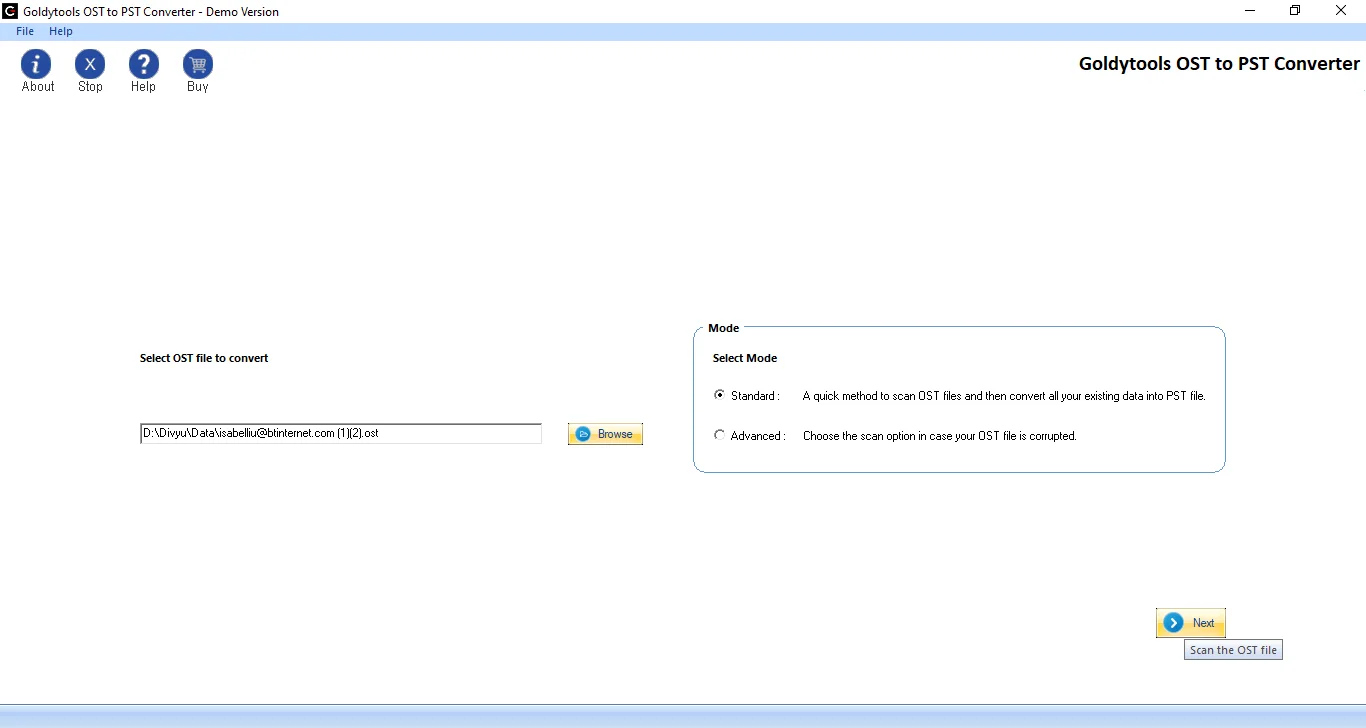
- Install and Run the software, Add OST File to Convert
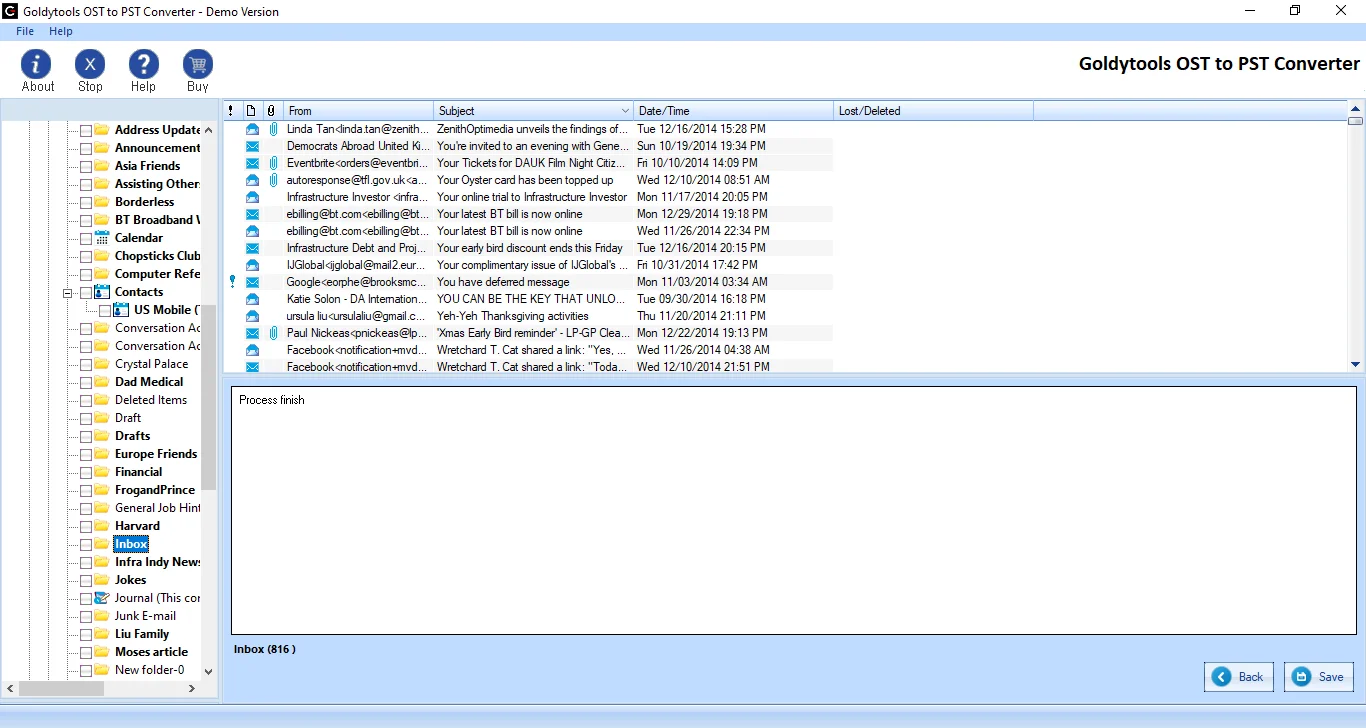
- Preview OST File Data Items
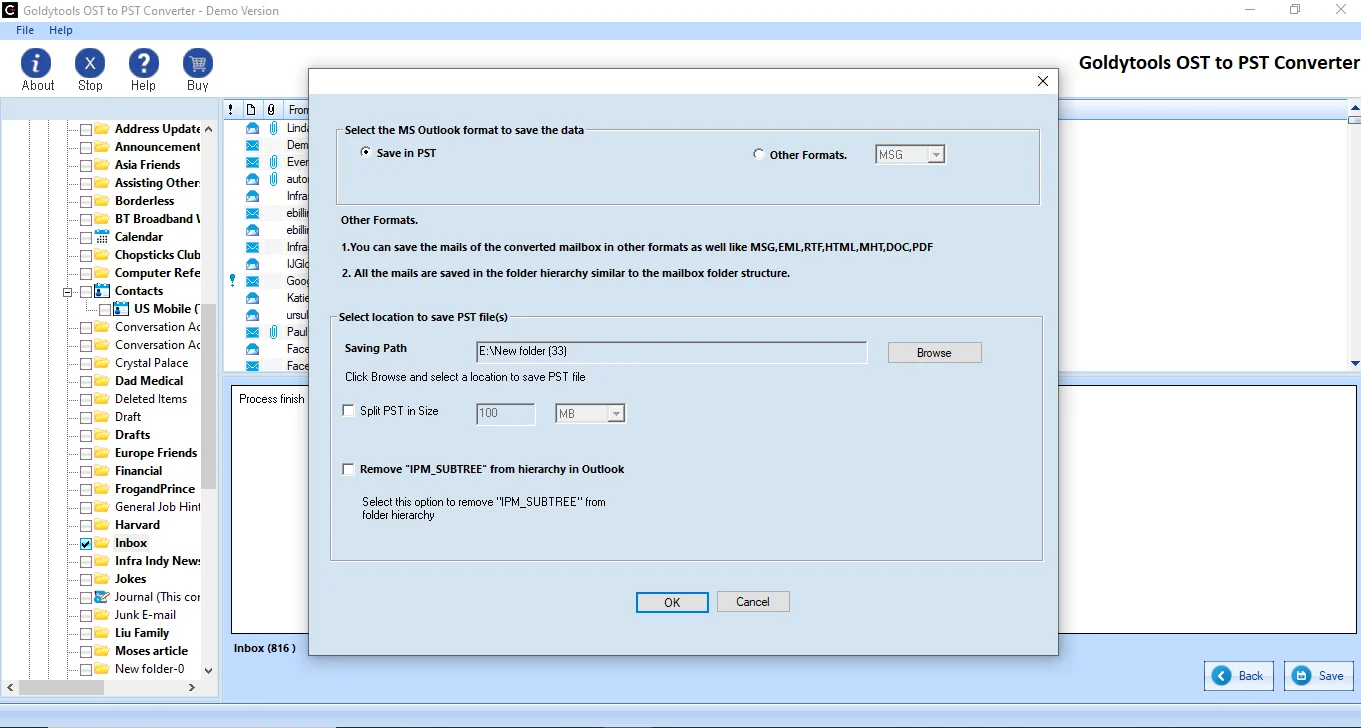
- Select Format Option
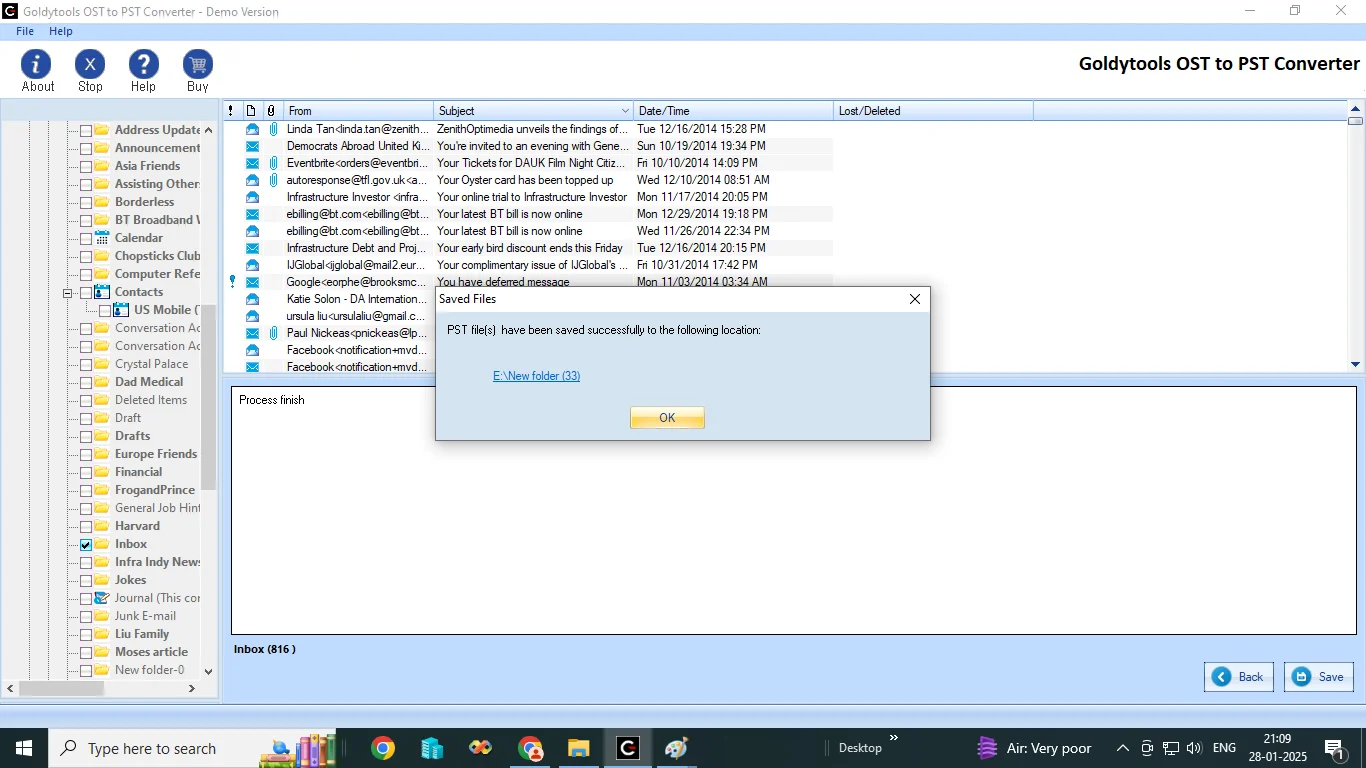
- Save the file
First download and install the software in your System. Go to Select file in the tool. Now Select the specific OST file you want to convert.
Preview all the OST mailbox data items to verify the data and then select the folder to convert to PST format.
Choose the PST file format or other formats and then go through other filter to apply or not Then Click on Convert.
After Saving process completed then Show “File have Successfully to following location” Dialog.
Conclusion
You can use the manual method and a professional tool to convert OST to PST. For the manual method, you need Outlook installed on your system. But with the OST Converter Tool, you don’t need any external software. This tool makes the process simple and accurate. It can convert your OST file to many other file formats and email clients. For any help and guidance related to the tool, you can contact our technical support team.
Common Questions
Q1: How can I safely convert OST files to PST files without losing any data?
Ans : Yes, it is simple to convert an OST file to a PST file without losing any data. You can convert the file without losing any formatting or data by using the GoldyTools OST Converter Tool. It yields the best and most precise outcomes.
Q2: How can an orphaned OST file be converted to PST?
Ans : You can easily convert an orphaned OST file to PST format by using the OST Converter Tool. This enables you to move files in a safe and secure manner.
Q3: Are email attachments and metadata retained when converting OST to PST?
Ans : You might lose attachments and metadata when using manual methods. Use the GoldyTools OST Converter Tool to convert a file that contains metadata and an email attachment.
Q4: Can OST files that are password-protected or encrypted be converted?
Ans : To convert the file into any format, you must first decrypt it. For effective and efficient results, you can then use the GoldyTools Ost to PST Converter Tool.

