How Can I Find Massive Files on a Windows Hard Drive?
The foundation of storage is the hard drive, which holds many kinds of computer data in its various partitions. It is compatible with a few file systems that are used for file management and storage. All of this helps the user store and retrieve data efficiently
The size of the files can range from little to enormous, but the files that are too large on hard drive led to the trouble for the users. A hard drive’s limited size necessitates periodic maintenance to avoid low disc space issues on the computer.
Difficulties in Managing Massive Files on Various Windows Versions
Searching Large Files from A Pool of Hard Drives
To find out which files are consuming more space than usual, users feel compelled to examine the disk’s capacity. Locating massive files allows the user to take actions to save up disc space.
Sort and Analyse Large Files from Other Files
The issue won’t be resolved even if the user locates the big file because these files need to be sorted or distinguished from others to be fully examined.
Locating the Content, Modified Date, and Additional Properties
The file itself has a number of useful properties, including content, time, date of modification, and file extension. It can be a pain when working with large files, even though the user knows that these properties are crucial.
Techniques for Locating Big Files
The user can find large files on the hard drive using a variety of manual techniques and strategies.
For Windows 7/8/8.1
The system hard drive should be cleaned up or an additional drive added for more data storage if it is operating slowly. For flash-based drives, maintaining free space is essential; otherwise, corruption may occur, requiring specialised SSD Recovery to recover inaccessible files. Finding the large files on the hard drive is the best option, though, because most users only have internal storage. Typically, a typical user is unaware of how to search these massive files on Windows.
Microsoft Windows includes a feature that allows you to locate and check the size of files on your system hard drive.
The commands listed below assist users in finding the big files:
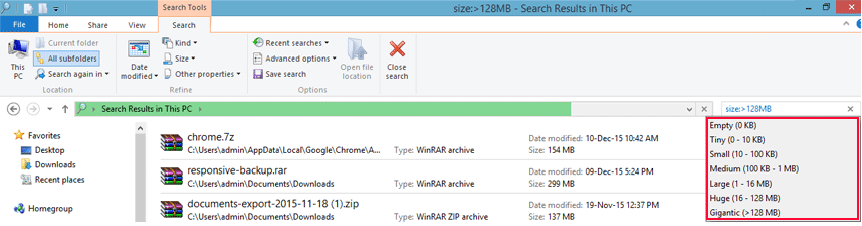
Size:gigantic , Size:large, Size:medium etc.
Empty (0 KB), Tiny (0–10 KB), Small (10–100 KB), Medium (100 KB–1 MB), Large (1–16 MB), Huge (16–128 MB), and Gigantic (> 128 MB) are the default size filters that are available.
Now, use the following the following the following:
- Press the Windows+F key to open the Windows search option.
- To check the file location, now enter the command according to the requirements. For example. Size: enormous or larger than 128 MB
- The user can adjust the search filter to suit their needs by choosing the date modified, kind, size, and other properties, among other options.
- Choose either ascending or descending for the sorting option.
- To view unhidden files, the user should select Show hidden files, folders, and drives.
- The user can quickly find large files on the hard drive from the list.
The files larger than 128 MB will be displayed by both options.
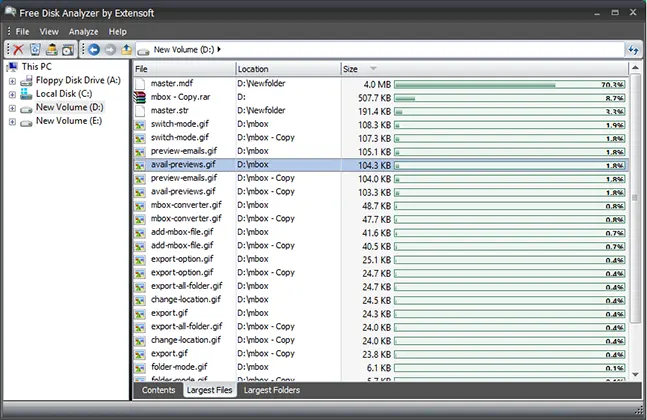
The Largest Files view facilitates direct analysis of large files by users.
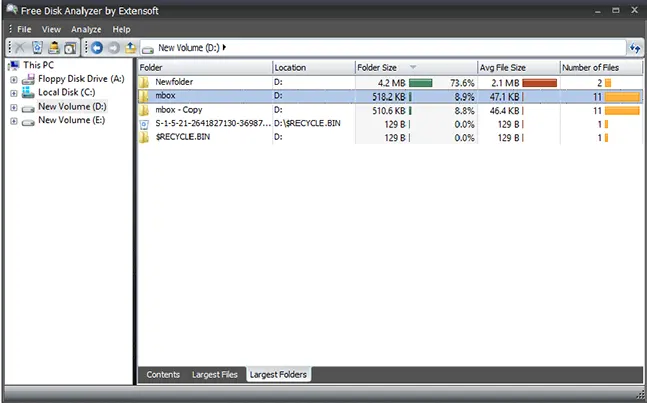
Largest Folders View uses folder options to analyse the location.
In conclusion
While the built-in Windows search function is adequate for finding large files on a hard drive, it has certain drawbacks. These include the options for selective search or filtering, deep analysis, management, and time consumption that are offered but useless in complicated circumstances.
Therefore, it is advised to use a tool for the deep analysis of the hard drive, which offers users a variety of options for conducting a search quickly or may be somewhat useful if the user needs to recover lost data from the hard drive.

