How to extract the Calendar from an OST file?
Outlook calendars let you plan meetings, appointments, and other events, just like other email programs. You frequently need to extract calendars from OST files using Outlook’s Import/Export feature or a professional OST to PST converter for migration, data recovery, and backups. After experimenting with several OST files, I have provided these techniques. Make use of them for simple data extraction.
The Exchange server unexpectedly failed a few weeks ago while my company was migrating its mailboxes. This unanticipated disaster resulted in the corruption of several user profiles. In the meantime, I needed to get in touch with the several appointments and events that were scheduled for the next two days on my calendar. I have to remove the calendar from the OST file in order to do this. Here’s what I did to fix the problem and avoid missing any meetings.
How to Directly Extract a Calendar from an OST File
Step 1: Launch Outlook and select Calendar.
Step 2: Decide which calendar to extract.
Step 3: After selecting File, select Save Calendar.
Step 4: Give selections and the location where you want to save.
Step 5: Choose the.ics file type for saving.
Why is it necessary to remove a calendar from an OST file?
There are several circumstances in which it may be necessary to extract calendar data from the OST file, including:
- Easy to access: The data must be extracted from the OST file and converted to a suitable format in order to be viewed.
- Make a backup: By extracting data from an OST file, a backup in a more practical format is produced.
- Migration: In this case, you must extract calendar data while you are moving to a new email client.
Techniques for extracting a calendar from an OST file
It is simple to extract calendars from an OST file. The following is a list of the method with a comprehensive procedure:
Approach 1: Use Outlook to extract a calendar from an OST file
Calendar data can be extracted from an OST file and saved to a PST file using the Import/Export wizard option. To extract the calendar from OST, carefully follow these instructions.
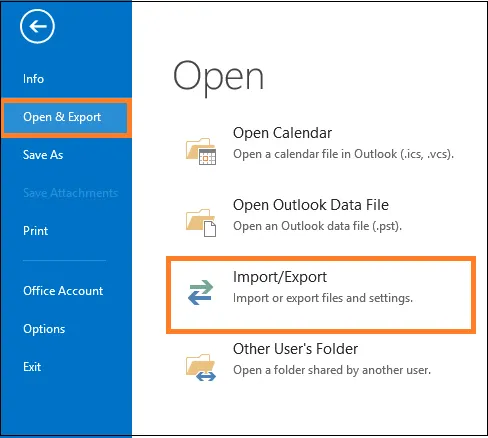
- Open the Microsoft Outlook program. Go to File >> Open & Export >> Import/Export.
- After selecting Export to a file, click Next.
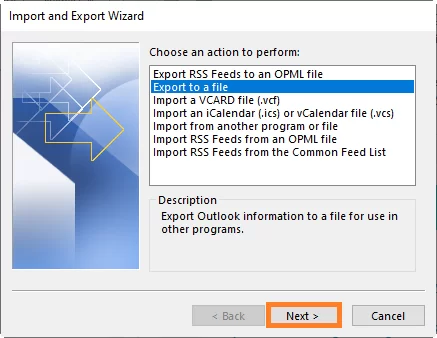
- Click Next after choosing Outlook Data File (.pst) as the option.
- To extract the calendar from the OST file, choose Calendar, then click Next after choosing Include subfolders.
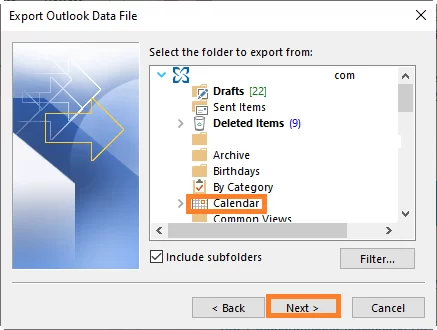
- To give the PST file the desired place, click Browse. Lastly, select Finish.
- You can now load or import the OST file calendar into any Outlook account after it has been extracted to a portable PST file at the designated location.
This procedure may only be carried out if the OST file is in good condition; otherwise, the extraction must be carried out after the OST file has been recreated. Additionally, the original Outlook profile and Exchange Server ought to be accessible. The procedure cannot be carried out using orphaned or offline OST files.
Approach 2. An advanced method for extracting a calendar from an orphaned or corrupted OST file
Microsoft does not provide a direct way to access the data in the event that the Exchange Server used to create the OST file crashes. Use an advanced OST to PST converter program to extract Outlook calendars from OST files in such circumstances.
First, utilize the following path or find the OST file on your local storage:
C:\Users\User\AppData\Local\Microsoft\Outlook
To quickly extract calendar data, use the expert-recommended GoldyTools OST to PST Converter utility after making a backup of the OST file to a secure location. To ensure the safe extraction and conversion of OST mailbox objects, such as emails, contacts, calendars, tasks, etc., this utility provides a number of capabilities. Additionally, it assists you in repairing corrupted OST files.
How the tool operates:
- Easy Steps to Use the Tool to Extract Calendar
- To convert or extract an Outlook calendar, open the program, select Browse, then add the OST file. Click “Next.”
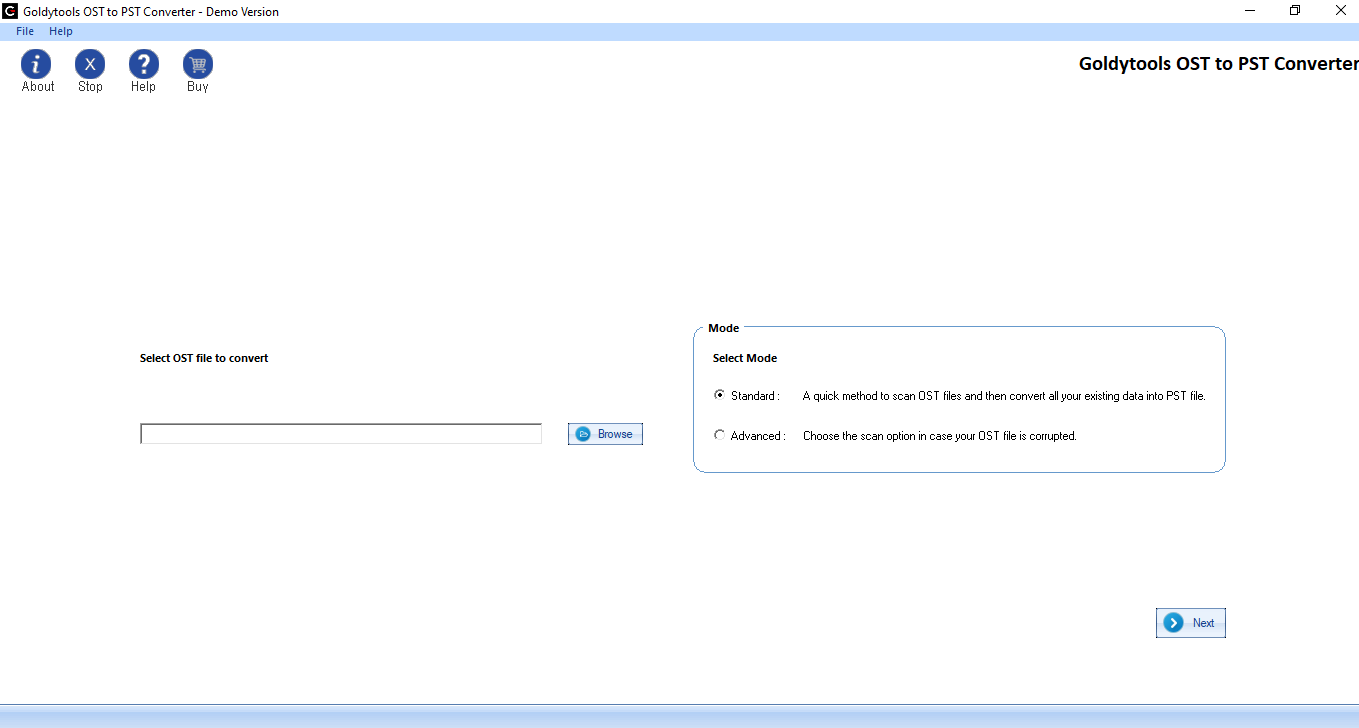
- From the mailbox folders that were retrieved, choose the Calendar folder. If necessary, preview any items before clicking Next.
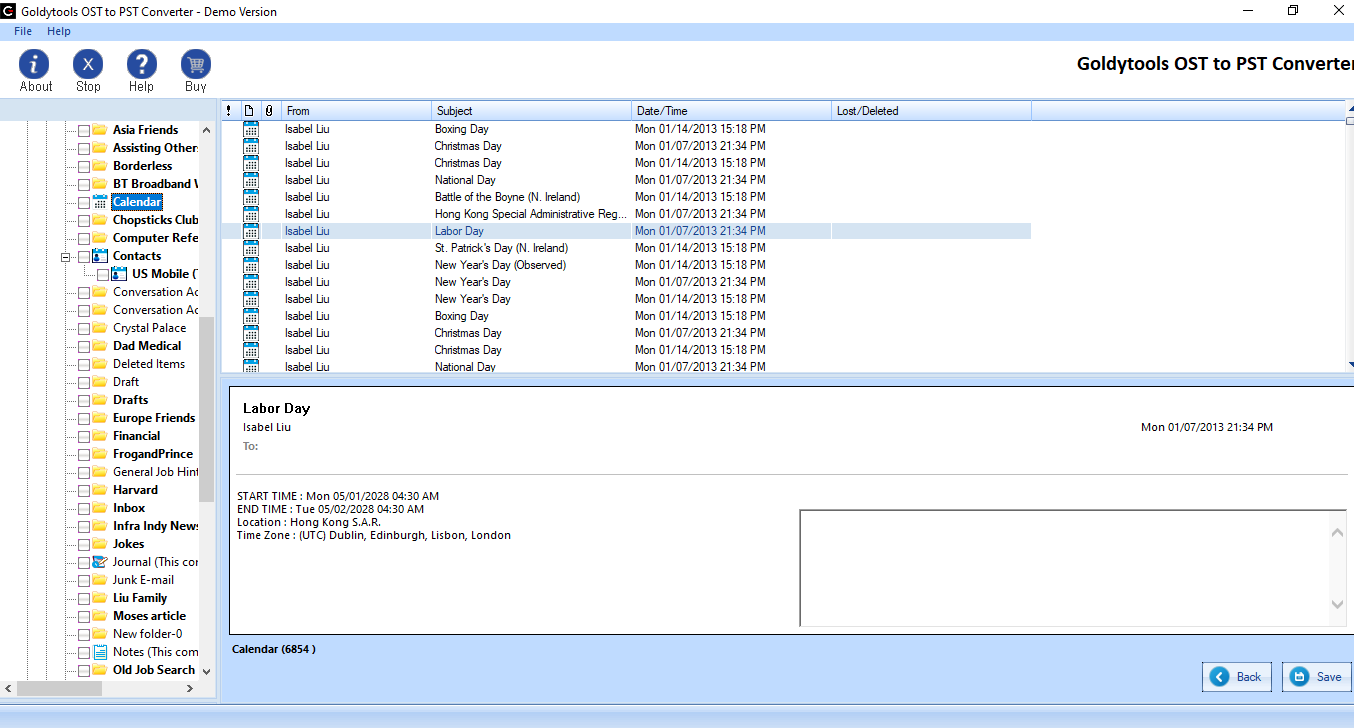
- Select PST from the list after clicking the Save option at the top. Next, click.
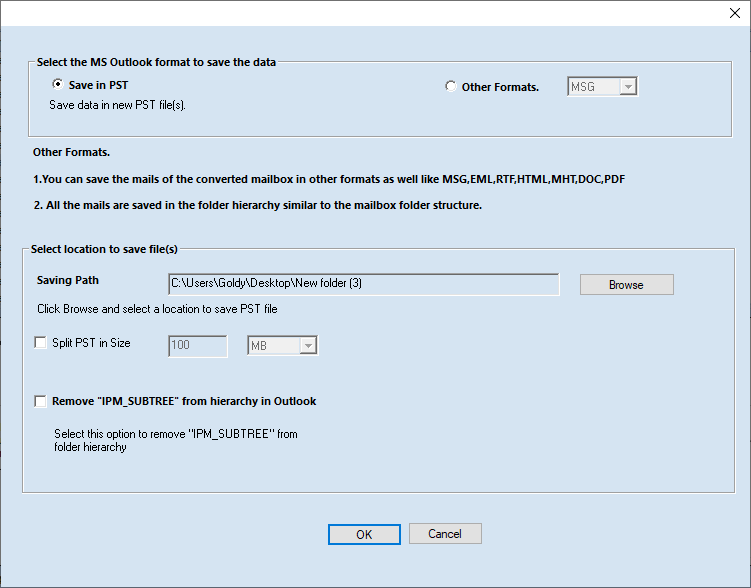
- Click Finish after providing a save path and applying saving preferences.
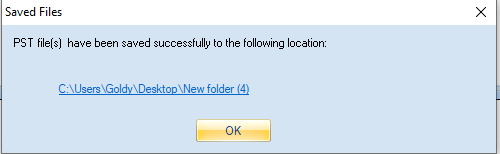
- The procedure of saving will begin and end soon.
This sophisticated and trustworthy program makes it simple to access and extract OST data, including calendar. To gain a better understanding of the tool’s sophisticated features, download the free trial version and perform OST file recovery.
Concluding Remarks
Every user should value calendars and the data they store since they hold vital information. Only if you can access your OST files with Outlook can you use the aforementioned Import/Export option to extract your Outlook calendar from OST to PST. In case of inaccessible OST files, use the recommended program to export all your OST data, including calendars. Additionally, this software allows you to extract contacts from OST files.
Frequently asked questions
Q – Is it possible to retrieve calendar information from an OST file that is orphaned?
ANS- . Yes, as long as the Outlook profile is intact and not erased, you can retrieve a calendar from an OST file even if it is orphaned. For this, use Outlook’s import/export feature.
Q- Is it feasible to see calendar information contained within an OST file?
ANS – Yes, It is possible to examine calendar data included in an OST file by exporting it to a PST file. Open the extracted file in Outlook to see the desired entries.
Q – Is it possible to extract a calendar from an OST file without Outlook?
ANS – Yes, Without Outlook, there is no direct manual way to extract calendar data. Using an advanced OST Converter application, which can open the OST file directly and convert only the calendar folder into accessible formats, is the simplest and most advised method in that situation.

