How Can I Set Up a Shared Mailbox in New Outlook? Simple Techniques
Summary: Duplicate email responses in Outlook and unclear communication can be annoying. For simple group emailing and collaboration, you must set up a shared mailbox in Outlook. See the article for our professional advice on how to swiftly add a Shared Mailbox in the new Outlook. Additionally, if you need a quick, simple, and safe way to backup Outlook data, think about using GoldyTools OST to PST Converter.
The shared mailbox has become the most popular option for teams and businesses due to its extensive collaboration and simple email management requirements. It enables the sending, receiving, and organising of emails from a generic email address by numerous users (with permissions). If you are new to Outlook or have recently updated your Outlook, you might have trouble adding a shared mailbox account.
Now you don’t have to worry! Effective step-by-step instructions for adding a shared mailbox in new Outlook are provided in this article. Read this to streamline the communication and email management processes for your team.
Why Is Adding a Shared Mailbox in Outlook Necessary?
When collaborating with others, particularly in a professional setting, shared mailboxes offer:
- Access and reply to emails from a single mailbox with centralised email communication.
- Workflows that are efficient and collaborative allow people to collaborate without requiring individual access to the primary account.
- Teams can use shared calendars to schedule meetings, manage work shifts, and more.
- By streamlining responses and eliminating email missing issues, consistency and efficiency can help reduce email overload.
Simple Ways to Set Up a Shared Mailbox in New Outlook [Mac and Windows]
For both Windows and Mac users, this is an easy way to add a shared mailbox in the latest version of Outlook.
A. How to Add a Shared Mailbox in Outlook for Windows Step-by-Step
If you use Windows, you can add a shared mailbox to your new Outlook by following the steps listed below:
- Launch Outlook, select Account Settings from the File menu, and then click Account Settings.
- Click Change after choosing your account. Click “More Settings.”
- Select the Advanced tab. Click Add, enter the shared mailbox’s name or email address, and press OK.
- Click Apply and OK to close the windows after they have been added.
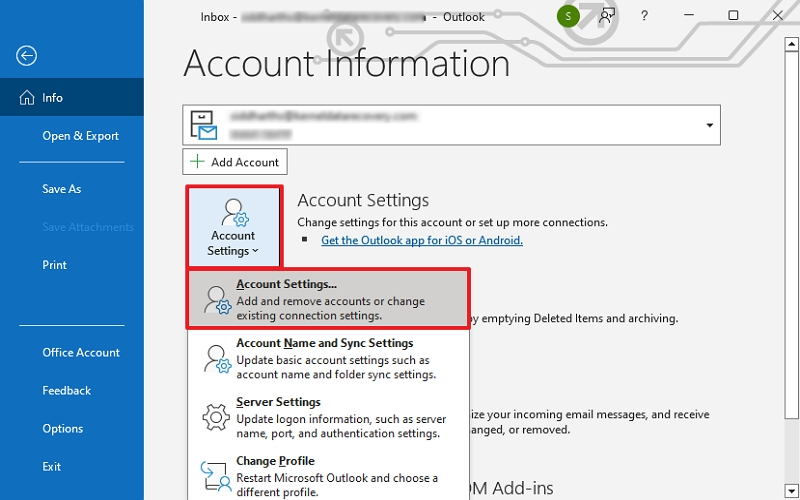
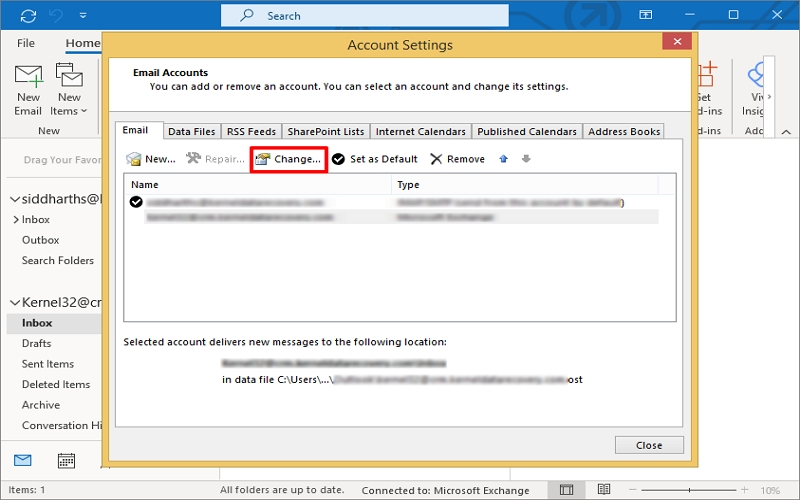
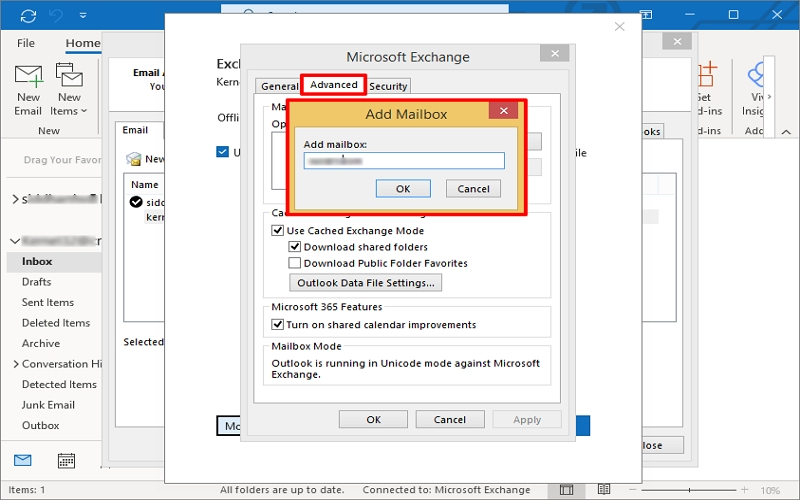
The shared mailbox will show up in your folder pane after you restart Outlook.
B. A Comprehensive Guide to Adding a Shared Mailbox in Mac Outlook
If you use Mac OS, you can add a shared mailbox in Outlook by following these steps:
- Click Accounts after opening Outlook for Mac and tapping on Tools.
- Click Advanced after selecting the account to which you wish to add the shared mailbox.
- Click the + button after selecting the Shared with me tab under Delegate and Sharing. Look for your shared mailbox and click Add if you find it.
Close it after adding it, then restart Outlook. Your account list will show the shared mailbox.
Typical Problems with Outlook’s Shared Mailbox Addition
When attempting to add a shared mailbox in new Outlook, you may occasionally run into a few common problems. However, you can use the following advice to troubleshoot them:
- Mailbox Not Appearing: After adding the shared mailbox, try restarting Outlook if it doesn’t appear. Additionally, you can view the newly added mailbox under Account Settings’ Advanced tab.
- Permissions Error: Verify that you have the required authorisation to access the shared mailbox, as granted by your administrator. Get in touch with your IT department right away if you don’t have access.
- Outlook is sluggish: Outlook can occasionally lag, causing your mailbox to load slowly. Make sure the cache folder is empty, and your connection is steady at this point.
Note: You will be able to view and read emails, send emails, and use Outlook’s calendar and contacts once the shared mailbox has been successfully added.
How Can I Handle Outlook Performance Problems with Massive OST Files?
All correspondence, including sent and received emails, is kept in the same Offline Storage Table (OST) file when using a shared mailbox in Outlook. Outlook performance problems, such as slow loading times or OST file corruption, may arise as the OST file gets larger. You might be unable to use both your shared mailbox and email account due to these problems.
To prevent significant data loss in these situations, it is best to perform OST file repair and make an OST file backup first. Next, look for any emails or other items that are missing. To extract and restore any missing emails and attachments to a PST file, use the GoldyTools OST to PST Converter tool.
Your OST data can even be saved in a variety of formats, including EML, MBOX, MSG, PDF, DOC, and more. Additionally, you can move your OST file directly to IMAP servers and various cloud platforms.
In conclusion
You now understand how to add a shared mailbox in new Outlook [Windows and Mac OS] in an efficient and methodical manner. To streamline communication and enhance teamwork, add your shared mailbox to Outlook right away.
However, an oversized OST file may cause data loss, and your OST file may become corrupted. Use the suggested OST converter tool to create a safe and accessible OST file backup to prevent such issues. With just a few clicks, you can also retrieve deleted OST emails with our tool. Get the free trial version now to get hands-on experience!

