Outlook Error 500 Troubleshooting: “Something Went Wrong” | Best Solutions
Summary: Error 500: “Something Went Wrong” in Outlook abruptly terminates daily email communications. It prevents users from accessing, reading, or responding to email messages properly. Follow this article to learn about the reasons and 100% effective solutions. Consider using the automatic GoldyTools for OST to PST Converter utility to back up the OST file to protect against data loss.
Every Outlook user has faced Error 500: ‘Something Went Wrong’ at least once. It prevents users from sending, receiving, or viewing emails and causes disruptions in email communication.
Furthermore, it causes delays in critical activities and deadlines, resulting in a stressful and anxious situation. As a result, it is critical to tackle this issue as quickly as possible to minimise additional delays and keep an efficient workflow.
If you have found yourself trapped with this problem, don’t worry! Follow the tutorial to learn how to troubleshoot and fix Outlook Error 500: ‘Something Went Wrong.’
Common Causes of Outlook Error 500 ‘Something Went Wrong.’
Outlook Error 500: ‘Something Went Wrong’ may arise for a variety of reasons. Some common causes include the following:
- Microsoft servers may be down temporarily due to maintenance or an outage.
- Outlook error 500 might be caused by a weak or unreliable internet connection.
- A damaged Outlook profile may also impede your ability to connect to the server.
- Outlook error code 500 may be caused by incorrect email or server settings in your Outlook account.
- Antivirus or firewall programmes can prevent Outlook from connecting successfully.
- A corrupted or destroyed OST/PST file in Outlook may also result in Error 500: ‘Something Went Wrong.’
How to Fix Outlook Error 500: Something Went Wrong | Step by Step
Follow these steps to properly resolve Outlook Error 500: ‘Something Went Wrong.’
Method 1. Check your internet connection.
A poor or unreliable internet connection prevents Outlook from connecting to the servers, resulting in a variety of problems such as error code 500. So, ensure that you are linked to a steady network. Perform a regular speed test to ensure that your connection is working properly. If your current network isn’t working properly, try connecting to another one.
Method 2. Check the Microsoft Server Status.
Microsoft’s email server occasionally goes down for maintenance. So you examine the Microsoft services’ health status. If an outage is reported, wait for Microsoft to resolve it. You can also ask about the server outage/Outlook Error 500: ‘Something Went Wrong’ on other forums to learn more.
Method 3: Update and Repair Outlook.
If your Outlook is out of current, you may encounter a variety of issues, including error number 500, but updating it can sometimes resolve all of them. Here are the actions to take:
- Open Outlook, then go to the File menu and select Office Account.
- Tap the Update button and select Update Now.
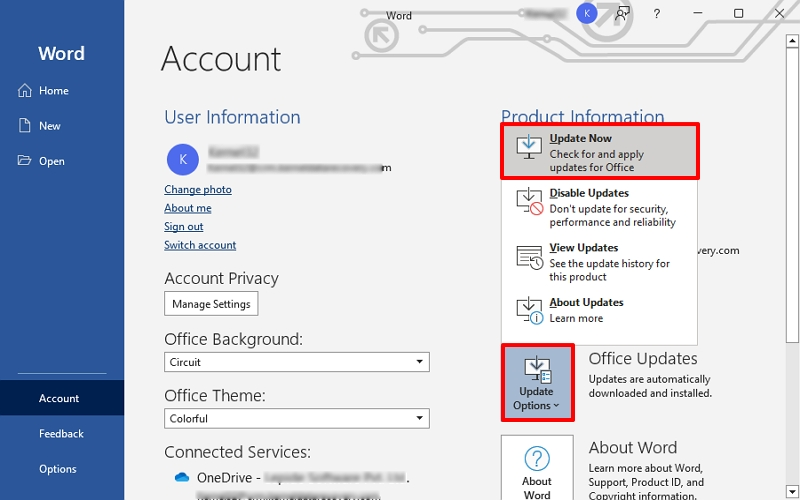
Restart Outlook and search for issues after the updates are finished. If the error still occurs, fix the Outlook installation.
The steps to fix Outlook are as follows:
- Navigate to Programs and Features after opening the Control Panel.
- Click Change after selecting Microsoft Office, then select Quick Repair.
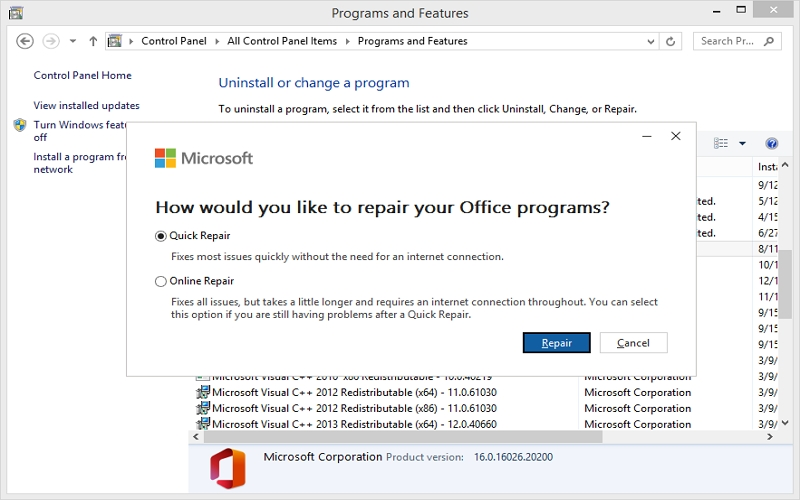
Restart Outlook once the repair has been completed.
Note: Try Online Repair if Quick Repair doesn’t functioning.
Method 4: Delete Outlook’s Cookies and Cache
Outlook data may also be retained. Many common issues, such as Outlook error 500, can be resolved by clearing these cache files. Use the procedures listed below to accomplish the same:
- Locate C:\Users\[YourName]\ AppData\Local\Microsoft\Outlook\RoamCache/. in File Explorer.
- Click the Delete button after selecting every file.
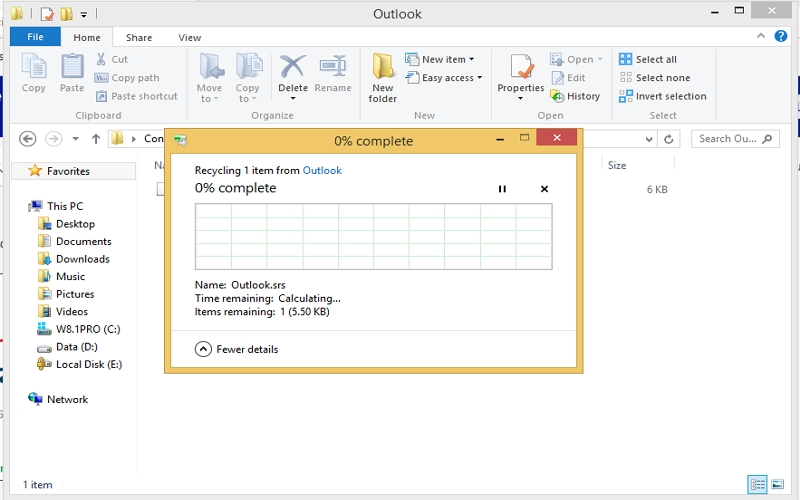
Method 5. Fix Outlook Profile
A corrupted Outlook profile causes a variety of errors, including Outlook Error 500: ‘Something Went Wrong,’ which can be resolved by repairing or recreating your profile. Follow the steps outlined below:
- Navigate to Mail in the Control Panel, then select Show Profiles.
- Select your Outlook profile and then click Repair.
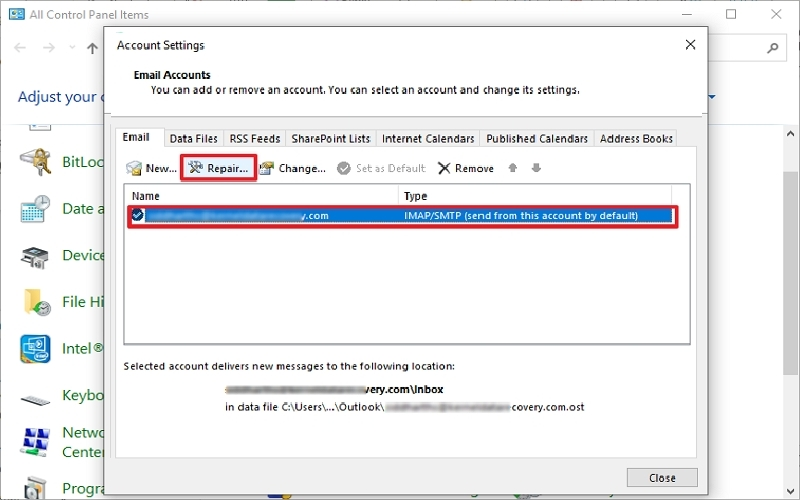
Once successfully corrected, open Outlook and check to see if the error persists.
Method 6: Temporarily disable the antivirus or firewall.
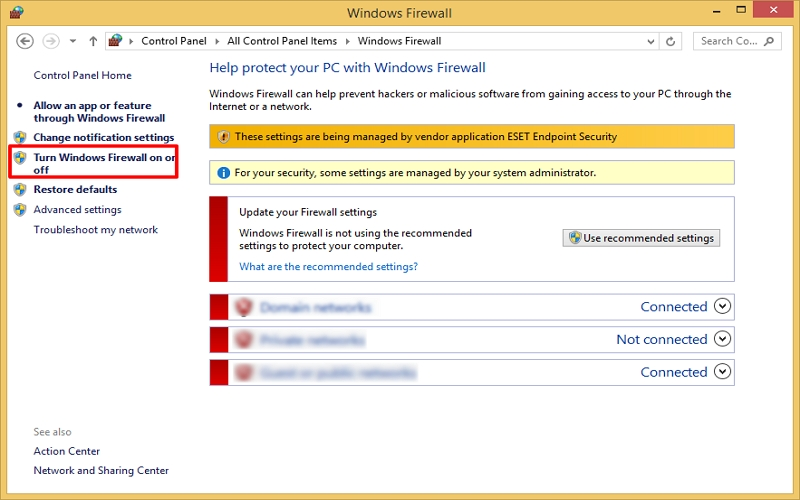
An antivirus or firewall is often the root reason of Outlook’s inability to connect to its servers. To fix error code 500, temporarily disable them and follow the procedures below:
- Access Control Panel and select Windows Firewall.
- To disable, go to Turn Windows Firewall on or off and follow the on-screen steps.
Method 7. Disable Outlook Add-ins
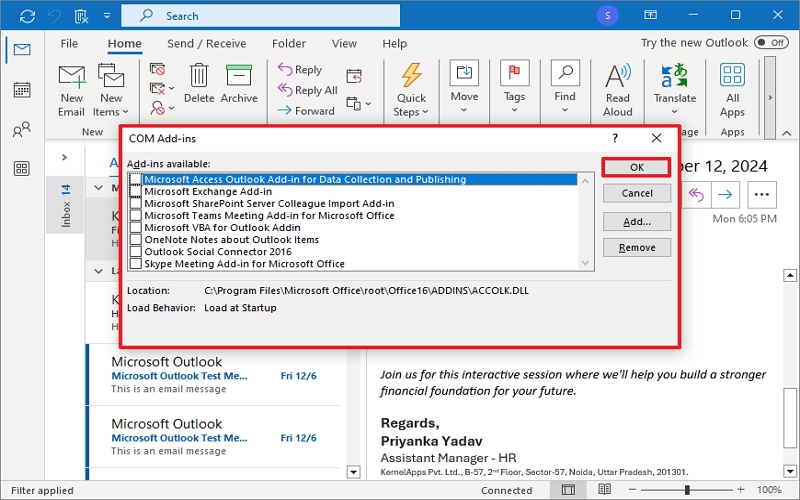
Outlook Add-ins allow to conduct email tasks fast, although some of them often get outdated/corrupted. Thus, deactivating them can also fix your Outlook error 500. Here are the steps to follow:
- Open Outlook and go to File > Options.
- Select Add-ins, press on Go and disable all add-ins.
Method 8: Fix OST/PST Files That Are Corrupted
The OST file (Offline Storage Table) may occasionally become corrupted if you’re using cached Exchange Mode. Error code 500 can be fixed by deleting or re-creating it:
- Close Outlook, then rename the AppData folder in File Explorer.
- If you restart Outlook, the server will immediately download all the data into a new OST file.
When the synchronisation process is complete, check to see if all the existing data is present or if anything was missed. If it misses, run OST file repair and import the missing data again in Outlook. It is also advised that you make a backup of your OST file to prevent future data loss problems.
Easy OST file backup | Expert Solution
If you want to fix Outlook Error 500, you must backup your OST files. If your Outlook account is still available, use the Import/Export option. However, utilise the GoldyTools < href="https://www.goldytools.com/ost-to-pst-converter.html">OST to PST Converter application if your Outlook does not allow you to use this feature or if you wish to backup large or enormous OST files.
It allows you to add several OST files at once (healthy/corrupted/damaged/orphaned) and save them in PST format, so that you may export them in Outlook again
Additional Tips to Avoid Outlook Error 500: ‘Something Went Wrong’
To reduce the likelihood of running into Error code 500: “Something Went Wrong” again once you’ve successfully fixed the problem and backed up OST files:
- Regularly, security, security, and performance.
- Regularly check the settings of your Outlook account.
- To prevent data loss while troubleshooting, make a backup of your Outlook data
- To fix transient server-side problems, log out and then back in.
- When troubleshooting Outlook issues, restart the operating system first.
Note: If you’re using Outlook for Web (OWA), this error is usually caused by a server outage, a browser issue, a network issue, or something else. To repair Error 500, ‘Something Went Wrong’ in Outlook for web:
- Update your browser.
- Check the Microsoft service status.
- Delete your browser’s cache and cookies.
- Try using a different browser or incognito mode.
- Disable browser extensions and add-ons.
- Sign out of your account, then log back in.
- Make sure your account has the necessary rights.
- Use a different network (such as switching from Wi-Fi to mobile data).
Conclusion
Finally, nobody wants to experience Outlook Error 500: “Something Went Wrong.” Now that you know everything there is to know about this error, including its causes and practical fixes, utilise the remedies provided to fix the issue. Don’t forget to make a backup of your OST data beforehand.
You can use the native approach; however the recommended OST converter is more dependable and an easier way to back up the OST file. It is easy to use for OST file data backup and repair on any Windows operating system. Get started now with the trial version of the trial version. Get it for free!

