It can be difficult to manage a lot of Outlook data. One of the best ways to minimize mailbox space, improve Outlook performance, and preserve your emails organized for long-term access is to archive Outlook PST emails. Users can increase Outlook’s performance and safeguard important business communications from corruption or unintentional loss by transferring older messages to an archive file.
The advantages of archiving Outlook emails and detailed instructions for archiving PST files are covered in this guide.
Archive Outlook PST Emails & Recover Damaged Archive.PST Files
Many businesses anticipate long-term email management as a means of preparing for upcoming business issues. The most crucial communication tool and information resource is email. Users can profit from email archiving in several ways, including legal, financial, and technical advantages. Here, we’re talking about archiving Outlook PST emails and what happens to them when they’re archived. If Archive.pst file is severely damaged, how can the archive be restored file as well.
Email archiving helps users manage PST files more effectively by reducing the size of PST files, facilitating efficient record monitoring, providing a clearer visual depiction of Outlook profiles, and more. Although Outlook automatically archives older PST files, users can manually backup and archive PST file components to the place of their choice.
How Can I Archive Emails in Outlook 2007?
When it comes to the option of archiving Outlook PST emails, the user can easily apply the archive email function by hand. The profile’s auto archive files option runs on a regular basis; to learn how to manually archive emails, follow the instructions below:
- Open Outlook 2007 and select Archive from the File menu.
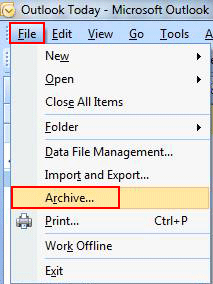
- Choose “Archive this folder and all sub-folders” or “Archive all folders according to their AutoArchive Settings.”
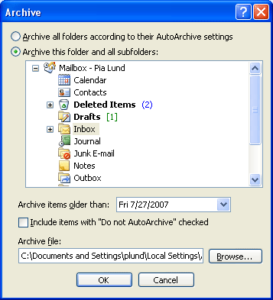
After choosing the folder to be archived, users can provide further settings like:
- Items older than the specified date should be archived.
- Turn on the checkbox to add items that have “Do not AutoArchive.” This aids in overriding the option that was previously set to prevent the archiving of a certain folder.
- File archive: Once the location’s path has been verified, click OK after browsing the location to save the archive file.
Auto Archive Settings which are Used for Archiving Outlook PST Emails
Many MS Outlook users are concerned about PST file size because over 80% of corruption in the internal structure of PST files is said to occur because of larger PST files. The PST file size was restricted to 2GB in the previous version of Outlook (below Outlook 2003), but it is now configurable in the more recent version. Nevertheless, it is always recommended to keep the PST file modest and include little data.
The ideal practice is to archive PST emails to preserve the size of the PST file without losing any data. The AutoArchive setting is valid for 14 days after Microsoft Outlook is first started; after that, users can manually adjust all the settings to archive the data at regular intervals.
- Open Outlook and select Tools and Options.
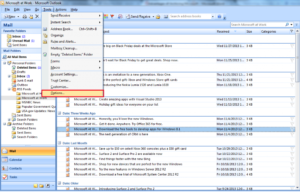
- Choose the “Other” tab in the window that appears.
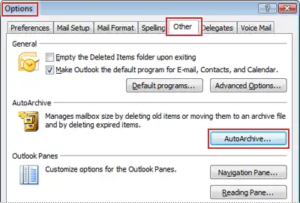
- To modify the PST archive settings, choose AutoArchive.
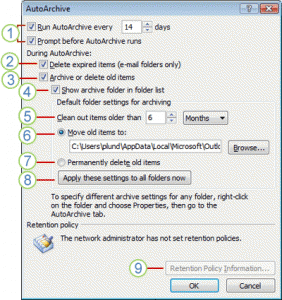
- The interval at which the archive function is executed is up to the users.
- Users can remove expired items from email folders.
- Delete or archive emails
- Display the Archive folder in the list of folders.
- Get rid of outdated stuff
- Move outdated stuff
- Delete data permanently
- Now apply these adjustments to every folder.
- View the administrator’s retention policies
If Outlook corruption is reported, how may Archive.pst be recovered?
To make emails accessible in a different PST file that is less vulnerable to damage and data loss, customize the parameters and archive the emails from the PST files. Although archiving emails reduces the size of PST files and allows users to read older emails whenever they’d like, these archive folders are neither entirely safe nor free of corruption. It is also possible for these archive folders to become corrupted and unreadable. What should you do in that situation? Let’s have a look!
If users have corrupted Outlook Archive folders, the automatic software can assist them. The GoldyTools Outlook PST Repair can be used to recover an Archive.pst file stored anywhere on the Windows operating system. The tool has exceptional features such as:
- PST file restoration in the most severe corruption scenario
- It is possible to recover both the default PST file and the archive.pst file.
- It is possible to convert recovered PST files into Outlook PST, EML, or MSG files.
- If the PST file is recovered, it is extremely large.
- naming standard if PST to MSG and EML is started.
Concluding Remarks
Outlook archiving correctly, You can keep your mailbox faster, cleaner, and safer with PST emails. Frequent archiving ensures that previous communications are always available when needed and reduces the likelihood of recurrent PST file corruption. However, utilize a professional tool like the GoldyTools PST Repair Tool if your archive.pst file gets seriously damaged or becomes unreadable. Stay organized, handle your PST files wisely, archive frequently, and effectively protect your Outlook data.