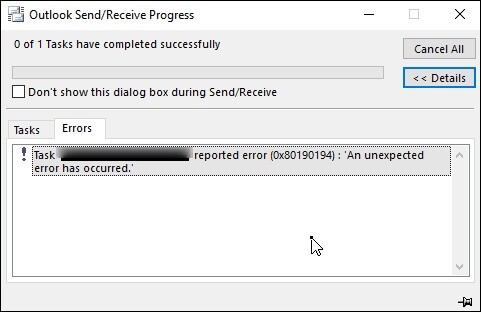
In summary, users may encounter the error “This message can’t be sent right now” when using Outlook. Please give it another go later. If you have experienced this error, you are aware of how it can make even basic email sending and receiving more difficult. This article walks you through the causes of the error and how to fix it. To restore email access, it also comes with a GoldyTools OST to PST converter tool.
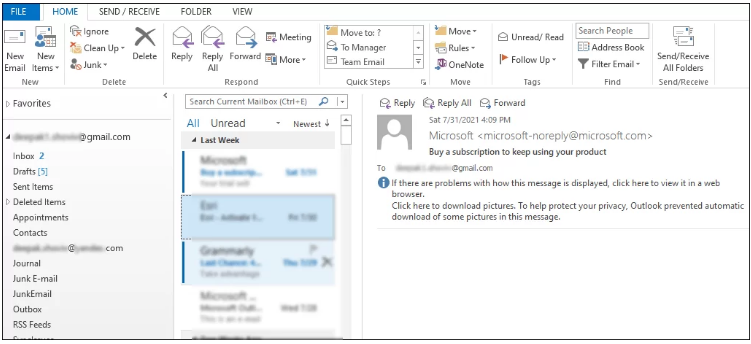
“This message cannot be sent at this time,” is the error message that I am seeing. On some emails, “Please try again later.” Sometimes the message shows sent status with a copy in the Drafts, and other times it is eventually sent. I’ll have to move to a different email service provider if I can’t find a long-term solution!
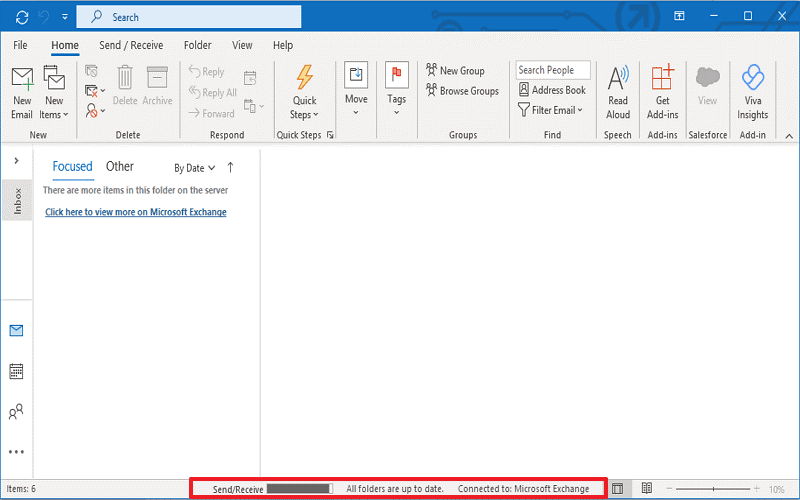
One of the numerous user enquiries we’ve received seeking a fix for this Outlook error is this one. The error indicates that the Outlook user is currently unable to send emails. Outlook errors can be very annoying, particularly if you don’t know how to fix them. As stated in the article, you must first understand the causes of this error in order to figure out how to troubleshoot it.
What causes the error “This message can’t be sent right now”?
The error message that stops Outlook from sending outgoing emails could have the following causes:
- Outlook errors can be caused by unreliable and inadequate internet connectivity.
- Damage or corruption in the Outlook data file.
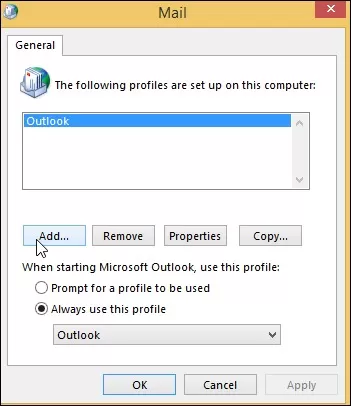
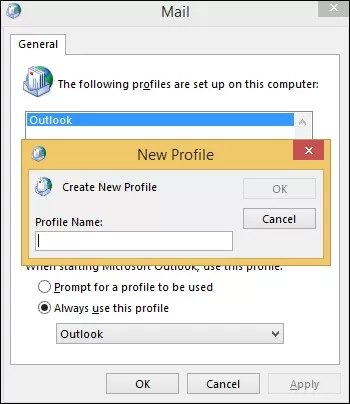
- A corrupted Outlook profile has been selected.
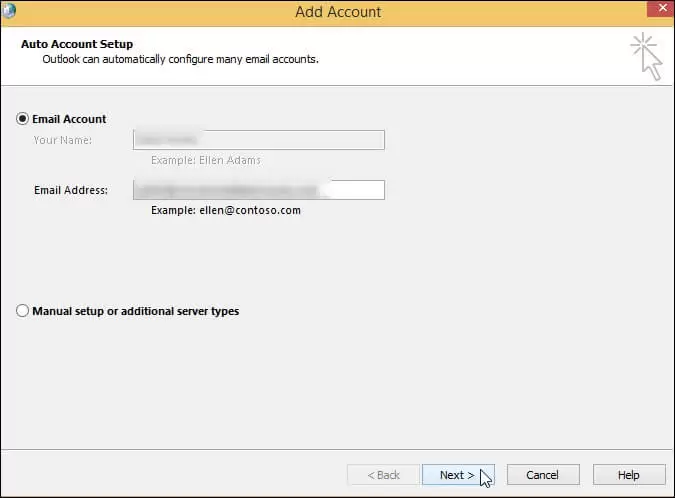
- The Outlook account settings are incorrect.
- Outlook add-ins that are currently in use are incompatible.
A few short fixes for the error “This message can’t be sent right now”
Here are some quick fixes you should try out before we attempt the real solutions to correct the error:
- Examine your internet connection: Examining your internet connectivity will be the primary solution to the Outlook error “This message can’t be sent right now.” Verify the stability and optimal performance of your network.
- Restart Outlook and PC: To restart Outlook after a few seconds, try closing Outlook and then shutting down your computer. To check if the issue has been fixed, restart the Outlook program.
- Clear outbox: To get rid of unsent emails that are stuck in the queue, try clearing the Outbox folder.
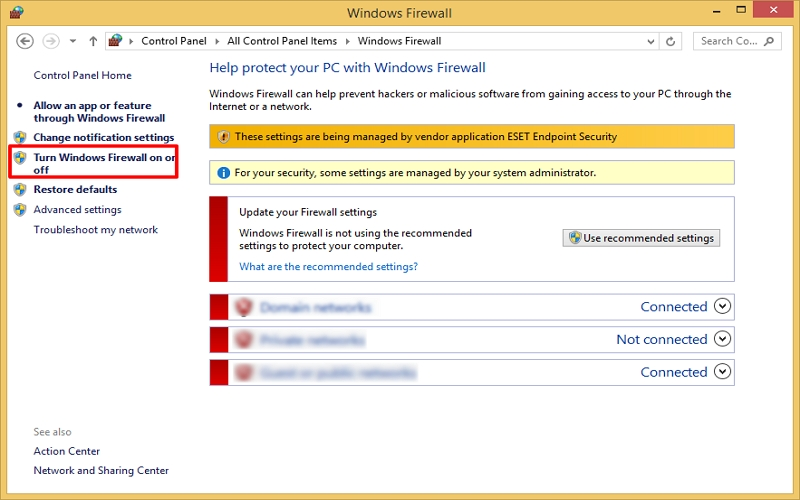
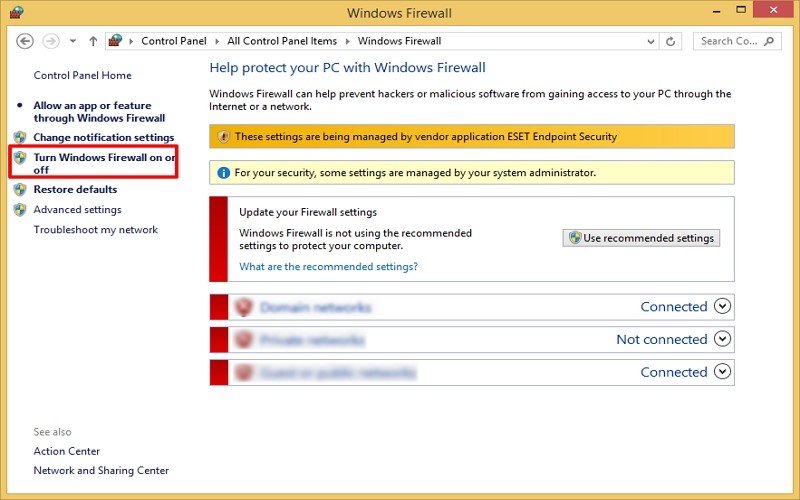
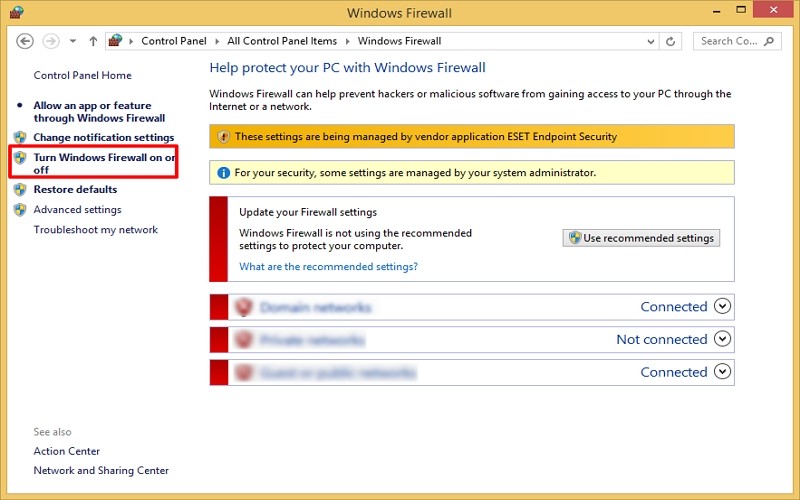
- Disable firewalls and spam filters: Occasionally, the error “This message can’t be sent right now” can be fixed by turning off the spam filters in antivirus software. Another option is to turn off the firewalls and see if the problem has been fixed.
How can the Outlook error “This message can’t be sent right now” be fixed?
Let’s examine how to resolve the issue and resume email correspondence:
Solution 1: Uninstall and reinstall Outlook
There’s a good chance that the Outlook installation was done incorrectly, resulting in errors that interfere with the regular flow of emails. Use the following instructions to fix the Microsoft Office program:
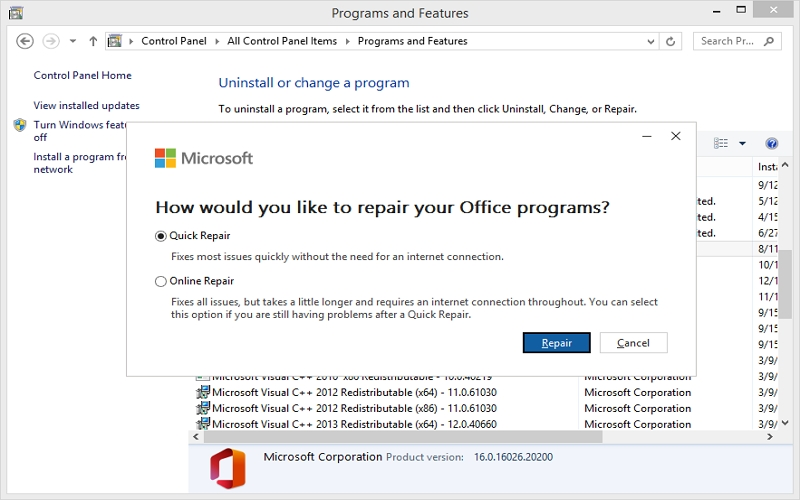
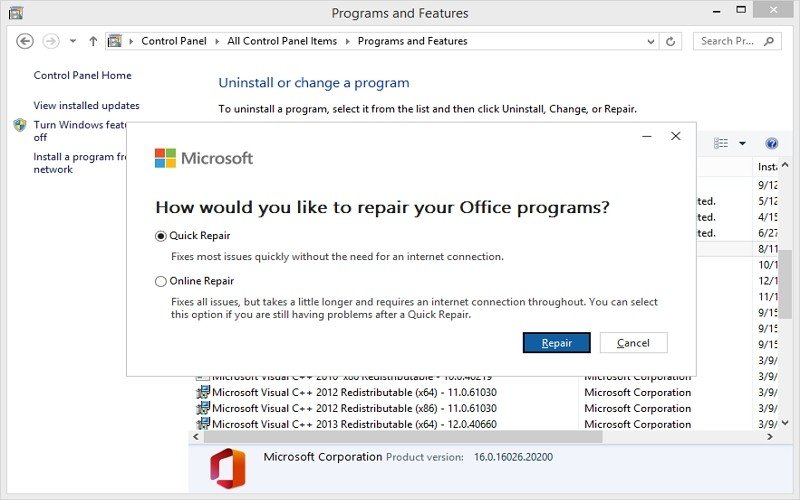
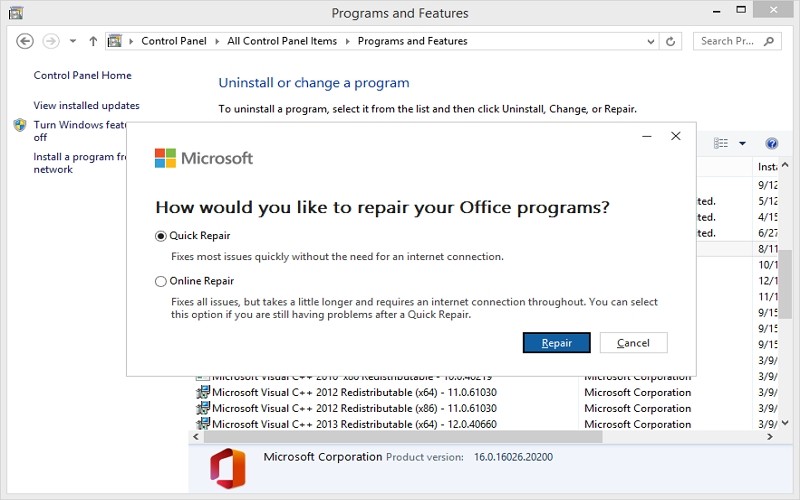
Step 1: Go to Programs > Programs and Features after opening the Control Panel on your computer.
Step 2: Select Change with a right-click after scrolling down to Microsoft Office.
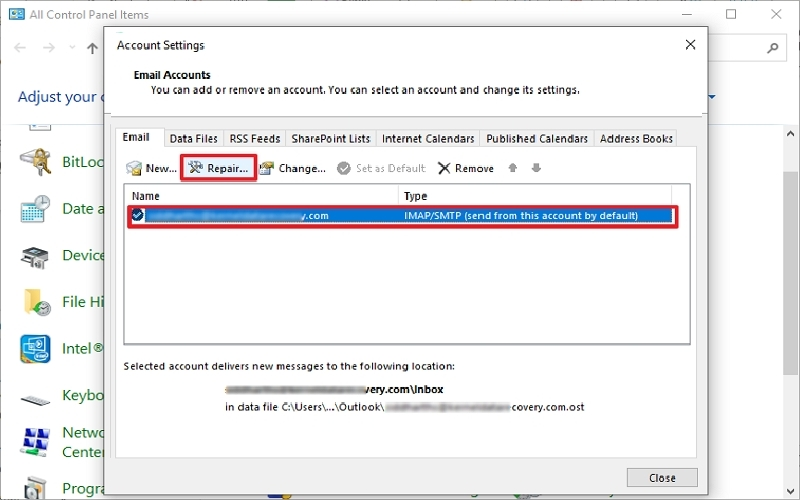
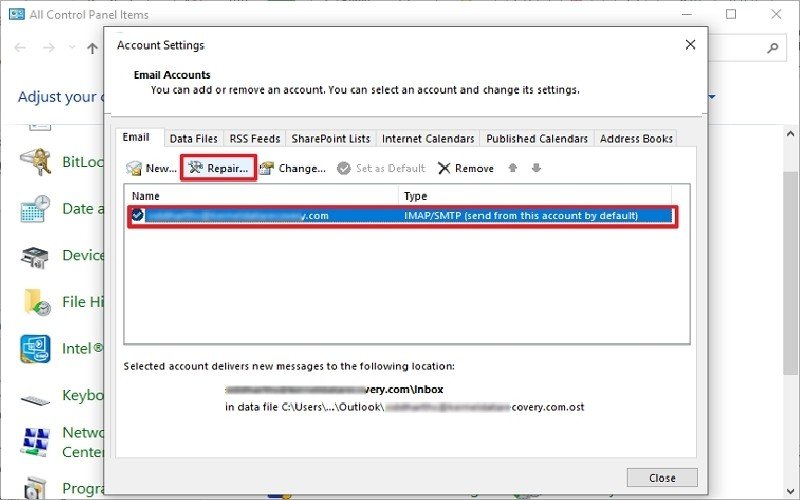
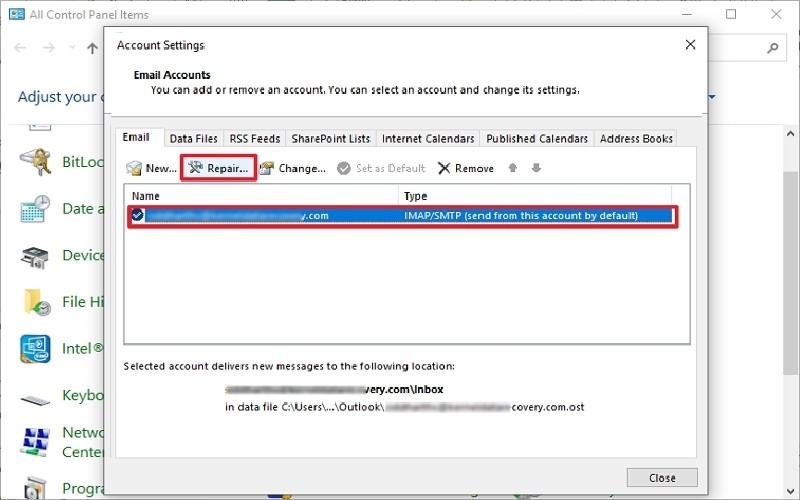
Step 3: To fix Microsoft Office, select Repair and adhere to the on-screen directions.
After right-clicking in Step 2, choose Uninstall if the problem persists. To check if the error has been fixed, install the program once more.
Solution 2: Turn off malfunctioning add-ins
Sending and receiving emails is often made difficult by Outlook’s enabled add-ins. The following procedures can be used to disable these malfunctioning add-ins and regain access to the email data:
Step 1: To open the Run dialogue box, simultaneously press the Windows and R keys.
Step 2: To launch Outlook in safe mode, type Outlook/safe and hit Enter.
Note: If you can now send emails in safe mode, the error was caused by a malfunctioning add-in. To ensure that your Outlook is operating properly, you must now remove this add-in.
Step 3: Select Options after selecting the File tab.
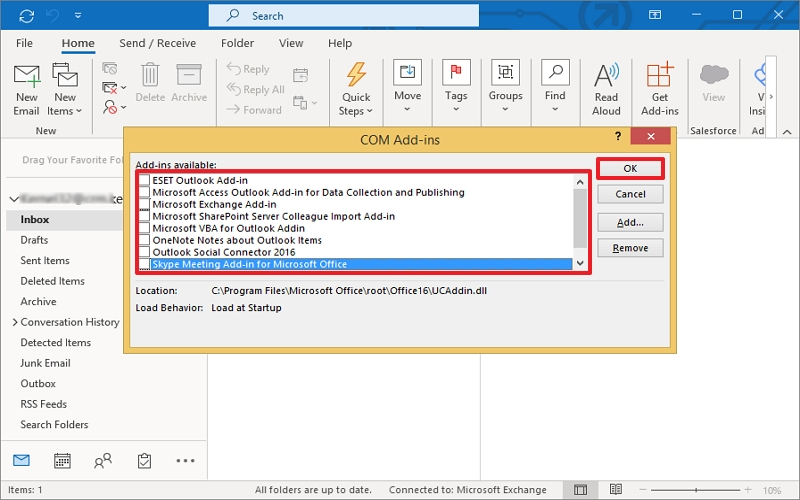
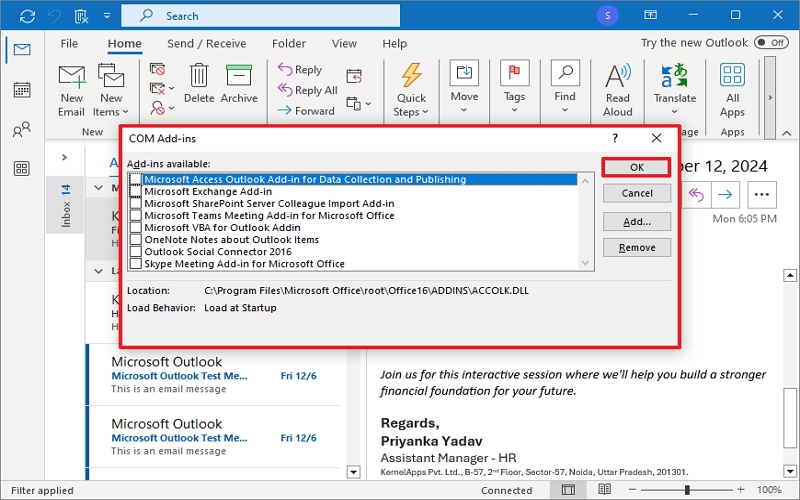
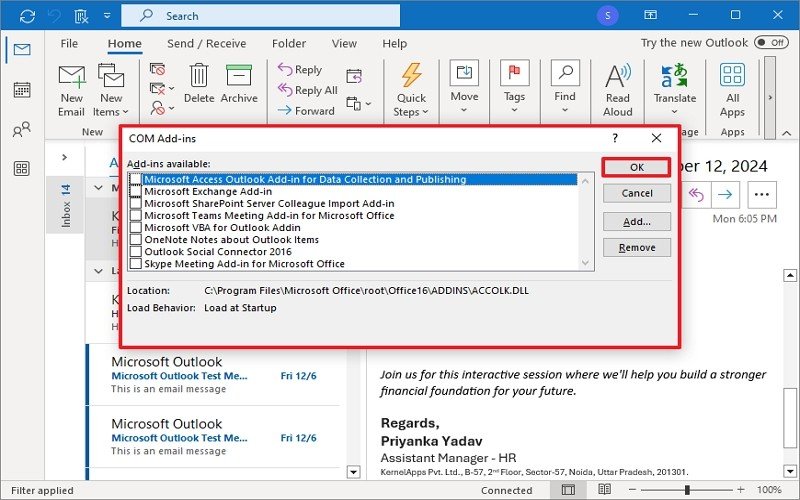
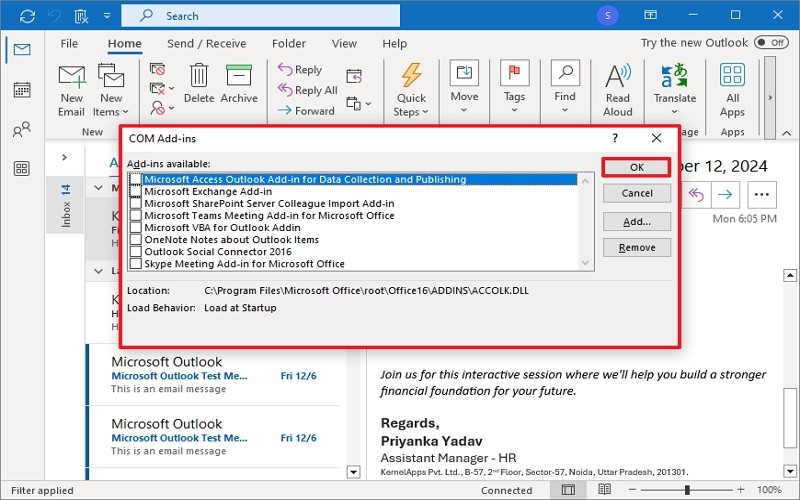
Step 4: Click the Add-ins tab and choose COM Add-ins from the Manage dropdown menu.
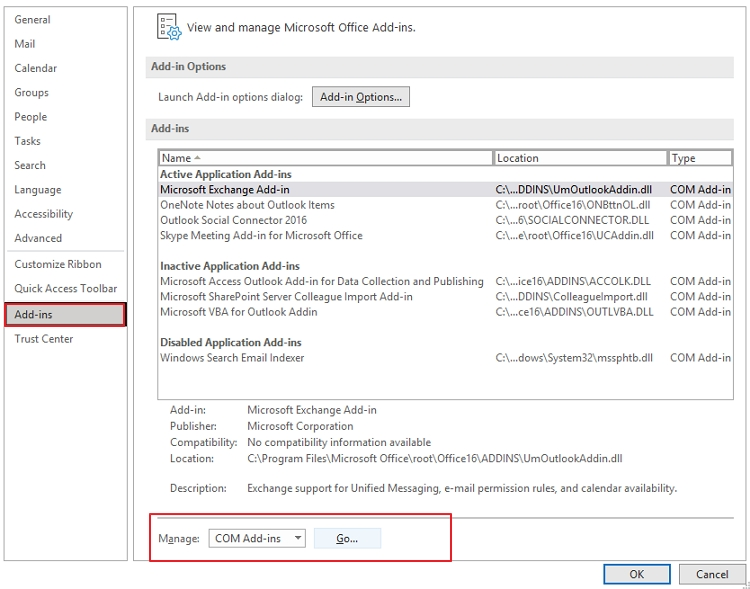
Step 5: To disable the listed add-ins, uncheck each one and click OK.
After that, you can open Outlook normally and enable each add-in individually to find the problematic one. After you’ve found it, permanently disable the add-in.
Solution 3: Examine the configuration settings of Outlook
The Outlook error “This message can’t be sent right now” may appear if the DNS settings and port number for your Outlook account are not set correctly. Here’s how to check and modify the settings:
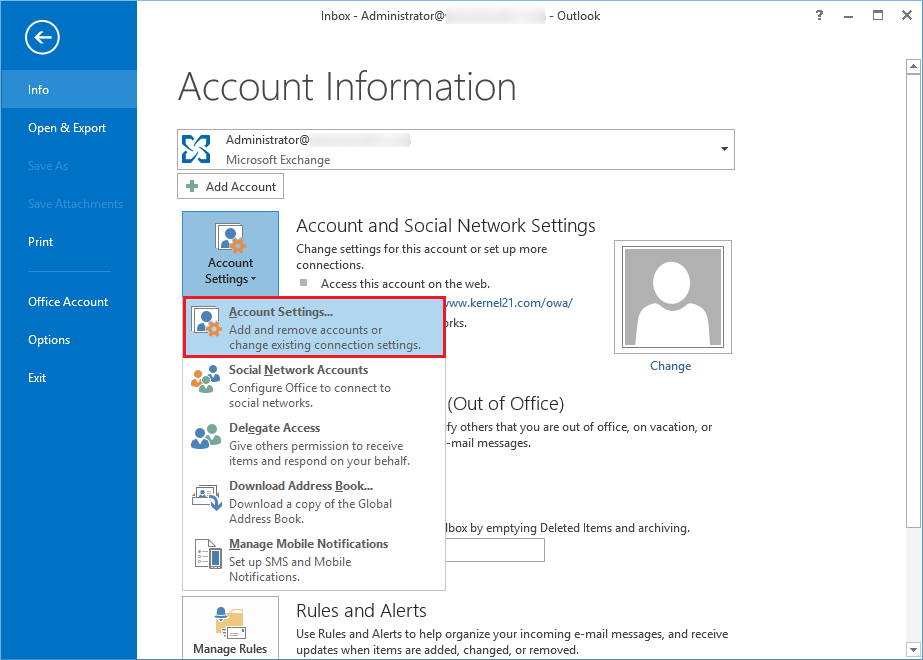
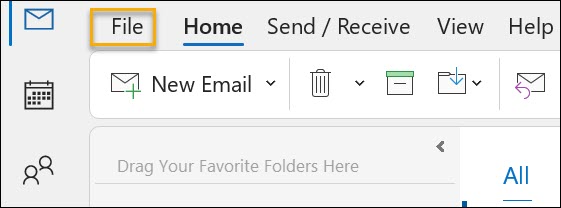
Step 1: Open Outlook and select the File tab.
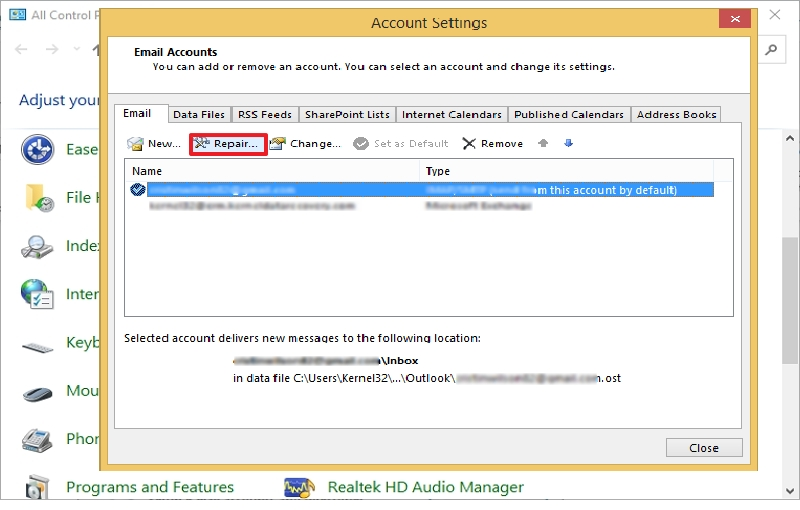
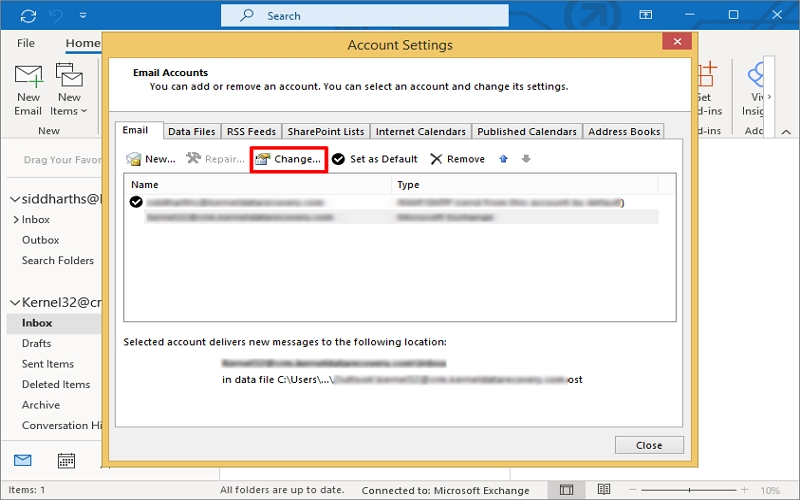
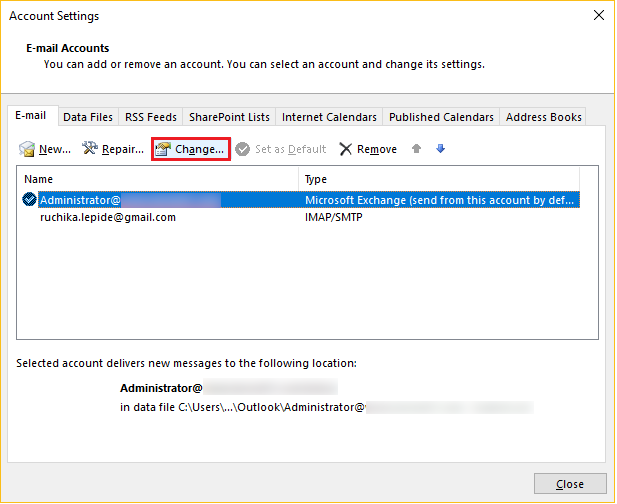
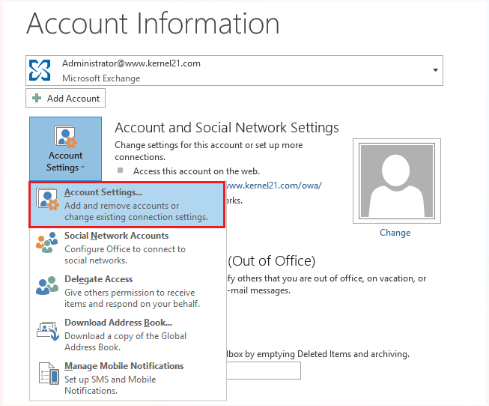
Step 2: Select your email account by clicking Account Settings > Account Settings.
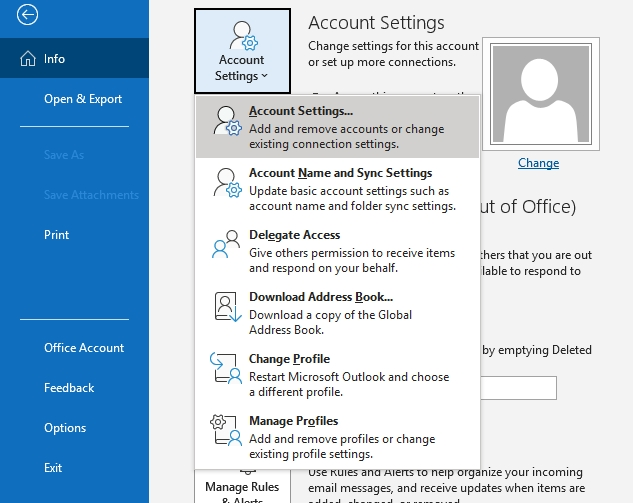
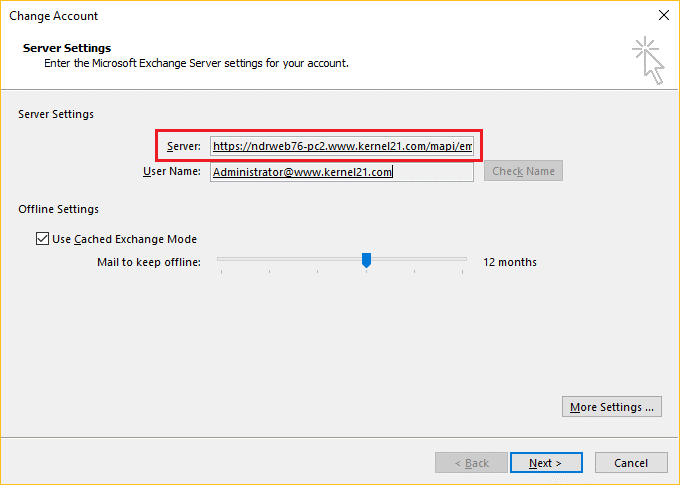
Step 3: Select More Settings and then Advanced in the Server Settings wizard.
Step 4: Verify that the server settings are applied correctly.
Solution 4: Minimise the size of the PST file
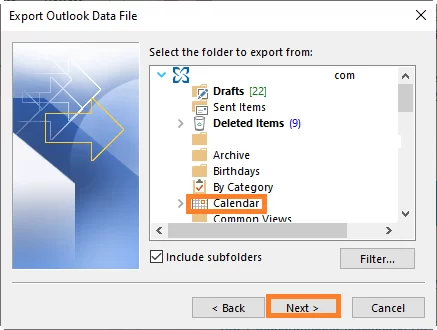
You are unable to send emails when the Outlook PST exceeds its size limit, which ultimately results in the error mentioned. In this case, you can manage the size of the PST file by creating a PST archive with mailbox data. The steps are as follows:
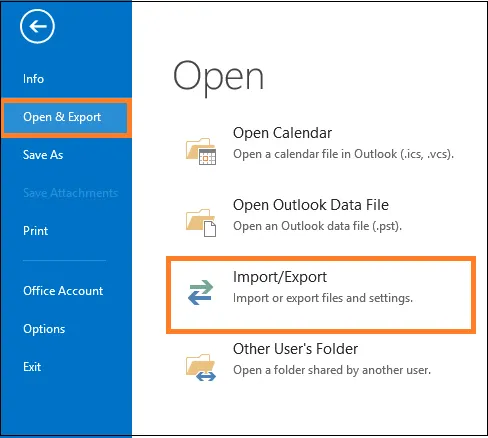
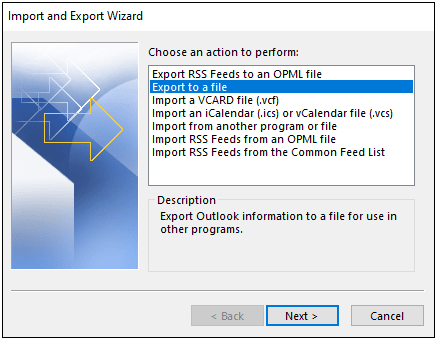
Step 1: Select File and then Info in Outlook.
Step 2: Select Clean up old items after selecting Tools.
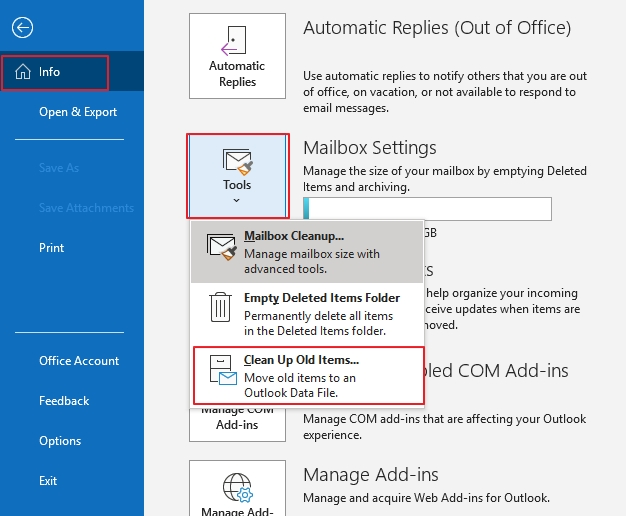
Step 3: Choose the data items and tap the Archive this folder and all subfolders option.
Step 4: Enter an appropriate date when archiving older items.
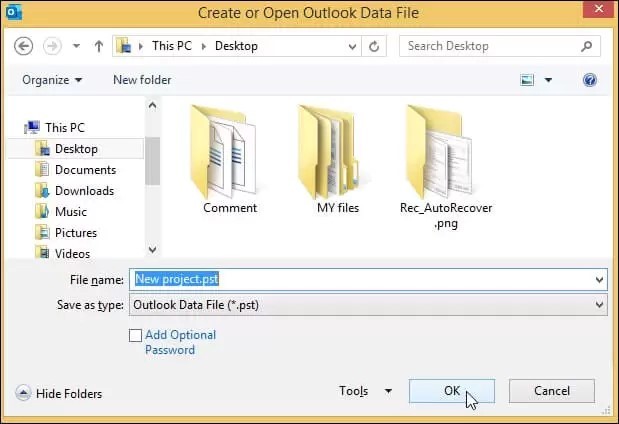
Step 5: To enter a saving path, click Browse. Click “Ok.”
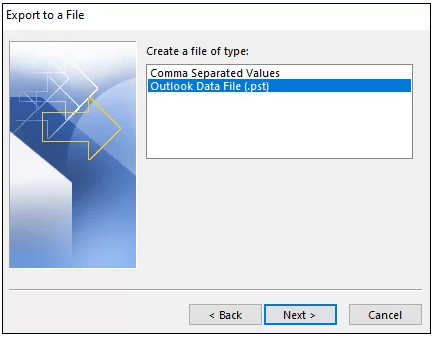
The archived data from your mailbox will be turned into a PST file.
The error persists: How should the problem be resolved?
Occasionally, you can see the error when the Outlook data file is damaged or corrupted, which disrupts the efficient workflow. There are two ways to resolve this problem: either rebuild the OST file using an IMAP or Exchange server account or repair the PST using a POP3 account. Let’s examine the procedures.
How can a PST file be fixed?
The corrupted or damaged Outlook PST can be fixed with the ScanPST tool. It will assist you in recovering inaccessible email items that Outlook errors have made inaccessible. To fix the PST file, just find the ScanPST utility on your local computer and launch it.
There are some restrictions on doing this, though. Only files up to 2 GB in size and with minor corruption can be repaired. You won’t be able to fix severely corrupted PST files with it.
How can Outlook PST files be replicated?
To recreate an OST file, follow these steps:
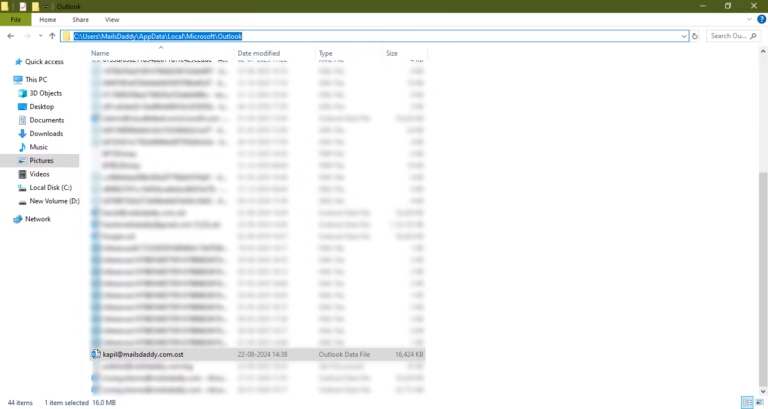
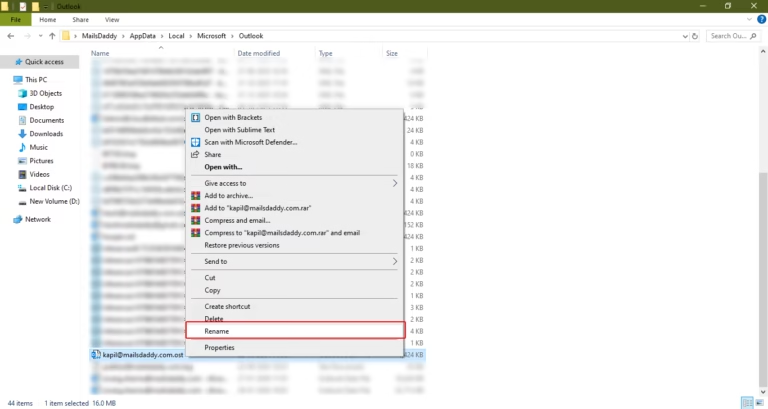
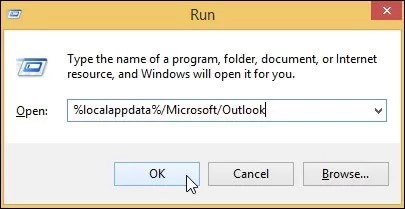
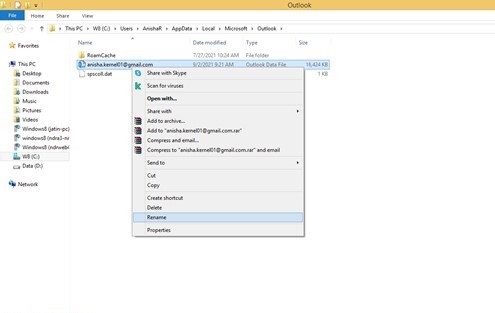
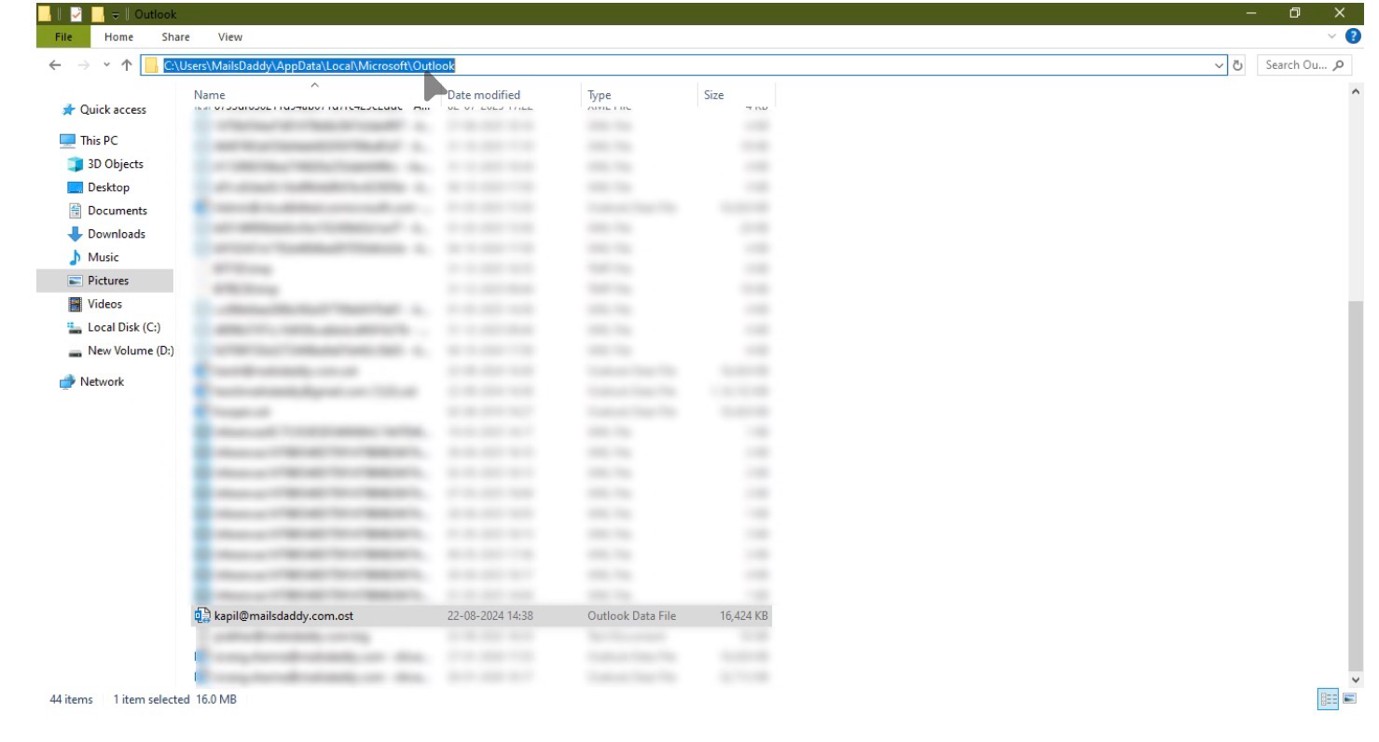
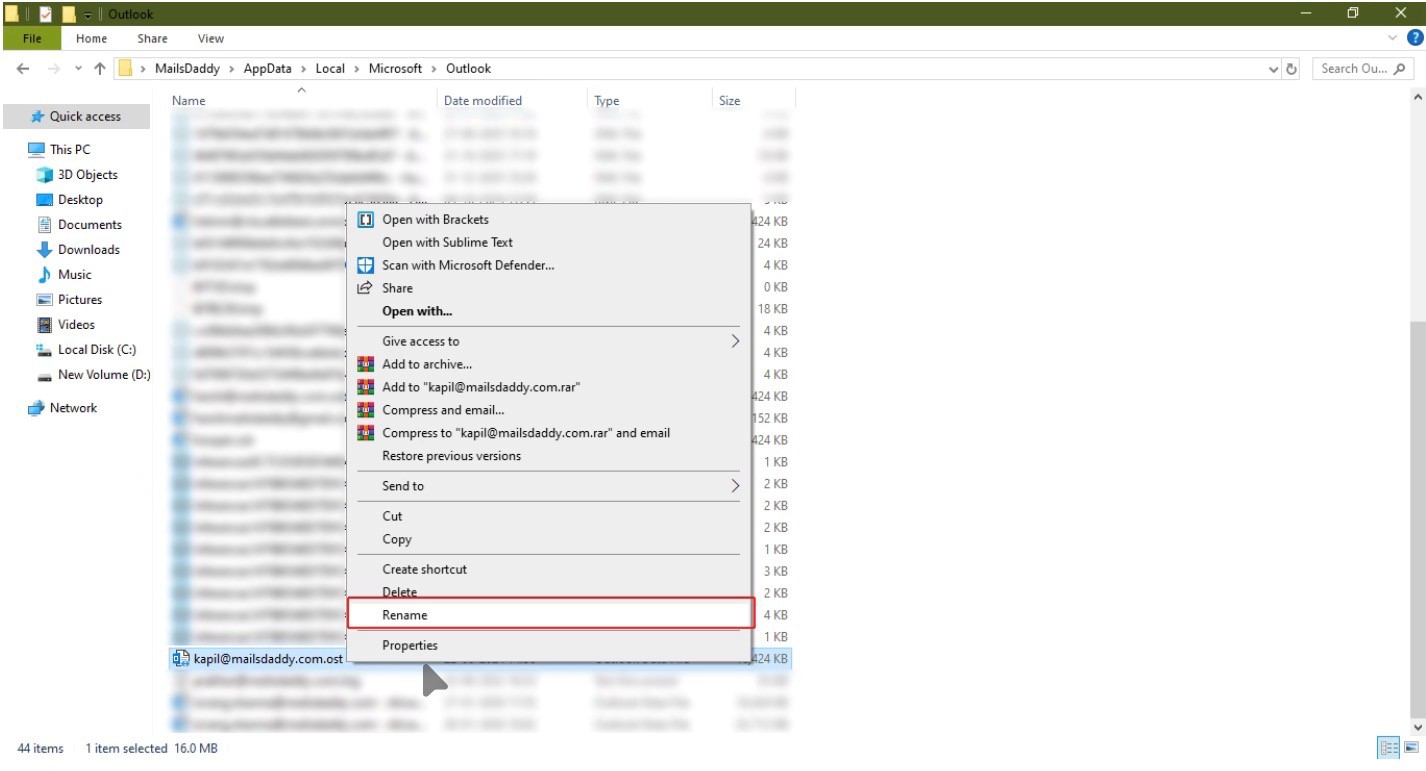
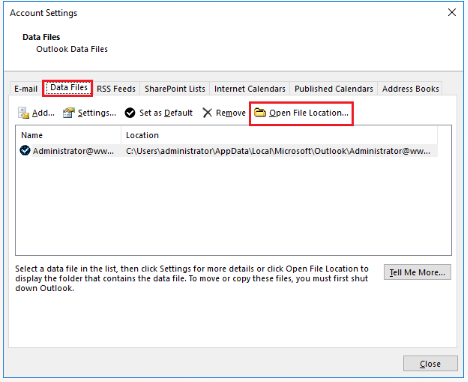
Step 1: Locate the OST file on your computer.
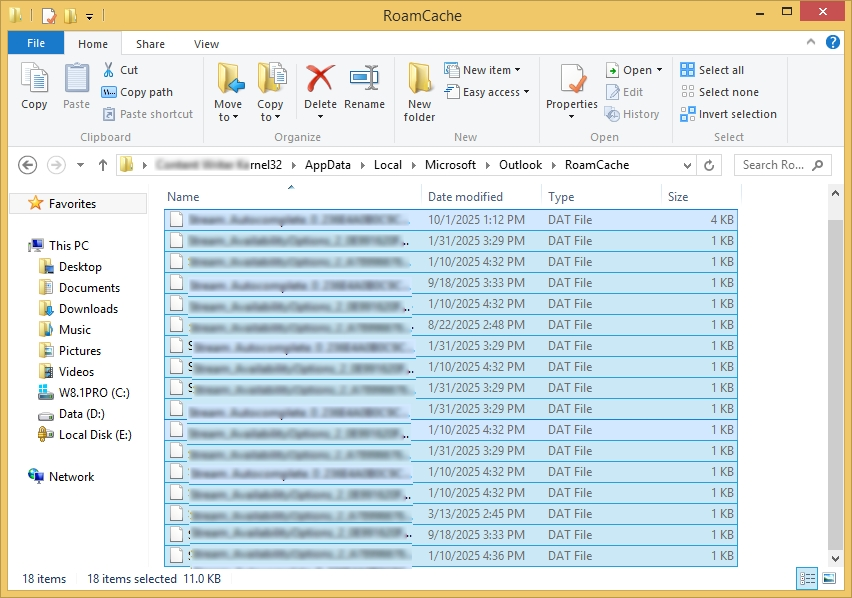
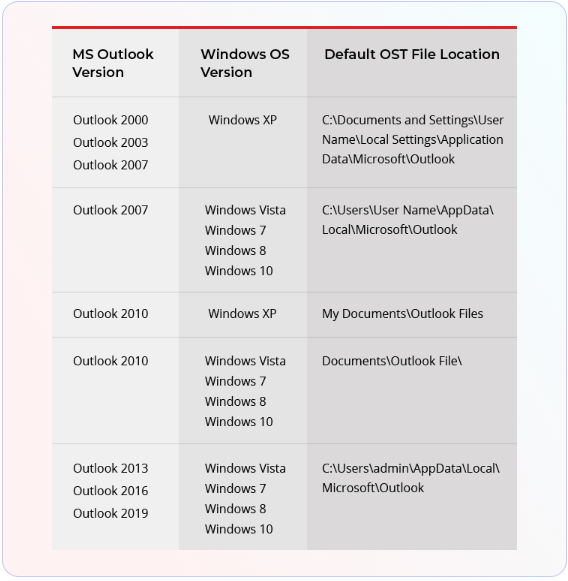
drive:\Users\User Name\AppData\Local\Microsoft\Outlook
drive:\Documents and Settings\Local Settings\Application Data\Microsoft\Outlook.
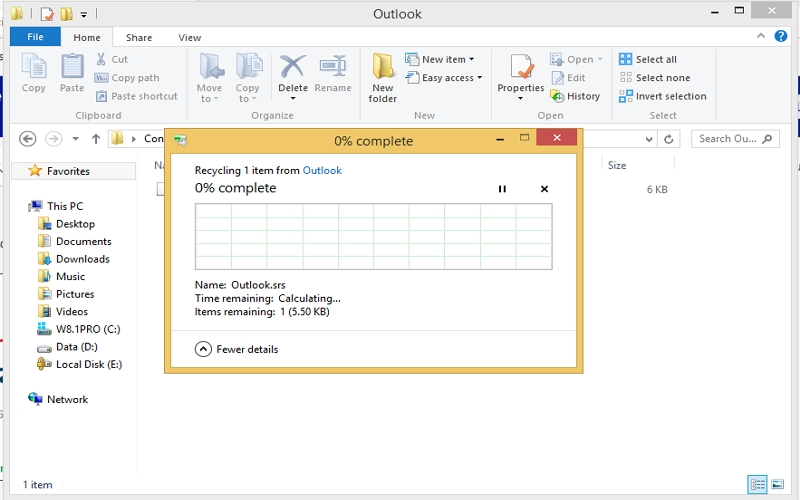
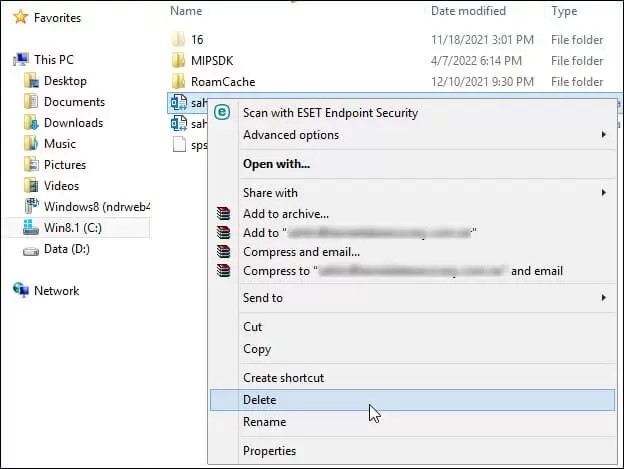
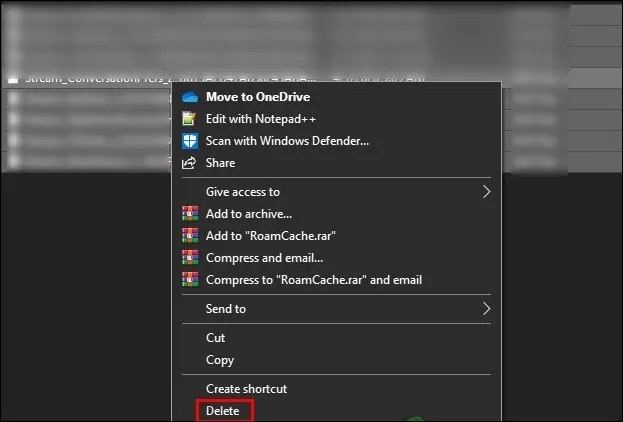
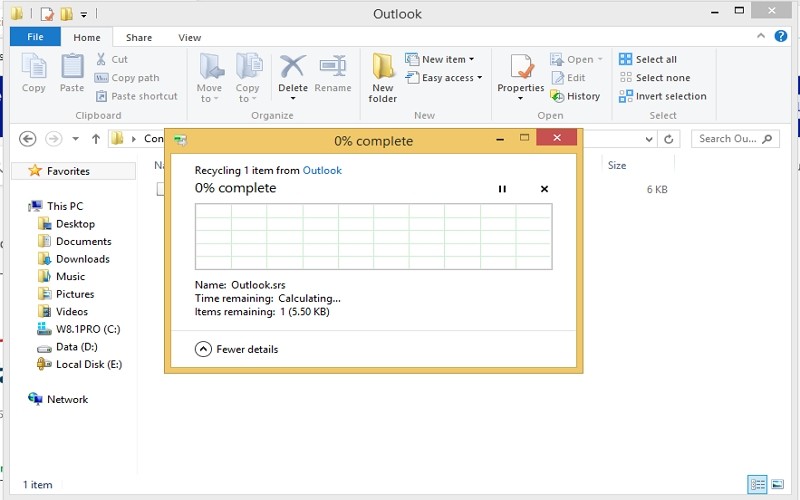
Step 2: Rename this OST and change the file extension from.ost to.bak.
Step 3: Launch Outlook to sync all the emails from the server and create a new OST file at the default OST location.
Try sending emails now to check if the problem has been fixed and to see if any data is missing.
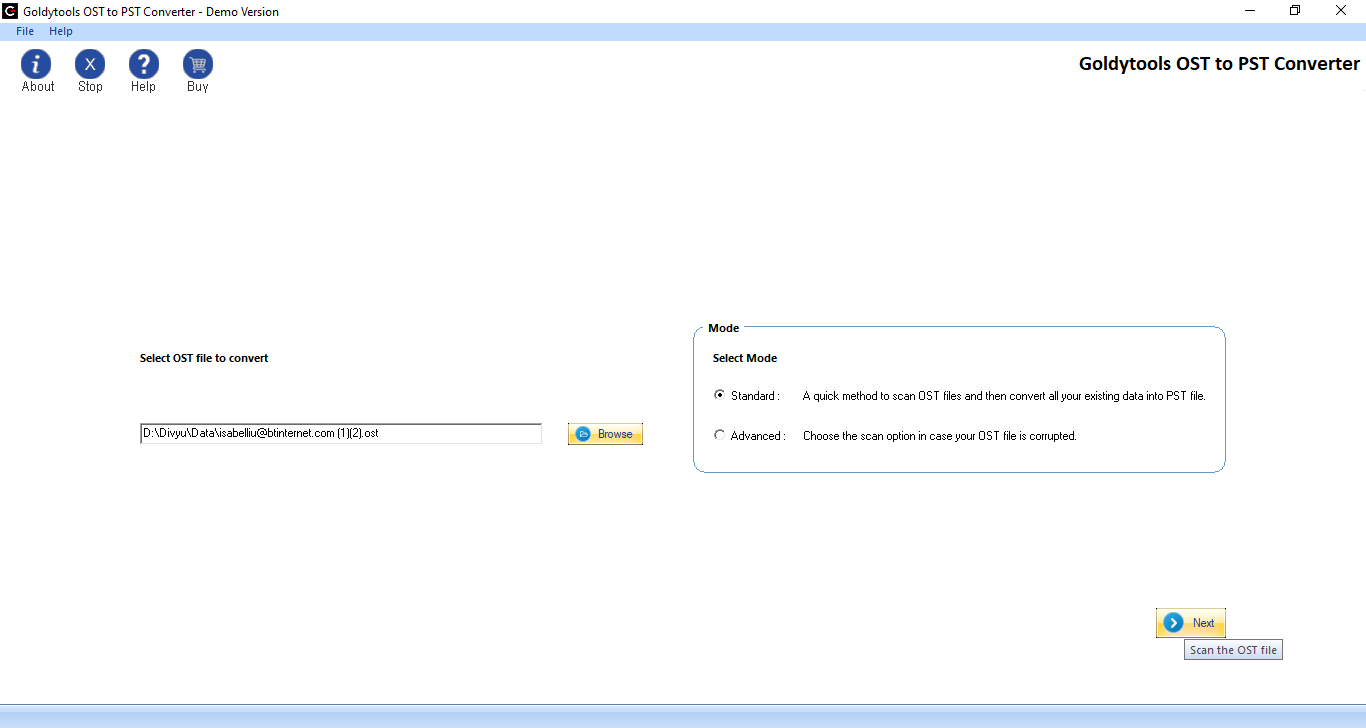
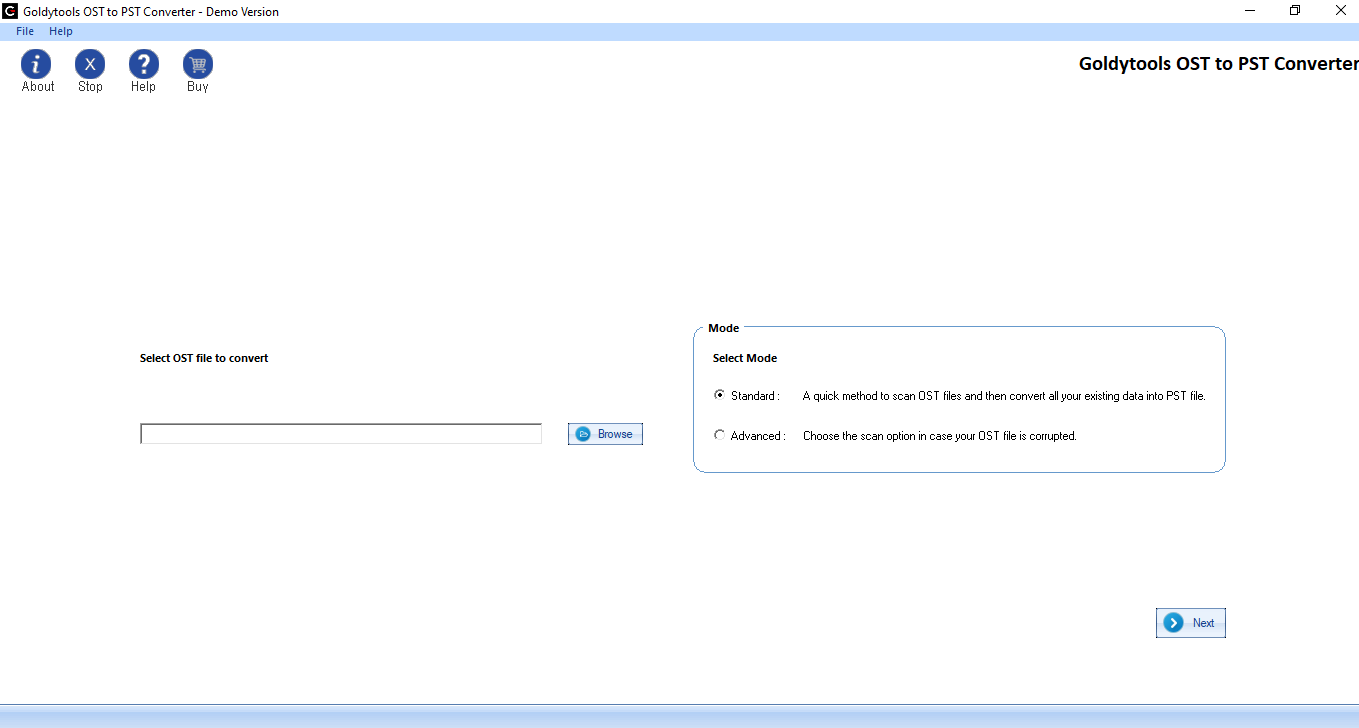
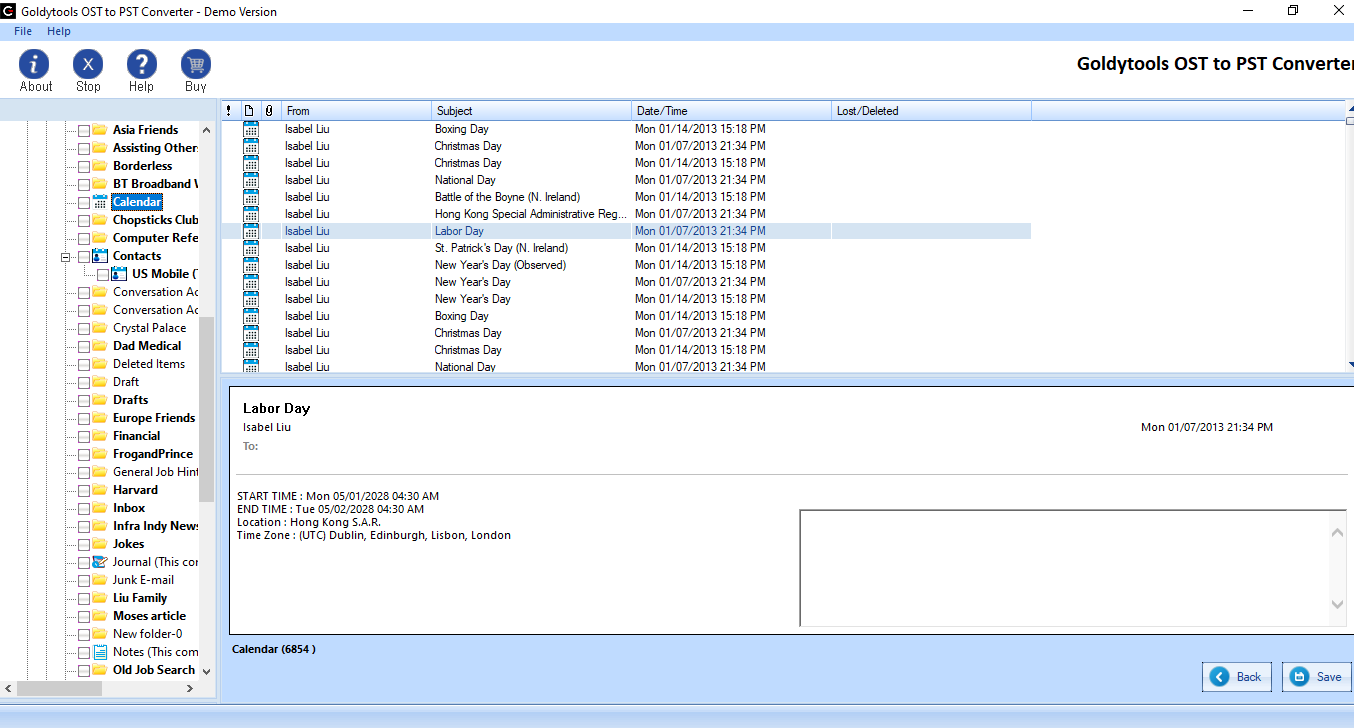
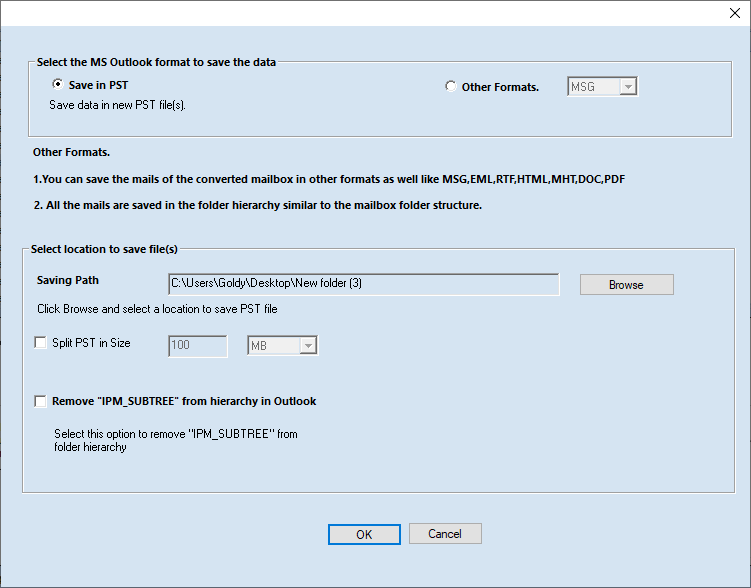
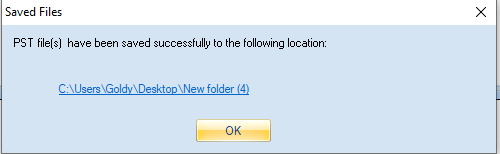
You can recover lost email items and store them in the resulting PST file by using the GoldyTools OST to PST converter to convert your backup OST file to PST once a new OST file has been created. After that, you can access the mailboxes once more by importing this PST into your Outlook profile.
In conclusion
To resolve the Outlook error “This message can’t be sent right now,” follow the instructions in this article. You must either fix the PST file or create a new OST file if the error is caused by corruption in the Outlook data file. If you send emails using POP3 accounts, use ScanPST.exe to repair corruption in the PST file and restore access to the mailbox. Recreate the OST file and use the backup OST file to restore data using the suggested GoldyTools OST to PST Converter if you’re using Exchange Server or IMAP.