If you are seeing an error that says “Errors have been detected in the file Outlook.ost,” it basically means your Outlook data file is broken or confused.This error stops you from opening your emails or seeing your contacts. It usually happens if the file got damaged, the internet cut out while syncing or your computer crashed unexpectedly. In this blog, you will see the ways to fix errors have been detected in the Outlook OST file.
.
Manual Fixes for Errors Have Been Detected in the Outlook OST File
Use the ScanPST.exe Repair Tool
- First of all, close Outlook and look for a file named SCANPST.EXE in your computer’s Program Files option.
- Then, open it, select your broken Outlook file and click Start.
- If it finds errors, click Repair and then restart Outlook.
Delete and Recreate the OST File (Easiest Method)
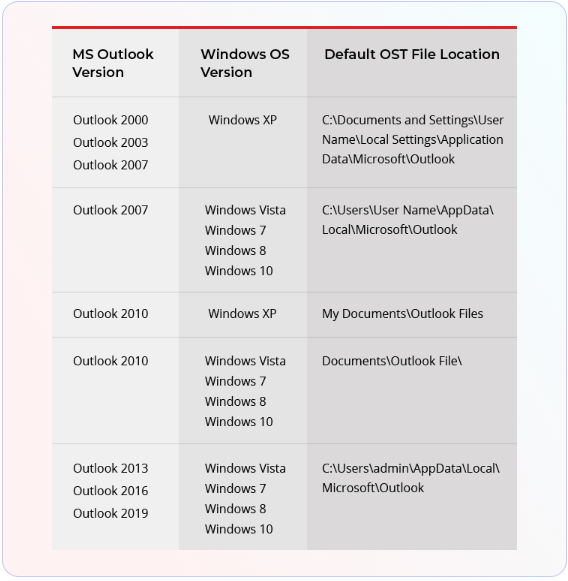
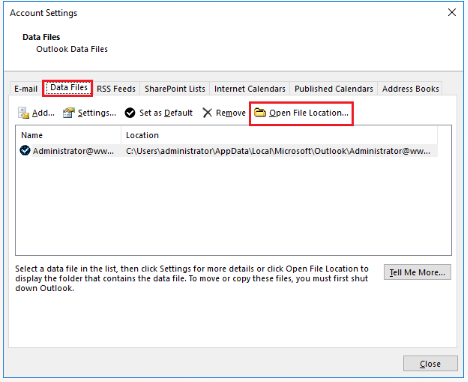
- Firstly, go to Control Panel>Mail>Data Files and click Open File Location.
- After that, delete the broken file.
- Now, open Outlook again; it will automatically make a brand-new, healthy copy of your mail.
Restore OST File from a Backup
- If you have a saved backup copy of your Outlook file from before it broke, replace the broken one with that backup.
Open Outlook in a Safe Mode
- Hold the Windows Key + R, type outlook.exe /safe, and hit Enter.
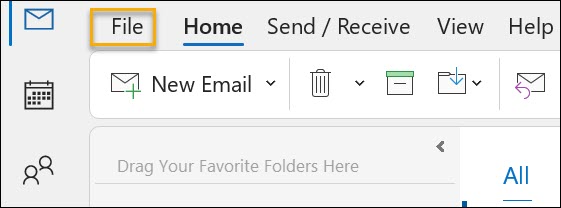
- If it works now, one of your “Add-ins” (extra plug-ins) is causing the crash. Turn them off in the File menu.
Create a New Outlook Profile
- Go to Control Panel>Mail>Show Profiles.
- Remove your old profile and click Add to make a new one.
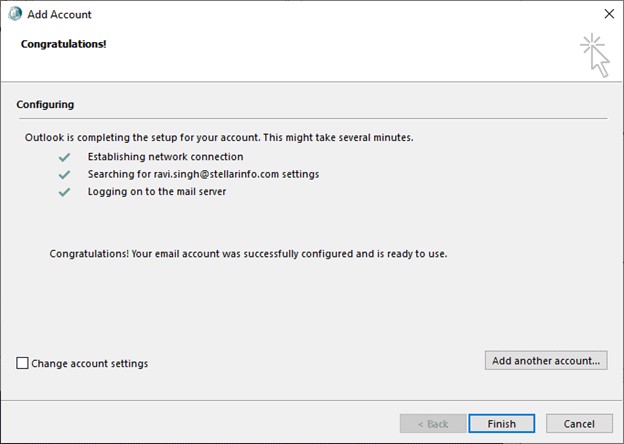
- Sign in again and Outlook will start fresh.
Disable Cached Exchange Mode
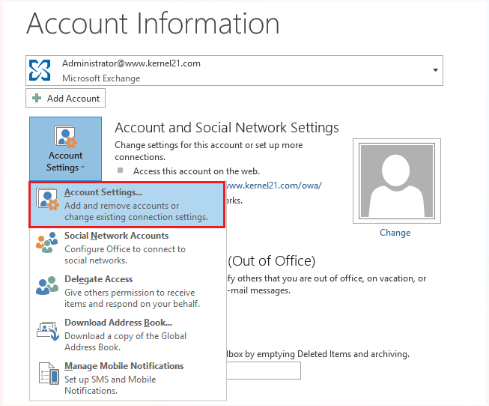
- In Account Settings, find the box calledUse Cached Exchange Mode and uncheck it.
- This tells Outlook to look at the internet version of your mail instead of the broken file on your computer.
Clear and Refresh
- Here, you right-click your inbox folder, go to Properties, and click Clear Offline Items.
- Then, click Update Folder at the top of Outlook to download everything again.
Update Microsoft Outlook
- Go to File>Office Account>Update Options and click Update Now.
- Sometimes a simple software update fixes the bug.
These manual tricks work for small issues, but they do not always work if the file is really messed up or if it is huge. If you have tried these steps and it is still broken, you should use a professional repair tool like Goldytools Exchange Recovery tool.
Key Features of Goldytools Exchange Recovery
- Send fixed email data straight to Outlook, a live Exchange server or Office 365 while keeping all your folders exactly where they belong.
- Move recovered mailboxes directly into your current work email accounts.
- Quickly save all shared “Public Folders” into a standard Outlook file.
- Fix and get your data back even if your database is offline or the server is broken.
- Use simple filters to find exactly what you need like a specific contact or a lost calendar invite.
- Automatically save each person’s mailbox into its own file named after them so that nothing gets mixed up.
Conclusion
Manual methods can fix small errors. They usually won’t work if your server is broken. Because of this, using a professional tool like Goldytools OST to PST Converter is the fastest and safest way for which you can also use its free version before you buy.