All posts by harshit

Method for Fix OST file Synchronization Error

OST file serve as backbone of Outlook .store and synchronize mailbox data with Exchange server. If Outlook offline then OST file allow user to access their data and work offline. OST file syncs automatically ,ensure that all your offline work update when once outlook connect with exchange server .In this Blog ,we explore manual method to OST file synchronization error .
However it observed that when you open outlook and attempt to sync with exchange server mailbox then it fail to sync .it result many OST synchronization error messages show. Issue appear in Sync Issue log within Delete item folder .Such synchronization problem occur when one or more corrupted email message find in OST file .these issue not fix in sync process .In this blog we explain how to fix these issue.

Common reasons for Exchange OST file Synchronization Error

Synchronization error occur when connect an OST file to an Exchange mailbox .These error arise for different reason depending on Outlook version include 2003, 2007, 2010, 2013, 2016, and 2019.

  • Network connectivity issue primary cause of synchronization problems.
  • Downtime of Exchange server prevent Outlook success synchronization with exchange mailbox
  • Common factor include unexpected system shutdown ,large OST file, and malware or virus infection

Effective Solution to resolve OST file Sync Error

OST file in Outlook synchronizes with Exchange Server mailbox when stable connection with server available. Synchronization speed depending factor as data volume and Outlook version. This article explains various step to resolve synchronization issue ,including verifying user profile and check cached Exchange mode .Follow effective help us resolve error
Check OST file Synchronization

Ensure OST file sync correctly with Exchange server ,following these steps

  • Right -click folder which you want to check and select
  • Properties Navigate Synchronization tab If sync tab not visible ,it means Outlook profile not configure with offline folders
  • Select “Statistics ” option for folder and verifying following attributes

    Server folder contains: [Number of items in Server]

    Offline folder contains: [Number of items in OST file]

    Last synchronized on: [Date and time ]

If No issue with OST synchronization ,items count in both server folder and offline folder same. If item values different ,it indicate a synchronization conflict between server and offline folder .then you follow these step verify Outlook profile settings

In Outlook 2010,2007,2003

  • Navigate “File ” menu and select “Account setting ” then click “Account form ” again from dropdown list.
  • In “Data Files ” tab ,select your “Mailbox – [account name]” and select Change .
  • Navigate “Email tab ” select “Mailbox – [account name],” and click “Change.”
  • Ensure “Use Cached Exchange Mode ” option is selected ,then click “OK”
  • In “Account Settings” window, click “Close” to exit

How OST file Synchronization Works with Exchange Server

Now you use two methods for Synchronize offline Offline folders – Manual and Automatic .both resolve OST file synchronization issue effectively

Manual Synchronization Method

This method synchronize offline folder in Outlook version 2010,2013,2016and 2019

  • Navigate “Folder List” pane and select folder for synchronize
  • Navigate “Tools” menu select “Send/Receive ” then choose “Microsoft Exchange Server.” .select specific folder for synchronize
  • In Tools menu select “Send/Receive All” to synchronize all folder

Once synchronization process begin ,a status message appear on Computer screen .If your mailbox contains many items and offline folder not synchronized for long time then synchronize process take long time it may take 30-40 minute

Automatic Synchronization Method

with method OST file automatically sync with exchange server each time Outlook connection establish.

  • Navigate “Tools” and select “Options”
  • In Mail Setup tab, Check box Send immediately when connected.”
  • In Send/Receive section, select “Send/Receive Groups.
  • Check option “Perform an automatic send/receive when exiting.”
  • Click close

Use Professional to Resolve OST File Synchronization Error

If you unable to resolve OST file synchronization issue , you use Microsoft ‘s built -in repair tool “ScanOST.exe” .These tool designed for repair issue related to OST and PST files. If these fail to resolve issue ,you can use Goldytools OST to PST converter tool .If you have Oversized OST file and corrupted OST file then these recovery oversized and corrupted OST file

What Happen When tour OST file become too large

An OST file stores offline copy of essential outlook data ,including email, contact, and attachment .Day by day message add in OST file and OST file size increase .If OST file not manage properly then OST file cross size limit and it effect outlook performance or even Application crash .In this blog we explore what happen When OST file become tool large and provide method to resolve these issue

Top Reason why your OST file Become too large in Outlook

There are several reason for OST file increase in size.

  • Sending receiving numbers of email daily basis
  • Storing email with heavy attachment (such as image ,video ,or document)
  • Regularly not delete or archive old email and along with not empty Deleted Item folder
  • If Outlook configure a large amount of email for offline

All these factor contribute to increase OST file size

What happen when your OST file become too large

Oversize OST file generate various problem

  • Outlook unbale to open or load oversize OST file
  • Once OST file cross it size limit then no new add data with OST file
  • An oversized OST file disrupt many Outlook functioning
  • Large OST file easily corrupted

What is maximum size limit for OST file?

OST file size depend on version of Microsoft Outlook

  • Outlook 2007 Support OST file Up to 20 GB
  • Outlook 2010 and later Support OST file Up to 50 GB

Once file size reach its size limit ,immediate manage and reduce file size

How to Manually fix OST file too large issue in Outlook

There are several manual method available to resolve issue in oversize OST file. applying these method for reduce risk of file corruption

  • Regularly remove outdated email from OST file
  • Download important attachment on your device and delete them from outlook.
  • Permanently delete item from “Deleted items folder” to free up space in OST file
  • Rename exist OST file and allow outlook regenerate a new OST file

Disable or Remove Unwanted add-ins in Outlook

When OST file Become too large ,it is important reduce size OST file to improve Outlook performance here is many method for reduce size of OST file

  • Once Outlook open ,follow these steps
  • click on file tab in top menu
  • Select option from sidebar
  • choose add-in from left hand menu
  • Next select COM add-ins from dropdown list and click Go
  • Uncheck all add-ins that not use and click OK

Use Outlook Built -in too to Compact large OST files

Reduce size of OST file by removing all unnecessary data. follow these step

  • First ,Navigate home tab in Outlook and open Deleted items folder
  • Right click on folder and select Empty folder for permanently delete it.
  • Next follow these step for compact
  • Click on Data file tabs ,then choose OST file and click settings
  • Next navigate Advanced tab and click Outlook Data file Settings
  • Finally click compact Now reduce OST file size

How to turn off shared folder Sync in Outlook

Shared folders in Outlook increase size of OST file size ,which effect Outlook performance Disable synchronization for shared folders by following these simple step:

  • Open Outlook and click on file tab
  • Next navigate Account Setting then select Account setting from dropdown menu
  • Under Data file tab ,select OST file file associate with account
  • Click setting then navigate advance tab
  • Next select Outlook Data File Settings and uncheck option Download Shared Folders.
  • Finally click OK ,then close and restart outlook application to apply changes

Disadvantages of Using Manual Method

Manual method resolve minor issue with Outlook OST file they have many limitation .Below give many draw back of Manual method

  • Manual method involve multiple steps and which take long time for complete it
  • If OST file highly corrupted ,manual method fail resolve it.
  • Risk of accidental data loss when use manual method

Top recommended tool to repair and Manage OST file too Large

Goldytools OST to PST Recovery is an effective solution for recovering corrupted OST file .It allow you spilt OST file into multiple smaller size of PST file which you size define in tool without data lose or technical complexity .Company provide demo version that include all feature and you save 25 items per folder .if you satisfied with demo version ,you purchase full software

Conclusion

Above we share multiple method to reduce size OST file .you are use either manual method and professional method for get data from corrupted OST file .we recommend using professional tool

How to Fix Error Detected in Outlook OST file

Microsoft Outlook use email client in Business world .it stores data in two primary file formats: OST and PST .OST file use in Microsoft Exchange Server to allow user to work offline .if any change made offline automatically synchronized with server once internet connection available.
However when error detected in Outlook OST file .These issue arise due to various reason .Some common causes

  • File corrupted by software or hardware issue.
  • Virus or malware effect OST file.
  • Forced terminate of Microsoft Outlook.
  • Oversized OST file.
  • Failure Mailbox synchronization with Exchange server.
  • Improper System shutdown

Manual Methods to Repair Error in Outlook OST File

Resolve error detected in Outlook OST file ,Many effective method available ,Some common use list below

Method 1:

Create new OST file

  • Open Control Panel ,then navigate to User Accounts
  • Next ,click on Mail option
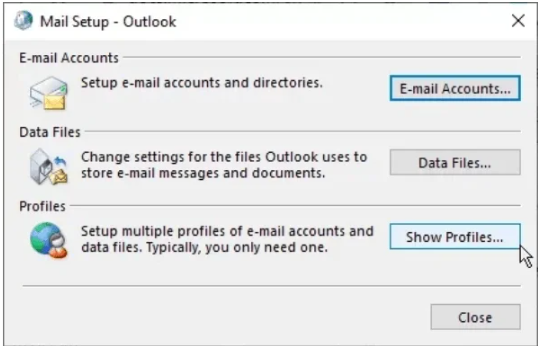
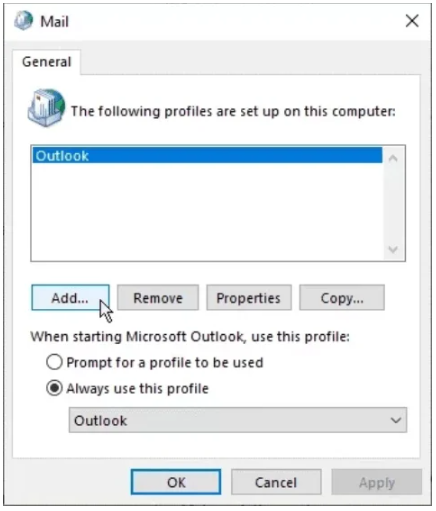
  • In Mail Setup dialog box ,click on Show Profile
  • Select desired profile name ,then click on Properties
  • Click on “Email Accounts” then go to Account setting section
  • Now click on “Data files” tab and select appropriate account
  • Next click on “Open file location ” to access OST file directory
  • Close all open dialog such as Account Setting and Mail Setup
  • Open File Explorer window ,delete corrupted OST file
  • When you reopen MS Outlook ,new OST file automatically create

Method2:

Create a New outlook Profile

  • Delete exiting Outlook profile associate with OST file.
  • Create new Outlook profile
  • Set new create profile as default profile in Outlook

Method3:

Repair OST file Using scanpst.exe

  • run ” scanpst.exe ” by administrator Credentials
  • Click browse button and open corrupted OST file
  • click start button for start process
  • If error detected then click on repair button to fix it
  • After repair process complete ,a confirmation message appear

Using automatic tool to Fix OST file Error

A simple and reliable method to fix error in OST file by use professional software Goldytools OST to PST converter. this tool designed for repair corrupted OST file and fix unnecessary error in OST file .Some important feature given below

  • Recovery corrupted OST file and export data other file format as PST,PDF,RTF,DOC,HTML,MHT,MSG,EML
  • Recover Outlook items as email, task, contact, etc.
  • Use date filter option to recovery on specific date which you need in OST file
  • choose two different recovery mode for OST file corruption
  • High speed scanning mode Support Outlook
  • encrypted OST file and accurate data recovery
  • Support all version of Microsoft Outlook
  • Support all windows version10, 8, 7, Vista, 2003, XP, and 2000.

Step to Fix Error in Outlook OST File

  • Launch Goldytools OST to PST Software
  • Click open button then select Browse button and add OST file
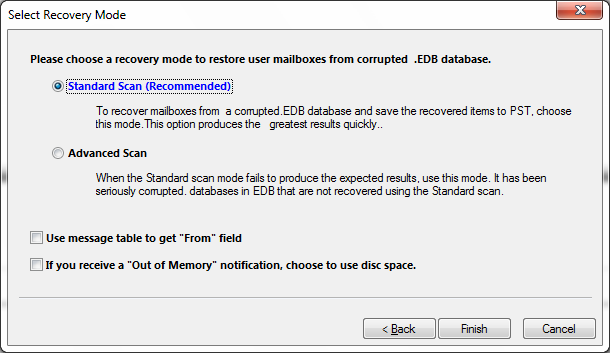
  • Choose recovery mode -Standard ,Advanced mode and click OK button
  • Scanning process begin automatically
  • Once scan process completed click OK button ++Preview recovered item by click them
  • Now choose item you want to save and export them in Your desired format(MSG,EML,RTF,DOC ,HTML,MHT,PDF

Conclusion

The manual process to fix error in Outlook OST file complex and require technical expert .For quicker and more easy solution ,use reliable professional tool Goldytool OST to PST converted highly recommend .it repair corrupted and inaccessible OST file and save multiple format.

EDB to PST Conversion – Migrate Exchange Data to Outlook

If you looking urgent solution for Convert EDB file to PST format First you understand EDB (Exchange Database ) and PST(Personal Storage Table) files different to each other and open it respective application – Microsoft Exchange server and Microsoft Outlook .In this article we describe difference between EDB and PST file. guide you by two method to convert EDB to PST format.Microsoft Exchange functioning for Server-side platform while Microsoft Outlook operates as desktop email client.
Microsoft Exchange Server platform designed for digital message and collaboration ,adopted by large organization .it is secure communication among multiple users within Organization by email , voicemail, text message .User access these services from desktop ,mobile device or web browsers.

EDB (Exchange Database)

An EDB file stores mailbox data such as email ,attachment ,calendars ,tasks ,notes ,notes and folders .It single client server architecture and serves as primary data for Microsoft Exchange Server
PST (Personal Storage Table)
PST file is Outlook data file used to store mailbox items include emails ,contact ,notes ,task and attachment .There are two types of PST file
ANSI PST file- Used in order version of Outlook (2002 and earlier) with 2GZ size limit and limited chartered support
Unicode PST – Used in Outlook 2003 and later version support large file size( upto to 50 GB or more) and full support Unicode character support
Work with EDB file more complex and dependency on Exchange server enviroment.Outlook PST file are more flexible and user friendly .PST file easily backup ,transfer between system and access in any version of Outlook .Some time need to convert EDB file to PST format.

EDB to PST Conversion

Convert EDB files to PST format make it easier to archive data without unmount Exchange database or interrupt Organization .It allow to access data form old EDB file .There are common scenario necessary for EDB to PST conversion .Given below common scenario

Scenario #1: Access Mailbox Data When Exchange Server Downtime
Imagine Exchange Server unexpected crash and undergo maintenance .Repair process take long time if you urgent access critical mailbox data . In such case Convert EDB file to PST format then you access mailbox data using in MS Outlook – wait out wait for Exchange server to restore.

Scenario #2: Data Portability and Platform Sharing
In some situation when you need share mailbox data with user who not on Exchange Server or using different email client . Convert EDB to PST format is solution.PST file compatible with Outlook and easily shared to other system.

Scenario #3: Archive Data of Former Employees
When Exchange Server user leave organization and he want to get their mailbox data for future use .To store data in accessible format by Convert user mailbox from EDB to PST.

Mailbox Merge Program (ExMerge Utility)

Microsoft provide Mailbox Merge Tool known as ExMerge utility ,free solution for manage Exchange mailbox data .By using this tool administrator extract mailbox content from an Exchange server Either merge it other Exchange server or Export it to PST files format.

Important Note:

Ex Merge utility not available for Exchange server 2007 and later version, if you need it then you download from trusted source online

How to use Ex Merge Utility for Export Exchnage Mailbox?

After down load ExMerge utility ,install on your system and run ExMerge tool ,then login it by Exchange administrative privilage .following simple step for export mailbox

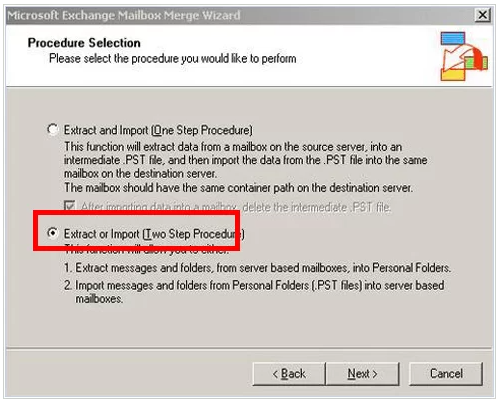
Step1: Microsoft Exchange Mailbox Merge Wizard open and choose operation which you want

  • Extract and Import (One Step Procedure)
  • Extract or Import (Two Step Procedure)

Extract or Import

Select “Extract or Import (Two-Step Procedure)” option to perform both export and import operations

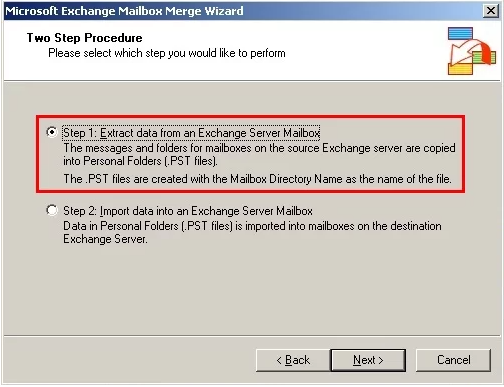
Step2: you select “Extract or Import (Two-Step Procedure)” in previous step, now you choose option from two option

  • Extract data from an Exchange Server Mailbox
  • Import data into an Exchange Server Mailbox
  • Extract data from an Exchange Server Mailbox

  • Select “Extract data from an Exchange Server mailbox then click next to continue for extraction process

Step 3: Data Selection Criteria window now appear .This window contain several tabs

  • Click Import Procedure tab .select option “Archive data to target store” and click OK.
  • Click on Message Details tab .Enter require inforamtion then click OK.
  • Finally click apply to save changes.

Step 4: Now you see list of mailboxes user available on Exchange server .Select desired mailbox from list then click Next to process
Step 5: By click Browse then choose location where you want to save new PST file
Step 6: Now Migration process start and complete within a few minute.click finish to close Mailbox Merge (ExMerge) utility.
Limitations of ExMerge Utility

  • Before use ExMerge utility ,you aware of its limitations. there are some certain drawbacks which given below
  • It not used on front -end Exchange server,it not contain mailbox store
  • ExMerge utility fail to process with mailboxes larger than 2GB.
  • ExMerge utility is lengthy and time-consuming process

Goldytools EDB to PST Converter

ExMerge utility fails to work properly , we recommended to using a professional Goldytools EDB to PST Converter tools for more efficient and reliable for Edb to PST converter. Goldytools EDB to PST Converter is powerful and user friendly tool .it scan EDB file component and allow user preview mailbox content before conversion.you easily save mailbox data into PST . It recovered inaccessible or corrupted EDB file . Before purchasing full version users download free demo to explore its feature and functionality .Demo version export 25 email items for each mailbox folder within selected EDB file

Conclusion

These article explore most common scenario where EDB to PST conversion must become necessary. we explained about ExMerge utility ,a free tool provide by Microsoft .But ExMerge Utility have some limitation So we introduce a professional too Goldytools EDB to PST Converter which advance and user -friendly

How to Manually Convert OST to PST Files in Outlook

IF you face challenge convert OST to PST format ,this blog provide you reliable and effective solution to help complete your conversion easily .It also provide every step convert corrupted or damaged OST file which inaccessible in Microsoft Outlook. Highly corrupted ,complete set of offline mail box data successfully recovered and converted into PST format

Top Reason for convert OST file to PST format

Common question arise in user mind Why it necessary to convert OST to PST ?There are several reason for conversion . Below some important factor for converting OST to PST format.

Due to System crash or Failure

MS Exchange Server face unexcepted issue as crash, system failure ,virus attacks and other error. Due to such issue user not able to connect to exchange server .in this condition outlook profile display many error .Convert OST file to PST format user get their data and resolve such issue.

Accidental Deletion:

Convert OST to PST provide recovery of mailbox data which accidentally deleted from Exchange Server

Migration of Mailbox Data

Convert OST to PST process of migrate data from one system to another system. This is beneficial when an organization plan to relocate other location then user transfer their data in new environment

Unable to Access the Exchange Server

Convert OST to PST is necessary during plan Exchange Server downtime or maintenance .In such condition user not access Exchange server and user not access their mailbox data . If user want to access their mail data then Convert OST to PST format.

How can Easily Convert OST to PST files

Several third party OST to PST convert tool available in market .we recommend that user first try manual method

Manual method for Convert OST to PST
Open Microsoft Outlook 2013 on your computer.
click on file tab

click on file tab and choose open and Export option

click on file tab
Select Open & Export tab and click Import/Export
Select Open & Export
After click on import /export option , a dialog box appear. Select on “Export to a file ” and click “Next” to process
click "Next"
Now select “Outlook data file (.pst) “and click Next to continue process
Outlook data file
Select folder which you want to export choose necessary file and click Next
click Next
Now select “Allow duplicates to be created” to export file and then click Finish to complete process
click Finish
After complete process ,dialog box appear prompt you to set optional password .Click OK and Outlook profile save in PST format at specified location
optional password
Conclusion

Manual method used to accomplish this task.it not guarantee data security and risk data .Solution not successful approach when OST file corrupted.
In such situation user can use third party tool like Goldytools OST to PST converter. Software recovered corrupted and inaccessible OST file .

Free Method to repair corrupted EDB files Using Eseutil and Isinteg Utility

Microsoft Exchange Server widely used email Server in Big Organizations .It stored data EDB file format which contain user mailbox items such as email ,calendar ,notes ,task ,message, etc .EDB file corrupted several reason such as virus attacks, jet engine error ,internal system issue etc
there are two method for repair corrupt EDB files

  1. In Manual method use utilities like Eseutil and Isinteg
  2. Second Method use third-party tool

Before using Eseutil and Isintg utilities ,you complete following steps

  • Log in Exchange Server administrator account
  • Create backup of current EDB database and store it in safe location .This backup important for you if original data base corrupted during repair process using Eseutil or Isinteg.
  • Delete or Relocate unnecessary files and folder to free space .after that make sure you have 20-30% of total storage available.
  • In case original dive lacks of sufficient free space then use appropriate command which move repairer data file to another drive with sufficient space
  • If you want to check available free space on disk then you search Application Event ID 1221.

Use Eseutil & Isinteg for Repair Corrupted EDB file

Use following instruction to repair corrupt EDB file use Eseutil and Isinteg utilities

  • Go Star Menu and choose run to continue
  • Enter cmd in Run dialog box and click OK
  • Navigate to C:\Program Files\Exchange Server\Bin
  • Now type Eseutil.exe in command Prompt and press Enter
  • Eseutil.exe support two recovery mode :/r for soft recovery and /p for hard recovery .
  • Use Esectil /p when data base highly corrupted or inaccessible
  • after repair corrupted EDB database using Eseutil/p command ,use Eseutil /d for defragment Exchange database
  • Run Isinteg.exe to check integrity of repair EDB database . USE following command ISinteg -s -fix teats alltests.Select recovery EDB file from Exchange server
  • Run Esetuil.exe until no error any error in Exchange server
  • Run Eseutil/G command to check integrity of EDB Database
  • Use Exchange server administrator too for remount EDB database

This manual method for Repair corrupted EDB file is complex and not sure it recovered inaccessible database .to perform this process require strong technical expert. Any incorrect command then you lose database. Eseutil and Isinteg utilities not repair any database which corrupted by Jet engine errors or software-related corruption .To avoid risk of data lose then user use third part tool which recovery corrupted data base and recovery inaccessible data base

Goldytools EDB to PST Converter

Goldytools EDB to PST Converter provide many features designed for effortless and efficient data recovery. it recovery deleted , corrupted or dismounted EDB filed without any loss of data.

  1. IT recovery EDB filed without any change in original folder hierarchy and email structure.
  2. User add multiple EDB files in a single operation
  3. Tool provide split feature that allow user to divide large PST file into multiple small size files
  4. Goldytools EBD to PST Converter provide advanced filter and search option with user friendly GUI
  5. A free demo version is provide by company to evaluate software feature and functionality .Demo version allow conversion and save 25 items per folder
  6. It is support with all exchnage server Version include Exchnage 2010,2013,2016 and 2019

Conclusion

EDB file corrupted is common issue face by many Exchange Server organization. while Exchange server provide built -in utilities as Eseutil and Isinteg for recovery. these utilities have some limitations and drawbacks.In this blog we explore both method ,we recommended efficient and user -friendly solution -Goldytools EDB to PST Converter

How To Fix Subfolder under Inbox PST file

PST files contain email folder ,contact, personal information and other email data.PST file serve as backup files which use for export data from Microsoft Outlook. Outlook become important tool in Many people daily lives .So user face any issue Outlook then user feel frustrated .Common issue is when user find when PST file not display subfolder

Common Reason why Outlook PST file Subfolder Missing

  • When PST file corrupted .Outlook fail to Show certain subfolder ,user unable to access important emails
  • Certain change Outlook View setting it generate some issue
  • Accidentally delete Outlook subfolder

Condition describe above result in PST file not displaying sub folder in Inbox.

How to fix PST file not displayed subfolder in Inbox

  • Repair PST file by Scanpst.exe
  • By change version Microsoft Outllook
  • Resetting View Setting in Outlook
  • Using Professinal Outlook PST Repair tool

Scanpst.exe use to fix missing sub-folder in Outlook PST File

Inbox Repair Tool(Scanpst.exe) is inbuilt utility in Microsoft Outlook which repair corrupt or damaged PST file. It is used recovered missing Outlook data ,include folder or email .Before use Scanpst.exe ,first close Outlook running application.

  • Run Scanpst.exe on your PC
  • Click Browse button to select PST file for repair
  • Add select PST file
  • After load PST file then click Start button for scan
  • Select option for create backup of scanning file before start repair.it create replica of Original file
  • Finally click repair button for Repair PST file
  • click OK to close Inbox Repair tool

Following above step ,you can fix issue “PST file not show subfolder in Inbox “this method save and resolve error”

Reset View Option in Outlook

If above techniques fail to fix “PST file not show subfolder under inbox “. Then we use other method this issue generate by wrong setting of Outlook view setting not display subfolder correctly .Resolve issue by Outlook view option .Process reset view for proper Folder display.

Now we check Inbox subfolder if same error again repeat ,it indicate that PST file highly corrupted and Inbox Repair tool is unable to repair it. If PST file highly corrupted then we use third party professional tool

Trusted Solution for Corrupted PST file

Now we Goldytools Outlook PST repair tool which recovery corrupted PST file and save it multiple format such as PST, DOC, RTF, EML, MSG, HTML, MHT Format

How Recover corrupted PST file?

Install and run Goldytools Outlook PST repair Software

Goldytools Outlook PST repair

Choose PST file for recovery it

PST file for recovery

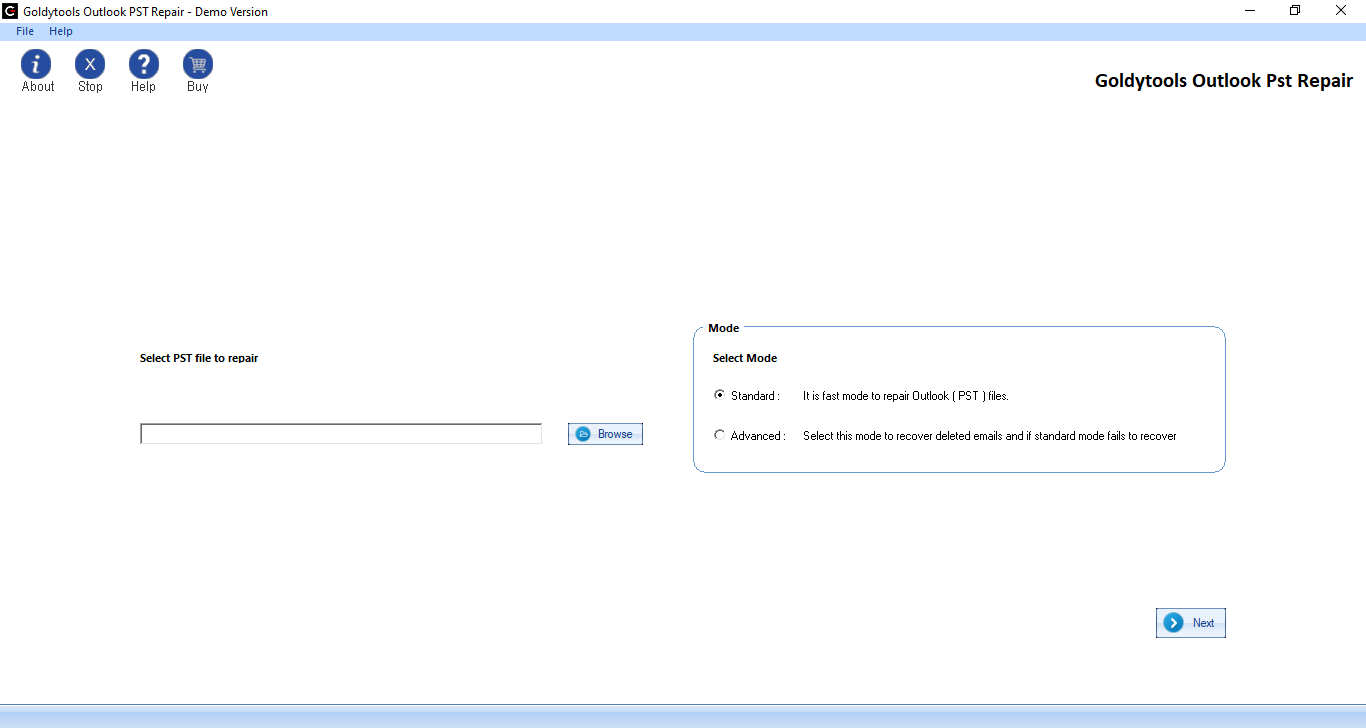
Choose recovery mode Standard or Deep

recovery mode Standard

Scanning and Recovery process start

Scanning and Recovery process

Save recovery PST file in selected File Format

Save recovery PST file in selected File Format
Conclusion

If PST file show error “PST file doesn’t show subfolders under Inbox”. For fix this issue we Manual Method and third party solution ,First we use manually method if file highly corrupted then Manual fail to repair this issue . At last WE use Professional software Goldytools Outlook PST repair tool for highly corrupted PST file

How to Transfer an Outlook OST Data File from One Location to Another

If user want to copy Outlook OST data file from one syetm to another another system like other file.it can not open ,access, and import OST file directly in Outlook . User want access data of OST then User convert OST file into PST format.
OST file add to Outlook and if outlook in Offline mode then you access OST data .if you want to OST file move to new system. OST file data important data for every one which use outlook .But if you want access directly it other system not possible .there indirect method to achieve it . in this post we explore these method in this post.
If you admin of Exchange server then you configure account in Outlook in new system ,You can directly down load data from Exchange server .Bt you want transfer OST file to another System then you first convert OST file to PST format file.

How to find location of OST file

If you configure With Exchange server ,IMAP ,or Office 365 account you can find location OST by Outlook Account setting then get OST file path.

  1. Open MS Outlook and select File Option
  2. In Info section ,select Account Setting option .then select Account Settings
  3. In account setting window .select account associate with OST file . then click Data file tab and select open File Location
  4. This open folder where your OST file are store

Copy OST file to USB derive from default location and transfer to other computer
If Outlook application not functioning properly ,you can access OST file by Control Panel.
After transfer OST file to another system you was not open it manually in Outlook .Outlook support only PST file .if you access mailbox data ,First you convert OST file to PST file.
If you want to use the same account with available content of mailbox then export it as PST file and then transfer this PST file into Outlook application.

Export mailbox data to PST file

  • Open file in Outlook
  • In Open & Exportation ,select Import/Export
  • Select Export to file option ,then click Next button
  • Select Outlook .pst file and Click Next
  • Select folder which you want to transfer account .Then click Next
  • Choose exclude duplicate items. then select destination for export PST by browse button .Press Finish button for completes process

After export PST file ,you can import it using same process

Import PST file to Outlook

  • Go to File Menu Microsoft Outlook
  • Click on Open & Export then select Import/Export Option
  • Select Import from other application .then click next button
  • Use browse button to add PST file and click OK button
  • Press Finish button to Complete import process

Conclusion

User need to convert OST file data to PST file when user want use same account to other Computer .First create account in Outlook on other computer then automatically create mailbaosx folder .then you import PST file from old System
If Outlook file not working .then you use Professional Goldytools OST to PST converter Tool to convert which convert all OST file to PST file.

Convert Encrypted OST files

OST is Important component of Microsoft Outlook that permits user to work offline.it store mailbox data local system and automatically synchronizes with Exchnage Server Once connected to it. If OST file become inaccessible or encrypted ,then user loss their important data. there are reliable method available to repair or convert damaged or encrypted OST file into PST Format.
Before exploring solution for convert encrytpted and password – protected OST file.First understand OST files become inaccessible or encrypted

What is OST file and how it become inaccessible or encrypted?

OST file is a local copy of mailbox data store on system when outlook is connected Exchange mode. it enable user to to access ,view, and modify their mailbox data as email, contact and calendar when it offline . if any change done it OST file offline mode. when OST file connect to Exchange server change automatically synchronized with sever.

Common reason why OST file become inaccessible and encrypted

  • Issue with exchange server ,like hardware or software error
  • Unexpected delete of user profile and mailbox data
  • reason Hardware of software problems
  • Encryption of OST file by user or by organization security policies
  • Effective Method for Repair and Convert Inaccessible OST files.
  • Repair and Convert Inaccessible OST file is not easy task .it require a certain level of expert and technical knowledge .There are many reliable method available that repair and convert OST file to PST file format

Method 1:Repair OST file by Scanpst.exe or Inbox Repair Tool

  • Scanpst.exe built in Microsoft Outlook to repair mirror issue in OST file.
  • First closed Microsoft Outlook and then Control Panel
  • Click on Programs and Features then select Ms Office from program.
  • Choose “Change” then select Repair Option
  • Follow instruction to complete OST file repair process

Method 2: Exchange Server mailbox Using Mailbox Export Request

If user have Exchange Server administrative privileges and Exchange Management Shell then they use Mailbox Export Request feature to transfer data from an OST file to PST file . Follow Below step one by on

  • Open Exchange Management Shell and run following command:
  • Exchange Management

  • Replace “User ” with actual username and \\Server\Share\user.pst with full network path name and file anme
  • Press enter for mailbox export request
  • Wait for Process finish it take time depending on mail box size.

Manual Method Draw Back

  • It take time for Large OST file or Highly corrupted OST .It takes several hour completed repair process
  • Manual method not recovery data from encrypted or Corrupted OST file. Inbox Repair tool repair minor issue
  • In Many method have risk of data loss and it change database structure.

Best way Convert Encrypted OST file without data loss

User use professional OST to PST converter tool which available on line. Goldytools OST to PST converter most reliable and effective solution with user friendly interface which recovered Encrypted file and Corrupted and Save in many file format as EML,MSG, PST ,PDF,HTML,DOC,RTF

Conclusion

OST file become inaccessible or encrypted .it effect workflow and on Outlook performance .in this post we discuss both method manual method and Professional Goldytools OST to PST Converter .In Manual Method have data lose risk and some limitation .So we recommended user use professional tool which recovered encrypted file or password -protected OST file.

Why and How to Convert PST Files to MSG Format?

How and Why to Converting PST file to MSG

Email become universal tool for communication with client. Microsoft outlook store mailbox data in PST format .It contain entire mailbox ,including emails ,contact ,task ,calendar and etc.MSG file represent a single item – such as email, contact, or task -preserve all associate property.MSG file are smaller ,easy to manage and many user want to convert PST files into MSG file for improve management .
if you looking for Convert PST file to MSG format? This blog guide you effective method for Converter PST to MSG format. We explore why need for Convert PST to MSG format

Reason for convert PST file to MSG format

there is not specific reason for Convert PST file to MSG format .Several advantage for converting PST to MSG .Below some common reason why user choose to Convert

  1. MSG file easy to manage because small size. Whereas PST files are large and complex and not easy to transfer
  2. By Convert PST to MSG format ,user can extract specific emails and manage important message
  3. This conversion allow user to create backup of select emails by saving them in MSG Format
  4. IF PST file corrupted and unable to access it. Convert PST to MSG format recovery it and preserve contents of file.

Effective Method to Export PST Data to MSG File

Now we cover why convert PST to MSG file is beneficial .In this blog we describe to method : manual method and professional tool

Manual Method for converting PST to MSG format

Microsoft Outlook allow user to save PST email in MSG Format. Follow these step for Manual Method

  1. Lauch Microsoft Outlook on your system
  2. Navigate File>Open & Export and select Open Outlook Data file to access PST file
  3. Open & Export

  4. Choose PST file that contains email to export to MSG Format.
  5. Now Select email you want to convert to MSG format.
  6. Once select emails ,simply drag and drop it onto desktop or any folder to save
  7. Email save in MSG format ,which open without Outlook.

Follow these step user convert a few email from PST file to MSG format .For larger conversion ,process time consuming and difficult . For efficient and reliable solution for Conversion PST to MSG file we recommended for Goldytools OST to PST Converter Tool.

Easy to Use tool for Converting PST to MSG file.

When you convert large volume of emails from PST to MSG Format using reliable tool like Goldytools Outlook PST Repair tool (PST to MSG Converter ) This software handles any Size of PST file or email count without limitation .It recovered corrupted and Inaccessible PST fileIt also maintains meta property during process and data integrity.

Understand OST file Corruption Reason and Solution

Microsoft Outlook most popular and widely used email client .OST file allow user to work with their mailbox data when it Offline. Outlook configure with Outlook 365 and store their mailbox data in OST file .These files sometime corrupted due to many reasons .
In this Blog we explore most common reason for OST file corruption and share solution to fix these issue

Overview of OST Files?

OST fie are contain copy of user mailbox data which store on Exchange Server. OST fie are contain copy of user mailbox data which store on Exchange Server.OST file enable user to access their mailbox data while offline, local store data continue available of mailbox content. Once Outlook connect with Exchange server then OST file automatically synchronizes with server mailbox .This functionality appears convenient

Common reason for OST file Corruption

Some time OST file interrupted during synchronization process due to poor or unstable internet connection -it become corrupted .Once OST file corrupted then it effect on Outlook performance .
there are many common reasons for OST file corruption .which categorized into hardware and software -relative reason

Hardware – Relative causes of OST file Corruption

These issue arise from improper configuration ,failure in computer hardware component as Hard drives ,RAM ,power supply

  1. Network Disruptions
  2. Storage device Failure
  3. Bad Sectors on Disk
  4. Sudden Power cut

OST File Corrupt due to Software failure

Problem reason by logical inconsistencies classify as software relative issue .these error occur when software bug ,virus or malware infection ,application crash or install software from untrusted source.

  1. Limitations within Outlook Application
  2. Unexpected Close Outlook
  3. Storage limit in Outlook

Top six solution to fix OST file Problem

Method 1: Launch Outlook in Safe Mode

Main purpose of starting Outlook in Safe Mode is to disable which cause error during startup. Now Outlook lauch safely without any corrupted add -ins or files. Open Outlook in Safe Mode ,use command :outlook.exe /safe.

Method 2: Update Folder Contents

This method involves change folder property to resolve issue inaccessible OST file.it applicable only Outloook2010

  1. First Right -click folder and select property .
  2. A Dialog box appear .Click on Clear Offline items then click OK
  3. Next On Outlook 20210 ribbon ,click Send /Receive
  4. Finally ,click Update folder to apply and save setting.

Method 3: Turns Off Firewall settings

user can temporarily disable antivirus application and fireball setting and they scan all incoming and outgoing emails. these windows functioning block Microsoft outlook .To resolve these issue , it recommended to disable security setting and restart Outlook.

Method 4: Reduce OST file Size

A large OST file generate various issue ,Such outlook performance and File corruption .after delete items they remain in Deleted folder .
Delete item from “Deleted Items” folder individually its time consuming process .By compressing OST file ,you reduce extra space take by deleted items.

Method 5: Utilize Scanost.exe Tool

Microsoft provide ScanOST.exe tool scan all mailbox items in OST file stored in Exchnage server by using ScanOST.exe resolve minor corruption issue . OST Integrity checker available only in Outlook 2007 ,outloo2010 and later version .But In newer version of Outlook ,if you use ScanOST.exe to fix error in OST file

Method 6: Professional Software

If Manual method not resolve issue then use professional tool. Goldytools OST to PST converter is repair corrupted OST file and save in different format Such as PST,EMLMSG,DOC,PDF,RTF,HTML,MHT
Tool provide fastest scanning speed and compatible all version of Outlook .You use free demo version

Conclusion

I have describe all solution relative OST file corruption file. When yoiu face OST file corruption then you use these method .Goldytools OST to PST Converter highly recommended which recovered corrupted OST file without any lose.

Free Methods to Extract Emails from OST Files Quickly

Free Solution for Extracting Emails from OST files

In blog we demonstrate how to extract email from OST file .Here we discuss about both manual and third party tool .;Microsoft Outlook store data in two format : OST file and PST file.OST file allow offline access to mailbox data ,PST file use for store email ,contact ,calendar ,etc.

Manual Techniques for Email Extraction from OST file

Method-1 :Use MS outlook ‘s “Import/Export Option” for Extract Email

Follow steps below to export data from Outlook using the Import/Export Option

  1. Open MS Outlook on Your system
  2. Click on File and select Open & Export tab
  3. Next ,Select Import/Export option
  4. In Import/Expot Wizard ,Select “Export to a file ” and press Next
  5. Select data for export as PST file and Click Next
  6. Finally Select destination for export file and click Finish.

Note: This process require connection to Exchange server

Method-2 Extract Email from OST file with Archive Feature

Use follow step to save email on your system

  1. Open MS Outlook
  2. Navigate File and select Option from menu
  3. In Options Window ,Select Advanced tab
  4. Next click on AutoArchive Settings options in AutoArchive section.
  5. Configure archive setting and click OK to apply

Note: You can not extract contacts from OST files using this technique.

Method-3:How to Extract email from OST file use Drag & Drop Option

Use drag – and drop feature in Outlook to save email items ,including contact and other data fom OST file

  1. Open MS Outlook and Select email to save .
  2. Next drag and drop select email to destination and they save as separate .msg file

Note: Msg file can accessed using outlook or any EML Viewer
Above process can time- consuming and repetitive ,Require multiple step until full process completed

Professional Method for Saving OST file Email

Goldytools OST to PST Converter is recommended ease and reliability solution for extract email from OST file. This tool convert OST file email to multiple format such as PST ,EML, MSG, DOC, PDF, RTF, HTML, MHT.it provide advanced features such as Data range and split PST t option.This software recovered and restore corrupted OST file and inaccessible file

Conclusion

This blog cover four method – three manual and one professional method for extract data from OST file. Manual method have some limitation and time consuming .Professional method quick ,reliable and user friendly and Migrate Large volume of data without any limitation.

How to do Exchange EDB to PST Recovery?

How to Recover Exchange EDB Files to PST Format

Exchange EDB to PST Recovery is important process drive by many operational and Administrative need. EDB file store mailbox data including email, calendar ,contact etc . On other hand PST file use by Outlook for store mailbox data from POP3,IMAP, and web -based email account.

Reasons for Converting EDB Files to PST

Reason for Exchnage EDB to PST Recovery very from user to user ,but many common scenario include

  1. Large mailbox size reduce Exchange Server performance if user export mailboxes from EDB to PST is one effective solution for reduce EDB size and improve Exchange
    server efficiency.
  2. Since EDB files are susceptible corruption and Export data from EDB to PST file a reliable option.
  3. if user retain data from EDB file, export it to PST is professional solution
  4. What are method use for Exchange EDB to PST recovery

  5. Two method for recovery Exchange EDB file, First manual Method and Second third party tool .Now we discuss about Manual method
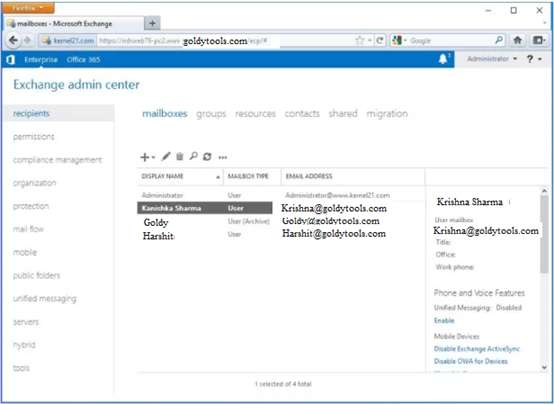
  6. Step 1:login to Exchange Admin Center(EAC) using administrator credentials
    Step 2:Navigate “Permissions” tab ,Then select Admin Roles
    Exchange Admin Center

    Step 3 Navigate “Recipient Management” and select (+) Add button.
    Recipient Management
    Step 4:In Role Group Wizard click (+) button under Roles section

    In Role Group

    Step 5:Select “Mailbox Import Export” option and select add and then click “OK ”
    Mailbox Import Export
    Step 6:Under Recipient Management, Select on “Mailbox Import Export”
    Recipient Management
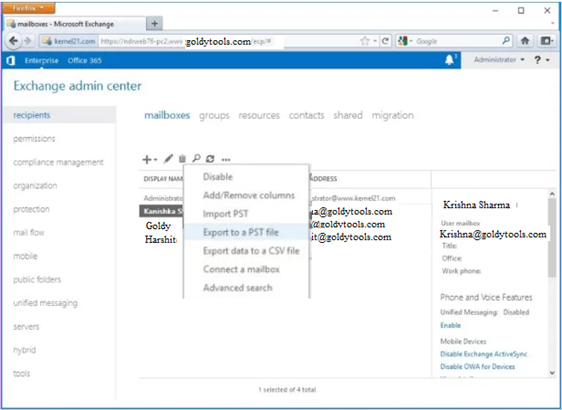
    Step 7: Step Navigate to “Recipients” section , select Mailboxes and choose mailbox you want to export .Click More option and Select “Export to a PST file.Export to a PST
    Step 8 :Click “Browse” mailbox you want to export
    Step 9:Enter path to Share folder
    Enter path
    Step 10:Enter path to Share folder
    Enter path
    Step 11:Finally select mailboxes to receive notification after successful export .Click “Finish” to begin process .Now data of EDB export to PST file
    export to PST file

Operational Limitations of Manual Methods

  1. Manual recovery of EDB file to PST is complex and data lose risk that require technical know about Exchange server
  2. The manual method is time consuming process .
  3. Manual Method size limitation ,it not support large number of mailboxes.

Professional EDB to PST Recovery Solution

Recovery of EDB file then you use third party tool which recovery corrupted EDB file and delete data. Goldytools EDB to PST Converter is specifically design for this purpose. IT provide advanced feature with user -friendly interface.

  1. It provide fast and efficient recovery of Corrupted and healthy EDB file.
  2. No size limitation of EDB file ,It recovery any size of EDB file
  3. Tool maintain data integrity and preserve original folder hierarchy .
  4. Tool provide option to split PST file based on user defined size limit

How to Configure Deleted Item Retention in Exchange Server?

Managing Deleted Item Retention in Exchange Server

Manage deleted items is important for maintain Exchange Server environment .When user delete emails – by pressing Delete ,using Shift+Delete and empty Deleted items folder – data move to Deletion folder. Duration these items recoverable depend on Deleted Items Retention setting configure for mailbox or Exchange Database. Exchange Server retains deleted items for 14 days . Retension period can customized to any value between 0 and 24855 day.This blog explore about setting about configure deleted item retention in Exchnage Server using Exchange Admin Center (EAC).If your Exchnage Database file corrupted during configure process .you can use Goldytools EDB to PST Converter Tool to restore mailbox data from corrupted and Inaccessible EDB Files

What information user Know Before starting

  1. Configuration process take approximate five minute
  2. Permission assigned before you can start procedures .First we check available permissions refer to Messaging Records Management entry under Messaging Policy and Compliance permissions in Exchange Server
  3. Verify that your Exchange server functioning working properly
  4. Next select number of deleted items day :this setting determined time duration deleted items are retained before permanently removed and user can not restore it.Note:default retention period 14 days.you manually adjust this setting between 0 to 24855
  5. Select Option Don’t permanently delete items until the database is backed up.

Step to Configure Retention Setting for Exchange

  1. Navigate Server then select Database
  2. From List mailbox databases, select require mailbox database and select Edit Icon
  3. In mailbox database property wizard then select one of following option
  • Keep deleted item for :14 days default, Manual select duration between 0 to 24855
  • Please check option Don’t permanently delete items until the database is backed up.
  • Finally Deleted item retention configuration complete

How user configure Deleted item Retention for mailbox?

Configure deleted item retention for mailbox, by use Exchange Admin Center and follow step carefully

  1. In Exchange Admin Center ,go to Recipient and then click Mailboxes
  2. From list of mailboxes ,select desired mailbox and choose Edit Icon.
  3. Once mailbox properties page open ,navigate Maibox usage and click More option .then select of following option
  4. Use default retention setting configure in Mailbox database
  5. Next process to configure delete item retention setting for mailbox.

Conclusion

This blog explore delete item retention and provide step intruction on configure deleted item retention by Exchange Admin Center in Exchange Server. IF EDB file corrupted or damage then use Goldytools EDB to PST tool .which recovery corrupted EDB file and Demo version provide you converted 25 items per Folder

Outlook OST File Size Not Reducing After Archiving Error – Fix it

Not Reduce OST file size after Archiving Error fix

Growing size of Microsoft Outlook data file common issue due to its use for email communication for across organization. If user delete email items but OST file doesn’t reduce .This result error “Outlook OST size not reducing after archiving .”So there any solution to resolve this issue . Yes there are many strategies to handle it. Most reliable solution conversion OST file to PST format for backup .Use professional tool OST to PST Converter tool is permanently solution for this issue

Manual Method to fix “OST File Size Not Reducing After Archiving” issue

we explore manual method to resolve issue of OST file Size not reduce after Archiving

Method1 :Reduce Outlook’s mailbox manually

To reduce size of Outlook mailbox user’s use Mailbox cleanup tool .this utility help user view total size mailbox and size of individual folder. Below following step you can reduce and manage size of your mailbox size.

  1. select on file Tab
  2. Next select tool and then choose Mailbox cleanup
  3. After this .choose any of following action
  4. To view size entire mailbox ,select on View-mailbox-size

If you want to find older emails, do following

Method 2:Reduce size OST data file

OST file linked with Microsoft Exchange Server account. OST file not delete automatically ,even when item removed from server .Shrinking files a practical solution to improve Outlook performance and reduce size
If you want compact OST file following these step

  1. Delete unnecessary emails
  2. Then open Folder list view
  3. Bottom of navigate pane Click Folder List icon. you can press CTRL+6 for it.
  4. Next, Right – click on Deleted items folder in Navigate Pane
  5. Then Click on Empty folder then select File > Account Settings.
  6. Once completed click on Data files tab and select file you want to compact
  7. Next select on setting then navigate Advanced tab and choose Outlook Data File Settings.
  8. Click Ok
  9. Outlook not need to open during process of compact Offline OST file Process .
  10. if you need delete any both offline and online folder ,follow these step
  11. Select setting then navigate Advanced tab and choose Outlook Data File Settings.
  12. Select item which you want delete
  13. Next click Delete

This Manual Method resolve issue of Outlook OST file size not reducing after archive .It require technical expert and this process time consuming and complex with risk of data lose if all step not perform carefully

Professional Method

For resolve issue of Outlook OST file size not reduce after archiving ,you need use Goldytools OST to PST Converter tool this with user friendly inter face and not need technical expert.

Conclusion

In this blog we explore both manual and professional method for solve issue .Manual Method need technical expert and time consume where as professional tool provide easy and secure solution .so we recommend you to use professional too.

Repair Outlook PST files using PST Outlook Repair Tool

Repair Outlook PST Files with the PST Outlook Repair Tool

If you look for repair Outlook PST file but you are not more knowledge about it don not worry in this blog we discuss about it .Goldy provide you Goldytools Outlook PST repair too which recovery to corrupted PST file and Inaccessible PST file. it automatically detect and scan corrupted PST file, repair and restore all data with preserve original property

Key Feature Of Goldytools Outlook PST Repair tool

If you want to get high quality result form PST Outlook repair then you choose reliable and more feature tool .Tool which retrieve lost or deleted mailbox data and provide flexibility to export recovered data in PST,DOC,PDF,MSG,EML,HTML,MHT,RTF format.

  • Easily and quickly repair corrupted Outlook PST file
  • Restore corrupted PST data in multiple format including PST EML,MSG,HTML,RTF DOC,PDF,MHT
  • Repair PST file of any size without limitation
  • Recovery parentally deleted or lost Outlook items
  • Provide option split large PST file as per specific requirements
  • Preserves folder hierarchy and doesn’t change original property
  • Recover all email details include body content, CC, BCC, subject, date and time
  • Tool support all version Outlook and Windows Operating System
  • Provide life time free technical support

Efficient solution to Repair PST file of any Size

With Goldytools Outlook PST repair tool you repair PST file .It quickly sans and allow user to recover PST file without any size restriction .Tool provide option to split Outlook PST file as need

Preview PST Files Before Recovery

User convenience of previewing items before repair PST file. By Using Our tool User view source mailbox folder which file add ,you full visibility into content .User can preview folder item including message body ,items property ,recipient details and attachment.

Recovery of permanently deleted Outlook items

Advanced scanning capability of Goldytools Outlook PST repair tool enables deep scanning and recovery of permanently deleted items . User preview recovered content – including email ,attachment etc ,before restore .this feature support of deleted attachment.

Save Email items in Multiple file Format

After repairing PST user save recovered items in PST ,MSG,EML,RTF,DOC,HTML,PDF,MHT format .tool recovered corrupted and inaccessible file and save it multiple format

Preserve original metadata of recovered item

Outlook PST repair tool designed for recover and restore all type Outlook data items .Tool retain all property of email including CC, BCC, Contact, attachment ,Task- so user retrieve their their data original form .Tool also preserve original folder hierarchy to maintain mailbox structure

Extract Calendar from OST File: Simplified Solution

How to Easily Extract Calendar from OST File

Calendars play important role in Daily ,it helps us for maintain organize meeting, event, parries and important function,. Microsoft Outlook provide a calendar feature to support our need. However store data in cloud carry risk such as data lose or corruption .Therefore regular backup much necessary .This blog explore about manual and Professional OST to PST Converter tool for Extracting calendar data from OST file

Effective Method for Export Calendar Data from OST file Outlook

If you need easy and reliable solution to extract calendar data from OST file then we recommended for Goldytools OST to PST Converter provide User friendly method to Export calendar from OST file. Otherwise you use manual method for it user require more time and technical knowledge.

Method1:How to Manual export Calendar from OST file

Before extract from PST file .First you check OST file accessible if OST file accessible then Manual method .If OST file not access then we recommend to use Professionals tool

Step to manual extract Calendar from Outlook 2013,2016 and 2019

  1. Open Outlook application and select file tab
  2. Click on Open&Export Then click Import/Export Option
  3. Click Next then choose Calendar
  4. Check include subfolder ,then click Next
  5. Finally ,choose destination folder to save exported file ,then click Finish.

If you are using older version of Outlook ,Please follow below steps

Steps Manual Extract Calendar Data in Outlook2010

  1. Open Outlook select File>Options . click on Advanced tab
  2. Now select Export Option ,now Choose Outlook file(.pst)
  3. Click Next for process.
  4. Select calendar ,check Include subfolder option and now click Next
  5. Finally specify destination path for file and click Finish for complete process

If you are using Outlook 2007 .please follow below option

Step to Manual extract Calendar form Outlook 2007

  1. Launch Outlook click on File Tab and select Import/Export
  2. Choose Export Option ,then click Next
  3. Select PST file Option ,Then Click Next
  4. Now choose Calendar ,then check Include subfolder Option
  5. Final browse desired location and file name and click OK

Following these step user successfully extract calendar data from OST file .Manual method take more time and if file inaccessible then this method not work. to recovered corrupted data we recommended to OST recovery tool

Professional Method for Extracting Calendar data from Outlook OST file

Goldytools OST to PST Converter is reliable and trusted solution For various issue relative OST file .Tool provide many feature and user friendly interface .Some additional key feature given below

  1. Tool provide date range filter option
  2. Compatible all version Outlook and Windows Operation System
  3. Tool recovered and Inaccessible OST file

Conclusion

this article provide reliable User interface for user easily extract calendar data from OST file . Method discuss both practical and proven effective . These dependable techniques outline ,choice now to implement them require

Repair EDB Files in Simplest Manner If Corruption Occurs

Simplest way to Repair Corrupt EDB

Inaccessibility of Exchange data is common issue face by Exchange administrator. Several issue reason for database corruption ,including system error, virus attack, logical fault ,power failure and more In this blog we explore common issue for Exchange database corruption and discuss method to repair EDB file.

What is Exchange Server EDB File?

EDB file is create by Exchange server .It store exchange server mail box data including SMTP message and ACT email . In pervious version pf Exchange server store in EDB file format. In new version Exchange server uses different format manage and store data file .These format for better organize and tracking of mailbox data on Exchange Server

Common reason of Exchange Database File Corruption

Exchange Server store data in EDB file .Below some common issue that can reason of EDB file corruption

  • Unexpected Shutdown of Exchange Server
  • Unexpected Power Failure
  • Common Exchange server error
  • Sudden Exchange Server Crash
  • Virus attack

You can restore EDB file by following straightforward recovery process

Top Methods for EDB File Repair

There are two main method to repair EDB file one manual method free of cost other using third party tool

Repair EDB Files Using Command

  • Click start button and select “Run”
  • In Run Dialog box ,type “cmd” and click OK
  • Next open directory “C:\Program Files\Exchsrvr\bin.”
  • Next type ‘Eseutil.exe’ in command prompt.
  • Eseutil utility(Eseutil.exe) operate in two mode ‘/r’ and ‘/p.’
  • Eseutil /r command is designed specifically for recovery of Exchange database
  • IF EDB file highly corrupted user can use Eseutil/p command to recovery damaged Exchange EDB file ,including priv1.edb and pub1.ed
  • Eseutil /p C:\Program files\Exchsvr\mdbdata\ primary name.EDB
  • After using Eseutil /p command restore corrupted .edb file run Eseutil /p command to deragment Exchange database.
  • Now, use the Eseutil.exe command to inspect the integrity of the repaired EDB database. The command will return results such as: Isinteg –s {Exchange Server name} –fix –test all tests.”
  • Choose recovered .edb file from Microsoft Exchange Server for further process
  • Run Esecutil.exe command continually until no issue remain on Exchange server
  • Run Eseutil/G command to verify consistency of repaired Exchange database
  • Remount repaired Exchange database files using Exchnage administrator tool

Manual method more complex and single incorrect command lead to risk of data loss. To avoid any risk and effectively repair corrupted EDB file we recommend to use a professional tool.

Goldytools EDB to PST tool – A professional solution for recovery Corrupted EDB file

Manual method challenged for many time but Professions tools simple to use. Goldytool EDB to PST converter tool is capable of recovery and repair corrupted EDB file and Inaccessible EDB file, You can save Exchange email file in many format as PST,EML,MSG,PDF,DOC,RTF,HTML,MHT.

Key Features of EDB to PST Converter
Recover Deleted EDB Data

Tool designed by advanced algorithm that recovered deleted EDB file data.it restored email, contacts , calendars, task etc. .it is capable to recovered EDB files which many corrupted.

Handling and Scanning Large EDB Files

Tool scan large EDB mailboxes data files and Scanning, recovery, and saving into PST format wihout any effect on Large file. its advance capabilities make it excellent choice for user.

Trial Version

Demo Version Goldytools EDB to PST converter recovered corrupted EDB and save 25 items of per folder .Trial version allow to check tool performance, and functionality before purchase.”

Conclusion:

there are many reason behind corruption EDB file .Manual Recovery method is limited and unreliable ,inefficient for restoring Exchange server EDB file. we recommended you use Goldytools EDB to PST converter too .It recovered corrupted EDB file and restored deleted data of EDB file.

Easily Convert OST to PST file format in simple steps?

If you searching best solution to convert OST to PST format ,you are in right place .In this we guide you OST to PST Converter entire Process in detail. So first we explore about OST recovery steps ,under stand Microsoft Outlook its format and some important background.

Microsoft Outlook OST file

OST file in Microsoft Outlook is Offline Storage file. You continue work with Outlook if Exchange connect or disconnect or when Outlook connect Exchange server then all changes automatically synchronize data .OST file store copy of Outlook data local system .we recover information in case server crash ,network issue or PST corruption. We not accurate to say That OST file are effect to technical issue . Many factor can corrupt or damage OST file or inaccessible. if you migrate data one place to other then this method very help full for you.

Why we need to convert OST file to PST
Virus or Malware Interruption:

Antivirus program can protect your system from countless virus and Malware infection . But if it can not compatible with system ,it interfere with other applications. SO it important to choose your antivirus software carefully .if you want safe your data from malware then You convert OST file to PST format.

Network Connectors Disrupt Workflow:

Synchronize data from one location to another ,a network connection require .this connection relies on cable and network cards. If any one component damged .it can disrupt the process and corrupt OST file

Storage Usage Limit:

OST file storage limitation which varies depend on Version of Outlook. IF file exceed it size limit ,It become corrupted or inaccessible.

Unexpected Power Failure

Unexpected power failure cause corruption in system applications.OST file is sensitive and sudden power failure corrupted OST file.

Process for Converting OST to PST

Now we understand reason why OST file become inaccessible and Corruption .User need to transfer their data from inaccessible file to PST file. for OST file conversion you need best solution for OST to PST Converter tool. there are many tool available in market .But Goldytools OST to PST converter one reliable and effective tool in Market for convert OST file.

Goldytools OST to PST Converter.

Goldytools OST to PST Converter extract items from OST file and save items in PST file or other format.it provide fastest conversion process., it take few minute for convert large OST file into PST file.

Key Features of the Goldytools OST to PST Tool
Quick and Easy Retrieval of Corrupt OST Data

Tool recovery from corrupted OST file and Inaccessible OST file ,Restore all data such as emails ,calendar ,contact ,task ,notes etc.

Trial Version:

demo version recover corrupted OST file and save restore data from every mailbox which allow recovery and save 25 items per folder

Preview recovery item before save

tool provide preview feature ,allowing user to view and quality of recovery data before complete conversion process.

How to Export Exchange 2016 mailbox to PST ?

How to Export Exchange 2016 mailbox into PST file?

If you search for reliable solution for Export an Exchnage mail to PST then your search end here.In blog you learn everything relative to export mailboxes Exchange server to PST ,Cover key reason ,various method and step -by -step process .

What reason for export Exchange 2016 mailbox to PST file.

Reason for Export Exchange server 2016 to PST file depending on user But many common reason which given below

  • A loacl bakup using pst file is most suitable option for it.
  • To free space on Exchange server by exporting data from Archive mailbox and other mailbox into PST file
  • PST file offer easy accessibility and also easy to transfer.
  • PST file provide password protection felicity
  • What are method for Export Exchange 2016 mailboxes to PST file

    There are two method available for Export Exchange 2016 mailboxes to PST .One option is manual Method and Third party tool which convert Exchange 2016 mailboxes to PST file . here we discuss about both method but Final decision take by you which method you prefer.

    Manual Method for Export Exchange 2016 mailbox to PST file.

    User have two option to export Exchange mailboxes to PST file which is :Exchange Admin Centre and PowerShell Command.

    1.Using Exchange Admin Centre Method

    Now we explore method for export mailbox to PST Exchange 2016 using Exchange Admin Centre.

    • First Login to Exchange Admin Centre.
    • Click on Recipient then select Mailboxes
    • Select mailbox you want to export then right -click on it
    • Next choose Export to PST file option
    • Enter file path where you want save it then Click on Next
    • Then select and deselect option as need .if you receive notification email after process completion then enter email address

    2.Using PowerShell Command Method

    Now you want export mailbox to pst file in Exchange server using PowerShell,open Exchange Management Shell and run New-MailboxExportRequest command.”

    To export User mailbox to PST file

    New-MailboxExportRequest -Mailbox “mailbox name” -FilePath

    \\ServerName\FolderName\nameoffile.pst
    To export Archive Mailbox to PST File

    New-MailboxExportRequest -Mailbox “mailbox name” -FilePath

    “\\ServerName01\FolderName\nameoffile.pst” –IsArchive
    To export Shared Mailbox to PST File

    New-MailboxExportRequest -Mailbox “name of the shared mailbox” -FilePath

    \\ServerName02\Folder\nameoffile.pst
    To export data from specific data range

    New-MailboxExportRequest -ContentFilter {(Received -lt ’04/10/2024′)-and (Received -gt ’04/10/2023′)} -Mailbox User1 -Filepath

    \\ Exchange\{PST}\{file-name}.pst
    Drawbacks and Limitation of manual Method

    • Manual method is highly complex process and it require a technical background.
    • User not have nay advance option that necessary such as Filter ,PST size and other setting
    • Command execution vary depend on version Exchange server
    • Running this process take too much time.

    Professional method for export Exchange 2016 mailbox to PST

    To Export Exchnage 2016 mailbox to PST , Goldytools EDB to PST Converter offer advanced ,feature and effortless solution .With this tool export process become very simple. Some feature give below

    • Export Exchange mailbox to PST format.
    • It compatible with all version of Exchange server ,User can export Exchange 2010 to PST
    • Tool Recover corrupted and inaccessible .EDB file
    • User can export all Exchnage 2016 mailboxes to PST in single process.
    • User can set PST file and size for resulting PST file
    • Tool offer search ,filter and preview features.

    Conclusion

    In this Blog we explore about manual method ,including Exchange Admin Center and PowerShell commands while highlighting limitation of this process .Then we explored professional solution Goldytools EDB to PST Converter .User test it functionality by free trail before purchase

Direct Ways to Open OST File without Outlook on Windows

How to open OST file without outlook on Windows

This article explore about how to open OST file without install outlook on your system. there is no manual method for open OST file without Outlook on system. We recommend to use third party solution – Goldytools OST Viewer tool for open OST file without Outlook

Common reason to Open OST file without Outlook

Microsoft Outlook is one of most widely used email client for user manage their data with other person in Organization .Email application provide many feature to manage email ,contact, task ,note ,etc.
Outlook used to work with Exchange server and Exchange Server store user data . Outlook store mailbox data locally in OST file format allow to user access their email when offline Outlook
OST file data file outlook which contain copy of mailbox items from sever.it allow to user access and work with their email ,calendar and when outlook offline mode. If you want view the contain of OST the Microsoft Outlook software install on system.
If you need to access data of corrupted OST file ,preview OST file data send by client without outlook .In such case user you use third party tool which preview to OST file data without Outlook software

How to access corrupted or Inaccessible OST file without Outlook

If your OST file corrupted and inaccessible then we recommend you to use Goldytools OST to PST Converter Software which recover corrupted and inaccessible OST file .this tool convert OST file into in different format such as PST ,EML,MSG,PDF,DOC ,RDF ,HTML,MHT .

Easy Method to open OST file without Outlook

Now we explore about effective method to open OST file without Outlook software .after research we not found any manual method which open OST file without Outlook software .Our team finding most reliable secure and user-friendly solution which open OST file without Outlook is Goldytools OST Viewer.
OST Viewer if free of cost by using this software user preview OST file data include email ,contact , tasks ,notes ,calendar ,etc. and user preview email content of email and also find attachment file name

OST Viewer if free of cost by using this software user preview OST file data include email ,contact , tasks ,notes ,calendar ,etc. and user preview email content of email and also find attachment file name
Software with no risk of data lose and data integrity or no file limitation .user easy preview OST file data item without any risk and without Outlook file installation. By use Goldytools OST to PST converter user convert OST file to other format such as EML,MSG ,DOC,PDF,PST ,MHT,HTML,RTF .

Step – by -step Guide for Open OST file without Outlook

You can easily open ,preview OST file data on your pc without install Outlook Software .Just follow these step

  1. First down load and install OST Viewer tool then run it as administrator credential on your Compute
  2. Click browse button and choose OST file from your system
  3. After select OST file then choose scanning mode then click next
  4. To view any folder folder data then double click it
  5. Now chcek the folders which you want to save and click next.
  6. Now you select saving format as PST,PDF,DOC,RTF,HTML,MSG,EML and by use browse button choose saving location .
  7. You configure necessary setting for conversation then click ok button.
  8. after conversation process completed then show “Save file” dialog box show.

Conclusion:

Many user look for solution for OST file without install Outlook on system .but not find any manual method for open OST file without install Outlook .SO we recommend you use Goldytools OST viewer Software .it provide free of cost and save 25 items per folder.

Open EDB Files Without Microsoft Exchange – Complete Tutorial

Microsoft Exchange Server a part of enterprise email system, serving millions of users of World .It store all mailbox data- emails ,contact, calendar, task and notes etc .These file necessary for organization and it contains critical communication data .But some situation user need to access EDB file without Exchange server .If you face similar situation ,then read this blog and Understand how to open EDB file without Exchange server.

What situation require access .EDB file without Exchange Server

  • If Exchange server failure or inaccessible
  • Your EDB file corrupted and you not risk loading in main server .
  • Hardware issue and make it impossible to open EDB file
  • Malware attack and unexcited server reason user are not open EDB file
  • Professional Software for accessing .EDB file

Professional Solution for Open .EDB file
To Open EDB file without Exchange server You need reliable Software tool. Goldytools EDB Viewer is free tool designed for this purpose with advance feature

  • It open healthy and corrupted EDB files.
  • User add EDB file any size and view contain of . EDB file
  • Tool support both Public >EDB and Priat EDB file.
  • Tool scan corrupted and Inaccessible file ,Healthy file
  • Goldytools EDB Viewer preserve integrity of data structure and maintaining original folder hierarchy of EDB file.
  • Understand How It Works

    • Installing and launch Goldytools EDB Viewer tool
    • Click “Add EDB file” button locate on ribbon Bar
    • Goldytools EDB Viewer

    • Browse and select EDB file you want to add EDB file
    • select EDB file

      In Under folder list ,you see all folder from EDB file.
      Tool provide you to view item detail such as Item view ,Preview ,Body content and attachments

      Goldytools EDB Viewer
      Note:Goldytools Viewer tool allow user to open EDB file and View it items.But it save save 25 item per folder.You can view item of EDB but not access it Item.If you need to convert and save many format then use Goldytools EDB to PST converter Tool.

      Explore feature of Goldytools EDB to PST Converter

      • It recovery of Corrupted and Inaccessible EDB file.
      • tool provide filter option such as Message class and Message Date
      • User manage PST file size by using split PST option
      • Goldytools EDB to PST Converter compatible with all version of Windows and Exchange Server

      Conclusion

      Many Exchange usrer have EDB file but not open EDB file without Exchange server .Goldytools Viewer free tool that provide facility that user open EDB file and View contains of EDB file.If you convert and save item of EDF file for export then you use Goldytools EDB to PST Contertool.A free trial version of Goldytools EBD to PST Converter available for download which save 25 ietm per folder.

Top 6 Reasons Users Might Need OST to PST Conversion

Top 6 common Reason for Convert OST file to PST Format

OST and PST both file contain same type of data – such as email, contact, calender and task -. However OST and PST file serve different purpose and fuction differently within Outlook . Many times user need to convert OST file to PST format. In this article we explore most common scenario when user need to Convert OST file to PST file.

Comparison OST and PST file Formats

Microsoft Outlook provide comprehensive set of feature to meet messaging and need of businesses and organization. Microsoft Outlook provide comprehensive set of feature to meet messaging and need of businesses and organization. In Corporate Office Outlook use both internal communication among employe and external Client or Partners.
Microsoft Outlook function work as personal information manager.It store a wide range of data – including email ,contact,calendar,task,note etc .there are main types of these file :OST and PST file.
When Outlook use as standalone application ,it create a PST file a file which store mailbox data.PST file associate with POP3 , IMAP and web- base email account. OST file create when Outlook configure with Exchange Server account and Cached Exchange Mode enabled.
OST file store all mailbox data in offline mode on user’s computer.user use email ,calendars,contact,and other email items without internet connection.Once network connect then all change restore in Exchange server account,all offline change automatically synchronized with Exchange server.

Why OST to PST conversion necessary?

Now days OST to PST conversion become widely discussed topic across internet. but you know about when we necessary to convert OST file to PST format.There are many reason for convert OST to PST format.Now Below discuss top 6 reason where need for Convert OST to PST file.

Exchange Server Failure

Various factor for Exchange server failure ,including internal bugs ,power failure ,virus or malware .When Exchange server crash then connection between Outlook and Exchange server is lost.In such condition it impossible for user to access mailbox data by online connection. Repair Exchange server it take some time . OST file reside on local system ,it not access by online mode. If user need access OST file data then User convert OST file to PST file Format. Then user open data in Outlook .

Exchange Server Undergoing Maintenance

Microsoft Exchange Server require maintenance to performance and security. Microsoft Exchange Server require maintenance to performance and security .During scheduled maintenance ,access mail box data through exchange server impossible .OST file contain mailbox data , it work when it synchronization with exchange server. f you urgent need mailbox data then convert OST to PST file format.

Job Change

your Outlook profile linked to Exchange server in your Organization .Now you switch to other company ,access mailbox data store in old OST file become difficult. OST file some restriction they can open Outlook profile where original created .Now you need to convert OST file to PST file format which portable and easily open any other profile.

Data Migration

OST to PST conversion become essential when migrate data one place to other place. During Organization shift one place to other place then you need transfer data one system to other system .Since AN OST file can only Outlook profile where it created other it can not open.SO it must necessary Convert OST to PST file format.

How Recover Data from OST File

If you accidentally delete mailbox data from OST file ,Now you regenerate new OST file by Exchange server. However delete mail box data delete form Exchange server. Now use any Third party tool which get delete data from OST file and Save in PST format

Corrupted Mailbox Data

Some time OST file Corrupted due to many reason such as hard disk fail, system shutdown ,server Crash etc. Microsoft provide Integrity Check tool (scanost utility) it not working when Server Carsh .In user User used professional OST to PST tool which recover corrupted OST file and save in PST format

How to Successfully Convert OST to PST

To convert OST file to PST file user have two option : First Manual method and second Third party tool . Maul method is free but it has some limitation and risk of data lose . Third party tool ,Goldytools OST to PST converter provide more , advanced efficient, and user-friendly solution. It Recovered corrupted OST file and Recovery deleted data in OST file.

Conclusion

:

In this article we explored difference between OST file and PST file and highlight top 6 scenarios wheres OST to PST conversion must necessary .Thirty party professional tool Goldytools OST to PST converter provide user friend environment and comes with free trial which convert 25 item per folder

What is the need for Converting EDB to PST and how can you do it?

What is need to Convert EDB to PST and Best method to do it

When Urgent you need to convert EDB to PST file and without risk any data lose .If Exchange Database file become corrupted or functioning not working properly. Convert it more data format which you access easily. PST can easily access by Microsoft Outlook on computer.One key advantage that outlook import pst file from any location on system . Before Exchange server 2010, user mailboxes organize into storage group.then user take backup easily.after Exchange server 2010 ,Microsoft replace storage group with database architecture,complicate backup process .Microsoft recommend convert EDB file PST format and access individual mailboxes .

EDB is used to store multiple mailboxes within Exchange server . Exhange server hosting multiple EDB files depend on size and data volume.

Top reason to Convert EDB to PST Format

There are several common reason why convert EDB file to PST ,Some common reason given below

  1. Recovered corrupted EDB file extremely difficult. So convert it best solution.
  2. PST reduce size of mailbox which improve Outlook performance
  3. Small size reduce storage infrastructure requirement
  4. If you want backup of EDB file for safekeeping , convert it PST is safe Option.
  5. If you need backup of specify mailbox then Convert It to PST best Option.
  6. Reduce risk of corruption of EDB file by convert it to PST format.

There are several method available for converting EDB to PST now we explore them in detail

Convert EDB to PST Process

Exchange Admin Center: This method easy for who familiar with exchange server operation .It allow you to export PST file form Exchange server dashboard.

Following these step to complete process and generate PST file

  1. Open Exchnage Admin Center(EAC) and login with administrator credentials
  2. Now Navigate Permission then select Admin roles from right pane
  3. Under admin roles click Recipient Management then click plus icon
  4. This open Role Group wizard .Under Roles section click plus icon
  5. From Display Name ,select Mailbox Import Export then click on Add button and finally click OK .
  6. Mailbox Import Export role successfully add to Recipient Management group.
  7. Now navigate Recipient and select mailbox .Select mailbox which you want to export click on more option and select Export a PST file Option
  8. Now browse and select mailbox you want to export
  9. Now provide path for store PST file in Share folder.
  10. Now select mailbox which receive email after process is complete.

This is manual method for convert EDB to PST .However you see this complex method and difficult .especial y for user who not familiar with Exchange server

Convert EDB to PST using an EDB to PST Converter Tool

There are many tool available for EDB to PST conversion,But we advice for Goldytools EDB to PST Converter due to its reliability and user -friendly Interface . The Goldytools EDB to PST conerter provide a demo version which allow user convert 25 items per folder

OST to PST Converter Tool – A Top-Rated Solution

If you urgently need to convert OST files to PST format and colleague recommend use a Professional OST to PST Converter tool .If you search for “Top OST to PST Converter ” on google then you find many option ,Now guide you how to find best OST to PST Converter tools
OST to PST both are two different types of Outlook data files , each file serve for different purpose
Microsoft not provide any utility for Convert OST File to PST ,There are many manual method which convert OST to PST file format but which have some limitation and risk of data lose .That why use Third party professional OST to PST Converter tool which convert OST to PST file format

Find the Best OST to PST Converter tool

If you search online OST to PST Converter tool then you find there many software vendor which provide OST to PST converter facility . Goldytools OST to PST Converter is best reliable and effective Solution. Why i recommend it Let me explain

User Reviews

Online review play biggest role for business growth. If user purchase any software then first user study about product review if product review best and software full fill user need then user purchase software .so product preview is major role in any company sales growth

Features

Goldytools OST to PST Converter provide you most advanced features compare to other company software.

Quick and Safe

OST to PST converter tools convert OST to PST and Other Format Such as PDF,DOC,HTML,EML,MSG etc It support all any file size and no limitation of file size. It not effect on original OST file during conversion process running.

Resolve Corruption Issues

It recovery corrupted OST file and Inaccessible file . Once recovery process complete then all stored data save in New PST file.it also recovery delete deleted mail and mailboxes data from OST file

File Preview

OST to PST Converter Software provide preview of your mailbox dat before conversion .the tool give flexibility to select specific folder for Recovery ,So user select this folder for recovery and after convert process complete user get specific folder data in New PST file

Export to Multiple File Format

Primary function of the software is convert OST file to PST file Format . Software provide saving other type format such EML,DOC,PDF,HTML,MHT. if user want to save OST file save any format.

Split PST File in Different size

If user want output big PST file into multiple pats .Software provide spilt option you can simple specify desired size for resulting PST file .the Tool generate multiple file and you get matching size which you define

User-Friendly Interface

Software provide easy User Interface .Both technical and non technical user can operate OST to PST converter tool.

Supports Outlook Versions and Windows Platforms

Software support OST file generate by all MS Outlook including 2000, 2002, 2003, 2007, 2010, 2013, and the latest 2016, 2019, etc. and Software run all Windows all platform Including 32bit and 64 bit

Cost

Price is an important role ,OST to PST Converter tool sand out not only with its powerful feature but also affordable price. your purchase this software only 30$.

Conclusion

This article explained exactly why user choose OST to PST Converter from Goldytools for Outlook user. that why it important to focus on functioning when select right OST to PST converter

High – Security OST to PST Converter for OST to PST Conversion

Now Online world data is one of most valuable asset .In Microsoft Outlook ,OST and PST file format used for data storage.OST enable to user work without of network connection . Once internet connection is established ,OST file automatically synchronize and update with exchange server which done offline time.PST file store copy message , calendar ,contact ,task on local system .There are many condition when need to convert OST file to PST. Then we need professional software OST to PST Converter which converter OST file PST file without any change in structure and etc

Common reason for Convert OST to PST file

  • PST file easy move from one system to other system
  • if your Outlook profile not connected with exchange server due to Server crash, virus attach, system
  • failure then PST file help for recovery PST file data.

  • During Exchange Maintenance ,PST file allow us to access your Outlook profile data.

How to convert OST to PST file

Many user search online to know about suitable method for converting OST to PST .There are two method :manual and third party tools. Manual method free of cost with some limitation and risk of data lose Where as third party tool save time ,effort and recovery the corrupted with accurate and efficient conversion .If you want to explore about manual method then following link explore manual method.

Professionals Tools

Goldytools developed with developed with advanced algorithms and all-in -one solution -Goldytools OST to PST converter which provide user friendly GUI . Goldytools OST to PST converter recovery corrupted and in accessible OST file.

Key feature of Goldytools OST to PST converter

  • Software Convert Large size OST file to PST file without any size limit.
  • Goldytools OST to PST converter Tools compatibility with all version of MS Outlook and Windows Operating System
  • Software equipped with several user –centric feature. Such as two type scanning mode, Filter Option ,Split Option and Preview Option .By using Preview option user see all data before conversion.
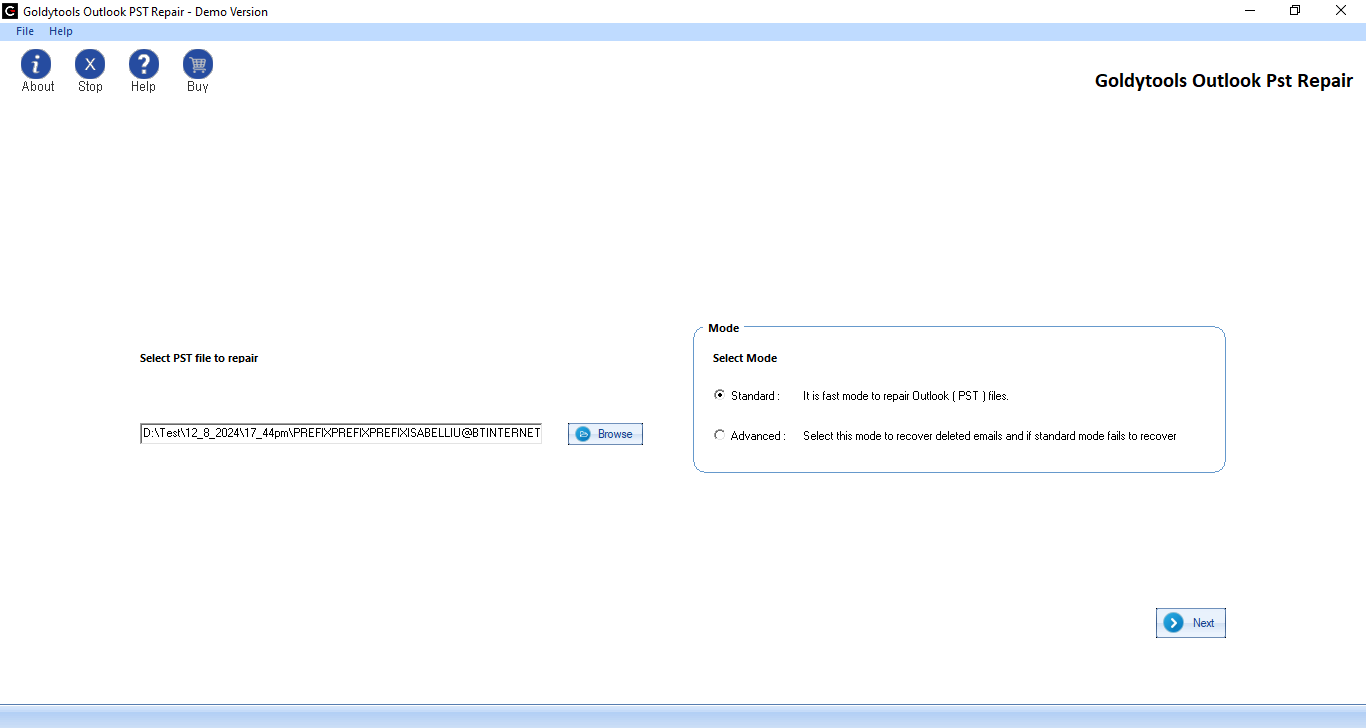
  • Software maintain data integrity and folder hierarchy after conversation
  • Goldytools OST to PST converter OST file save different format such as PST,HTML,EML,MSG.DOC,RTF,PDF
  • Software provide a PST split Option ,allow to user split OST file into desired size.
  • Goldy provide demo version Goldytools OST file to PST which convert 20 items per folder in demo version free of cost.
  • Conclusion

    There are some method available to convert OST file to PST. They come with limitation and risk of data lose .Goldytools OST to PST Converter is professional tool which recovery corrupted file and Inaccessible file .This come with many feature such filtering ,Split Option ,Save OST file in different Format. Goldytools OST to PST Converter provide a free demo version which converter 20 item per folder in demo version

What is an EDB File and How to Find It on Exchange Server?

Exchange Server used for Outlook mailing platform which stores such email,contact,calendar ,etc in exchange database .edb extension file. EDB is necessary component of Microsoft Exchange Server .It store mailbox data base .administrator takes backup of Exchange server database and restore to other Exchange server according to requirement . However administrator of Exchange doesn’t know the location of .edb file. after reading this blog user easily find the location of .EDB file.Now understanding types of Exchange database file When user require location EDB file

Types of EDB files and when user require loaction of EDB file

Exchange database store different type of data and manage large amount of data .There are two types of EDB files
Private EDB file: Private EDB file stores specific data including email, calendar, contact, task . its only save mailbox data and manage personal information with exchange sever.
Public EDB file: EDB file stored share data which information share by other team member .The EDB file accessible by team member

Now understand why users need to location .edb file of Exchange serve

Why is important to know location of EDB file.

EDB file stores user important data as email, contact, calendar ,contact task and other information .So it is important to locate EDB file In following location

  1. When database removed from list ,user reattach the corresponding EDB file to Exchange server file.
  2. If EDB file dismount and user want to extract data from EDB file first remount with exchange server .then user find to location of EDB file.
  3. IF server fail boot failure then user locate location EDB file must necessary for Recovery data from EDB file.

Step to find Location of Exchange EDB file

To Find location of .edb file we use to Microsoft Power Shell command .Before need to get location of .edb file first we understand version of different Exchange server.

Default EDB file location in Different Exchange server version

The default location of Exchange server (EDB) file depend on Version of Exchange Server. Read below Section to Find default path for different of EDB file

  • For MS Exchange server 2003 ,use following path location for EDB file.
  • path location
    path location

  • In Exchange Server 2007 ,Location of EDB files at following path
  • Location of EDB files

  • Locate database file in Exchange Server2010, use path provide below
  • use path

  • Following default path location EDB file for Exchange Server 2013
  • default path location

  • EDB file for Exchange server location provide below path
  • provide below path

If Exchange server database .EDB file move to other place then user need to find locate by using PowerShell command
Step Find the EDB File Path

  • Open Start Menu and search “Exchange Management Shell ” using search bar
  • Then click Exchange Management Shell to run it
  • Now user use below to find out where Exchange EDB file Store
  • After execute command i Power Shell the Location of Location of .EDB file show on Display Screen
  • Name : MailboxDatabase1

  • Copy EDB file path and Open file Explorer
  • Now past EDB file location in Address bar and press enter button to file location
  • By using manual step then User find .EDB file location .In manual method user face some difficulty .If user find .EDB location easily user use third Party tool Goldytools EDB to PST Converter Tool.

Import OST to Outlook PST Using OST to PST Converter

Import OST to Outlook PST

Microsoft Outlook has Become most popular email platform, use for person and professional communicative .It provide user friendly interface and support multiple email account with powerful feature. Outlook use two data format :OST and PST. Outlook enables user to access their email offline Mode
Outlook automatically synchronize with the Exchange sever whenever it connect with Exchange Server.PST store all data such as email message ,attachment, contact, calendar and attachment on Local system. .When we necessary to import OST file from the Outlook ,below have few step for Understand it.

Condition

  1. OST file Corrupted and Inaccessible due to System crash or unexpected shutdown.
  2. PST file are portable and easy migrate to target system.
  3. if accidentally deleted mail from PST file
  4. During downtime ,PST allow to you access you outlook data

How to import OST form Outlook

OST to PST Converter is a reliable software .It import OST file form MS Outlook and it recovery damaged or corrupted OST file .Software analyze the corrupted an damaged before initialize conversion. Easily Software recovery OST file and save in PST file format .Software provide us User friendly interface.
Best Method to Import OST into Outlook PST

  1. First Install Software and Run it.
  2. Open the software and click “Add OST files ” from ribbon bar.
  3. After choose ,a dialog box appear .Now user use browser or search for OST file .after file select then Click OK to process.
  4. Choose OST file added to folder list allowing User preview select file.
  5. No you selected specific files to converter then click “Export to Outlook PST” from ribbon bar.
  6. After choose “Export to Outlook PST” option a dialog box pop -up.after check an uncheck sub folder then click next
  7. After click “Next” ,you have option to export data to PST file base On Message and Data Range. Click “Next” and Complete the require details.
  8. After summit all detail user wait for generate Report
  9. After saving report then Click “Finish” button.

Why Choose an OST to Outlook PST Converter?

OST to PST Converter tool User friendly ,safe and Export OST to PST file Format.There are many benefit of tool given below
.Export all data of OST to PST file format
.Export all email OST file to Other Format as EML,MSG,DOC,PDF,RTF,HTML,MHT
.Support all version Outlook and all Version Windows
.Free demo export 20 items per Folder

Conclusion:

Goldytools OST to PST convert OST file To PST format.It recover corrupted OST file and inaccessible OST file. tool provide user friendly User interface ,User easy convert OST file to Other format , before purchase user use demo version ,demo version provide all feature. if user all requirement met in too then purchase full version

How to solve Outlook and OWA OST Synchronization Problem ?

Some time Outlook or Outlook Web Access fail to connect or synchronize OST file with Exchange Server.

Following sign indicating issue

  1. Email count in folder of Outlook Web Access(OWA) and Outlook 2003/2007/2010 may differ
  2. we face issue when working with Outlook but disable cached mode everything work fine.
  3. Error message appear when OST file synchronization with Exchange Server and Some time OST file inaccessible
  4. OST file Synchronizing with exchange server few items missing in OST file-Such as emails ,tasks , contact and calendar

How to Resolve the Issue?

Microsoft offer OST Integrity Check tool free which repair synchronization issue between OST file and Exchange server.OST file scanning by free tool and compare number of item in OST file and Exchange mailbox server
Scanost.exe find any difference to reconcile them without any modification in mailbox data, after complete scanning Scanost.exe make issue log Report which store Delete items folder Sanost.exe can not resolve any issue then provide detail information about issue . issue relative detail information in email with subject line :”OST Integrity Check.”

OST Integrity Check for Outlook 2003/2007

  1. Scanost.exe tool find and resolve inconsistencies OST File.OST Integrity Check tool automatically install in system when install Outlook .it fix OST file inconsistencies issue
  2. Scanost.exe

    (a)Double click Scanost.exe and enter profile name relative to OST file.Tool give two option for choose : connect or Work offline ,Now choose Connect option
    (b)if user want to automatically fix difference at time scanning ,select check box option “Repair Error “.Then Click Begin Scan button and resolve OST file synchronization issue.

OST Integrity Check Outlook 2010 Users

For Outlook 2010 Scanost,exe is not include not include .if you face any issue in specific folder ,then it resynchronize manually . Follow below step:
(a) If user want resynchronized any folder then Right -click on this folder and select Properties from drop down menu
(b)Click on Clear Offline items then click “OK” to confirm
(c)Now Navigate in application ribbon and click Send/Receive tab to start the synchronization process.
(d)Click Update Folder to synchronize for select folder
If this process not resolve the issue then rebuild OST file and delete all data from folder then down load again from Exchange Server.

Steps to Rebuild an OST File:

Delete exiting data from OST file for need to be rebuild then Rename OST file.

  1. First locate OST file by these step : first click Start button then open Run dialog box now pst following path location in run dialog box.
  2. Windows XP: C:\ Documents and Settings \ \ Local Settings \ Application Data \ Microsoft \ Outlook
    Windows Vista/7: C:\ Users \ \ AppData \ Local \ Microsoft \ Outlook

  3. If folder not visible then need unhide them ,following these step
    (a)Open My computer then navigate to Tools /Organize menu and Select file option and search option from drop down list
    (b)In View tab ,uncheck the option “Hide extension for known file types”

  4. By Default Cached copy of the exchange database save ad Outlook.ost .If OST file already exit then Outlook create new OST file with suffix as Outlook1.ost file .IF user want to rename this OST file
  5. If error BOX show error “‘File is in Use”, make sure that Outlook .exe and Winword.exe processes not running . Open Task manager and look for Outlook.exe and Winword.exe ,if these process running ,If process running these terminate this process
  6. After rename OST file then restart Outlook .then now how message box with message “Preparing for first use .”then Now wait for mailbox synchronization for OST file .Synchronization process depend on OST file size.

    If mailbox synced with OST file check issue .If problem not solve then user use third part tools.

  7. Conclusion:

    This blog explore about Outlook synchronization errors and provide few solution for fix this error .we have share five method for solve this issue if OST file issue not solve then user use free Goldytools OST to PST converter tool. By use this user fix issue. This tool repair corrupted OST file and Inaccessible file.

Should you Delete OST File? Why, When, and How to do it safe

Ever Organization use exchange server email for communication .Now we have numerous OST File that store mailbox data .Now I want to delete OST file, but I am unsure how delete and what impact on Outlook
These type of queries common .If you have same question ,this blog for you In this blog we understand how delete OST file and understand it impact .

OST File Nature

  1. OST file contain copy of Exchange mailbox data on Local system where Outlook running.
  2. OST file help to user access mail data if Exchange server Offline.
  3. if user have not account relative OST File then user delete OST file result permanent mail data
  4. OST file converter to PST file using available Many conversion Method

Why OST file need to Delete?

User have many reason for delete OST file .Some common reason

  1. “Synchronization is common issue in Outlook .When Outlook “Synchronization issue occur Then Outlook Application not work properly and shutting down while working.
  2. An Overloaded OST file and Size issue to Corrupted and inaccessibility .In Such case Outlook stop functioning and need to delete Outlook OST file.
  3. If EDB file inaccessible then Delete OST file and Recovery mail box data by use Recover OST file.

Location of OST file in System

Many user do not know the location of OST file in system .Now we describe location of OST file base on Outlook and Windows version .

Outlook and Windows version

Step to Delete OST file from Your computer

  1. Open Running Dialog
    .Close Outlook if Outlook Open .
    ..Type run bar in search bar and open run application
  2. open run application

  3. Enter OST file Location
    Enter OS file location base on Windows and Outlook Version
    OS file location base on Windows and Outlook Version
    Delete OST File
    Once user get OST file location .right click on it and select delete from Drop -down menu

How to handle Corrupted OST file before Delete them?

If you have corrupted and Inaccessible file then convert OST to PST format and recover data .A professional recommended tool for recover OST file .
Goldytools OST to PST Converter tool is advanced tool for OST file recovery .it Recover corrupted and Inaccessible OST .

  1. This tool any size OST file
  2. It Recovery OST file and Save it into PST file and Other Format.
  3. After converting OST to PST file then user want to delete the OST fie without and issue
  4. PST file can access in any account by simple add PST file. Get PST file data.

User manage PST file size data by use Golytools OST to PST converter Software

Conclusion

there are many reason to delete OST file .
this blog cover all information relative OST file Delete. and give information about how to recover OST file. we understand that first we recover OST file by use Professional tool.in this we get mail data in PST and Other format.

Top method for convert to OST to MSG

Summary : Certain requirement require you to save OST file to MSG Format . if you searching for easy and effective method for conversion ,this provide you perfect solution .
In this guide ,you understand complete process of converting OST file to MSG Formt .For a safe and risk free approach ,use Goldytools OST to PST converter to save OST file to MSG Format,
Convert your OST file to MSG format ignore error and issue associated with OST file.MSG file support by popular client such as Outlook ,Thunderbird and Apple etc. due to it small size make it a convenient and efficient option for email .Know we understand to method to converter OST file to MSG.

Top factor to convert OST file to MSG format

Many factor user to convert OST file to MSG file Format. Each organization has different requirement for converter OST file. Now we understand most common factor for conversion process

  1. Convert OST file to MSG ,allowing non-outlook user easily access MSG file
  2. MSG format preserve original email metadata and Format.
  3. Convert OST file MSG format ,it reducing the size oversize OST files
  4. Convert OST file MSG format In this way we Take backup of OST file

Common requirement for OST to MSG conversion

Before convert OST to MSG conversion ,we know about common requirement .it protect OST during process and convert OST to MSG easily

  1. Create backup of OST files at safe location
  2. Scanning process check OST corruption it may effect on other file during Conversion process
  3. Exclude empty folders during OST to MSG conversion .
  4. Avoid convert sample OST file reputedly to prevent redundancy data loss .
  5. Use reliable OST to MSG converter tool to ensure a quick and without risk of data lose

Best Method to Convert OST to MSG File.

Method 1: Drag and Drop method

This simple method primarily use for convert a small OST file to MSG format. Completed this method by this step

  1. Select email folder of Outlook
  2. Press Ctrl+A or Press Ctrl and select all email you want to convert
  3. open the folder where you want to save mail
  4. drag email form Outlook and drop into designated folder

Method 2:Easy step Convert OST to MSG using Save Option

Easily Convert every mail to MSG format by using Save option in Microsoft Outlook. Following these step to complete process

  1. Open Microsoft Outlook on Your system and choose email you want to convert
  2. Next step navigate to File tab option and Click on Save as
  3. In save As, choose Outlook Message Format as output type
  4. In save AS Select Message Format as output type

Disadvantage of manual method

Understand limitation and risk of manual method .Here are some common draw back and limitation associate with these method:

  1. Using these method it disrupt data structure and folder hierarchy of OST file
  2. Bu Using Manual user save OST file in MSG format but some time it complex and unrefillable
  3. Corrupted and inaccessible OST file can not convert to MSG Format
  4. Many time Data leak and data lose while perform these issue.

Best Automatic Solution for Convert OST file to MSG Format

If we use third part tool then we convert corrupted and not accessible file into MSG format without loss any data .it is is safe and secure method for convert OST file to MSG format
Professional tool like Goldytools OST to PST converter convert OST to MSG format and other Format as PST,HTML,DOC,PDF,RFT .these software convert corrupted and inaccessible file to Other Format

Feature of OST to PST converter tool:

  1. Converts OST files to Other Format
  2. Recovery corrupted or inaccessible file OST files.
  3. Restore deleted data form OST file and save it.
  4. Split Oversized file into small PST size according user requirement.

Conclusion

Convert OST file to MSG format is important for Organization and individuals .These article explore about OST file to MSG conversion. Here we describe about Manual and Third party tool .Manual method not guarantee success and face data lose problem .The safe and efficient software Goldytools OST file to PST convert which recover corrupted OST file and Save it many format
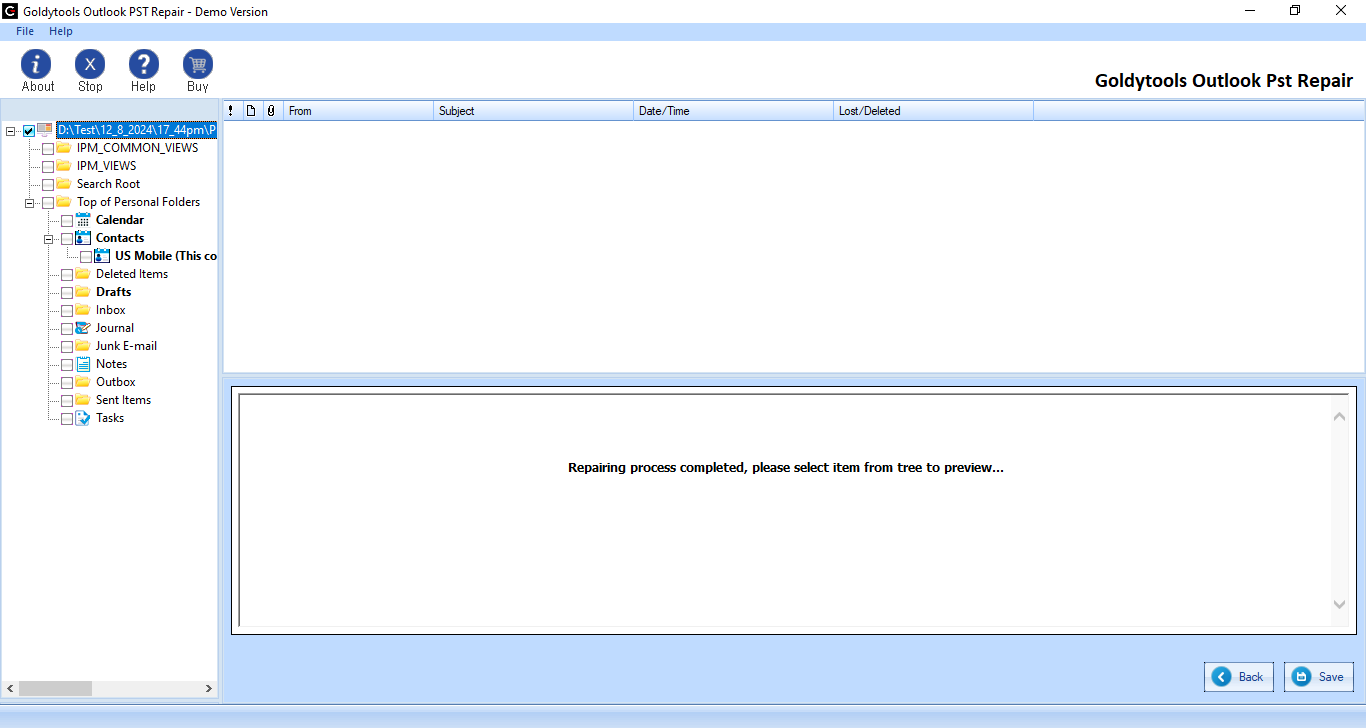
Fix Oversized OST file issue in Outlook using Manual Method

OST file store Important information But excessive data storage make it oversized and effect Outlook performance and generate multiple issue
In this article we provide you fix oversized OST file issue in Outlook with easy tricks.However if user OST file many time corrupted due to oversize ,user use Goldytools OST to PST Converter and split into multiple files..
Both and PST files store User important data ,Its contain user data including email ,calendar ,task ,calendars etc.

Difference between OST and PST files is that PST files works on Online mode and OST file work in Offline mode. Some time OST file size cross size limit then Corrupted OST file and impact Outlook performance

Mange OST file size should a top priority .Reduce OST file size it solved OST corruption issue.OSt file storage capacity depend Outlook version.
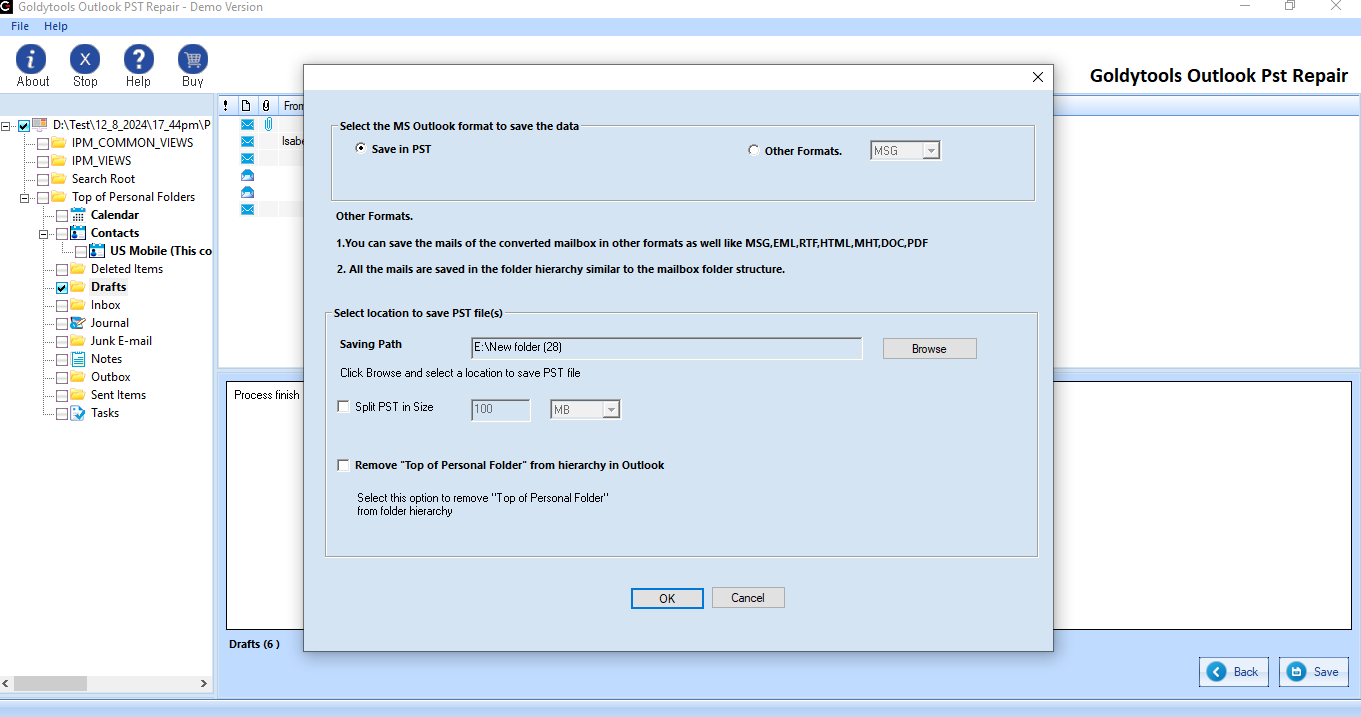
Outlook version

How do OST files exceed oversized limit?

OST file stores all data user generated or received since user account activatedIt include email emails , attachments calendar ,contacts , tasks , notes, Public folder ,etc.When user not delete unnecessary data ,it get collect ,exceed the file storage limit then OST file corrupted and Outlook face performance issue.
Oversized OST file increase by Large attachment file . If user not managed OST file size limit then user face Outlook performance issue .Hence it necessary to reduce Outlook OST file size ant maintain It Performance

Common issue due to oversize OST file

When User OST file become oversized then user face common problem,inluding

  1. OST file can not be open or load
  2. Unable to add data to OST file.
  3. Error message genrate during Synchronization
  4. common issue synchronization between OST file and MS Exchange Server.

Manual method to Fix common issue to Oversized OST file

there are many effective method to resolve to oversized OST file issue by using these method user save OST file for corruption and accessing their data any time.user follow basic step before applying manual method to shrink OST file to remove unsed and unwanted data from OST file.

  1. Permanently delete unwanted data from OST File .
  2. Save large OST File attachment on Local system for better performance
  3. Regularly Clear Deleted items folder in OST Mailbox
  4. Move and Change the name of OST file form it default location and generate it again

Now we explore the manual method to resolve oversized OST issue and improve Outlook performance

Method 1: Disable unwanted add-ins from Outlook to improve Outlook performance

Many add-ins in Outlook consume extra data from OST file and affect its performance .If user want to improve Outlook performance ,Disable add-ins to reduced OST file size.Follow these step

  1. Click on File in Outlook then Select Options
  2. Select Options

  3. In Outlook Option choose Add-ins and go to Manage .Choose COM Add-Ins and Click Go
  4. Add-Ins

  5. Uncheck any unnecessary add-ins that not in use and click OK
  6. add-ins

    Method 2. Archiving OST file data

    Archiving OST file data help reduce OST file Size and remove some space on server . user change location archive OST file location in Local system .Archiving prevents the OST file from excess it predefined size limit . Follow steps below

    1. Click on the File tab>click Tools>select Mailbox Cleanup.
    2. Mailbox Cleanup

    3. Next, two available options.
    4. –.user can move older mailbox data to archive folder by choose The AutoArchive option–
      —Click Empty and delete data from Deleted folder.

      mailbox

    Method 3. Using clean-up option

    User can deleted unnecessary data and other data. Outlook provide a Cleaning Clean Up Option to remove unwanted email from Deleted items folder Follow these step-

    1. Open Outlook then click navigate tab.
    2. navigate tools and Click on Mailbox Cleanup
    3. Select Empty under “Emptying the deleted items folder, permanently delete those items.”

    Method 4.

    Goldytools OST to PST Converter is powerful tool which repair corrupted filed and Save it into PST file format without any data loss
    You can download “Trial Version” for free and retrieve your lost or inaccessible data in different formats as required. Features like an In-built search option, smart filters, splitting OST files, a complete preview of files,
    Split PST feature in Goldytools OST to PST converter tool then resolve issue relative OST file Oversize.

Free Method to Access and Open Files without Exchange

Exchange Administrators need to access Offline EDB files for import ,migrate and view mailbox content .This article describe both manual and Goldytools EDB Viewer method Which allow user to open and view mail data Exchange EDB file without requiring Exchange server.

Exchange Server store user mailbox and public folder data in EDB file Format .EDB file contain Exchange mailbox email ,notes attachment ,calendar ,contact, and deleted data make them important for user. If user want to access EDB file and open EDB file then user require exchange Server.

Exchange server need to open offline EDB files to access content mailbox data. Some times necessary for access mailbox data when the exchange server down .Now understand what reason when user open file without Exchange server.

How to access EDB to without Exchange Server

If user have Exchange Admin center open an EDB file and accessing mailbox data easy .Some unexcepted situation when user not access Exchange server mailbox .Some reason when user need to access mailbox data without Exchange Server.

  1. EDB file corrupted.
  2. When Exchange server inaccessible.
  3. During Exchange Server maintenance
  4. Access unmounted EDB files.
  5. Inaccessible to open large Exchange mailbox.

Now we understand why we need to access EDB mailbox data without using Exchange server.

Now understand how to access EDB file without Exchange server.

To access an EDB file mailbox data without Exchange server ,specific condition condition need to require .Below list of condition which need to necessary for open EDB file.

  1. Access to MS Exchange Server.
  2. EDB file mounted on Exchange Server
  3. EDB file not corrupt.

IF all condition are met,then user access EDB file manual method.other wise third party software require

Access EDB file without Exchange server.

Not difficult to open Exchange without Exchange server Following section we describe simple and effective method to access and view EDB file without Exchange Server.
View and Open EDB files with ExMerge.exe

Exchnage.exe is a Microsoft utility design for export EDB files to PSt file Format.It process single ,mailbox.selected mailbox within Exchange store. ExMerge .exe use to batch process PST files, match them with exchange server mailbox while importing mailbox item.

  1. When utility download finish ,install ExMerge.exe setup.
  2. Choose location to save the extract file then click ok
  3. Select checkbox for “Extract data from an Exchange Server Mailbox” and then Click next
  4. Click on “Import Procedure” tab select “Archive data to target store” and click OK Button
  5. Select Message Details and fill require detail and press OK.
  6. Select mailbox for export and click next.
  7. Enter designation path location then click finish when export finish

User use import PST file and import it with outlook application an then user access EDB mailbox data .In this process has some limitation.it support 2gb mailbox data and not support Offline EDB files.

Easy method to open EDB file – Goldytools EDB Viewer or Goldytools EDB to PST Convert

Software design for Open corrupted EDB files,damaged and healty EDB file without use Exchange serverSoftware desgined advanced algorithm that fix EDB corruption and and fix all error ,access mail box data .To better understand software functionality Following software step-

  1. Run Software then Select edb file which you want to access and click next
  2. In Next step select specific step for scanning mode for scanning for EDB file
  3. step for scanning mode

  4. All EDB mailboxs data displayed on left side panel.Select any folder to view its content
  5. panel .Select any folder

    Easy and Fast way to access and view EDB files data without exchange server . If user want to get EDB file mail box data then by using Goldytools EDB to PST converter tools user convert EDB to PST File.

Conclusion

Exchange server has security feature that EDB files automatically disconnect corrupted EDB file .When Exchange server down ,user not access mailboxes data .In that user use third part tool as Goldytools EDB Viewer by using this tool user view all mailbox data an user view all mails, contact, calendar, task public folder, archive mailbox, etc.

Free & Easy Solution Microsoft OST to PST Converter

MS Outlook is one of the popular email clients. It store data in OST and PST file .both are use difrenent purpose.OST allow user work offline ,and store local system if system one connect to network then it syncing with server.
PST file used for data migration, backup and import-export .But that is not main concerne here.if user looking OST to PST Converter tool ,then user fist understand what OST and PST file.in this blog we describe why ew need OST to PST Converter tool.

Common reason for convert Microsoft OST to PST.

There are several reason for Converting OST file to PST .Here some most popular reason.
How access and recover orphan OST file Data

  1. Merger data old Outlook profile into New Outlook profile
  2. Recovery corrupted OST file.
  3. User need to rebuild Exchange server but some unsaved which need to recovered .

There are few common scenario where user can not access outlook profile data at this situation user need to conversion for OST file to PST file .Now user search for How to convert OST file to PST file.

How to Convert OST to PST in Microsoft Outlook

Your conversion method depend on question :Which OST file user want for convertion which currently connect to running Outlook profile?
If answer is yes ,user can need to export OTt file to PST by using Outllook export wizard.

Convert OST to PST Using Outlook ‘s Import and Export Feature.

By using this method user check Outlook install and user access user outlook profile which create OST file.

  1. First Lunch Outlook
  2. File tab option

  3. Next click File tab option in top of left panel
  4. select Import/Export option

  5. Then click on Open &Export and select Import/Export option from available all option
  6. Export file option

  7. Now choose Export file option and Click to next.
  8.  Click to next

  9. Select Outlook Data File(.pst )an click to next
  10. Outlook Data File

  11. Now user select to specific folder or Entire Outlook account which user want to Export as a PSt file.
  12. filter

  13. User apply filter option to include or exclude necessary data
  14. Finish button

  15. Now By using Browser button select destionation location where user want to save PSt file.then suer click to Finish button to completed process.

Free Online OST to PST Converter

Many company claim that they convert OST to PST for free .but in Reality not true. they allow user convert OST to PST format if user want to down load converting file then they require payment for it .I advise user never use this type of website nowday anyone hackers access to your impotant data.
If user not access own Outlook Profile then most secure and reliable way to user third -party tool which take reasonability for data

If user searching a free OST to POST Converter tool.But they actually trial version which have some limitation.By using this tool user want to convert OST to PST file all data which converter some items per folder.

Best Professional OST to PST Converter Third party tool

It one of most trusted software which develop experience Engineers .Goldytools OST to PST converter tools repair corrupted ost file and Recovery deleted data from OST file and Save it Many Format As PST ,EML,MSG,DOC,HTML,MHT,DOC,PDF.
It advanced algorithm ensure data integrity and preserve original folder hierarchy during running recovery and mirgration process,

Best Methods to Convert OST to PST in Outlook 2019/2016/2013/2010

User search for a perfect way to convert OST to PST in Outlook 2019/ 2016/ 2013/ 2010.There are many reason for conversion to convert OST to PST,PST file more portable and easily accessible .In this blog we understand the best method to convert OST to PST in Outlook 2016 and other version.

Offline Storage Table is file format that is used by MS Outlook to store copy Exchange Server mailbox. User access their emails, calendar, and other data when OutLook disconnect from Exchange Server.
OST Format enable user to access their Outlook mailbox in disconnected mode , without need to connect to server . Offline Storage Table files unaffected by external network issue . that makes it more ideal and professionals choice which user access OutLook data all times.

Regardless of Outlook version , whether it is Microsoft Outlook 2019, 2016, 2013, 2010, 2007, or any ANSI edition , Inaccessible OST file require troubleshooting to access data .The most effortless solution to fix all type OST issues , including corruptiono inaccessiblity ,is covert the OST file in PST file.

Ther are multiple method to convert to OST to PST file Format.Some method are time taken and Complex ,other most secure approch to convert OST to PST in Outlook 2016,2019 and earlier version.
Know Information before Convert OST to PST in Outlook
User can not extract data from OST file to a PST file . User first login Outlook Profile then export OST data information to PST file.

The OST file format is a local duplicate copy of uesr exchange Mailbox . User can easily regenerate an OST file by re-syncing with mailbox.

Microsoft not provide a direct way to convert an OST file to PST file .If user original email account is not accessible Then Solution for this issue user use a professional third-party tool for OST to PST conversion

No.1 Approach:

Use Outlook Archive feature for OST to PST Conversion

To duplicate or move mailbox items into PST file by using Outlook’s Archive feature .The option of Outlook allow to copy entire OST file item into PST file

Format. Important Note :Contact not copy from OST file.
follow command below for craete a copy of the OST file
=Click on Clean -up Tools via the file Tab in Outlook
=Open the Outlook profile associated wikt OST file.
=Next, choose Archive from other option
=Archive dialog box that appears guarantee Archive this folder and all subfolders” option is choose.
=Next select folder that you want to export to PST/.
=Archive data more older than a box give a date .Entire data send before check that selected date will be archived.
=Under Archive file option choose user provide path where user want to save new PST file
after completed export process user click Ok Button

No.2 Efficient Email Managemen:

Drag and Drop Mailbox items

Drag and Drop mailbox items is one of the best method for transfer data from OST file to PST file Format .To perform this operation user open blank PST file then user select mailbox item from OST file and drag it into new create PST file.

drag-and-drop technique comes with few limitations.it is a time taking process that need repeating the procedure for each OST Files item that transfer to PST File Format.

The folder hierarchy including default folders such as Calendar, Contacts, and Inbox can not transfer directly .To maintain folder hierarchy user need create a new PST file and manualy manage data accordingly.

No:3 Managing Mailbox Data :

by using Outlook Import & Export Wizard

Microsoft Outlook import and Export wizard si method for converting OST file to PST file in Outlook 2010 and different version .This method allow user to transfer OST item to Excel and CSV file format .It is a manual method ,it require execution to carefully for any error
You should need to some experience to execute the built -in Import /export technique .Any mistake during the process then to loss important data.SO recommend you to take bakup OST file then after start export process.

Method4:

Use Goldytools OST to PST Converter

There are several and method for saving OST data file Format .However i tell you three method for converting OST to PST format .While these manual method have some risks of failue and time consuming this method design for professional ,who do this take with minimum time and fast, misfortune.
Easy and Safe Professionally Goldytools Convert OST to PST in Outlook 2019/2016/2013/2010:

Corruption in Outlook PST files is a common challenge for many Outlook User

Finding an efficient way for repair PST files and This blog provides one stop to restore PST file.
Look is one of the most popular email client which support PST Files for data storage format.PST files are corrupted due to many common issue .then user seek effective solution for Repair PST file .A corrupted file effect on Outlook performance .Therefore resolving issue as soon as possible for improve Outlook performance

How Do PST Files Get Corrupted?

Now Understanding reason of PST File corruption .So in Section we understand some common reason define PST file corruption.
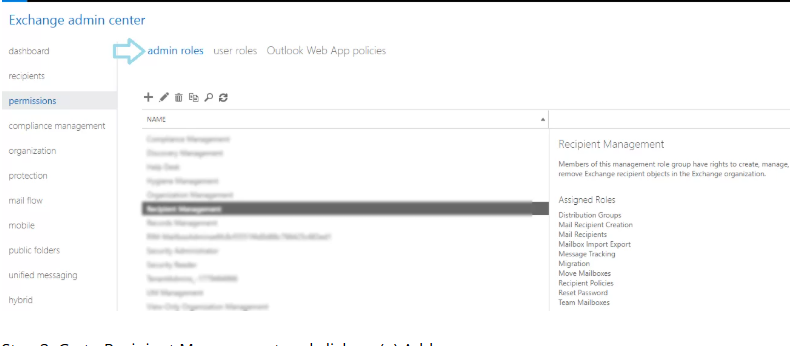
Hardware Damage: Physical or hardware damage can issue related to corruption PST files.
Sudden Termination of Outlook:Sometimes we shut down Outlook or system without closing applications.it is risky for Outlook users .Abrupty terminate Outlook white process is running Outlook may corrupt Outlook PST files
Oversized PST : If you are familiar with Outlook and user used it previous version ,user know that differences PST file varying size limits .When PST file exceed size limit The risk of corruption increase. For Unicode PST file is 50 GB whereas for ANSI PST file is 2GB.
Virus Attack : A virus need no introduction- it one of the worst that user can face .When a virus or other malware enter in system issue also corrupt the PST files
So, What’s the Next Step?
Microsoft provides ScanPST.exe utiltiy , also known as Inbos Repair Tool.User repair corrupt Outlook 2019, 2016, 2013, and 2010 version PST files.User can follow the steps below to use this repair Corrupt PST files.
First locate ScanPST,exe utility on System .User can use screenshot below to find it location.

locate ScanPST,exe

  • Open ScanPST.exe and double -click to open it
  • Click Browse button and select the PST file user want to repair
  • PST file

  • Click Start button to scan added PST file.
  • scan  added

  • Once Scanning process complete, Click Repair button to fix detected corruption.
  • Click Repair button

  • After the Repair process complete ,The dialog box will pop up with message “Repair complete.”Clock Ok button.
  • Why is not Inbox Repair Tool (ScanPST.exe) Suitable for Repair Corrupted PST Professionals Solution?

    User can face several Limitation with Manual solution, which user understand by reading the point below
    Data Loss Risk: Running Scanpst.exe simple process but human error can lead to mistakes then PST file Corrupt.
    PST size Limitation:ScanPST.exe has PST file size limitation it only repair PST files that are upto 2GB.However if user want repair PST which size greater than 2gb then a significant drawback of ScanPST.exe
    Limited Repair Capability:ScanPST.exe is only repair minor level of corruption. For severely corrupted PST files ,a third -party tool is recommend .
    Limited to Single PST Repair:If user have multiple file then user repair one PST file at at time.ScanPST.exe does not support multiple PST file at a time
    Advance Solution to Repair PST files for users
    If user can not repair his PST file by use manual method Then User use choose Goldytools Outlook PST Repair which is advanced tool to repair corrupted file and also recover delete data

    Why Goldytools Outlook PST Reair is the Best Solution for User?

    Repair Corrupt File:By using Goldytools Outlook Pst Repair tool user easy recovered corrupted and damaged file and also rceovered deleted item form PSt file
    Maintains Folder structure: The software is developed with a highly advanced algorithm and works only in read mode. In other words, the software doesn’t alter the PST files’ original hierarchy and properties.
    Unlimited PST Repair:The software designed with user need in mind allowing the user repair multiplelarge Pst file without any limited
    Multiple Option:After complete Recovery and repair process software provide different File format saving option.Such as File save as format PST,DOC,HTML,EML,MSG, HTML,MHT,PDF .
    Splits PST: Outlook has a 50GB size limited for PST , which oversizing issue. Goldytools Outlook PST Repair tool inlude a splite feature,user can spite PST file in desired size with split feature
    Free Downloading :User free download Goldytools Outlook PSt Repair tool form website with all feature before purchase . with Free demo version user can repair Corrupt and damage PST file and also save 20 item per folder and check software capability.

    Conclusion:

    We hope this blog help to user to search a reliable software for repair corrupted PST file.The manual method have multiple limitation .T herfore we advise user using Goldytools Outlook PST repair software .It repair Outlook PST 2019, 2016, 2013, and 2010 and all version .User can down load free demo and check software advanced feature

Common Causes of PST File Corruption

PST file corruption occur due to various reasons which explore in this blog .PST(Personal Storage Table ) is Microsoft Outlook’s data storage file format, used to store email ,calendar, appointment, journals user sytem. it offer easy access to data and making it very important for user.

Reason for PST File Corruption PST

file corruption generally classified into two section

  1. .Hardware issue
  2. Software issue

Hardware Issues:

  1. Data storage device problem : Hard disk can be major cause of PST file corruption. If PST file stored in bad sectors of hard disk , user may face PST file corruption when users access the data. user can not accesses of email, calendars, and other Outlook data

2.Power Failure

If user accessing PST files and shut down unexpectedly in case may be PST damage.

3.Netwok issue

Outlook pst file store on network server and while accessing it from user system by newtwok if any proble in any problem in sever and network switch and other hardware reason then pst file may be corrupted .

Check out a professional solution to Repair outlook PST Files

A Professional Solution to Repair Outlook PST Files

Software Issues:

Virus attach : Malware and virus attack common cause of PST files corruption.A virus attack damage structure PST file . It is highly recommended to usa high-quality antivirus

Incomplete File System Recovery: Few days after user recovery PST files ,some PST file remains corrupted /overwritten, which make file inaccessible

Sudden outlook shutdown: Sudden shutdown down when Outlook pst file on system it may be pst file corrupt

How to repair outlook PST File

To repair corrupted PST files ,manual by use Scanpst.exe. is also available but in some case it has some limitation.

  1. In some case Scanpst.exe fails to repair corrupted pst file.
  2. If user Pst File password protected ,Scanpst.exe fail to recover it.
  3. when user recovery pst file by Sacnpst.exe ,some time Sacnpst.exe modify PST file structure and it lead to data lose.
  4. Scanpst.exe fails to read data after several trial tool can permanent delete data

User can repair Outlook Pst files without using Sanpst.exe tool .By USing Goldytools OutLook PST Repair user repair Outlook pst file.tool repair corrupted and Password protected pst file The third -party tool offer advanced feature and with user -friendly

How to mount an Exchange Database on a different server?

Exchange Server is the most significant platform worldwide, empowering users to manage emails, calendars, contacts, and many more. Mounting is a regular but tricky process for IT admins when migrating to a different server, recovering from system/server errors, etc. If any of those situations apply to you and you would love to get further insight into the mounting of Exchange databases on different servers, this blog is right for you.
Here, we will discuss the entire process of mounting the Exchange database using different approaches. You will learn about two traditional solutions elaborately discussed in this blog to mount Exchange database (EDB) files quickly.
Mounting the database means making the EDB’s data available to clients. This allows the users to open items in the Exchange database, including emails, calendar entries, tasks, etc.
Well, as for mounting the Exchange database on other servers, I recommend restoring it so users can access it on the server to which you are mounting the EDB file.

Best practices for mounting Exchange database (EDB) files:

Users can forward the Exchange database repair process with three manual approaches and the third automated. This part of the article would be helpful to all users who wish to have step-by-step guidance on how to mount the Exchange database across different servers through a manual or professional approach. Whether you need to mount the Exchange database to another server in 2016, 2019, or 2013, it is better to know that the Exchange admin centre and the PowerShell command are the two common manual ways of mounting a database.

  1. Mount Exchange Database 2013, 2016, or 2019 from EAC
  2. To mount the Exchange database 2013, 2016, or 2019, users can utilize the Exchange Admin Center.

    • Log in to the Exchange Admin Center (EAC) from your browser using admin account credentials.
    • Click on Servers and select the Databases option.
    • Now, the list of all databases will be visible.
    • Find the database you want to mount on some other server and select it.
    • Next, click on the three dots (More) from the right panel and hit the Mount button.
    • This will display a dialogue box asking for permission to mount the Exchange database on a different server. Please click on Yes to start mounting the database.

    This will allow users to mount the Exchange database on different servers. This solution works because it only allows for processing a single Exchange database at a time.

  3. PowerShell command to mount the Exchange database from all the editions

PowerShell commands might also mount the Exchange database in another server through the Exchange Management Shell. The following instructions will tell how to restore or mount the databases from this different Exchange Server, whether 2013, 2016, or 2019.
These methods help users mount the Exchange database on various servers. If the file cannot mount the Exchange database, it may have corruption issues. Also, the above methods are dangerous when mounting the database because data might get lost.
So, users should consider backing up the EDB file in Exchange. For this, we have an alternative solution: the EDB to PST Converter Tool, a gem of the software industry, fully packed with ultimate features and facilities to overcome mounting database issues such as a corrupted database.

Goldytools EDB to PST converter tool:

The Goldytools EDB to PST Converter tool is the solution you need if you want to keep a backup of the Exchange database or retrieve a corrupted database. This application effectively repairs corrupted EDB files and saves them as PST files. By backing up the database, it will allow users to mount an Exchange database on various server types without problems. This application also maintains folder hierarchy and metadata properties when working with Exchange EDB files.
It also allows users to export their EDB file data to EML, MSG, HTML, and other formats. Users will also find an option to directly export the EDB files into Live Exchange Server and Office 365 mailboxes. With this tool, there is no limitation in processing large-sized EDB files or even many files in one go. Its GUI is so user-friendly that even a newbie can efficiently operate it while processing EDB files from Exchange 2010, 2013, 2016, or 2019.

Why is My Outlook Not Displaying Email Body Content?

While working with MS Outlook, we can face issues in its email communication. The most common issue is Outlook not displaying email content errors, even after downloading them. This is not surprising, and most users would have already faced this issue. With the help of a few easy and clever ways, we have addressed this issue, and these interventions can be of great help while performing crucial tasks in Outlook.

Reasons why Outlook is failing to show email content:

  • Problems with configuration in Outlook
  • Outlook data file shows corruption
  • The Outlook is outdated, and the Windows system and add-ins are also outdated.
  • The Microsoft Outlook profile is damaged.
  • The PST file is oversized.
  • The Outlook folder is capable of holding a large amount of temp and cache files.

Apart from the reasons mentioned above, users might also have other reasons why their Outlook file does not display the email body content.

Methods to fix the error why Outlook is not displaying email content:

Users can perform several solutions to fix Outlook not displaying the email content, and these methods are as follows.

1. Disable add-ins to resolve the Outlook not displaying email body:

  • Launch the Microsoft Outlook Program and move it to the file tab
  • The next step is to select the options and hit on the Add-Ins
  • Choose the COM Add-Ins and click on the Go button
  • As the next step, uncheck the Add-Ins that you want to disable from the Outlook
  • After all these steps are completed, tap the OK button.

2.Clearing the Outlook cache files to prevent the email body from not displaying in Outlook.

At times, the volume of the cache and the temporary files can lead to the body of the emails not showing in the Outlook error. Thus, clearing the cache files would help the users prevent Outlook from not displaying emails. To accomplish this, follow these steps.

  • Hit the Windows + R Keys. This button press will launch the run box on the system.
  • Next, type /Microsoft\Outlook and hit the enter key.
  • The next step is to go to the Roam Cache folder.
  • Finally, press Ctrl+A to select all the cache files and then delete them.

3.Build a new Outlook profile to fix the Outlook email body not showing an error.

Creating a new Outlook profile can also help users resolve the error of Outlook email content not displaying. Users must follow the steps to fix the Outlook email content that is not showing the issue.

  • Open the Control Panel on the Windows PC
  • Click the Mail option
  • Choose the Show Profiles option under the Profiles menu
  • Click the Add button and try to create a new Outlook profile.
  • Adhere to the on-screen prompts for setting up the email account.
  • After creating the Outlook profile, set it as the default and launch the Outlook program.

4.Update Microsoft Outlook and Windows to solve the Outlook inbox emails that are missing.

The body of the email not showing in Outlook could be due to an outdated version of MS Outlook and Windows system. We can follow these steps to update it to the latest version.

a.Update MS Outlook:

  • Run Outlook and hit the file section
  • Navigate to the Office Account tab.
  • Click the Update options drop-down menu
  • Tap the Update Now button
  • Wait until the Outlook program updates to the latest version
  • Restart Outlook. Then, you can verify if the issue is resolved.

b.Update the Windows system:

  • Open the Windows settings app
  • Navigate to the Update and Security section
  • In the Windows update, click the check for update option
  • If any update is available, the system will begin to download it.
  • After the download, install, update, and restart the computer.
  • Check if the issue is fixed now.

Repair Outlook data file (PST) to prevent Outlook from not displaying email content using the advanced tool-
Even after trying the steps described, if one fails to resolve the issue, then a user can use the Goldytools Outlook PST repair tool. This software works without limitations and helps recover corrupted data from the Outlook PST file. With this tool, users can convert the recovered data into diverse file formats such as MSG, PST, EML, MBOX, etc. The tool comes with an incremental export option to avoid data duplication.

How to Fix “OST File is in Use and Cannot be Accessed” Issue

OST files are an integral part of Microsoft Outlook that enables users to work offline, make changes to the Outlook data, and then synchronize with the Exchange server whenever the connection is available. Nevertheless, some circumstances may cause the OST file to become unusable, and the user will receive the message “OST file is in use and cannot be accessed.”

This error commonly happens when Outlook cannot read or write on the OST file, and thus, users cannot access their emails, contacts, and other important information. By knowing the causes and applying the correct measures, users can easily return to their Outlook information and continue working.

Reasons for the “OST file is in Use and Cannot be Accessed” Issue

The issue “OST file is in use and cannot be accessed” is quite a popular one, and most often, it appears when the user is attempting to work with an Outlook data file. Here are some of the simple causes of this error:

  • The Outlook data file may be opened in another application or process on your computer or device.
  • The file may be opened in the read-only mode.
  • The file has some problems with permissions.
  • Multiple users running on the same OST file
  • OST file accessed unauthorised
  • Poor or bad internet connection
  • The file could be damaged as a result of a virus attack or any other cause

Methods to fix the “OST file is in use and cannot be accessed” issue

Users can opt to work with manual and automated workarounds since error messages that state that the OST file is in use and cannot be accessed are inevitable. These solutions are:

Method 1: Disable Cached Exchange Mode

This error can be due to several reasons, but one of the most general is that while your Exchange Server is running in Cached mode, your Outlook client is not. This can occur if you have recently transferred your emails to a new computer or upgraded your Outlook version. Here, we will explain how to turn off the Exchange cached mode to solve the error.

  1. Select the File tab in the MS Outlook.
  2. Go to Account Settings and then to Account Settings again.
  3. Account Settings

  4. Choose the Exchange account that needs to be modified and then click on the ‘Change’ button.
  5. Clear the check mark beside the “Use Cached Exchange Mode” option and click Next.
  6. Exchange account

  7. Click on Finish and then on Close.
  8. Close the Microsoft Outlook and re-open it to have the changes implemented.

Method 2:Recreate OST File

Given below are four simple steps to repair the OST file and resolve the error:

  1. Close all programs that are accessing Outlook data files. This error is usually displayed when an application seeks to open an Outlook data file currently opened by another program.
  2. Once you are done with all the applications, shut down your computer. This ensures that all the applications are closed and do not have any link to the Outlook data file.
  3. The next step is to delete the .ost file. To do this, you should go to the file’s location on your computer and remove it.
  4. The last action that needs to be done is to restart Outlook. After Outlook has been restarted, the new .ost file will be created & the error message should no longer appear

Method 3:End MS Outlook Processes

If you are receiving the message “OST file is in use and cannot be accessed”, it means there is a process still in use with the OST file. The following are the procedures to shut down MS Outlook and other processes to address the error:

  1. Open the Task Manager by doing the Ctrl+Alt+Delete shortcut.
  2. Go to the Processes page.
  3. Go to the Task Manager, look for outlook.exe or msimn.exe, and click on End Process for all of them.
  4. Task Manager

  5. Quit the Task Manager and try to open your OST file once again.

Method 4:Use GoldyTools OST to PST Converter

Goldytools OST to PST Converter is a professional tool that converts OST files to PST files in a few minutes. This tool also offers several features, including restoring deleted or permanently deleted items from an OST file, fixing damaged OST files, restoring emails, restoring password-protected OST files, converting encrypted OST files, and more. It also supports all versions of MS Outlook, including Outlook 2021 and Exchange Server 2019

Conclusion

The “OST file is in use and cannot be accessed” error can be quite annoying and sometimes can hinder your productivity, but the above methods can help you deal with the problem and carry on with your work without any more interruptions. If manual methods appear too complicated or take too much time to implement, Goldytools OST to PST Converter is the right solution to this problem. Get Goldytools now and ensure your Outlook data stays reachable and safe.

Fix OST File Cannot be Opened Outlook Error in Windows 10/11

Microsoft Outlook is a great tool for handling e-mails, appointments, and other contacts for both – private and business use. However, there are times when the users come across the “OST File, Cannot be Opened” error, which hinders access to data. It is a known problem that may affect Windows 10 and 11, making tasks and communication more challenging. This blog post will delve into the causes of this error and give the best ways to correct it.

Reasons for Why OST File Cannot be Opened Outlook Error in Windows 10/11

There are numerous reasons why OST files cannot be opened outlook error in Windows 10/11, and here are the most common reasons:

  1. Corrupted OST File: Sometimes, an OST file becomes unusable for some reason, such as an abrupt shutdown of the system. In this case, Outlook cannot open the OST file.
  2. Incompatible Outlook Version: Some Outlook versions do not support the creation and opening of OST files, and using an older Outlook version is one way of making that impossible.
  3. Lack of Synchronization: Sometimes, Outlook may have a problem opening the OST file if the file is not in correct synchronization with the Exchange server.
  4. Large OST File Size: When an OST file is very large, it can, at times, result in slow performance and Outlook not opening it.
  5. Antivirus Interference: At other times, scanning tools such as the antivirus software can affect the OST file and thus hinder Outlook’s interaction with it.
  6. Network Connectivity Issues: Sometimes, Outlook cannot open OST files on the Exchange server due to network connectivity problems or server problems.

Best Solutions to Fix OST File Cannot be Opened Outlook Error in Windows 10/11

Having discussed possible causes, let us consider the best ways to address the “OST File Cannot be Opened” issue. All of the methods that are described in this article work on both Windows 10 and Windows 11.

Method 1: Disable Faulty or Conflicting Add-in

Third-party add-ins can also cause Outlook to perform poorly or have some unexplained glitches in its normal operation. These add-ins can be disabled with the intention of finding out the conflicts that are causing the OST file error. These are the steps one needs to follow in order to disable add-ins

  • Exit Outlook if it is open, and then simultaneously press the Windows key and R.
  • Type Outlook.exe/safe and hit the enter button or click on the OK button.
  • After getting into the safe mode, check whether you are able to open the emails and whether Outlook is capable of synchronizing the mail items with the server.

If Outlook functions correctly in the safe mode, then this suggests that an add-in is a problem for Outlook when opening the OST file. Remove the add-in that is causing the problem in Excel.

  • Navigate to the File tab, click on Options, and then select Add-ins.
  • On the left side of the Outlook Options window, you’ll see the Manage section at the very bottom.
  • Select the option COM Add-ins in the dropdown menu and then click the Go button.
  • Go

  • Select all add-ins and click the OK button.
  • Now, shut Outlook down completely and then launch it again just in the normal window.
  • To isolate the problematic add-in, enable one add-in at a time. When you get to the add-in that is causing the problem, you can then click on the Remove button to delete it from the application.

Method 2: Closing Outlook Processes on Your Computer

There may be Outlook processes that are still running, and these can interfere with the proper running of the application. These background processes might hold onto some resources or prevent new instances of Outlook from being launched correctly. Stopping these processes can assist in eradicating the OST file error since Outlook is left to create a new one.

  • Press Ctrl+Alt+Deleteor Ctrl+Shift+Esc to open the Task Manager.
  • Select Task Manager.
  • Right-click the processes under the Processes tab
  • Ctrl+Alt+Delete

  • Select End Task.
  • Start Outlook.

Method 3: Deleting and Re-Creating the OST File

If the OST file is damaged, one of the solutions is to remove it and let Outlook generate a new OST file. This method is very useful when working with Exchange accounts. The OST file is a local copy of your mailbox, and if it is recreated, then the synchronization problem or corruption problem in the OST file can be resolved.

  • Close Outlook.
  • Locate and remove the OST file.
  • To find the location, in Windows Search type, %LOCALAPPDATA%\Microsoft\Outlook\. Hit Enter. Once you get to the location of the OST file, you should remove it.
  • OST file will be created automatically.

Method 4: Run Outlook in Compatibility Mode

Outlook can be run in compatibility mode to help fix problems relating to the OST file not being able to open. This is particularly beneficial if you have just changed your operating system or if you are using Outlook on your PC is outdated. Compatibility mode enables the application to run in a reduced environment, emulating previous versions of Windows, thus avoiding new configuration problems.

  1. Click with the right mouse button on the Outlook shortcut or the Outlook executable file.
  2. Right-click on one or more properties and select Properties from the list. Click on the Compatibility tab.
  3. Select the “Run this program in compatibility mode for” checkbox and then select the appropriate Windows version from the list.
  4. compatibility mode

  5. After making the changes, click on “Apply” and then ‘OK’ to save the changes made.
  6. Open Outlook and attempt to open the OST file by right-clicking the file and selecting the Compatibility Mode option.

Method 5: Use Goldytools OST to PST Converter

If the above-said manual methods are not helpful in resolving the issue, then it is advisable to use a professional tool such as Goldytools OST to PST Converter. This powerful software is used to fix the OST files that are damaged or corrupted and convert them to PST format. It is particularly useful in conditions of acute corruption or when it is necessary to work with OST data without connecting to Exchange.

Key capabilities of Goldytools OST to PST Converter include

  • The conversion of individual mailbox items.
  • Splitting large PST files.
  • Working with encrypted OST files

This makes it an all-in-one tool for solving not only the “Cannot be Opened” error but also for working with your Outlook information effectively.

Conclusion

It is quite irritating to come across the “OST File Cannot be Opened” error, but this can be solved by following the right procedures. Though manual techniques provide different remedies, they can hardly suffice, especially if corruption is rather profound. However, in such circumstances, it is wise to use Goldytools OST to PST Converter, which could help convert the OST files without much fuss so that the crucial email data can be easily retrievable.

How to Fix “Outlook Contacts Not Available In Address Book” Error

Microsoft Outlook is a desktop-based email client. Like the other email clients, it might require many components such as email messages, address books, calendars, etc. It also offers other characteristics of data security and a user-friendly interface. Let us discuss a suitable method to fix theOutlook contracts unavailable in the address book error.

Some reasons why the ‘Outlook contacts are not available in the address book’ error occurs:

  • The contacts may not be accessible due to the improper configuration of the Outlook Address Book.
  • Outlook may not display the contacts in the address book if configured to operate offline alone.
  • Contacts may not appear in the address book if there are synchronization issues between Outlook and the email server.
  • If the Outlook data files containing the contacts become corrupted, they might not appear in the address book.
  • Users might also remove the contacts from Outlook and later discover their contact list is gone.

Solutions to Outlook contacts not available in address book error:

The best solution for Outlook contacts not available in address book error is to upgrade to the most recent version of Windows, in case the PC runs on an older software version.

Method 1:Retrieving Outlook contacts from the Windows.old Folder:

If the users are unsatisfied with the latest version of Windows, they can use the same Folder to restore the system to the required version.
Generally, the Windows .old folder will hold everything inside it.
To replace the lost data, unhide the Outlook folder and the data to access it.

  • First, open the Windows—old Folder in the system and then the Outlook data folder.
  • Select the View option in the Windows Menu bar.
  • Select the Hidden items to view the hidden file
  • Transfer the data to the newly created Windows Folder
  • Restart outlook.

After completing the tasks, check the address book to verify whether the issue with the Outlook contact has been resolved.

Method 2:Examine the address book services to solve Outlook contacts not available in address book errors:

  • Open the Outlook application.
  • Select the File option and then go to the Account Settings.
  • Click on the Address Book tab in Windows in the right corner.
  • Make a new Outlook address book to view the existing one.
  • From the Address Book tab menu, Select New.
  • Click the Next button and select Additional Address Book from the window’s list.
  • Choose Outlook Address Book and click Next.
  • Follow the instructions to create an updated Address Book.
  • Restart Outlook and see if the mission contacts have been recovered.

Method 3:Import the .csv File in MS Outlook to fix the Outlook contacts not available in address book errors:

To import the .csv file in MS Outlook versions 2010, 201,3, and 2016, follow the given steps.

  • Start the import process and open MS Outlook on the local machine.
  • Click the File option.
  • Select the Open and Export option and go to the option.
  • Open and Export

  • One can view the import and Export Wizard box on the current screen.
  • Choose ‘Import from another program or file, and press the Next button.
  • Choose the CSV or Comma Separated Values option and click Next.
  • Select the CSV files by clicking on the Browse option.
  • Choose the radio button – Do not import the Duplicate items.
  • Click on the Next button to continue with the entire process.
  • Next

  • Select the CSV file by tapping the Browse option already exported in Step 1.
  • Choose the radio button, ‘Do Not Import Duplicate Items’.
  • Click the Next button to proceed further and complete the entire procedure.
  • Select the specific Folder where it is required to import the .csv contacts in MS Outlook.
  • Go to Contacts and press the Next button.
  • Choose the map Custom Fields to import each Column from the .csv file into Outlook contacts to avoid Outlook contacts being unavailable in the address book error.
  • map Custom Fields

  • It is also a good option to drag and drop the item. To do this, one needs to move from the left panel to the right panel, from the CSV contacts columns to the Outlook contacts columns.
  • Select the Finish button from the ‘Import a File window’ option. However, you must wait until all the contacts have been successfully imported into the Outlook account.
  • In the end, all the .csv contacts will be successfully transferred to MS Outlook version 2007 and other versions.

Challenges associated with this approach:

Many solutions are available online to resolve the Outlook contacts not available in the address book error. The approach we discussed here helps import a single file to the MS Outlook application. It cannot export multiple CSV files at a single time, and the procedure could also be lengthy and time-consuming.

Bottom Line:

Outlook plays an essential role in the software industry. However, users may get stuck and face errors such as Outlook contacts not being available in the address book. We have discussed the most feasible solution to fix this error efficiently.

How do I reduce the size of the Exchange EDB file?

Microsoft introduced the Exchange server in 1993, and it was with this introduction that the EDB files came into existence. However, the most common issue that users reported with the Exchange EDB files was their size, as they were too big. So, let us try to know the most effective way to reduce the Exchange EDB file size here.

What is an EDB file?

EDB stands for the Exchange Database File. It serves as the principal repository of the Exchange Server database to store all mailbox data. It also encompasses data components such as messages, attachments, emails, folders, etc. Each EDB file will have a corresponding STM file comprising the actual messages from SMTP.
These files will automatically grow as data gets added within the EDB files. Even if the data is removed, the EDB files will never compress. Therefore, there is a need to reduce the exchange EDB file size. Here is the step-by-step guide on reducing the EDB file size.

How to fix the exchange EDB file size:

With increasing EDB file size, the server might get out of space. The following methods can be used to reclaim the server space.

  • Create a new database and move the data from the old mailbox to the new one.
  • Offline defrag can be performed to shrink the Database.
  • The location of the mailbox database can be moved.

Reduce exchange EDB mailbox database by using Eseutil:

  • It is possible to reduce the exchange EDB file size by using Eseutil, but the Database should be dismounted at the time of file reduction.
  • A new file created in the process by Eseutil will exist along with the old one. Thus, there should be enough disk space available for such files to perform defragmentation.
  • If there is no free disk space, a temporary location should be specified while running the Eseutil.

The procedure of performing the defragmentation

  • Temporarily dismount the mailbox database before defragging the Database.
  • Dismounting can be performed with the help of the exchange management console.
  • Select the mailbox you wish to move, click on it, and then click on the dismount database.
  • Run the Eseutil to defrag the Exchange EDB file.
  • Mount the Database by running the suitable command.
  • Check the database size and the available white space of the selected mailbox database.
  • Run the full backup of the Database.

Move the Database by using the exchange management console:

We can reduce the exchange EDB file size by following this procedure.

  • Open the exchange management console.
  • Select the mailbox of Exchange 2010 in the organization configuration.
  • Select the mailbox you wish to move, right-click on it, and then click the Move database path.
  • Click on the move database path to see where you can enter the new path for the data and the log files.
  • After changing the path of the EDB files, click move.
  • This will help you reduce the exchange EDB file size.
  • This Move operation will take some time, depending on the mailbox size.
  • After the move operation is complete and we get the completion information, we can click the Finish button, and the wizard will close.

Manual methods are also available as an alternative to Goldytools EDB to PST converters. However, they are not reliable and don’t offer a complete solution. They can come in handy if the EDB file is corrupted. In such instances, we might require third-party tools to handle the corruption in the EDB files.

Making use of third-party software:

There are many Goldytools EDB to PST converter software programs that help recover corrupted EDB files. They also help repair the Exchange mailbox from corruption without data loss. These software tools render quick and advanced options to recover and fix the corruption in the Exchange database and repair the file.
These software tools can load any EDB file of any size and help users with numerous export options, enabling users to export many mailboxes and EDB files seamlessly. They also support different Exchange mailboxes such as shard, archive, legacy, emails, journals, tasks, contacts, calendars, etc. The EDB to PST converter software can support both public and private STM and EDB files. The users will be able to export these files to the selected export option simultaneously in a simplified manner.

Conclusion:

It is recommended that advanced Goldytools EDB to PST converter software be used to reduce Exchange EDB file size and recover corrupted EDB files. These tools serve as complete solutions to resolve any issues with database corruption and Exchange and render complete data security. It is possible to download the free version of the Goldytools EDB to PST converter tool to check before purchasing the complete software version.

How to Resolve the Exported PST File Empty Issue?

Imagine a situation where you find the folders of the exported Outlook PST file empty or the entire Outlook PST file empty. This blog discusses the solution how to resolve this issue. Microsoft Outlook users must export their mailbox items to PST files for archiving, creating mailbox data backup or migrating Outlook mail items to other email platforms. While accessing the exported Outlook PST file, users sometimes find some folders or entire PST files empty, even though the Outlook PST file size indicates that it contains data. A few reasons for the exported PST file empty issue are –faulty view settings, corrupted Outlook PST file, etc.

Reasons for corruption of Outlook PST files

  • Oversized Outlook PST file
  • Corrupt Outlook profile
  • Email Server issues
  • Outlook is not closed properly
  • Improper Outlook installation
  • PST file stored on a network location or in cloud storage (OneDrive, DropBox)

Manual methods to resolve Exported PST file empty issue
SCANPST.exe

SCANPST.exe is an inbuilt utility in Outlook, also known as the Inbox Repair tool, that repairs corrupt, damaged, or inaccessible Outlook PST files.

  1. Close Outlook.
  2. Go to theSCANPST.exe file on your system (it is, by default, located in the Outlook installation directory) and double-click to open it.
  3. ClickBrowse to select the PST file that needs to be repaired.
  4. ClickStart to initiate the scan. SCANPST.exe scans and detects issues in the selected PST file. Depending on the size of the PST file and the level of corruption, it might take some time.
  5. Once scanning is completed, SCANPST.exe displays the number of errors found in the PST file.
  6. Ensure that the scanned files are backed up before repairing is selected.
  7. Click Repair.
  8. After the Outlook PST file repair process is completed, launch Outlook.

Limitation with SCANPST.exe

SCANPST.exe freezes during the scan or even fails to repair a corrupted Outlook PST file if it is large, severely corrupted, or encrypted.

Check and Change View Settings

If the Outlook View Settings are not configured properly, users may encounter an issue with exported Outlook PST file folders being empty. Check the Outlook View Settings and modify them if needed.

  1. Launch Outlook ->, click the Viewtab-> and click Change View.
  2. From the drop-down, select Compact->select Apply Current View to Other Mail Folders.
  3. Restart Outlook.

Use MFCMAPI to change Folder properties

Exported Outlook PST file folders may appear empty if the folder properties are modified or not configured correctly. Microsoft offers MFCMAPI, a diagnostic utility for changing folder properties and resolving this issue.

  1. Download, install and launch MFCMAPI.
  2. Click Session-> select Logon.
  3. Select the desired Outlook profile  click OK.
  4. From the list, double-click the profile you need to fix.
  5. Under IPM_Subtree, find the affected folder and select it.
  6. Look for PR_CONTAINER_CLASS and double-click on it to open Property Editor.
  7. In Property Editor, modify IPF.Imap to IPF.Note->click OK.
  8. Ensure to repeat all the steps described above for each affected folder.
  9. Close the window -> click Logoff under Sessions on the main screen.
  10. Restart Outlook.

Limitation withMFCMAPI

The MFCMAPI method works only if you have an active Outlook account. It doesn’t work without an archived or exported Outlook PST file.

When to use Goldytools Outlook PST Repair tool?

Goldytools Outlook PST Repair tool is considered the ideal solution when:

  • Scanpst.exe (an inbuilt Inbox Repair utility) fails to resolve large-sized or severely corrupted PST files.
  • Need to fix Outlook data file errors – 0x80040116, 0x80040119, 0x80040600, ‘Outlook not implemented’, ‘PST is not a personal folders file’, etc.

Why choose Goldytools Outlook PST Repair tool?

Goldytools Outlook PST Repair tool offers distinguishing features that make it stand out from others available for repairing Outlook PST files.

  • Repairs even password-protected, encrypted, archived Outlook PST files.
  • After repairing the damaged Outlook PST file, the tool allows saving the recovered PST file data in supported file formats: EML, MSG, EMLX, and MBOX.
  • Supports repairing even large-sized Outlook PST files.

How Goldytools Outlook PST Repair tool Works?

Repairing a damaged Outlook PST file using the Goldytools Outlook PST Repair tool is a simple 5-step process

  • Step 1: Download, install, and launch the Goldytools Outlook PST Repair tool.
  • Step 2: Browse the damaged Outlook PST file for scanning.
  • Step 3: The tool displays a preview of all scanned mailbox items.
  • Step 4: Select the destination path and target format to save the repaired Outlook PST file.
  • Step 5: Save the repaired Outlook PST file.

Eminent Features of Goldytools Outlook PST Repair tool

  • Recovers accidentally or permanently deleted mailbox items to their original folder.
  • Displays preview of the repaired Outlook PST file after scanning.
  • Maintains the original hierarchy and integrity of Outlook mailbox items.
  • Supports repairing selected PST folders.
  • It offers a much easier-to-use GUI, so no technical expertise is needed to use the tool.

Conclusion

This blog discusses the possible reasons for the exported PST file empty issue and the manual methods to resolve this issue. However, since manual methods have some limitations, we suggest our users use a third-party professional Goldytools Outlook PST Repair tool.

How to recover deleted emails and mail items from OST files

Generally, an Offline Outlook Data File (OST file) is used to store the synchronized copy of the information in the mailbox. It generally stores this information on the local computer. However, in certain instances, such as data corruption and network outages, it might be required to recover the emails from the OST files. Let us discuss in detail how to recover deleted mail from OST files here.

Recovering or rebuilding the OST files:

In past versions of Outlook, Microsoft has recommended using the scanost.exe tool to reduce the errors that might occur with the offline OST File. Microsoft actually recommends users delete their offline Outlook Data File and allow the OST to redownload the information from the server. We can rebuild the OST files in these situations.

  • Before beginning the process, you must connect with Outlook to complete the action.
  • Outlook should be kept in Online mode.
  • Errors should have been detected in the OST file in Outlook.
  • Outlook is not able to open the data file or is not able to open the set of folders.
  • There are issues with synchronization between Outlook and the Outlook Web app.

These errors and problems in synchronization might be caused by corruption in the OST files, and in some cases, emails may not be synchronized from the server. When you have an OST file and cannot access your email account through Outlook, extracting the data is the best alternative for OST recovery.

Extracting data from the OST files:

If you are facing any connection issues with Outlook and cannot rebuild your OST files, several tools are available to help recover deleted OST files. The tools we list here help extract emails from the OST files without needing a server account connection or the MS Outlook tool. These tools help recover important emails, tasks, contacts, and other data from the OST file. These files can also be saved in different file formats for future use. The tools used for OST recovery are,

Exporting emails with the help of OST and PST Viewers:

The OST PST Viewer tool can help recover encrypted, orphaned, corrupted, and password-protected OST files. This tool also makes it possible to export emails from a single OST file to different formats, such as PST and HTML, PDF, DOC, MHT, EML, MSG. The following is the step-by-step process for exporting emails from the OST file.

  • Close MS Outlook and all other mail-enabled applications that might use the Outlook mailbox.
  • Download the Goldytools OST Viewer and run it on the PC.
  • Browse the OST file the user wants to recover and click Open.
  • Select the mailbox folder in the ‘All Folders’ pane and preview all the items, such as messages, contacts, tasks, appointments, notes, and other journal entries.
  • Go to File and click on Export.
  • Choose the file format to export, and click OK.
  • Choose the current mailbox option and choose the destination folder as well.
  • Customize the additional settings as an option.
  • Click Run and wait for the export process to be completed.

Limits on recovering data from OST files:

The number of OST recoveries that can be performed is unlimited. However, specific license plans might impose severe recovering restrictions on the maximum file size. These soft limits will not be activated during infrequent use. They are designed to prevent the recovery of large volumes of data.
Recovering the emails from an OST file with the help of PowerShell:
PstScan Pro is an expert Goldytools OST to PST Converter tool that helps in bulk email recovery from OST files using batch scripts using Power Shell and other automation tools. To perform this, we can use the product’s command-line options. The following are two major scenarios we might encounter in the process of OST recovery.

  • Example 1: Search for the OST mailboxes and export the items to the PST files. In this example, we can search for the OST mailboxes for items in which the email address is equal to the sender. The search results will be exported to the D: PST Queries folder.
  • Example 2: This focuses on converting all the users’ OST files to the PST files in the directory.

Now, there is no need to worry about recovering deleted emails. With the help of Goldytools OST to PST Converter tools, it is possible to convert inaccessible OST files into PST files in Outlook. These tools can also help an individual extract entire mailbox items from the OST files and save them in the PST format with a 100% precision rate. The tools also allow users to save the data in different formats as required.

Comprehensive Guide to Extract Mailbox Data from Offline EDB File

The EDB files are very important for the Exchange server to work properly. However, there are situations when the Exchange database will not function properly, such as disk failure, virus infection, etc. When the Exchange database gets damaged, it is important to extract data from the EDB file.
It is possible to extract mailbox data from Exchange EDB files in different versions of the Exchange server. Users can use two methods to extract mailbox data from offline EDB files: manual and Goldytools EDB to PST converter software.

Reasons to extract the offline EDB:

Some of the common reasons for facilitating theEDB recovery are as follows.

  • When users want to access the data stored in the orphaned or disconnected EDB files.
  • When the users feel like maintaining an archive, public or shared folder separated from the primary mailbox.
  • When users need to access the exchange EDB file without mounting or connecting it to another mailbox.
  • Accessing the Exchange EDB on some other platform or application is needed.
  • When users face issues mounting the EDB file on the exchange server.

Manual method to extract mailbox data from offline EDB files:

It is not possible to extract mailbox data from offline EDB files directly. Therefore, it is required first to mount or connect the file with the new temporary or the existing mailbox to extract data from it. One easy way is to make use of the Exchange Admin Center. It can be accomplished by following these steps.

  • Login to the Exchange admin centre as an administrator.
  • Navigate to recipients > mailboxes > connect a mailbox option.
  • mailboxes

  • You will get a list of all the disconnected mailboxes.
  • Select the required mailbox and click on the connect icon.
  • You will get a pop-up window asking your permission to confirm the action.
  • Ensure you choose “Yes, connect to the user account above”.
  • Click proceed.
  • Click on the browse button, and then one is required to select the desired mailbox.
  • connect

  • Hit the finish button.
  • The mailbox will be connected to the user mailbox and ready for extraction.

Extracting mailbox data from the EDB file through the Exchange admin centre:

We can use the Exchange Admin Center for EDB recovery. This can be very useful when using Exchange versions like 2013, 2016, and 2019. The step-by-step procedure is as follows.

  • Open the Exchange admin centre.
  • Go to the mailbox tab present on the recipient’s option
  • Choose the mailbox and right-click on it
  • Select the export to the PST option
  • mailboxes

  • Browse the mailbox from which you want to extract the data
  • Hit the Next button
  • Specify the system path to save the data
  • Choose the preferred option to send a notification mail after completing the export process.
  • Turn on or off the option as per your choice
  • Click on the Finish button

Software alternative to the EAC method:

Extraction of mailbox data from offline EDB files through the EAC method is tedious. Powershell Cmdlet is the best Goldytools EDB to PST converter, and it works great for the 2007 and 2010 versions. This tool is very efficient at converting all mailboxes to PST. After installing it, it is important to follow the steps below.

  • Choose the export or import option and click Next.
  • Pick the extracted data from the exchange server mailbox and press next.
  • Type the name of the exchange server in the space
  • Choose from the list of available databases drop-down menu and click on next.
  • Select the source mailboxes to complete the extraction.
  • Use the change folder icon to select the best save location for the PST file, then click Next.
  • When the process status window displays ‘Operation completed successfully’, click on finish.

It is a good idea to speed up the conversion process by choosing an automated tool to export the mailboxes in the PST format.

The simple way to extract the mailbox from the exchange EDB file:

When an individual doesn’t have the live exchange server environment but still requires access to their crucial data, the use of Goldytools EDB to PST converter software is ideally recommended. It helps to extract the data in five different file formats. Here are the steps to extract mailbox data from offline EDB files.

  • Download the automated software in the local system. Install and Run the program.
  • Select the Add file button to load the offline exchange EDB file. Click on the Add button.
  • Preview the offline exchange database file and the mailboxes. Click on Export.
  • Goldytools EDB to PST converter

  • Select the exchange mailboxes and click on the PST export option.
  • Use the browse button to set the target file location
  • and then remember to tap the export button.

Bottom Line:

It is important to know the entire procedure before extracting mailbox data from an online EDB file. We have given all the possible and feasible methods to aid mailbox extraction. Users can choose the most viable method, according to their convenience.

How to convert OST to HTML?

Microsoft Outlook is an exceptional email program. However, it stores all emails in its proprietary OST format, which only Outlook can read. This could be a pain if users have to access their emails on another device or through a different program. Besides this, it is possible to convert the OST files into a more compatible format like HTML, which allows users to view the emails in any web browser. Thus, OST needs to be converted to HTML files.

Reasons to convert OST file to HTML:

The following are significant reasons to convert OST to HTML files

  • The HTML files are easily accessible through any operating system.
  • Users can easily view the HTML files without an internet connection.
  • To protect the OST file data from any unwanted access or unintentional deletion.

How do you convert OST to HTML?

The best way to convert OST to HTML files is with versatile software, namely Goldytools. Here is the step-by-step process for facilitating the conversion with Goldytools OST to PST Converter Tool.
By use Goldytools OST to PST Converter Tool users to convert OST files in many formats. This tool can also address various data management challenges.
The software is available in two different modes: standard and advanced. Both modes are tailored to meet users’ needs and simplify file conversions. They are also ideal for use in complex data recovery scenarios.

Standard Mode: A quick conversion tool.

The standard mode in use Goldytools OST to PST Converter Tool is designed for those who require a fast and straightforward solution to convert OST to HTML and other formats. The tool works best when the OST files are in good form and do not require recovery or repair.

Features and benefits:

  • The standard mode employs a high-speed scanning mechanism to process the OST files and to facilitate OST to HTML conversion.
  • The standard mode is optimized to handle large OST files without compromising performance.
  • The tool is ideal for converting OST files into popular formats other than HTML, such as PST, PDF, MSG, DOC, and MHT.
  • The application has an intuitive interface, which guides the user through the process.

Let us get familiar with the process of OST to HTML conversion:

Step 1: Install & run the application:

  • Open the software with the help of a desktop shortcut
  • The software initializes its backend modules to load the OST file-handling capabilities

Step 2: Adding the OST files:

  • Install the software on the PC and choose the standard mode
  • The next step is to browse and select the OST file to convert
  • Ensure you tap on the Add file button in the toolbar
  • A file selection dialogue box will open.
  • Navigate to the directory comprising the OST files.
  • Choose one or more OST files as per your requirement to import.
  • The software then creates a temporary map of the mailbox structure of the file for the preview process.

Step 3: Previewing the mailbox data:

  • The loaded OST file’s mailbox items will be displayed hierarchically.
  • Choose the folder to preview its contents.
  • The software decodes the messaging application programming interface properties from the OST files.

Step 4: Choosing the output format:

  • Now, as per your need, one has to choose the HTML format from the conversion options menu.
  • Choosing this format will save the emails in a web-friendly format for optimal browser viewing.
  • The tool will adapt its data encoding logic based on the selected format.

Step 5: Configure advanced settings:

A user should understand that, depending on the format chosen, they must configure additional options. You can choose from options like naming conventions, attachment handling, data range filtering, etc.

Step 6: Specify the destination folder:

  • Use the browse button to select the destination where theconverted files will be saved.
  • However, one should ensure that the chosen drivefeatures adequate space to accommodate the output files.

Step 7: Start the conversion process:

  • Click on the export or the convert button to start the conversion process.
  • A progress bar would display thereal-time status of the conversion.
  • The tool will read each email item from the OST file at the backend. It will convert its contents into the specified output format in a few minutes.

Step 8: Accessing the converted files:

  • Navigate to the destination folder.
  • Now, you have to verify the converted files. It ensures that the folder hierarchy matches the OST format.

Advanced mode:

The advanced mode in Goldytools programmed to facilitate OST to HTML conversion is for users dealing with complex challenges such as recovering deleted data, extracting information from corrupted files, etc. This mode helps in comprehensive data recovery with data integrity.

Bottom Line:

Following these steps allows you to convert OST to HTML format and enjoy easy access to mailbox items through the web browser. Goldytools OST to PST Converter tool is an ideal tool for converting OST to HTML files. Its dual mode ensures the tool can be used in simple and challenging situations.

Top Reasons for Exchange Database Corruption & How to Get Rid of It

Exchange database corruption is indeed one of the most common issues that the Exchange administrator has to face, despite the stable nature of the latest versions in the Exchange. The exchange administrator can never have a surety of a hassle-free and seamless Exchange database performance. There could be several reasons behind the corruption of the Exchange databases that users need to understand so that they can implement fixes accordingly. Some of the most common reasons behind exchange database corruption and how to fix them are discussed here.

corruption of Exchange Database

Common reasons behind corruption of Exchange Database:

Some common reasons behind the corruption of exchange databases are as follows.

  1. Hardware failure:
  2. Inadequate hardware is one of the major reasons for the exchange database’s corruption and bad state. Other issues could also cause a corrupted exchange database.

  3. Unwanted failure of the System
  4. Shutting down the exchange server abruptly or any other issues related to the network, system overload, or misconfiguration might also cause the exchange database to fail.

  5. Oversized exchange databases:
  6. When an exchange database exceeds its size limit beyond the size limit mentioned in the registry, it might corrupt. In such instances, the exchange database will dismount itself, which can help create further issues in its working state.

  7. Boot Failure:
  8. Boot failure can result from all types of malware attacks and system failure services. Such incidents can also occur due to malfunctioning hardware or failure of the operating System.

  9. Human errors:
  10. There could be situations when the administrator works on the Exchange servers and makes mistakes. All these mistakes eventually result in a damaged database, which is a common reason for Exchange database corruption.

Rectifying corrupted exchange database:

An exchange database that has been severely damaged could cause a serious problem for the administrator. They would have to work towards Exchange server recovery, as a corrupted database would not mount to the server. Not all users can access their mailbox data, which could cause much loss to the organization.
The Exchange server recovery tool is suggested to restore the Exchange database to its appropriate state effectively. This advanced solution enables users to perform an in-depth recovery of the database file and helps remove all corruption from the files. These tools will help the administrators get rid of severe corruption issues in the database.
Goldytools EDB to PST Converter recovery is an efficient tool for administrators who have a damaged exchange database and wish to view its contents before performing the recovery. This software offers a preview of the database’s contents completely free of cost. It also provides diverse export options to export the data in a healthy format.

Unknown benefits of using an Goldytools EDB to PST Converter tool:

Goldytools EDB to PST Converter tool is a powerful tool that helps in recovering unavailable and corrupt EDB files. The tool expertly handles the recovery of the Exchange server’s private and public folders. After the mailboxes are recovered from the corrupted Exchange database files, the tool allows users to save the items to new and existing PST files.
Even deleted items can be quickly recovered from severely damaged EDB files. This operation is user-friendly software so that anyone can use it. The trial version of the software can also be installed and downloaded. The tool has other advantages.

  • The tool helps users save specific EDB file data to either the existing or the brand-new PST file.
  • One can search for EDB files on a specific system drive using the application.
  • This tool’s greatest advantage is its sophisticated scanning settings, which can be used to scan data in EDB files.

Administrators looking to conduct Goldytools EDB to PST Converter should understand the reasons behind Exchange database corruption and use an advanced recovery tool to handle these issues. These tools are hassle-free and can repair corrupt Exchange databases.

How to locate Scanpst.exe in Outlook

MS Outlook is one of the most known email clients that several organizations have used to help communicate both internally and externally. This program comprises two data files, namely the OST and the PST files. The Offline OST files serve as a replica of exchange data that is generally stored on the Exchange Server. This allows the users to work offline, even when there is no internet connection. Later, it will get synchronized with the Exchange Server when the internet connectivity is re-established.
The Personal Storage Table, or PST, will preserve all the essentials under the user data. This will generally include the attachments, emails, notes, drafts, tasks, journals, appointments, calendars, contacts, etc., on the user machine locally.

ScanPST.exe and its uses:

Microsoft will offer its users an inbuilt utility called ScanPST.exe. This program will be installed automatically along with the MS Outlook application. When Outlook users encounter Outlook errors, it becomes important to get help from Microsoft’s built-in utility, which is also referred to as the Inbox repair tool.
The Outlook PST file may become corrupted due to a virus attack. The corruption can also result from an abrupt system shutdown, malware attack, user profile deletion, sudden termination of the Outlook program, etc. Therefore, to address such issues, users can use the ScanPST.exe file to scan and repair the Outlook PST files.

How to locate ScanPST.exe files?

Learning how to locate ScanPST.exe is difficult, especially for non-technical people. The location will differ between different versions of MS Outlook and MS Windows files.
The location to find the ScanPST.exe file in other versions of Outlook is as follows.

locate ScanPST.exe
Locate ScanPST.exe in Outlook 2013

Locate ScanPST.exe in Outlook 2013
Locate ScanPST.exe in Outlook 2007

After learning to locate ScanPST.exe, the users must only run the ScanPST.exe tool by simply double-clicking on the set-up. This will lead the users to the MS Outlook inbox repair tool window, as shown here.
The next step is to browse for the location of the PST file that the users are required to repair. After selecting the file, users should click the Start button to begin scanning.

Making use of the Outlook PST Repair tool:

Though the ScanPST.exe utility has tremendous advantages for users who want to locate ScanPST.exe, the method has its demerits. Some of them are as follows.

  • The users are unable to repair the severely corrupted Outlook PST file.
  • The entire process is very complex and tedious to perform
  • This method doesn’t repair the deleted items.
  • The users must have the required technical knowledge to operate the tool.

The alternate approach is to use Goldytools Outlook PST Repair to handle file corruption levels that are beyond repair. This tool helps to recover and repair the PST files thoroughly. It is integrated with a highly advanced algorithm along with an easy-to-use interface. Non-technical users can operate the tool easily without any assistance.

The Goldytools Outlook PST Repair tool is not only a powerful option but also a versatile tool that allows users to repair any corrupt PST file, regardless of size. This tool enables users to recover all of the mailbox items, which would also include essential items such as contacts, important emails, calendar appointments, etc. The advantages of this tool are as follows.

.

  • The tool helps to easily repair corrupt PST files regardless of their size or degree of corruption, easily recover deleted items in Outlook, etc.
  • Now recover essential mailbox items like tasks, calendars, emails, attachments, notes, and more.
  • The tool helps users enjoy a detailed preview of all the items they have recovered before saving them.
  • The tool helps to split large PST files and even compact files easily.

Bottom Line

We have discussed both the manual and automatic methods of repairing the Outlook PST file. Choosing the professional Goldytools Outlook PST repair tool over the ScanPST.exe tool is a wise choice.

The File “username.ost is in use and cannot be accessed”

Summary

Users working on Outlook and OST files often experience the “username.ost is in use and cannot be accessed” which is caused by different issues. It is necessary to analyze & fix the error to regain data accessibility, which we will discuss in this article below. However, to avoid data loss from OSt file corruption, we suggest you back up useful data using an advanced Goldytools OST to PST Converter that allows easy transitions.

Introduction

OST files are a very compatible option for Outlook users as it allows you to work in Offline mode without being connected to the servers. You can create a copy of your Exchange or IMAP Server locally and work on it, and after reconnection, the data will be automatically updated. However, an OST file sometimes throws multiple errors, which prohibits you from accessing the data file and may also damage the file completely. There can be numerous errors that can cause data inaccessibility, where “username.ost is in use and cannot be accessed” errors are also one of a kind.

In this blog, we will help you to understand the circumstances when this error can hit your OST file and why this issue occurs, along with possible ways to fix OST errors.

Reasons for “username.ost is in use and cannot be accessed” error

Due to technical failures or drawbacks, OST file throws accessibility errors as the file can attain corruption due to small negligence in system compatibility. Organizations carry their crucial data in OST files, and inaccessibility can cause severe losses in the business. So, to fix the OST error, you first need to identify the root causes behind “username.ost is in use and cannot be accessed” error:

  • OST file corruption: It is one of the most common causes for data loss which can be derived from multiple reasons like server failures, virus infusions, improper shutdowns etc.
  • Issue with Server: OST file is connected to Exchange or IMAP Server but if there is an synchronization error then it can damage your oST file.
  • Bad application: Installing unauthorized softwares & applications on your system can bring severe corruption & can damage the OST file.
  • Mailbox size: OST files keep updating automatically after reconnection with Exchange Server but if the mailbox gets big, it can become corrupted or damaged.

Ways to fix “username.ost is in use and cannot be accessed” error

It is very important to protect valuable data in an OST file from corruption, as it will lead to business downtime. Managing the above-mentioned precautions can help you to prevent OST file errors, but the chances of errors are still active. If your OST file has become inaccessible, then you need to fix the OST error immediately.

1.Close application running in background

The error says that the OST file is in use then you must check if it is running in the background. It is crucial to check whether your OST file is not opened in the backup process or antivirus check. You need to disable if any of them keeping your OST file opened by following below steps:

  • Click on Start and search type Virus & threat protection.
  • Click on Virus & threat protection setting, go to Manage setting and click on the turn Off Real-time protection.
  • Restart the Outlook application and check if the error is resolved or not.

2.Create a new OST file

Facing OST file accessibility issues then, it is more feasible to remove the old OST file and create a new one. Follow the steps to recreate a new OST file mentioned below:

  • Find the OST file in your system storage.
  • Usually the default location for OST file is – C:\Users\AppData\Local\Microsoft\Outlook.
  • Once you locate the damaged OST file and delete it.
  • Now, Outlook will automatically create the new OST file.
  • Restart the Outlook application

3.Remove add-ins from Outlook

Microsoft Outlook consists of various add-ins which help in the functionality. But these add-ins can work the other way round and can cause damage & interruptions in the business. You can try by removing add-ins and then re-add them by following the methods mentioned below:

  • Launch Outlook application.
  • Go to Files>Options>Add-ins.
  • Select the COM Add-ins option.
  • You can deselect the add-ins you want to remove from the list.
  • Now, restart Outlook and see if it has fix OST error or not.

Conclusion

Microsoft Outlook allows a smooth flow of data on a daily basis and saves the data in an OST file but it is not accessible sometimes. In the above blog, we have discussed about the “username.ost is in use and cannot be accessed” error along with effective ways to fix it.
However, the most productive practice to protect your OST file data is to back up & save it in a PST file. So, we suggest you use Goldytools OST to PST Converter tool that helps to perform easy export from OST to PST.