All posts by harshit

Avoid using Scanpst.exe to repair OST files!

One of the most popular programs for managing personal information, Microsoft Outlook is used by people all around the world to keep their data organised, including emails, schedules, contacts, tasks, notes, events, and more.
Outlook makes considerable use of two types of files: OST (Offline Outlook File) and PST (Personal Storage Table). An offline format for storing Exchange mailbox data in Microsoft Outlook is an OST file. It saves a downloaded version of the mailbox in addition to the real copy. Users can utilise this to carry on with their job when internet connectivity is poor or unavailable.
However, what occurs if these OST files are corrupted? Many users try to fix these files by using the Scanpst.exe scan. But it might or might not work each time. The reasons to avoid using Scanpst.exe to repair OST files will be discussed in this article.

What causes the OST file to become corrupted?

It becomes essential to understand the causes in order to prevent future OST file damage. These are the causes of OST file corruption:

  • The main cause of an OST file becoming corrupted could be a virus or a bug.
  • The file is impacted whenever Outlook is not closed correctly.
  • There is a size limit for every file. Files may become inaccessible whenever data exceeds the size restriction.
  • Outlook is incompatible with some add-ons and extensions.
  • OST files may potentially be harmed by frequent disruptions brought on by power outages or poor internet connectivity.

Scanpst.exe: What is it?

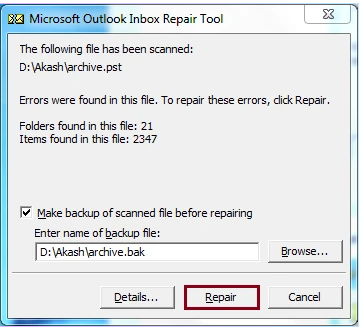
When Outlook files become corrupted, damaged, or unreadable, Scanpst.exe or Inbox Repair Tool helps identify the underlying source of the problem before fixing it.

Why not use Scanpst.exe to fix the OST file?

One of the most popular fixes for problems with any Outlook data file is Scanpst.exe. It may be able to identify and fix some little problems, but this isn’t always the case. As the name implies, an application called Scanpst.exe was created especially to address problems with PST files. The tool’s primary purpose is not to fix mistakes in an OST. It is advised to start over from scratch because the files include cache data.

What other options are there?

There are still ways to repair the OST file damage. These potential solutions can be used to accomplish this:

Rebuild the OST file

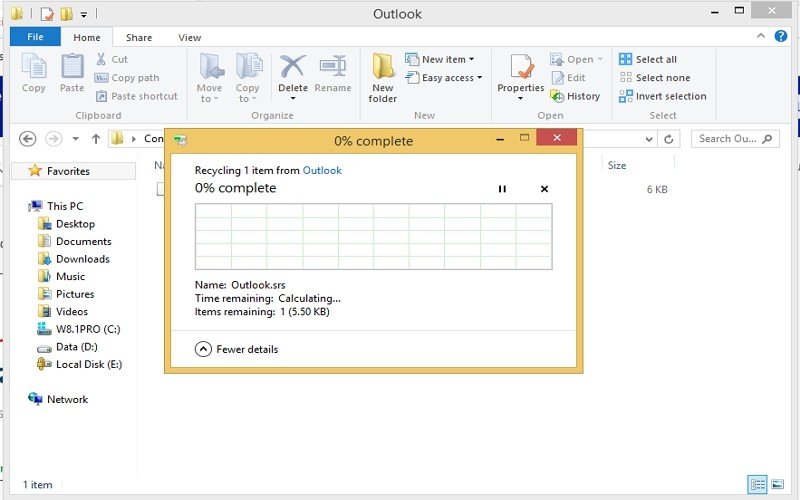
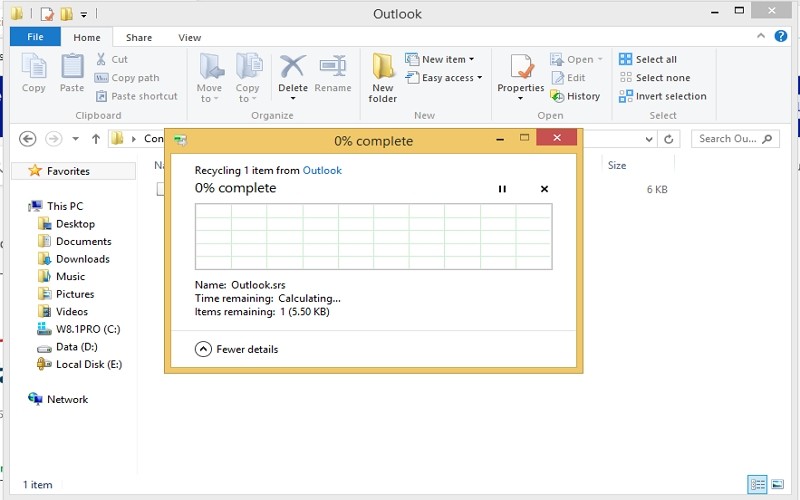
Scanpst.exe cannot fix significant corruptions in OST files. Rebuilding the OST file is the best approach. When the file is closed, Outlook will recreate it from the server if the user renames it to “.old.”Rebuild the OST file

Convert OST to PST files

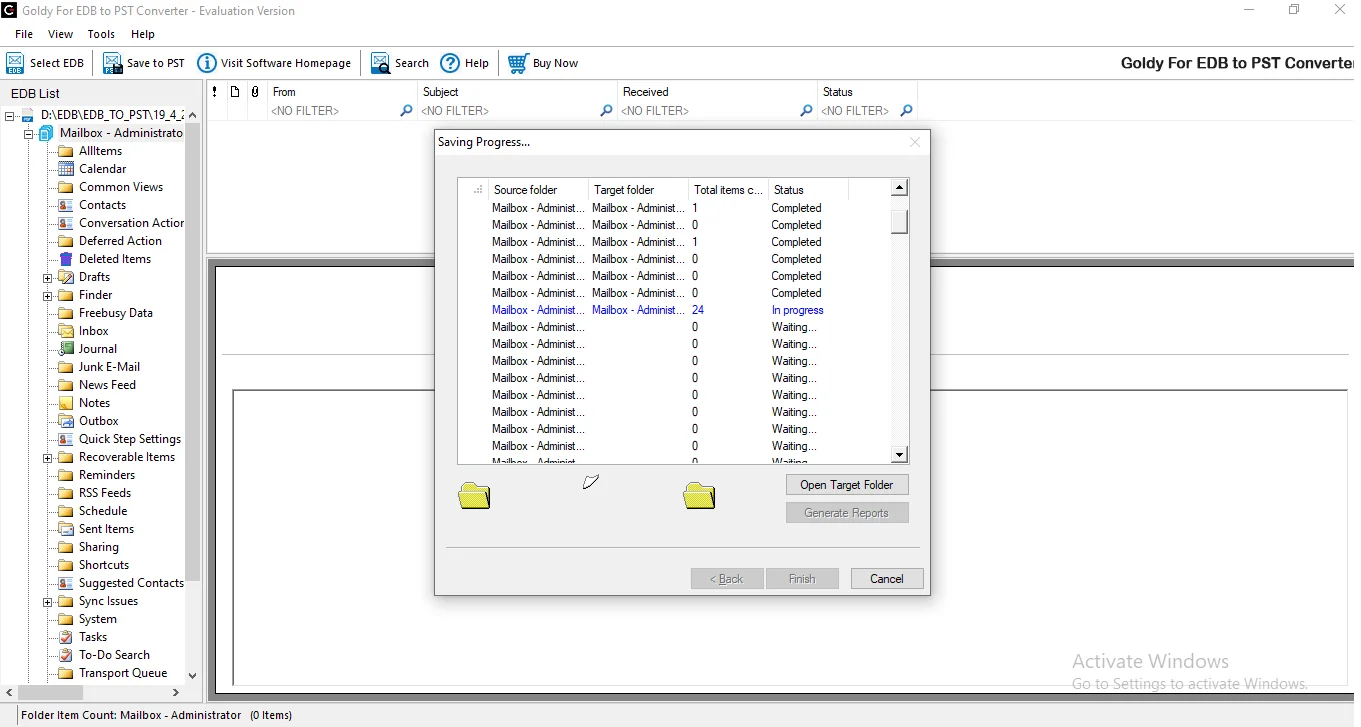
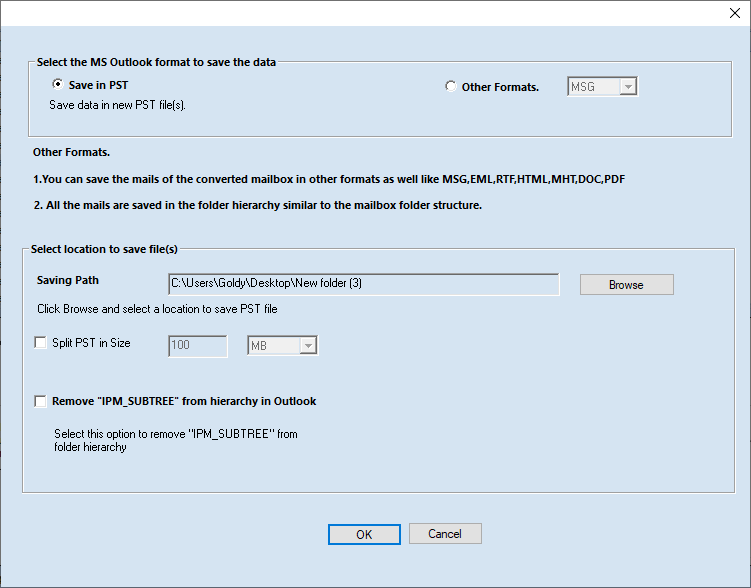
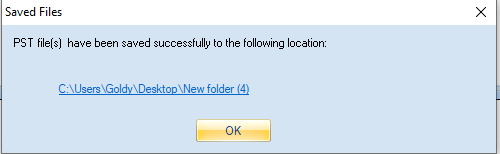
Converting corrupted OST files to PST, which would enable users to retrieve all information, is a workable approach. You should use expert software to finish this crucial activity because you are working with private and sensitive data. Here, GoldyTools OST to PST Converter uses its sophisticated characteristics to do the necessary tasks.

  • All Outlook versions are compatible with the easy and seamless OST to PST conversion process.
  • The application is able to fix corrupt OST files.
  • For every mailbox item, a thorough preview is displayed.
  • In the OST file, users can locate a certain item.
  • Effortlessly convert OST to PST without needing an Exchange profile or Server connection
  • It is possible to convert OST emails into many different formats, such as PST, MBOX, MSG, HTML, PDF, EML, and many more.
  • Depending on their size, the converted PST files can potentially be divided into smaller ones.convert OST emails into many different formats

In conclusion

Scanpst.exe is designed to fix PST file issues, but it can also be used to fix OST files. While this check might fix small flaws in OST files, it is completely impractical for handling larger problems. OST files need to be rebuilt from scratch in order to be repaired; this can be accomplished by renaming the file as ‘Old’. When you have a reliable internet connection, this method works. Converting OST files to PST is an additional method. A professional tool such as the GoldyTools must be used for this.

How Can Exchange Server Be Cloned?

In summary, if you clone an Exchange server incorrectly, your active Exchange server will become unavailable. An isolated environment is the only safe way to clone Exchange Server. This Exchange Server cloning technique will be covered, along with an Exchange Server repair tool that may be used to troubleshoot or resolve common issues.

Have you ever encountered a scenario where you needed to quickly recover from a disaster or create a backup copy of a server? For most users, cloning Exchange Server is the first thing that comes to mind in such circumstances. Many people think that all it takes to get your new server operational is a few clicks. They don’t realise, nonetheless, that an exchange server consists of several interrelated parts. It is difficult and unsupported to duplicate these components exactly.

We have discussed the proper method of copying Exchange Server with numerous Exchange administrators. There is only one reasonable and appropriate way to clone the server that was mentioned by majority of specialists who voted against the cloning the server. The benefits of server cloning and safe Exchange environment replication will be covered in this blog. We’ll also look at the reasons not to clone Exchange Server and how to resolve any problems that may arise.

Motives for Exchange Server Cloning

Directly copying a live Exchange Server is not normally suggested, but it is done in some special situations:

Verify Updates Safely

To test a major Exchange update or new server configurations, you can create an Exchange Server clone. To prevent unintentional damage to the original server, you can examine and track changes in the duplicated environment.

Resolve Exchange Issues

Cloning and applying various fixes might be helpful if your Exchange server is having problems. But merely copy the server in a separate environment.

Educate New Employees

You may set up a secure environment for training new hires by creating a copy of your present Exchange Server. In addition to preventing typical human mistakes like unintentional data loss, this encourages safe learning.

Transition from the Real World to the Virtual Environment

Many businesses attempt to switch from physical to virtual servers. Scalable resources, remote accessibility, and other factors may be the cause. Before relocating the server in such cases, you can test the new virtual platform by cloning Exchange Server.

Regarding Compliance and Legal Audits

You can give law enforcement officials a cloned and isolated copy of your Exchange server if they insist on looking through your company’s email data. In this manner, they may carry out their audits without affecting the system and preventing downtime.

How to Clone Exchange Server Correctly

Let’s talk about how to safely duplicate Exchange Server without interfering with the live production server. We advise you to backup Exchange Server as a precaution and then take the actions listed below:

Step 1: Set Up the Cloning Environment

  • Make a note of the IP addresses and machine names of your domain controller and primary Exchange server.
  • To avoid replicating current issues, look for any difficulties with your actual Exchange Server.
  • Create a new, totally isolated virtual network in your virtual machine software. This network is not connected to the internet or your primary workplace network.

Step 2: Make a copy of the Exchange server and configure it.

  • To create complete copies, use the “Clone” option in your virtual machine software. Give the cloned server a new name.
  • The isolated network you established in the preceding step should be connected to the cloned server.
  • Launch the copy of the Exchange Server now.

Why Not Make an Exchange Server Clone?

In a production setting, cloning an Exchange server might result in a number of problems including downtime. Some of the major ones are:

Active Directory is confused

Each Exchange component has its own ID in the Active Directory. The Active Directory becomes confused when duplicates are created by cloning. Your entire Exchange setup could be destroyed by this.

Email Flow Is Broken

Your email system won’t know where to send messages if there are duplicate IDs. Your team may not be able to communicate if emails are misplaced, stuck, or fail to deliver.

Reasons for Database Issues.

Causes Database Problems

Additionally, your databases and mailboxes have unique IDs. Duplicating the live database could stop mailboxes from opening, cause databases to fail, or even corrupt your valuable email data.

Obstructing User Access

Outlook and other applications depend on Exchange’s distinct identity. Outlook will become confused if many servers are discovered. Outlook might not be able to connect and synchronise emails from the server as a result.

No assistance from Microsoft

A live Exchange server cannot be directly cloned by Microsoft. You are responsible for resolving any possible problems if something goes wrong. These kinds of situations can be very expensive and time-consuming.

Exchange Server Cloning Done Wrong! How Can It Be Fixed?

As we previously noted, cloning Exchange Server can result in serious issues such as data loss, database corruption, connection troubles, etc. However, some of these issues can be fixed with careful examination and troubleshooting. Another problem that calls for the usage of a specialised Exchange data recovery tool (GoldyTools) is fixing a corrupt server database.

GoldyTools Exchange Recovery is among the top third-party Exchange Server Recovery tools. It has intelligent algorithms built in to thoroughly examine and correct any corruption in the Exchange database (EDB) file. Additionally, EDB can be repaired and saved to PST for offline use using this utility.

In conclusion

Microsoft expressly forbids replicating your production Exchange Server. However, if you still want to accomplish it, use the simple Exchange Server cloning technique covered in this blog. Be sure to limit cloning to an isolated test environment. The communication between the live server and the cloned server will be disrupted by any kind of connection. Use an EDB repair tool right away to save your data if you encounter problems like database corruption during or after cloning.

How can I find the address of the Exchange server?

In summary, the server administrator oversees all of Exchange’s features, including server settings, address, and name. However, any issues with Outlook or delays in email correspondence necessitate an Exchange Server check, which calls for details like your server address. The easiest method for locating an Exchange Server address will be explained in this blog. We advise utilizing the GoldyTools OST file conversion tool if the problem is caused by corrupted Outlook files.

Businesses can receive emails without any lag thanks to Microsoft Exchange Server, which manages a significant amount of corporate communication. However, Outlook users must undertake some troubleshooting, such as generating a new Outlook profile, if there is a problem with Exchange’s performance. Troubleshooting frequently necessitates the use of server-specific data, such as the address. Therefore, in order to sustain consistent communication and cooperation among enterprises, users must discover and find the Microsoft Exchange Server address. We will now discuss how to locate the Exchange Server address.

How can I find the address of a Microsoft Exchange server?

Let’s talk about how to identify my Microsoft Exchange Server address using practical ways now that we know why it’s necessary. Use each of the techniques listed below:

Use the Outlook program to find the Exchange Server address.

To download and store emails from the online server to offline OST files, the Outlook program establishes a connection with the Exchange Server. To keep the email status updated, Outlook periodically synchronizes with Exchange Server. Outlook need the name and address of the server for this synchronization. The following procedures can be used to locate the information about this server that is saved within Outlook:

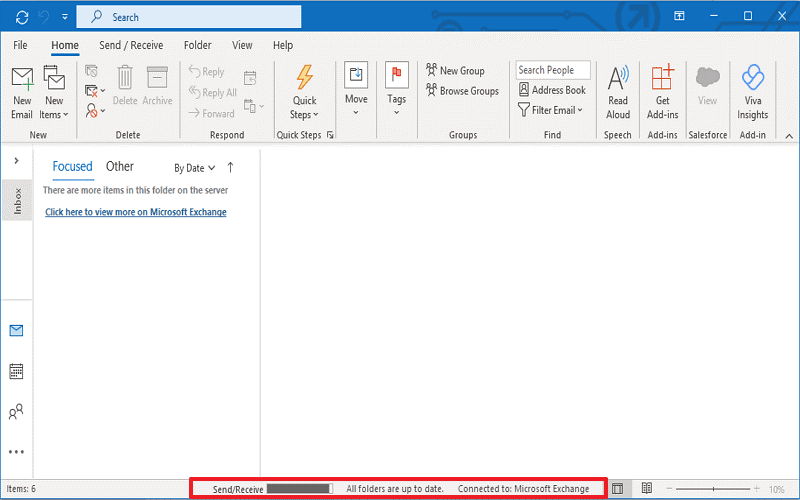
Step 1: Launch Outlook and check the status of the connection. Outlook displays “CONNECTED TO: MICROSOFT EXCHANGE” when it has an active connection with Exchange Server. To continue with the process, make sure this connection is maintained.Launch Outlook

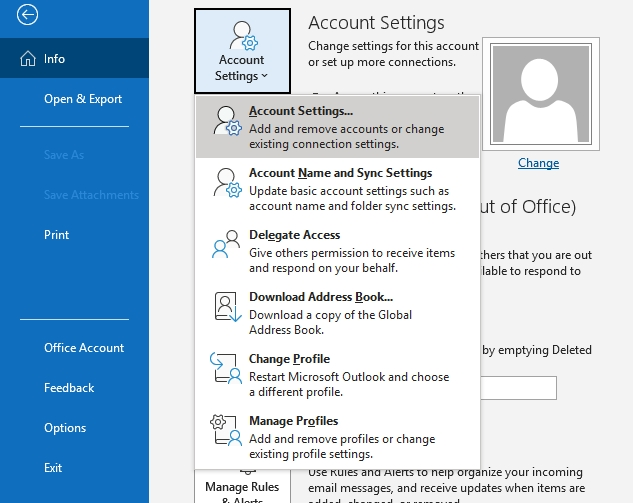
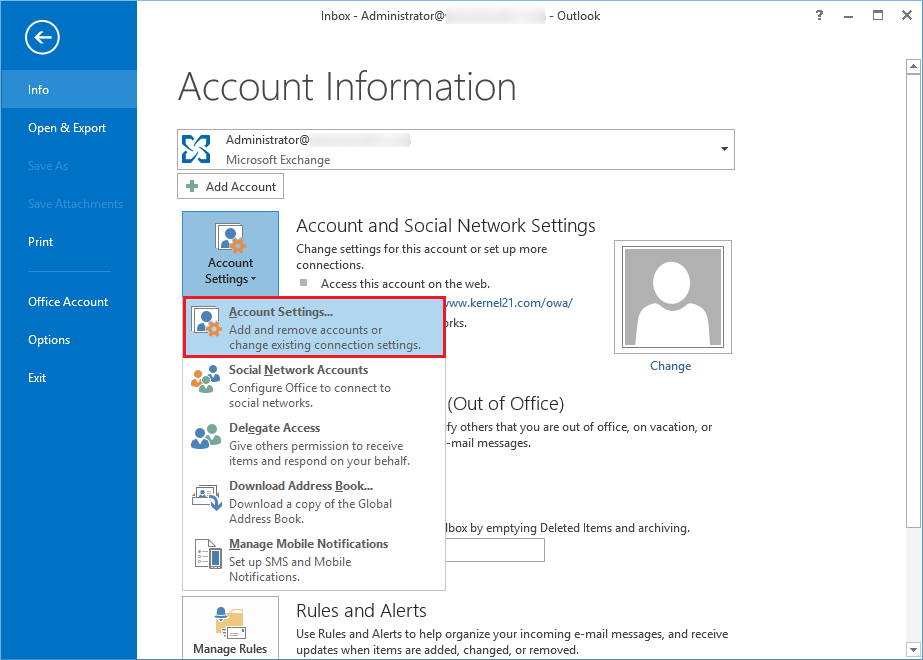
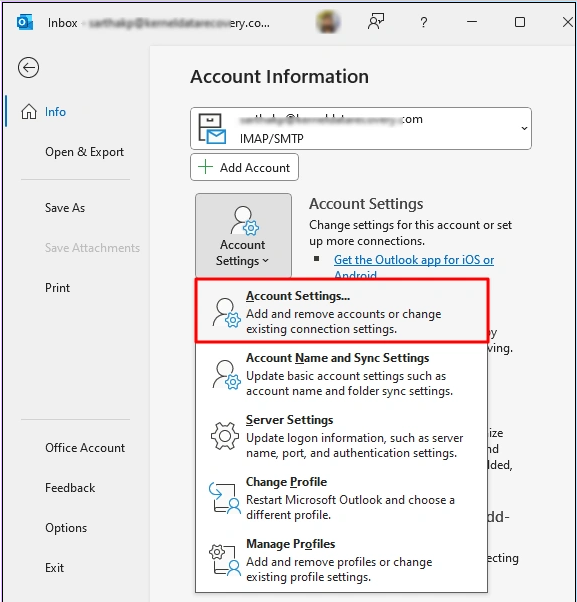
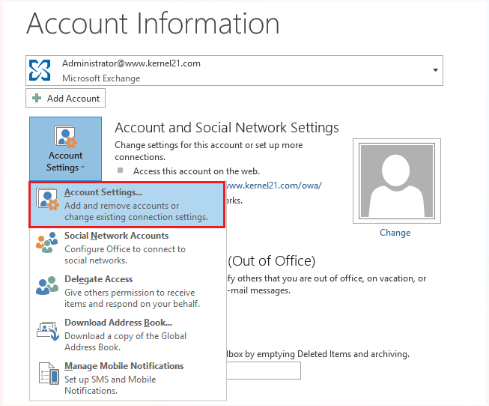
Step 2: Select File from the menu, then select Account Settings>>Account Settings.Select File from the menu

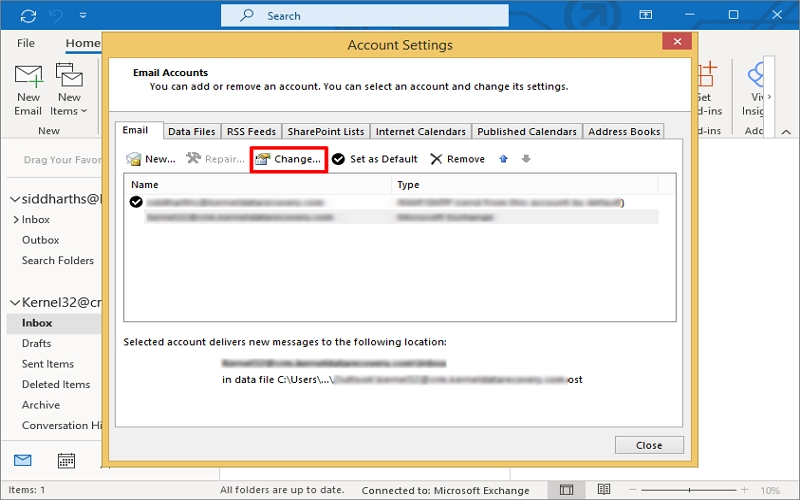
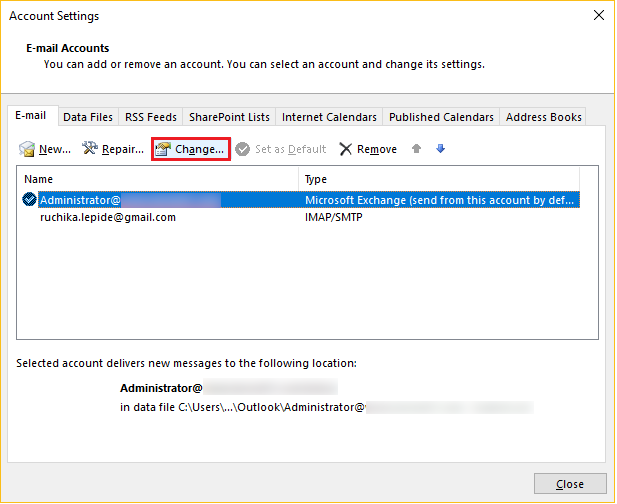
Step 3: Click Change after choosing the Exchange Account that has the server name you wish to verify.Change after choosing the Exchange Account

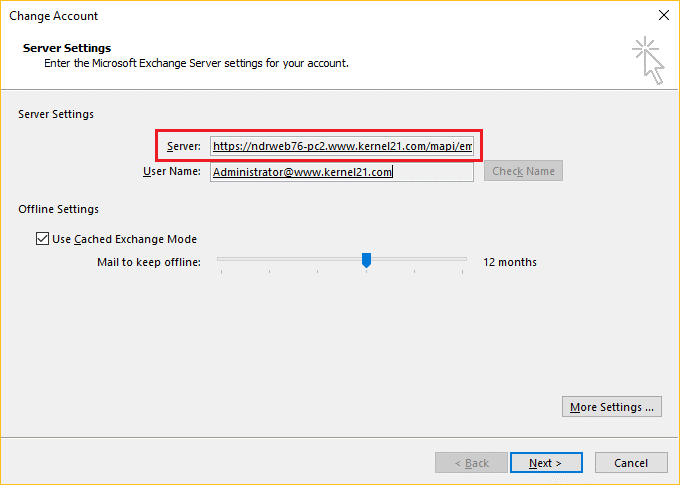
Step 4: Your Exchange server’s full name is displayed in the Server Settings section.Server Settings

Outlook Web Access to determine the Exchange server address

All of the capabilities found in Outlook’s offline version are available in Outlook Web Access (OWA), an online version of the desktop program. All you have to do to find the exchange server address using OWA is go to Settings>Mail>Options>Mail>Accounts>POP and IMAP>note down values from POP Setting & IMAP Setting.

Use Exchange Management Shell to locate the Exchange Server address.

The EMS can be used to locate the Microsoft Exchange Server address if you have access to Exchange Server. To obtain all Exchange Server properties, including the address, you can use the following command in the EMS as administrator.

Get-ExchangeServe

Once you have access to your Exchange Server address, you may use it to resolve problems with incoming and outgoing messages. However, there are times when Outlook has trouble connecting to Exchange Server, and you have to continuously switching between different approaches to fix the issue. All things considered, the Get-ExchangeServe cmdlet is among the greatest resources for finding the Exchange Server name and other relevant information.

A few common connection troubleshooting techniques for Outlook

To implement a workable solution, you can use the techniques covered to locate the Exchange Server address and give it to the server administrator. Nonetheless, we provide a few safe troubleshooting techniques that anyone can utilize without relying on the Exchange Administrator.

1. Give Outlook a restart

It is the most straightforward way to fix the connection problem. Restart the machine if restarting Outlook doesn’t work. Outlook and Exchange Server connections frequently fail to establish when the Internet is unavailable. Therefore, restarting Outlook should resolve any connection issues that may have arisen as a result of small connection-related issues. Proceed to the next troubleshooting step if restarting Outlook is not successful.

Disable the offline mode

Often, the users set the Outlook to the offline mode unknowingly, and it stops emails from incoming and outgoing. So, you should disable this option and reconnect Outlook with Exchange. Follow the steps mentioned below to toggle Outlook’s offline mode to online.

Step 1. Click the Send/Receive option on the menu.

Step 2. Go to the Work Offline button and click it.

Step 3. The status of the Outlook will change to ‘Trying to Connect’ from ‘Offline.’ Soon it will show the status as ‘CONNECTED TO: MICROSOFT EXCHANGE

Conduct an installation repair

A repair feature in Microsoft Office can assist users with little problems. To fix the connectivity problems, you can do a repair installation from the Control Panel.

Step 1: Go to the Control panel after closing the Outlook program.

Step 2: Select Features and Programs.

Step 3: Click Change after selecting Microsoft Office.

Step 4: After clicking Repair, choose Continue.

Step 5: After the repair procedure is finished, restart the computer.

Step 6: Launch Outlook and see what’s going on.

Make the OST file again

Due to its local computer storage, the OST file is highly susceptible to corruption from hardware problems or infection. The Outlook program may be unable to connect to Exchange Server due to a corrupt OST file. Therefore, you can regenerate the OST file, which can solve the Outlook connection problem.

You can also attempt to turn off your antivirus software. These anti-malware programs occasionally flag Outlook data files as dangerous and prevent users from accessing Outlook. In the end, this caused problems with connections.

To fix the corrupted PST file, use the Scanpst program.

Outlook provides a default scanning program named scanpst.exe that fixes minor corruption-related problems in PST files. The OST file can be scanned using the free SCANPST program. If there are any corruptions, it will check for them and prompt you to rectify them. Furthermore, it can only fix small corruptions in files up to 2GB in size.

But when the SCANPST malfunctions and results in data loss because of serious corruption, large OST files, etc., the situation becomes dire. Therefore, it is safe and secure to rely on an automatic and expert GoldyTools for the OST to PST Converter tool. It actively collects data from OST files and transforms it into a variety of formats, including PST, DBX, EML, MBOX, PDF, and many more. You can transfer the current OST file to different mail servers and clients while maintaining data integrity by using this OST to PST converter Tool.

In conclusion

We now know how to use the methods mentioned above to efficiently find my Exchange Server address. You shouldn’t rely solely on manual troubleshooting techniques when Outlook isn’t connecting to Exchange because of corruption in the data file. These techniques just look for errors and don’t offer a practical fix. GoldyTools for OST to PST Converter is an excellent tool that can restore the content of corrupted, orphaned, or unavailable OST files. The restored data can be accessed in Outlook and saved as a PST file. Get it now!

FAQs

Q- What is the URL for the Exchange server address?

A. The server address URL is required in order to access your Exchange server. In essence, this URL is a link to the web interface on your server, where you may control your calendar, email, and other functions. The fully-qualified domain name (FQDN) of your server is automatically included in the Exchange server address URL in the manner https://<ServerFQDN>/ecp. This implies that your web browser will take you to the Electronic Control Panel (ECP) of your Exchange server after you enter this URL.

Q –  What is the default location of the Exchange server?

A. The server should be located at C:\Program Files\Microsoft\Exchange Server\V15 if you are using Exchange 2016 or Exchange 2013. However, the default location for Exchange 2010 would be C:\Program Files\Microsoft\Exchange Server\V14.

How to extract the Calendar from an OST file?

Outlook calendars let you plan meetings, appointments, and other events, just like other email programs. You frequently need to extract calendars from OST files using Outlook’s Import/Export feature or a professional OST to PST converter for migration, data recovery, and backups. After experimenting with several OST files, I have provided these techniques. Make use of them for simple data extraction.

The Exchange server unexpectedly failed a few weeks ago while my company was migrating its mailboxes. This unanticipated disaster resulted in the corruption of several user profiles. In the meantime, I needed to get in touch with the several appointments and events that were scheduled for the next two days on my calendar. I have to remove the calendar from the OST file in order to do this. Here’s what I did to fix the problem and avoid missing any meetings.

How to Directly Extract a Calendar from an OST File

Step 1: Launch Outlook and select Calendar.

Step 2: Decide which calendar to extract.

Step 3: After selecting File, select Save Calendar.

Step 4: Give selections and the location where you want to save.

Step 5: Choose the.ics file type for saving.

Why is it necessary to remove a calendar from an OST file?

There are several circumstances in which it may be necessary to extract calendar data from the OST file, including:

  • Easy to access: The data must be extracted from the OST file and converted to a suitable format in order to be viewed.
  • Make a backup: By extracting data from an OST file, a backup in a more practical format is produced.
  • Migration: In this case, you must extract calendar data while you are moving to a new email client.

Techniques for extracting a calendar from an OST file

It is simple to extract calendars from an OST file. The following is a list of the method with a comprehensive procedure:

Approach 1: Use Outlook to extract a calendar from an OST file

Calendar data can be extracted from an OST file and saved to a PST file using the Import/Export wizard option. To extract the calendar from OST, carefully follow these instructions.

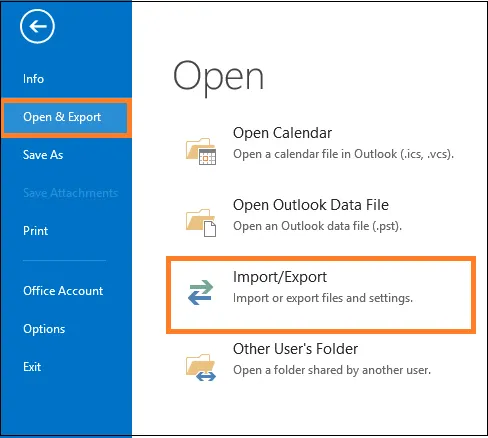
  1. Open the Microsoft Outlook program. Go to File >> Open & Export >> Import/Export.Open the Microsoft Outlook
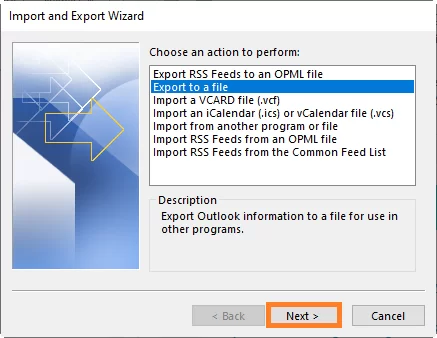
  2. After selecting Export to a file, click Next.selecting Export to a file
  3. Click Next after choosing Outlook Data File (.pst) as the option.
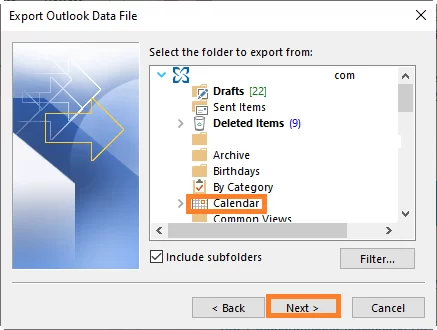
  4. To extract the calendar from the OST file, choose Calendar, then click Next after choosing Include subfolders.choose Calendar
  5. To give the PST file the desired place, click Browse. Lastly, select Finish.
  6. You can now load or import the OST file calendar into any Outlook account after it has been extracted to a portable PST file at the designated location.

This procedure may only be carried out if the OST file is in good condition; otherwise, the extraction must be carried out after the OST file has been recreated. Additionally, the original Outlook profile and Exchange Server ought to be accessible. The procedure cannot be carried out using orphaned or offline OST files.

Approach 2. An advanced method for extracting a calendar from an orphaned or corrupted OST file

Microsoft does not provide a direct way to access the data in the event that the Exchange Server used to create the OST file crashes. Use an advanced OST to PST converter program to extract Outlook calendars from OST files in such circumstances.

First, utilize the following path or find the OST file on your local storage:

C:\Users\User\AppData\Local\Microsoft\Outlook

To quickly extract calendar data, use the expert-recommended GoldyTools OST to PST Converter utility after making a backup of the OST file to a secure location. To ensure the safe extraction and conversion of OST mailbox objects, such as emails, contacts, calendars, tasks, etc., this utility provides a number of capabilities. Additionally, it assists you in repairing corrupted OST files.

How the tool operates:

  1. Easy Steps to Use the Tool to Extract Calendar
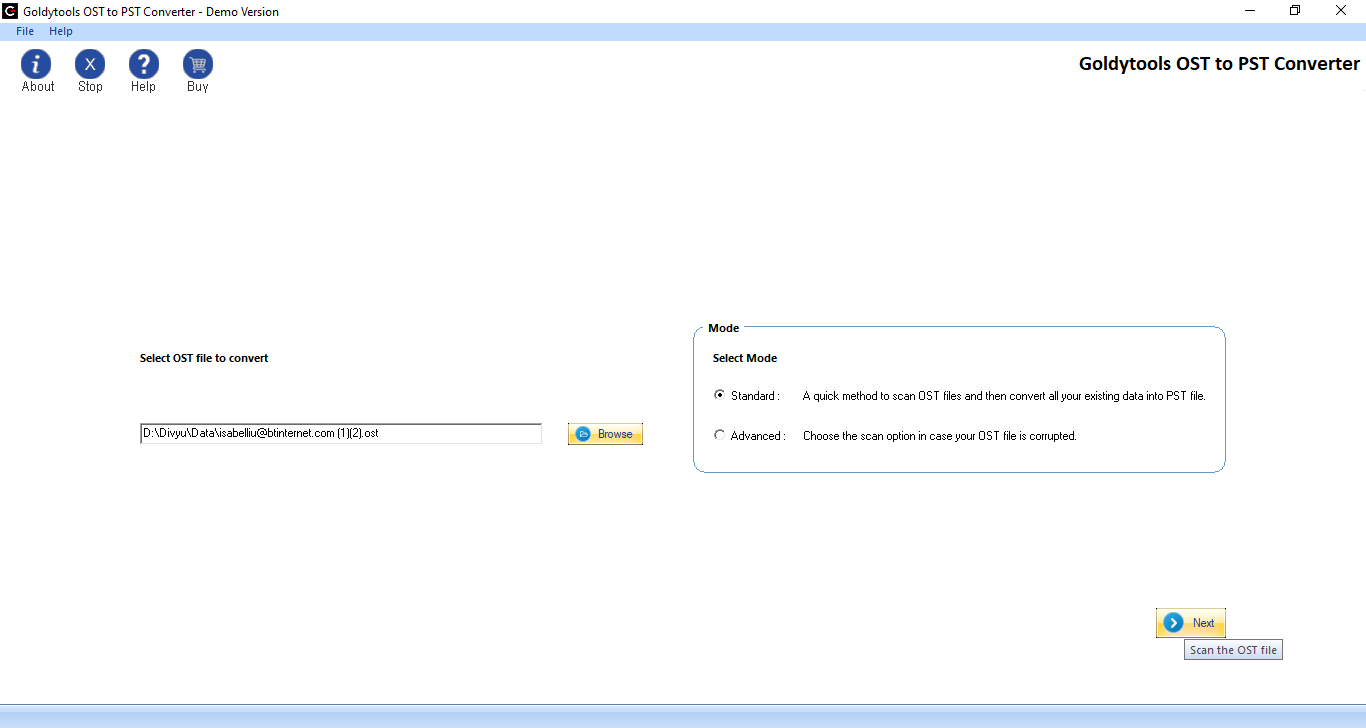
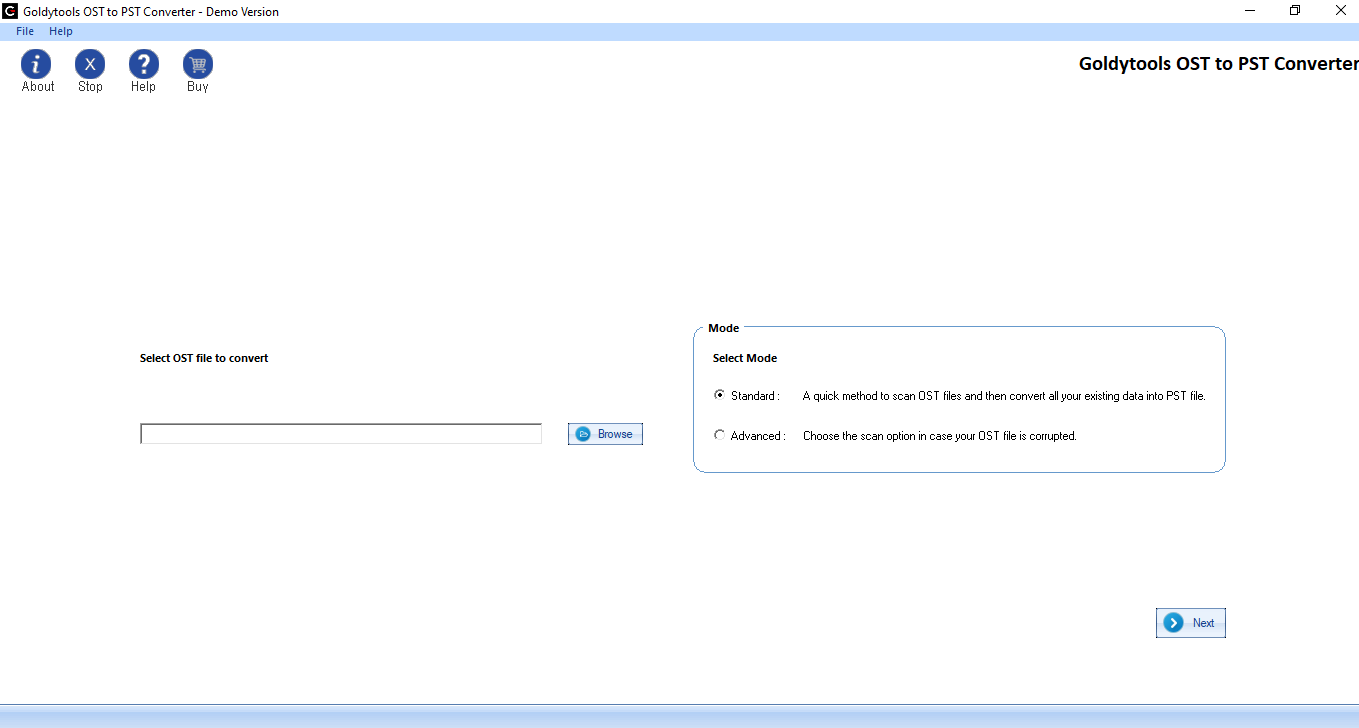
  2. To convert or extract an Outlook calendar, open the program, select Browse, then add the OST file. Click “Next.”extract an Outlook calendar
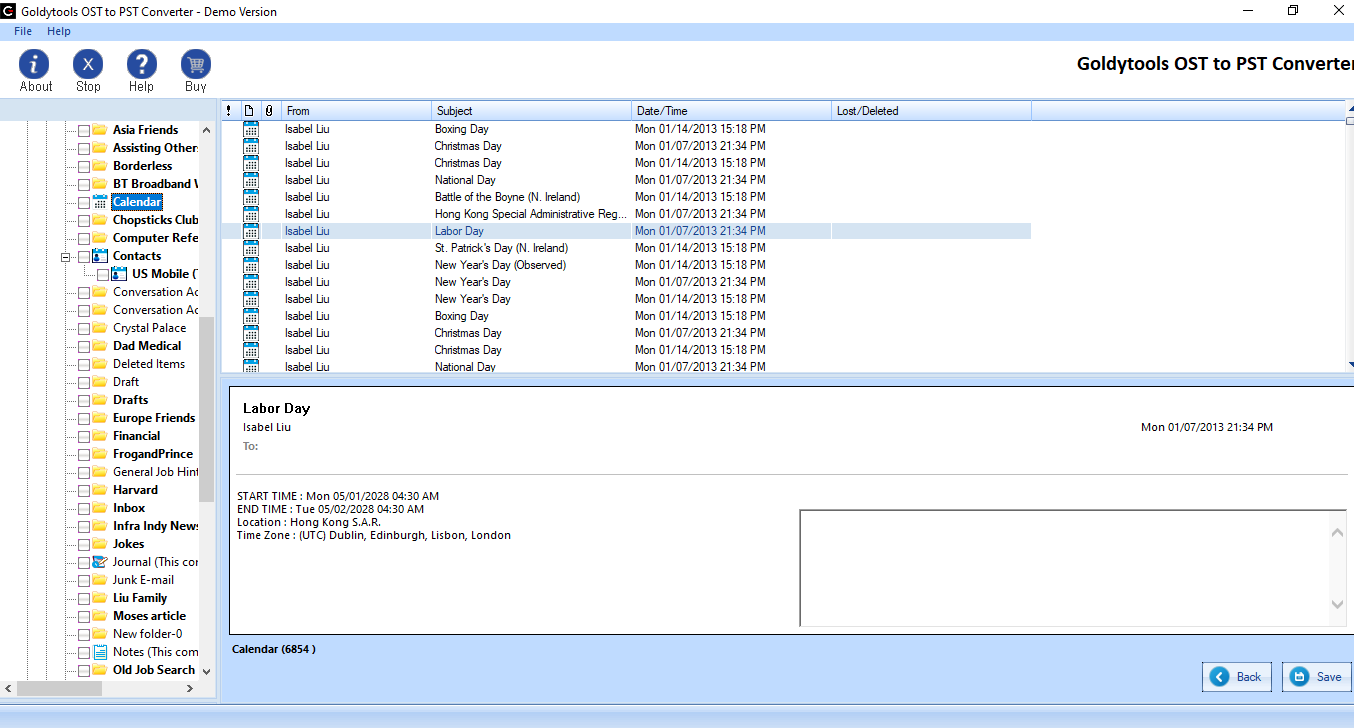
  3. From the mailbox folders that were retrieved, choose the Calendar folder. If necessary, preview any items before clicking Next.choose the Calendar folder
  4. Select PST from the list after clicking the Save option at the top. Next, click.Select PST from the list
  5. Click Finish after providing a save path and applying saving preferences.Click Finish
  6. The procedure of saving will begin and end soon.

This sophisticated and trustworthy program makes it simple to access and extract OST data, including calendar. To gain a better understanding of the tool’s sophisticated features, download the free trial version and perform OST file recovery.

Concluding Remarks

Every user should value calendars and the data they store since they hold vital information. Only if you can access your OST files with Outlook can you use the aforementioned Import/Export option to extract your Outlook calendar from OST to PST. In case of inaccessible OST files, use the recommended program to export all your OST data, including calendars. Additionally, this software allows you to extract contacts from OST files.

Frequently asked questions

Q – Is it possible to retrieve calendar information from an OST file that is orphaned?

ANS- . Yes, as long as the Outlook profile is intact and not erased, you can retrieve a calendar from an OST file even if it is orphaned. For this, use Outlook’s import/export feature.

Q- Is it feasible to see calendar information contained within an OST file?

ANS – Yes, It is possible to examine calendar data included in an OST file by exporting it to a PST file. Open the extracted file in Outlook to see the desired entries.

Q – Is it possible to extract a calendar from an OST file without Outlook?

ANS – Yes, Without Outlook, there is no direct manual way to extract calendar data. Using an advanced OST Converter application, which can open the OST file directly and convert only the calendar folder into accessible formats, is the simplest and most advised method in that situation.

Troubleshooting the Outlook Error 500: ‘Something Went Wrong’

In this blog you will learn about Error 500: “Something Went Wrong” in Outlook abruptly stops daily email correspondence. It prevents users from successfully accessing, reading, or responding to emails. To comprehend its causes and 100% effective cures, read the article. Additionally, to protect against data loss, think about using the automatic Kernel for OST to PST Converter utility to backup the OST file.

Nearly all Outlook users have at some point faced Error 500: “Something Went Wrong.” It causes disruptions in email communication and limits users’ ability to send, receive, or access emails.

Additionally, it delays crucial assignments and deadlines, which results in a tense and frightening circumstance. Therefore, in order to prevent more delays and preserve an effective workflow, this issue must be resolved as soon as possible.

Don’t worry if you’ve run into this problem! To learn how to diagnose and resolve Microsoft Error 500: “Something Went Wrong,”

Typical Causes of Outlook Error 500: “Something Went Wrong”

The Outlook Error 500: ‘Something Went Wrong’ may occur due to numerous reasons. The following are some typical causes:

  • Due to maintenance or an outage, Microsoft servers may be momentarily unavailable.
  • Outlook error 500 may be caused by a poor or erratic internet connection.
  • Your ability to connect to the server may also be impacted by a corrupted Outlook profile.
  • Outlook error code 500 may be caused by incorrect email or server settings in your Outlook account.
  • Firewall or antivirus software may prevent Outlook from connecting correctly.
  • Error 500: “Something Went Wrong” can also be caused by a corrupted or destroyed OST or PST file in Outlook.

Step by Step Procedure to Fix Outlook Error 500: Something Went Wrong

Use these techniques to successfully resolve Outlook Error 500: “Something Went Wrong”:

Approach 1: Verify Your Internet Connection

Outlook is unable to connect to the servers due to a weak or erratic internet connection, which causes a number of problems, including error code 500. Thus, confirm that you are linked to a reliable network. To check your connection, run a speed test on a regular basis. Additionally, if there are problems with your existing network, consider connecting to another one.

Approach 2. Verify the status of the Microsoft server

Sometimes, maintenance tasks cause Microsoft’s email server to go down. Thus, you verify the health of Microsoft services. Wait for Microsoft to fix any reported outages. To learn more, you can also ask questions on several forums regarding the server outage and Outlook Error 500: “Something Went Wrong.”

Approach 3: Update and Fix Outlook

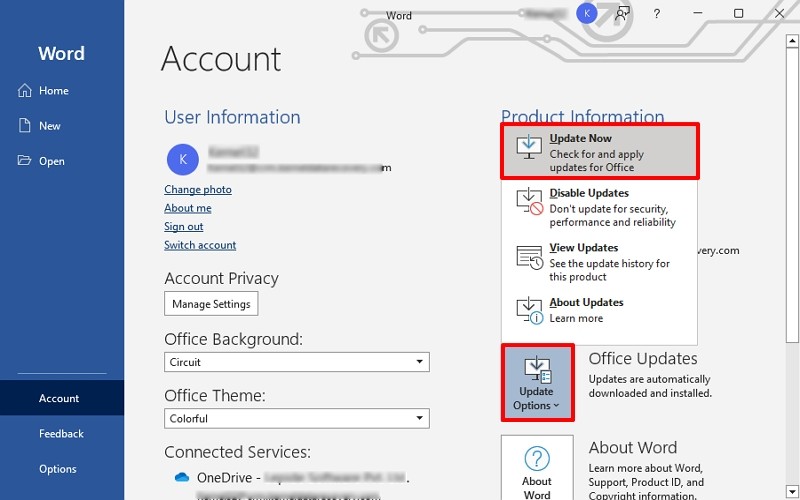
You may experience a number of problems, such as error code 500, if your Outlook is out of current, but updating it occasionally resolves all of these problems. The actions to take are as follows:

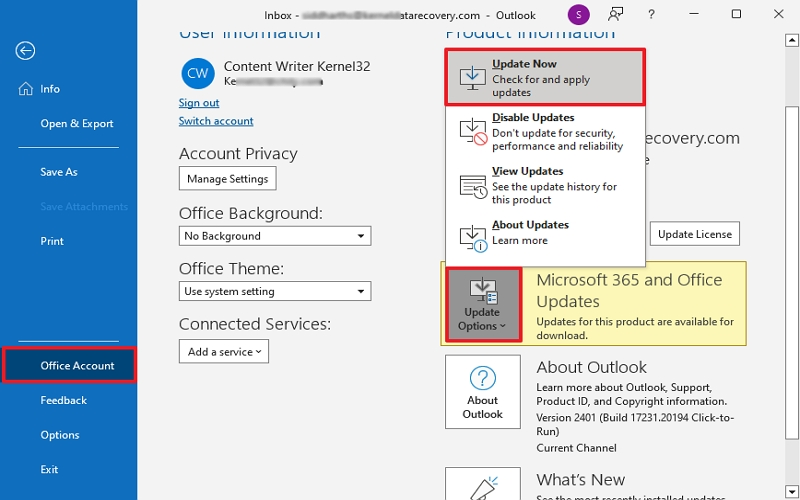
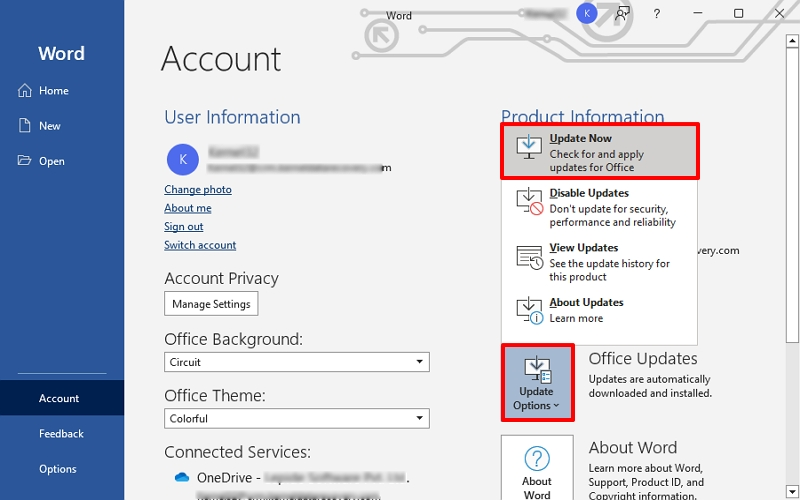
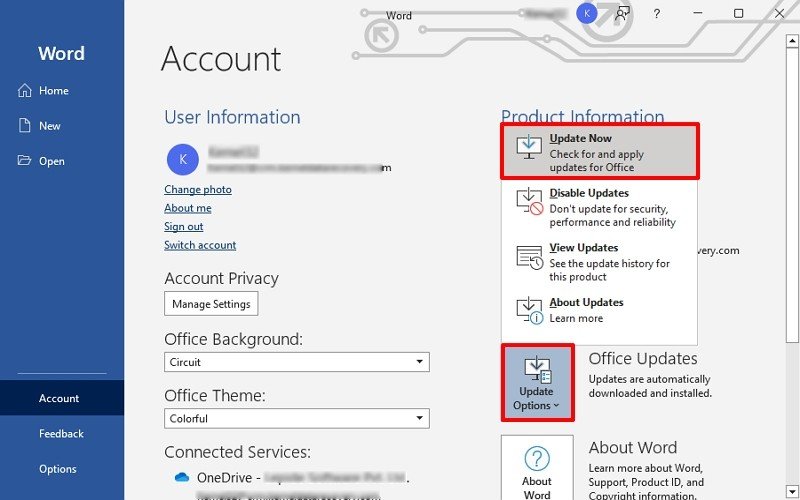
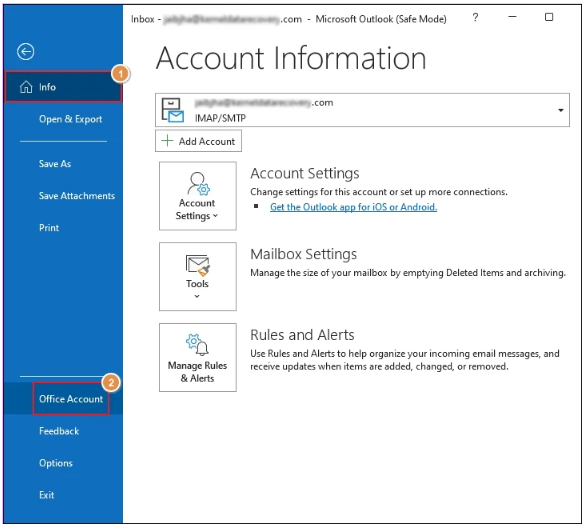
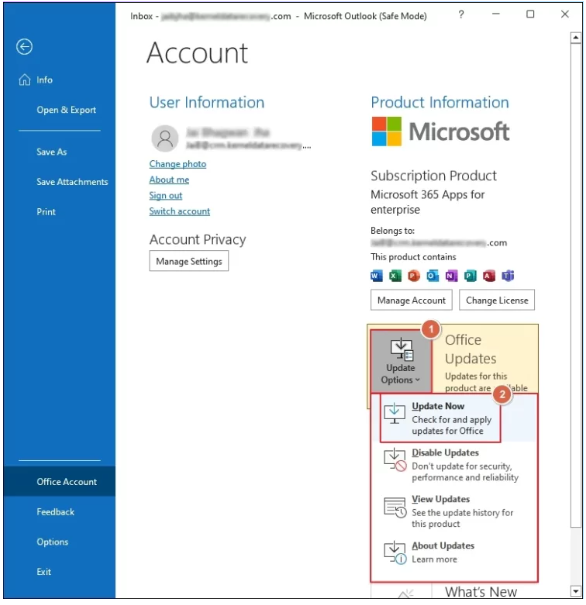
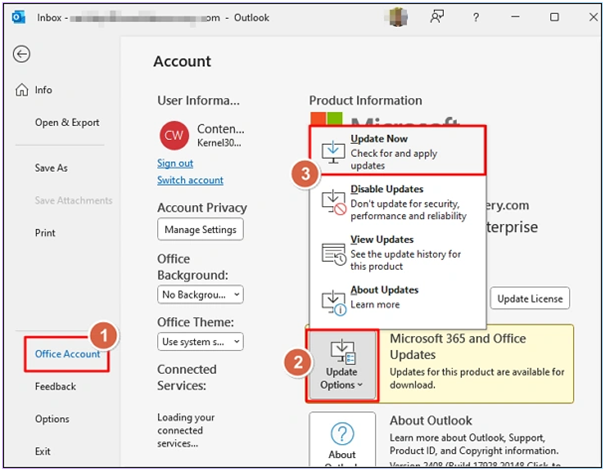
  1. Launch Outlook, choose Office Account from the File menu.
  2. Select Update Now by tapping on the Update option.Select Update
  3. Restart Outlook and search for issues after the updates are finished. If the error still occurs, fix the Outlook installation.

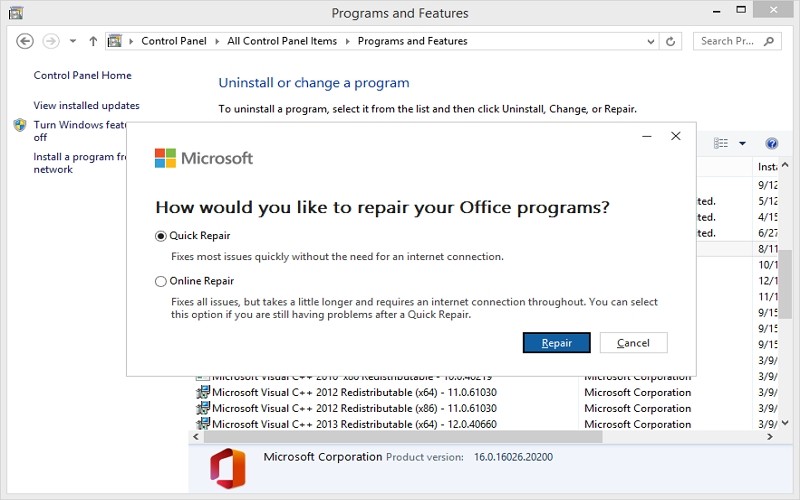
    The steps to fix Outlook are as follows:

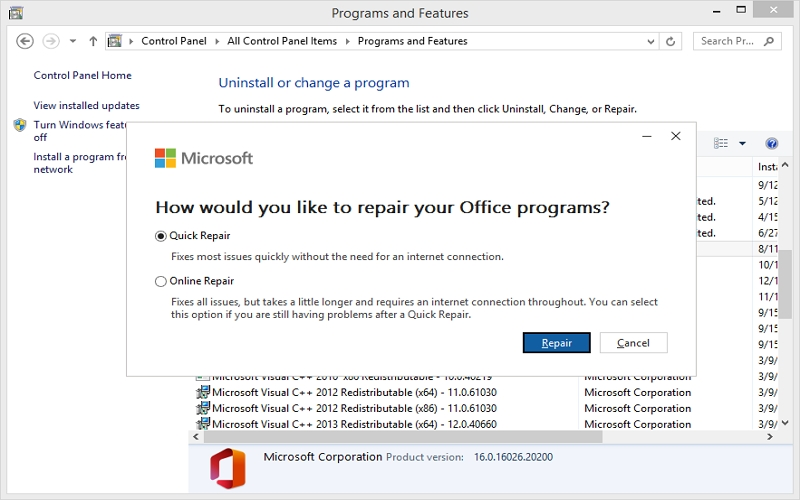
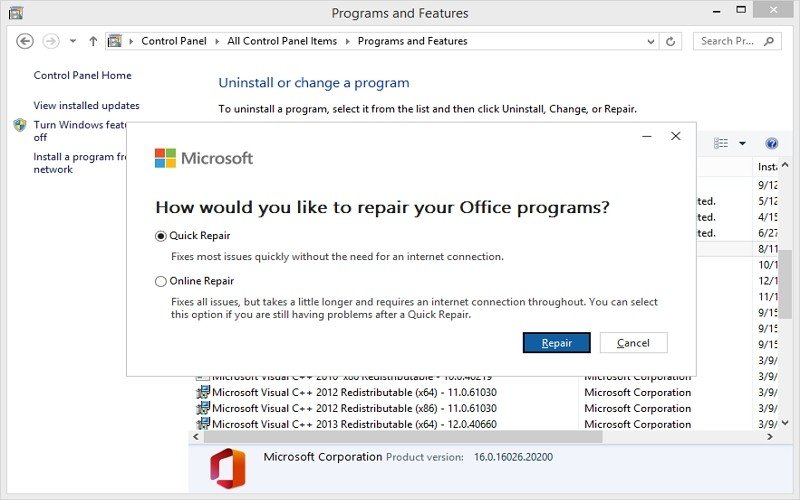
    1. Navigate to Programs and Features after opening the Control Panel.
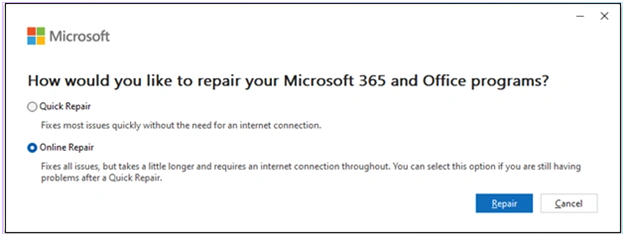
    2. Click Change after selecting Microsoft Office, then select Quick Repair.select Quick Repair

    Restart Outlook once the repair has been completed.

    Note: Try Online Repair if Quick Repair doesn’t functioning.

    Approach 4: Delete Outlook’s Cookies and Cache

    Over time, data stored in Outlook’s cache may also be compromised. Many common issues, such as Outlook error 500, can be resolved by clearing these cache files. Use the procedures listed below to accomplish the same:

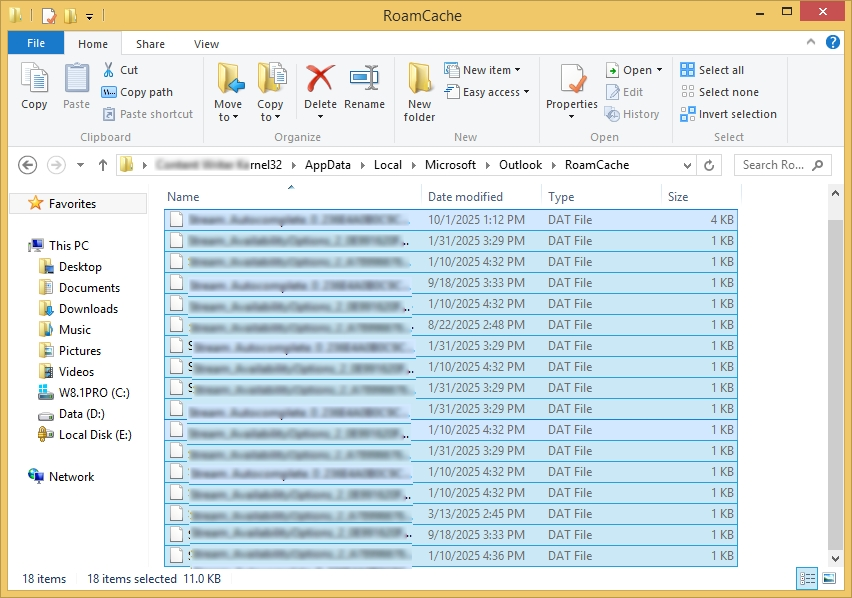
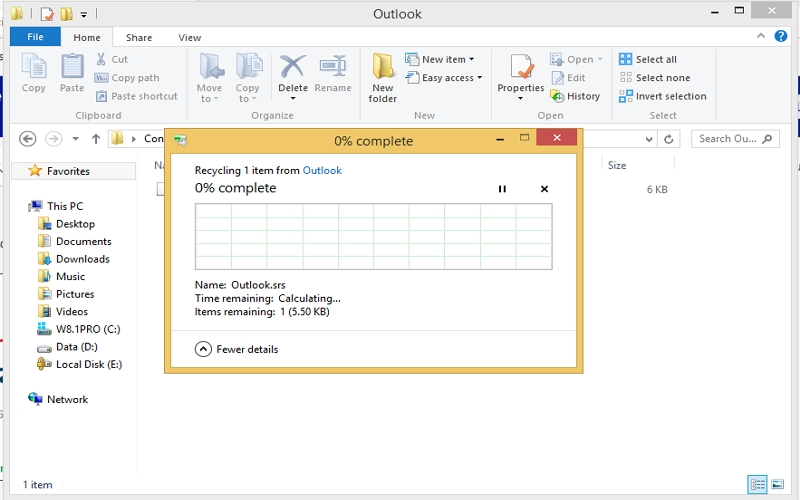
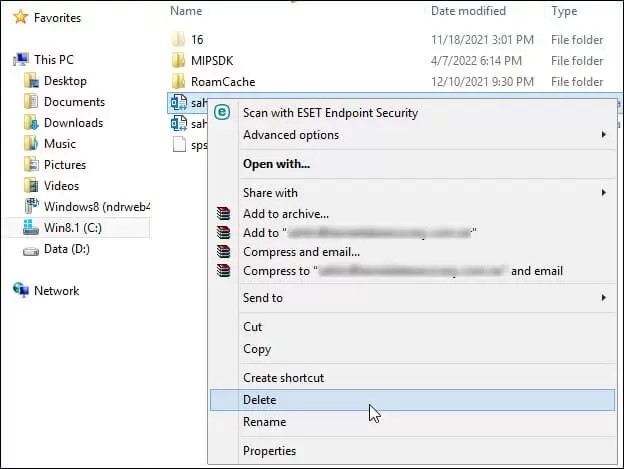
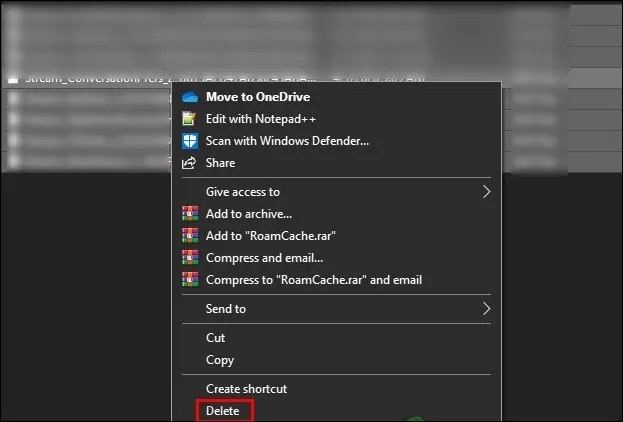
    1. Locate C:\Users\[YourName]\ AppData\Local\Microsoft\Outlook\RoamCache/. in File Explorer.
    2. Click the Delete button after selecting every file.Click the Delete button

    Approach 5. Repair Outlook Profile

    Outlook Error 500: “Something Went Wrong” is one of the many problems caused by a corrupted Outlook profile. Repairing or recreating your profile may fix the problem. Use the procedures listed below to achieve the same:

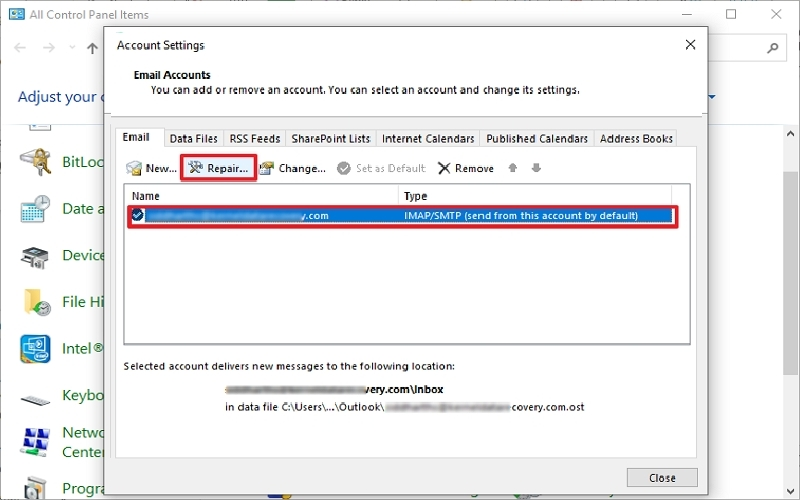
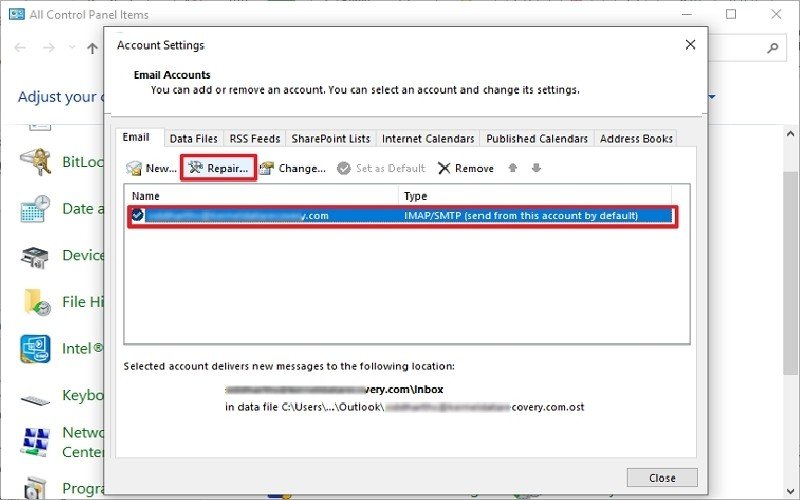
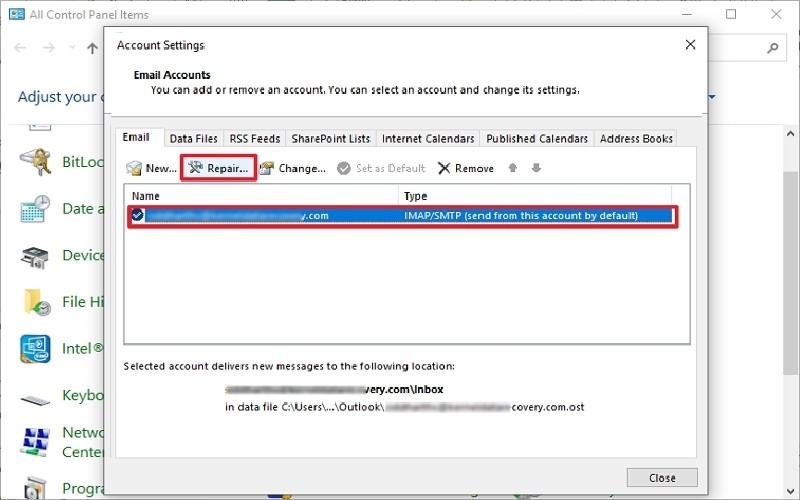
    1. Click Show Profiles after opening Control Panel and selecting Mail.
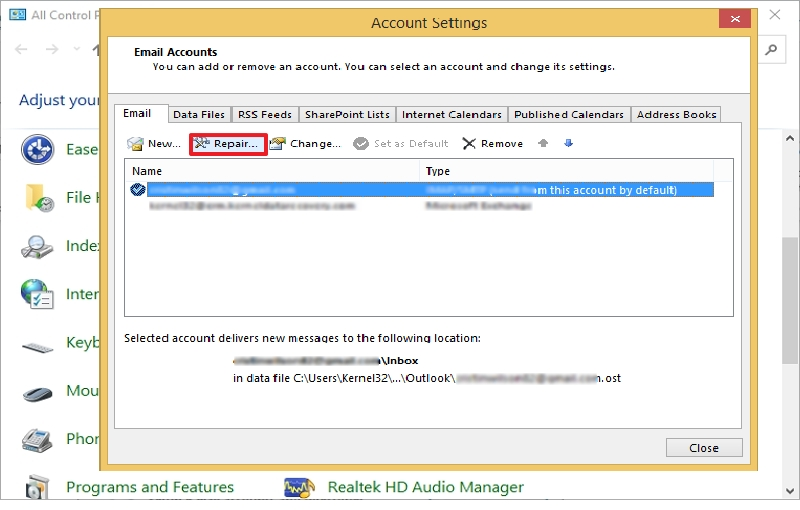
    2. Click Repair after selecting your Outlook profile.Show Profiles

    Open Outlook after the fault has been correctly fixed to check if it persists.

    Approach 6: Temporarily disable your firewall or antivirus software

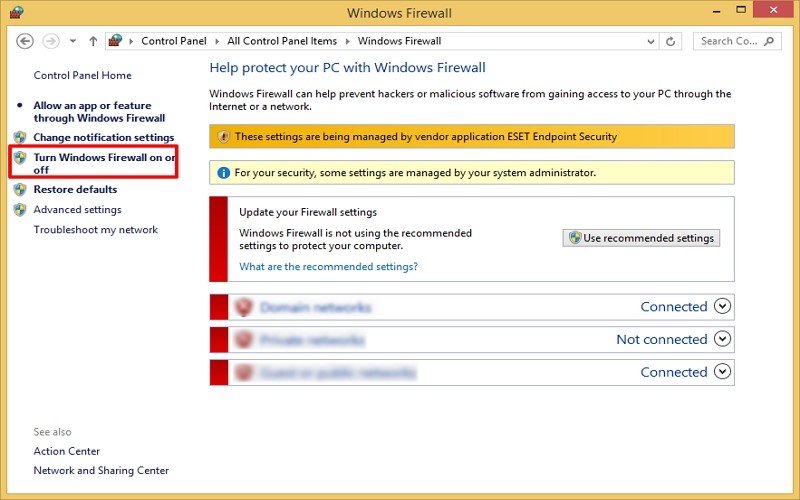
    The main factor preventing Outlook from connecting to its servers is frequently a firewall or antivirus program. To fix error code 500, temporarily disable them by doing the following:

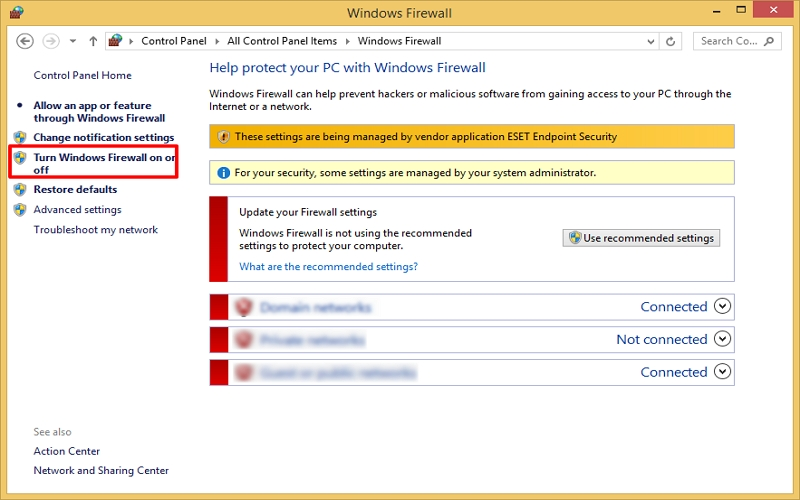
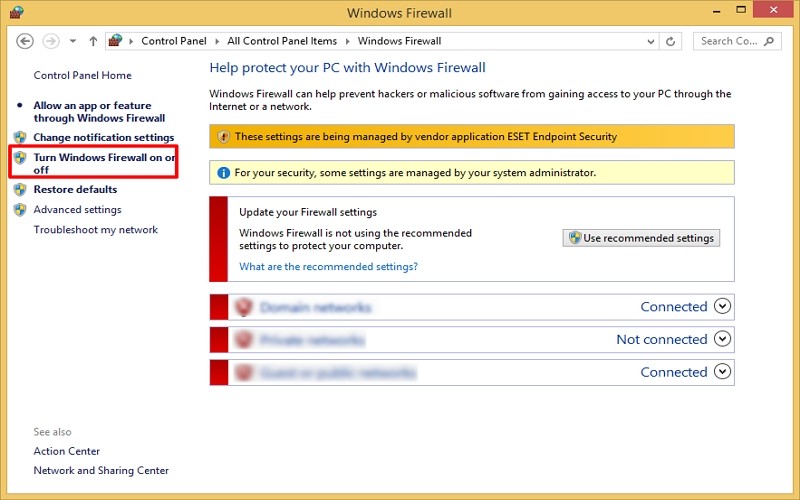
    • Navigate to the Control Panel and select Windows Firewall.
    • To disable Windows Firewall, select Turn Windows Firewall on or off and follow the additional instructions.disable Windows Firewall

    Approach 7. Turn Off Outlook Add-ins

    Outlook add-ins improve quick email operations, however some of them frequently get out-of-date or corrupted. Therefore, you can easily resolve your Outlook error 500 by disabling them. The actions to take are as follows:

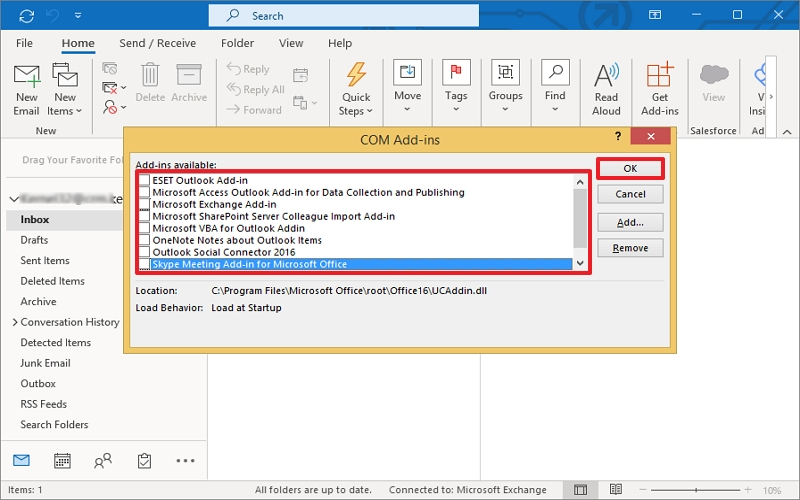
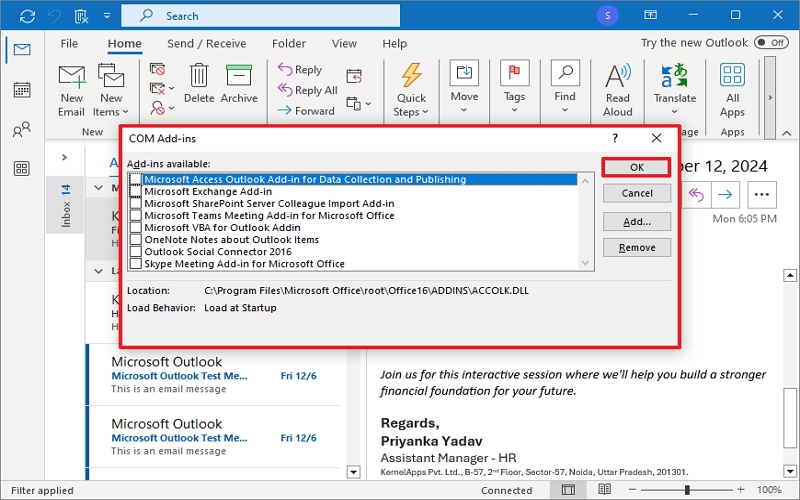
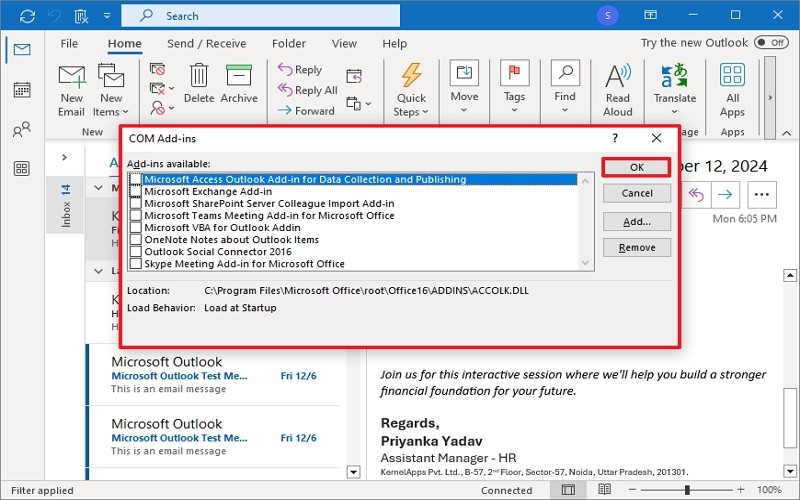
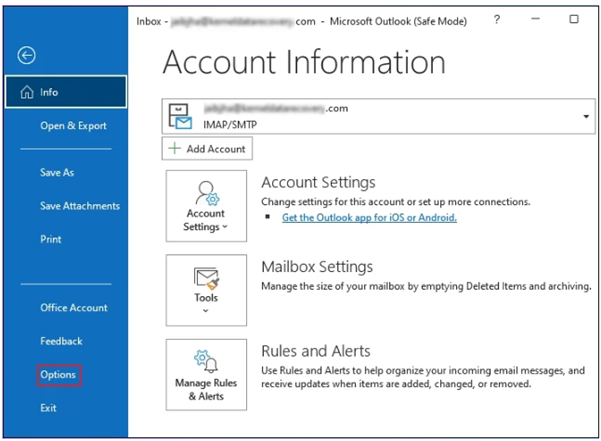
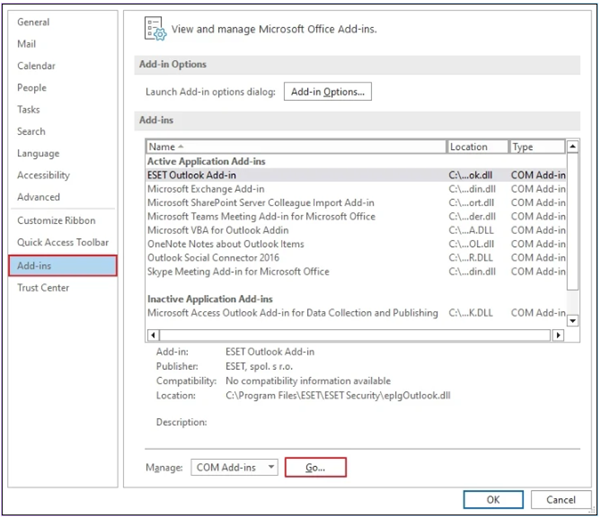
    • Go to File > Options after opening Outlook.
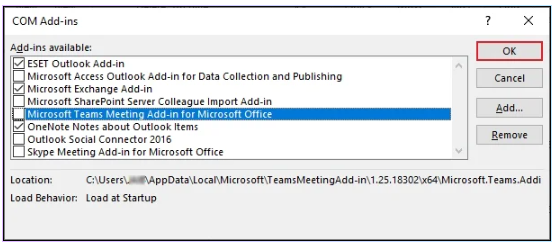
    • After choosing Add-ins, click Go to turn off every add-in. Go to turn off every add-in

    Approach 8: Fix OST/PST Files That Are Corrupted

    The OST file may occasionally become corrupted if you’re using cached Exchange Mode. Error code 500 can be fixed by deleting or copying it:

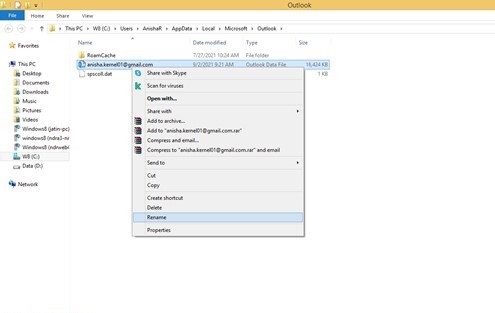
    1. After closing Outlook, navigate to the AppData folder in File Explorer and change the name.
    2. If you restart Outlook, the server will immediately download all of the data into a new OST file.

    Verify whether all of the current data is there or if anything was overlooked after the synchronization process is finished. If it is absent, fix the OST file and import the missing information into Outlook once more. It is also advised that you make a backup of your OST file to prevent future data loss problems.

    Easy OST file backup | Expert Solution

    If you want to fix Outlook problem 500, you must backup your OST files. Use the Import/Export option if you can still access your Outlook account. However, utilize the GoldyTools for OST to PST Converter application if your Outlook prevents you from using this feature or if you wish to backup large or enormous OST files.

    It enables you to add several OST files like healthy, corrupted, damaged, orphaned at once and store them in PST format so you can export them from Outlook once more. Additionally, it offers a variety of file-saving formats, including MSG, EML, MBOX, PSF, DOC, and more. With the tool, you can move OST directly to IMAP servers and any other cloud, including Live Exchange. With premium features like split PST files, live preview, and sophisticated filters, it is the most dependable option for both experienced and inexperienced users.

    Other Advice for Preventing Outlook Error 500: “Something Went Wrong”

    To reduce the likelihood of running into Error code 500: “Something Went Wrong” again once you’ve successfully fixed the problem and backed up OST files:

    • Update Outlook frequently to improve security and performance.
    • Regularly check the settings of your Outlook account.
    • To prevent data loss while troubleshooting, make a backup of your Outlook data.
    • To fix transient server-side problems, log out and then back in.
    • When troubleshooting Outlook issues, restart the operating system first.

    Note: This error is usually a server side problem if you’re using Outlook for Web (OWA). It can be brought on by a server outage, browser problems, network problems, and many more. To resolve Outlook for Web Error 500, “Something Went Wrong”:

    • Update your web browser.
    • Verify the service status of Microsoft.
    • Remove the cookies and cache from the browser.
    • Try using Incognito mode or a different browser.
    • Turn off browser add-ons and extensions.
    • Log out of your account, then log back in.
    • Verify that you have the appropriate permissions for your account.
    • Try using a different network (e.g., mobile data instead of Wi-Fi).

    Final Thought:

    Nobody wants to experience Outlook Error 500: “Something Went Wrong.” Now that you know everything there is to know about this error, including its causes and practical fixes, utilize the remedies provided to fix the issue. Don’t forget to make a backup of your OST data beforehand.

    Although you can backup the OST file using the native technique, the suggested GoldyTools OST converter is more dependable and simpler. It is easy to use for OST file data backup and repair on any Windows operating system. Start using the trial version right now. Get it for free!

    FAQs

    Q. What should I do if, despite using all of the manual techniques mentioned above, the issue still occurs?

    Ans : Yes. If troubleshooting doesn’t resolve the issue, get in touch with Microsoft Support for individualized advice.

    Q. Is it possible to resolve Error 500: “Something Went Wrong” by reinstalling Outlook?

    Ans: Yes. In the event that the Outlook installation file is corrupted, reinstalling Outlook may be helpful. But first, make a good backup of your data to prevent data loss.

    Q. Will this issue be resolved by switching to a different email client?

    Ans: Yes. If you continue to have troubles with Outlook, using an alternative email client (such Gmail or Thunderbird) may be a temporary solution. For long-term stability, however, it is best to address the underlying Outlook problem.

Is Your Outlook Running Slow? Fix Lagging & Speed Up Email

User Concern: My Microsoft Outlook has been operating quite poorly for a few days. Every time I attempt to access emails, search my inbox, or tap on any other folders, it continues to lag. Responding takes a long time, and I’m not sure what’s creating the issue.

Is there a way to resolve this problem and speed up Outlook so it functions properly once more?

Have you too noticed how slowly Microsoft Outlook is operating?

Opening emails and searching your inbox it  take long time. This issue affects a lot of you, which makes everyday tasks challenging. Large mailbox files, add-ins, or faulty PST files are typically the reason of Outlook’s slowness. The most important point is that there are several solutions to resolve this problem. We’ll discuss a few easy manual fixes for slow Outlook in this blog. We’ll also introduce you to the GoldyTools Outlook PST Repair Tool if those don’t work. It restores Outlook’s functionality, enhances performance, and fixes corrupted Outlook files.

My Outlook Is Slow; Why Is That?

Your Outlook is working well for a variety of reasons. There are numerous reasons why Outlook may be slow, including:

  • Oversized PST/OST files: Outlook uses PST or OST files to store your data, as you are aware. Outlook will not be able to handle these files if they are too big.
  • Too many add-ins: Using addins to enhance functionality will also use resources. Therefore, you should avoid adding any addins to your Outlook profile.
  • Outdated Outlook version: Performance problems may arise if you are using an outdated version of Windows or Outlook.
  • Too many emails in a single folder: Outlook may become unresponsive if users keep thousands of emails in one folder.
  • Low system resources: Outlook performance may suffer if your computer has insufficient RAM or storage.

It is simpler to fix Outlook and stop future lagging when these causes are understood.

Fast Checks Prior to Troubleshooting

Try the previously mentioned quick checks before moving on to the more complex techniques. Sometimes the problem can be fixed if consumers are aware of a few easy steps:

  • Verify your internet connection: Outlook may be laggy if your internet connection is unstable.
  • Restart Outlook and your computer: A restart frequently resolves temporary problems that cause apps to lag.
  • Update Windows and Outlook: Microsoft publishes updates on a regular basis. Updating Outlook can speed up performance and fix known flaws.

You can use the provided fixes to solve slow Outlook if you have previously tried the troubleshooting procedures listed above and Outlook is still lagging.

Examine Several Solutions for Outlook Lagging Problems

You don’t always need to use sophisticated fixes if Outlook is operating slowly. You can attempt a few manual fixes first, though. To address Outlook’s slowness, we will now go over each one in detail:

1. Turn Off Insignificant Add-ins

First off, having too many add-ins is one of the most frequent causes of Outlook slowness. Many add-ins run in the background and waste resources, even though some of them are helpful.

Take the following actions to resolve the Lagging Outlook issue:

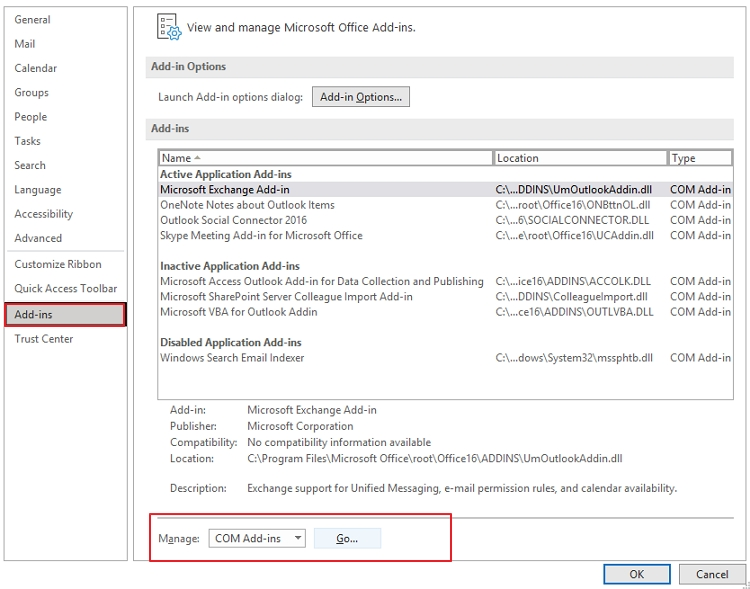
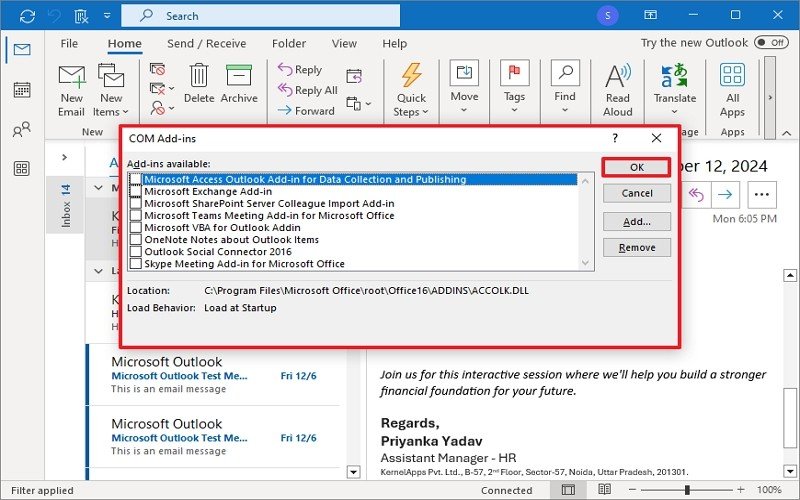
  • Open Outlook>>File>>Options>>Add-ins first.
  • Select COM Add-ins at the bottom, then press the Go button.
  • A list of installed add-ins will now appear. Just uncheck the add-ins that you don’t actually use.
  • To restart Outlook, just tap the OK button.

You then let Outlook load only the tools that are required. It enhances overall performance and shortens startup time.

2. Next, organize or archive your mailbox.

Outlook will then naturally slow down if your mailbox has gotten too big. How can Outlook function if there are thousands of emails in a single folder? Unnecessary attachments add to Outlook’s workload in addition to bulk emails.

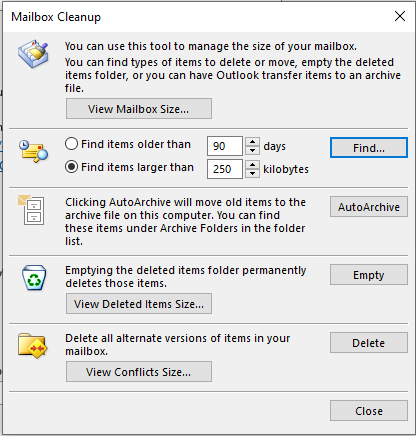
  • To clear out your Outlook mailbox, follow these steps:
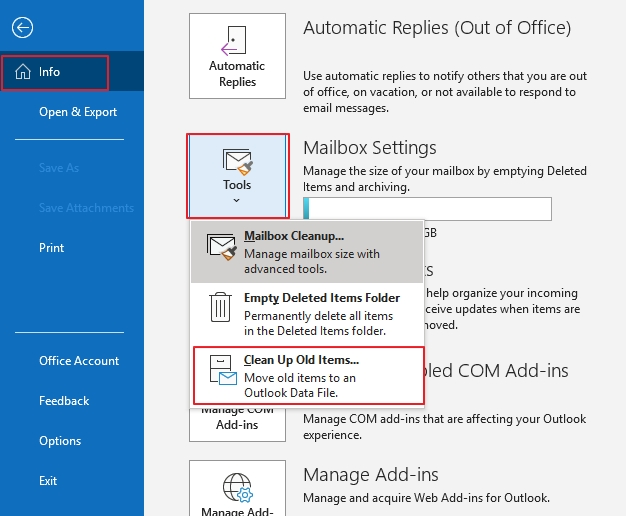
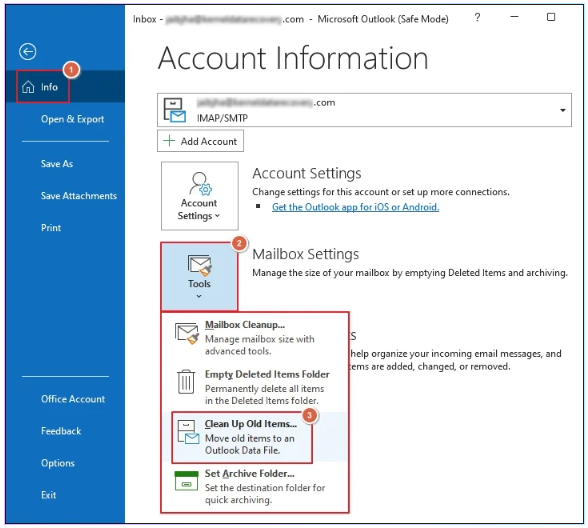
  • Navigate to Files >> Tools >> Mailbox Cleanup in Outlook.
  • Use the choices to empty Deleted Items, locate old emails, and see huge items.

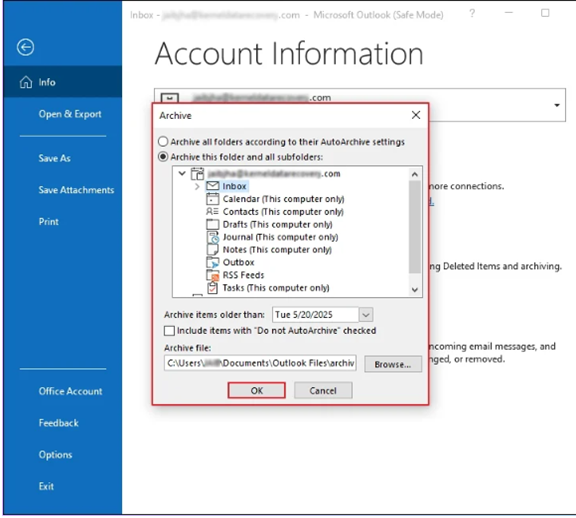
To avoid overloading the main mailbox, you can also transfer older emails to an archive folder.

Outlook can process emails much more quickly with a lighter mailbox, and you’ll see improved speed.

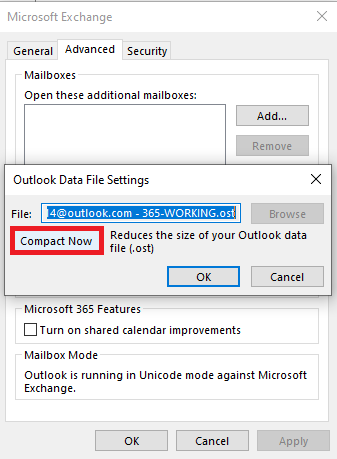
3. Make the OST and PST files smaller.

Your Outlook data file remains unchanged in size even after you remove the emails.

Instead, until the file is compacted, the empty space stays. Outlook becomes slower over time due to this wasted space.

  • Just select File >> Account Settings >> Account Settings in Outlook.
  • Next, choose your PST/OST file by tapping on the Data Files tab.
  • Click Settings now, then select Compact Now.

By doing this, the file size is decreased and Outlook loads data more quickly.

4. Use ScanPST.exe to Repair Your Outlook Data Files

Sometimes a corrupted PST or OST file is the true cause of Outlook slowdown. Therefore, you should utilize ScanPST.exe, the built-in repair program. It can assist you in resolving Outlook’s sluggish performance:

  • Close Outlook entirely.
  • Find ScanPST.exe in the installation folder of Microsoft Office.
  • Note: Your Outlook version determines where your PST file is located.
  • Explore your Outlook data file by launching the program.
  • To start the scanning process, press the Strat button now.

Outlook can operate without any problems after the file has been fixed.

5. As an alternative, repair the Outlook data file using GoldyTools Outlook PST Repair Tool.

The best course of action is to utilize the GoldyTools Outlook PST Repair Tool to fix your Outlook data file if the built-in ScanPST.exe Tool is insufficient. This program can restore all mailbox items and fix highly corrupted PST files. Your Outlook functions properly once again as a result.

Additionally, it allows you to store your corrected data in many forms. Large PST files can also be repaired without any restrictions. You may scan, fix, and restore your Outlook data without any data loss by following a few simple steps. Troubleshooting slow Outlook performance caused by a large PST file is simple. When the manual repair procedure fails to resolve the problem, it is a dependable option.

6. Make a New Profile in Outlook

Finally, if none of the manual solutions listed above resolve your slow Outlook, your Outlook profile may be the issue. Everything may be slowed down by your infected profile. To fix this kind of circumstance, you should run your Outlook profile and make a new profile:

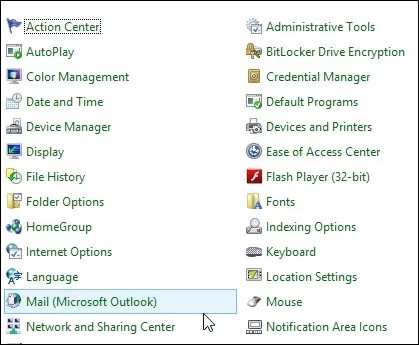
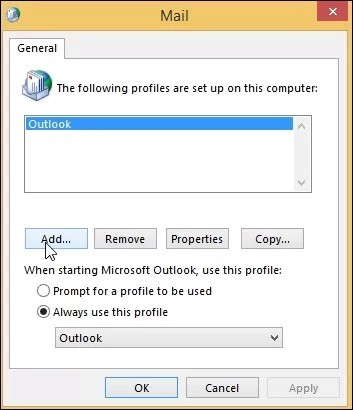
  • Just select Control Panel >> Mail >> Show Profiles.
  • After that, tap Add to start a new profile.
  • Set up your email account with the updated profile now.
  • After you’ve finished, make this newly created profile the default.

Note: There are other ways in which each of these techniques can increase Outlook’s speed. Try the easier fixes first, such as clearing out the mailbox and turning off add-ins. Next, try compacting or fixing data files if Outlook is still laggy. Lastly, making a new profile can resolve the problem if it persists.

In conclusion

Outlook can interfere with your job and waste time when it operates slowly. Simple issues like an excessive number of add-ins, a big mailbox, or underutilized functionalities can create this issue. Occasionally, a damaged PST file may also be the cause. Manual fixes are an option. where you can use the ScanPST program to fix errors, reduce file size, clean out the mailbox, and disable add-ins. However, employing a professional tool is the best option if these approaches fail to resolve the issue. Outlook will operate more quickly and provide you with a seamless email experience if you have the correct solution.

FAQ

Q1. Why does Outlook take so long to open emails?

A. Large mailbox sizes, an excessive number of add-ins, or corrupted data files are typically the causes of this.

Q2. How can I start Outlook more quickly?

A. Reduce the size of your email, condense data files, and disable unnecessary add-Ins.

Q3. Is it possible for Outlook to freeze due to huge PST files?

A. Indeed. Outlook has trouble processing large PST or OST files and may freeze.

Q4. Is speed increased by fixing Outlook data files?

A. Indeed. Outlook’s performance can be greatly enhanced by using ScanPST.exe or a professional program to repair corruption.

Q5. Is using repair tools or manual methods preferable?

A. Repair programs are quicker and safer when dealing with huge data files or serious corruption, but manual approaches work well for minor problems.

Comprehensive Guide to Restore Exchange Mailboxes

In summary, Exchange Server’s restore database makes it simple to retrieve data from a corrupted database. While the actual database is being restored, administrators typically use it to access Exchange Server. This article guides you through the simple process of restoring Exchange mailboxes, including the use of a professional tool and manual methods utilizing Exchange Management Shell for both soft and hard deleted Exchange mailboxes.

If you don’t have backups or copies of the Exchange 2016 mailbox database, restoring it can be quite difficult. Typically, not all users are skilled in technology or able to restore an Exchange Server mailbox database. You need to have a thorough understanding of Exchange features and retention policies in order to return a deleted Exchange database to its initial state. On the other hand, Microsoft provides a dependable method for restoring mailboxes from Exchange Server 2016 and 2019 databases.

What do you mean by “Restore Exchange Database”?

Your data may become inaccessible for a variety of reasons, including corruption, virus attacks, hardware malfunctions, human mistake, and unintentional data erasure. A company or individual may suffer financial loss if such a situation is not handled promptly, as it may result in significant communication disruptions.

The easiest way to prevent these situations is to restore the Exchange database. The company builds and utilizes a Recovery Database (RDB) to facilitate simple data recovery. As part of a recovery procedure, users can mount the restored mailbox database and retrieve data from it thanks to this special database. Mailboxes can be restored using RDB from a backup or a copy of the database without affecting user access.

Why Should I Restore Exchange Mailboxes from an RDB?

Here are some of the advantages of restoring mailboxes in Exchange Server 2016 and 2019 using a recovery database.

  • Helps restore lost mails and their contents without compromising the live database.
  • Can restore the mailbox to the original or another mailbox.
  • Allows you to restore either all mailboxes or selected user mailboxes.
  • Having an RDB can assist with legal compliance and auditing.

However, data restoration cannot be accomplished simply by copying and pasting or dragging and dropping database entries from RDB. To extract data from the recovery database, use the New-MailboxRestoreRequest cmdlet. After retrieving the material, restore it to original mailbox or create a new folder.

Preconditions for Mailbox Restore using RDB

Before you begin the Exchange mailbox restore procedure with RDB, there are few things you should know:

  • This operation requires Organization Management permissions.
  • The database and log files containing the recovered mailboxes must be copied or restored into the RDB folder structure.
  • Run mailbox restoration requests.
  • You may need to run Eseutil /R to restore databases in a clean shutdown state.
  • Once the database has been restored, remove it if it is no longer in use.

Once you understand these concepts, you may utilize Exchange Management Shell to restore data from the RDB.

How do I Restore Exchange Mailboxes?

Go through the parts below to learn how to recover mailboxes in Exchange Server.

Recover Soft Deleted User Mailboxes

Soft deleted mailboxes in Exchange are those that have been removed from the database but remain in the recycle bin with a retention period of 30 days. You can restore mailbox items from the bin within 30 days, after which the data will be permanently erased from the server. Here’s how to get deleted mailboxes using PowerShell scripting:

Step 1: Run Windows PowerShell as administrator.

Step 2: Use the Undo-SoftDeletedMailbox cmdlet to undo the deletion of any mailboxes that are still in the recycle bin.

You can alternatively use the following cmdlet to restore the mailboxes:

Step 1: Connect to Exchange Online PowerShell and run the following cmdlet to find the soft deleted mailbox.

Get-Mailbox –SoftDeletedMailbox | Select-Object Name, ExchangeGuid

Step 2: Create a target mailbox to restore these mailbox objects.

Get-Mailbox -Identity | Format-List ExchangeGuid

Step 3: In the cmdlet below, replace “SoftDeletedMailboxGUID” with the GUID obtained in step 1.

New-MailboxRestoreRequest -SourceMailbox -TargetMailbox .

You have now successfully recovered your soft deleted mailbox items to a new Exchange mailbox.

Restoring Hard Deleted User Mailboxes

A hard deleted mailbox is a user mailbox that has been permanently destroyed and cannot be restored after the 30-day retention period has expired. Any mailbox that is deleted permanently becomes inactive. Let’s look at how we can restore a hard-deleted mailbox.

Step 1: To acquire a list of inactive mailboxes in Exchange Online PowerShell, run the following command.

Get-Mailbox -InactiveMailboxOnly -ResultSize Unlimited | FT DisplayName, PrimarySMTPAddress, When SoftDeleted

Step 2: Create a new variable with properties similar to the inactive mailbox.

$inactiveMailbox = Get-Mailbox -InactiveMailboxOnly -Identity < of indentity active mailbox>

Step 3: Display the inactive mailbox’s LegacyExchangeDN and use it as a proxy address for the destination mailbox

($inactiveMailbox).LegacyExchangeDN

Step 4: Include the X500 proxy address in the LegacyExchangeDN

Step 5: Using the following cmdlet, all the contents of the inactive mailbox will be relocated to the target mailbox.

New-MailboxRestoreRequest -SourceMailbox $inactiveMailbox.DistinguishedName -TargetMailbox

This procedure can be used to recover a hard-deleted mailbox. However, the procedure is very difficult, particularly for non-technical Exchange Server users. You can restore mailboxes to the Exchange database using a professional tool to prevent mistakes.

Using the RDB to Restore Mailboxes with the Exchange Management System

To use RDB to restore deleted mailbox data, follow these steps:

Step 1: Transfer the recovered database and related log files to the RDB’s destination.

Step 2: Next, place the restored database in a clean shutdown condition using Eseutil:
Eseutil /R Exx /l /d

Step 3: Create the RDB and give it a special name. Use the location for the LogFolderPath argument and the name of the database file for the EdbFilePath parameter.

New-MailboxDatabase -Recovery -Name -Server -EdbFilePath -LogFolderPath

Step 4: Use the following command to restart the Microsoft Exchange Information Store service:
Restart-Service MSExchangeIS

Step 5: Use the following command to mount the RDB:

Mount-database

Step 6: Check if the mailbox you wish to restore is in the mounted database using the command below:
Get-MailboxStatistics -Database | Format-Table -auto

Step 7: Use the New-MailboxRestoreRequest cmdlet to restore the mailbox to the production mailbox after confirming the restored mailboxes. To do this, use the command shown below:

New-MailboxRestoreRequest -SourceDatabase – -SourceStoreMailbox – -TargetMailbox –

Step 8: Use Get-MailboxRestoreRequest to see the mailbox restore’s current state. Use Remove-MailboxRestoreRequest to delete the restore request once the restore operation is finished.

Exchange mailboxes kept in the Exchange Server database can be restored using this method. However, there are a lot of steps in this manual method. To extract data from the database, you must first build an RDB, restore the database, and then use a cmdlet. You cannot be certain that your deleted mailbox won’t cause any data loss.

Some of the emails or other data may be absent or unavailable in the recovered file. We advise using a professional tool when you are unable to find a trustworthy mailbox restore solution.

In conclusion

It can be difficult to restore mailboxes from an Exchange database, particularly if you are unsure of the precise procedure. Because the manual method requires technical expertise and has the potential to result in data loss, it cannot be entirely relied upon. Exchange 2016 mailboxes can be easily recovered with third-party Exchange Mailbox Recovery software. which is “Goldytools Exchange Recovery” One of the best programs that makes it easier to recover deleted mails from the database.

If MS Outlook won’t start, check out these solutions

Many businesses use Microsoft Outlook for emailing since it offers a number of better capabilities than alternative email clients. However, the majority of Outlook users encounter frequent issues such as “MS Outlook cannot start” and “Cannot open the Outlook Window.” When there are problems with the Outlook profile file, the messages “The information store could not be opened” and “The set folders could not be opened” appear.

We will thus go over some typical Outlook errors, their causes, and potential fixes for Outlook not opening issues in this how-to tutorial.

Reasons for Outlook Pop-Up Image Errors

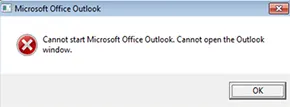
When a user clicks on the Outlook icon and attempts to log into an Outlook profile, Microsoft Outlook cannot launch. The error looks like the one seen below.

Outlook icon

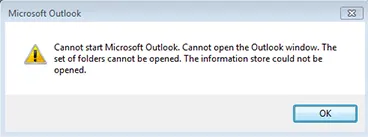
Errors such as “Cannot open the Outlook Window” also occur. When Outlook is launched, the messages “The information store could not be opened” and “The set folders could not be opened” appear. When Outlook.ost or the file is damaged, these errors appear has grown to its maximum size.

“Cannot start Microsoft Outlook. Cannot open the Outlook window. The set of folders cannot be opened. The information store could not be opened.”

Cannot start Microsoft Outlook

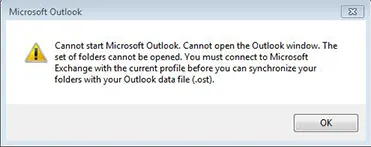
“Cannot start Microsoft Outlook. Cannot open the Outlook window. The set of folders cannot be opened.You must connect to Microsoft Exchange with the current profile before you can synchronize your folders with your Outlook data file (.ost)”.

connect to Microsoft Exchange

According to Microsoft, a corrupted Navigation Pane settings file called name.xml, which contains the Outlook profile name, is the primary source of the issue “cannot start MS Outlook cannot open the outlook window.” If the file size is 0 KB, we may be certain that it is corrupted. Nearly all versions of Microsoft Outlook may be impacted by file corruption, even though the precise cause is unknown. Other explanations could be:

  • When Outlook is used in compatibility mode
  • Using an outdated profile made with an earlier version of Outlook
  • Uninstalling or reinstalling Outlook incorrectly
  • Outlook data file damage or deletion

Resolving the Error “Ms. Outlook Cannot Start”

Following our discussion of the reasons behind Outlook startup failures, we will now learn how to resolve the “cannot start MS Outlook cannot open the outlook window” error using the following solutions:

cannot start MS Outlook cannot open the outlook window

Method 1: Retrieve the Navigation Pane Settings File

The damaged navigation pane settings file is the primary reason why Outlook cannot start properly. To resolve this, the corrupted file must be recovered using the following procedures:

  • After selecting “Start,” enter “Outlook.exe /resetnavpane.”
  • To launch Outlook, click Enter or choose the file.

The XML file containing the navigation pane settings will be deleted using the following procedures if the user is unable to retrieve the navigation pane settings file using the preceding method:

  1. Enter “%appdata%\Microsoft\Outlook” in the Start Menu.
  2. The folder containing the configuration files for Microsoft Outlook will open.
  3. Look for and remove the Outlook XML file.
  4. Only when the Recover option is unsuccessful should the navigation file be deleted.

Method-2: Repair Outlook Data File to Fix Outlook not Opening Issue

If the previous Outlook version was improperly uninstalled, Outlook data files may be corrupted, which is why MS Outlook won’t start. If an issue such as “cannot start MS Outlook cannot open the outlook window” appears, we can use scanpst.exe to repair the PST file by following these steps:

  1. Launch Windows Explorer and navigate to C:\Program files\Microsoft Office.
  2. Double-click Scanpst.exe after finding it.
  3. Choose the desired PST file by browsing.
  4. Fix the Outlook data file that is damaged.

Prime Automated Solution to Fix MS Outlook Cannot Start

The built-in Outlook inbox repair tool mentioned above is good and sufficient for fixing minor corruption in users’ Outlook data files. However, the program performs poorly and displays issues such as not responding or being stopped in the repair process when dealing with huge Outlook data files. and numerous others.

Therefore, in order to simplify the repair process, we will develop a fantastic program that provides you with the appropriate method for resolving Outlook data file (PST) corruption. Goldytools Outlook PST  Repair application has the ability to restore deleted Outlook contacts, email notes, and other data files in addition to fixing corrupted PST files and Outlook PST errors.

Method-3: Re-create a New Profile and Import Data from Old File

If we are unable to restore our previous file, we can follow the steps below to establish a new Outlook profile:

  1. Select Control Panel > Mail > Data files. To create a new profile, add
  2. Choose the recently made profile and make it the default profile.
  3. If Outlook starts with a new file after restarting, copy the information from the previous file.
  4. Use File > Open > Import > Import from another program to import previous data.
  5. Click “Next” after selecting the Outlook data file.
  6. To finish the import procedure, click Finish.

Method-4: Turn Off Outlook Compatibility Mode

Even after attempting all of the previous fixes, Microsoft Outlook is unable to initiate the error. Perhaps you may resolve this issue by following the instructions to disable Outlook’s compatibility mode. To disable the Outlook compatibility mode, do the following:

  1. Click the Start button and enter exe into the search bar.
  2. Right-click Outlook.exe, then select Properties.
  3. From the Properties Window, select the Compatibility Tab.
  4. Remove the compatibility mode from the checkbox.
  5. Restart Outlook by clicking OK.
  6. If it doesn’t work, look up PST files and choose “Restore previous versions.”

Method-5: MS Outlook Cannot Start? Remove XML Files

Corrupted XML files in the Outlook directory can also prevent Microsoft Outlook from starting. By following these instructions, you may quickly remove these corrupted files and resolve the issue of Outlook not opening:

  1. Start by using the Windows + R keys or the Run utility.
  2. Now enter the app’s data in the input field and press Enter.
  3. Select Local > Microsoft > Outlook.
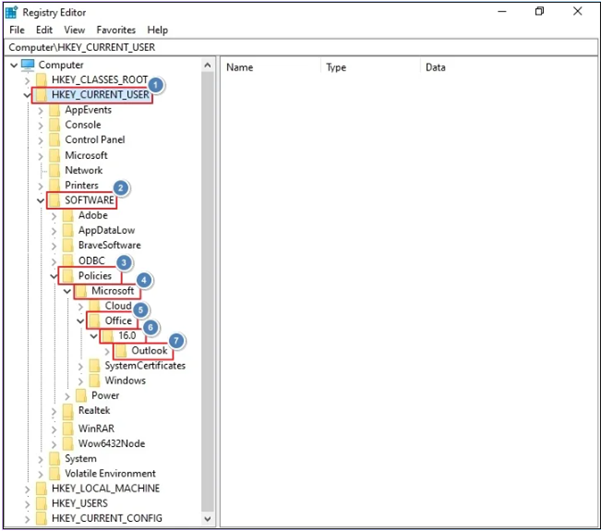
  4. Now, according to the Outlook version, open your Outlook folder. For example, there is a folder called 16 in Outlook 2016.
  5. Restart Outlook after removing the XML files from the Outlook folder.

Method-6: Open Outlook in Safe Mode

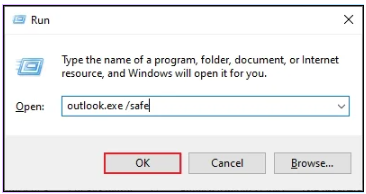
To launch Microsoft Outlook in safe mode, click its icon while holding down the Ctrl key or Start, type Outlook /safe into the search bar, and hit Enter. When Outlook asks if you want to launch it in safe mode, choose “yes.” As an alternative, we can use the command ‘outlook.exe /noextensions’. In essence, you can open the Outlook program in its actual settings by launching it in safe mode.

Quick Tips to Fix Outlook not Opening Erro

  • Check your credentials and password: Make sure the user’s password has been typed correctly and that their Outlook account information are

legitimate.

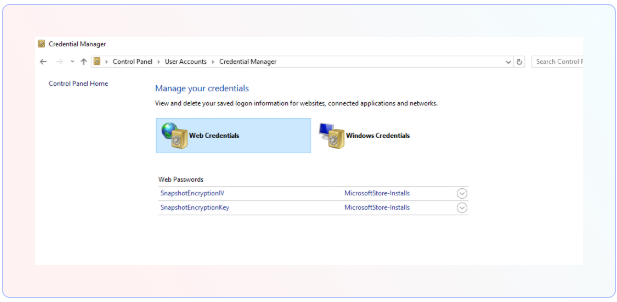
  • Credential Manager: Verify that no out-of-date Outlook credentials are kept in the Windows Credential Manager.
  • Windows Updates: Make sure Windows and Office are up to current. Compatibility problems can occasionally arise from software that is too outdated.
  • Antivirus and App Permissions: Verify that no security or antivirus program is blocking Outlook. Turn off such software for a while to check if it’s the source of the issue.
  • Examine Addins: Turn off any Outlook addins that might be generating problems. To see if the problem still exists without addins, launch Outlook in Safe Mode
  • In summary

    The “MS Outlook cannot start” problem that appears when opening an Outlook profile has been thoroughly examined in the blog. The blog’s final section outlines five potential fixes that Outlook users can employ to resolve the identical Microsoft Outlook problem.

    Frequently Asked Questions

    Q1. How can my Outlook be cleaned up?

    Ans. You must adhere to the instructions in order to clean up your Outlook.

    • Choose an email exchange you wish to clean up.
    • Click the arrow next to “Delete > Clean Up Conversation.” In Outlook, you may also clean up the entire folder.
    • Choose Clean Up > Clean Up Conversation now.
    • Choose the Clean Up button to confirm if asked.

    Q2. How much time does it take to fix Outlook?

    Ans. Restoring corrupted or damaged files is the primary goal of Outlook fixes. Repairs can fix the majority of problems that traditional troubleshooting is unable to. Ten to fifteen minutes, or longer if needed, may pass throughout this process.

    Q3. How can problems with Outlook be manually resolved?

    Ans: To manually resolve Outlook not opening difficulties, follow these steps.

    • After restarting the new Outlook, choose the Task Manager by right-clicking on the Start button.
    • Choose MS Outlook >> End task now.
    • After ensuring that the recently opened Outlook is closed, terminate Task Manager.
    • When the new Outlook closes, reopen the application as normal.

How to Convert Orphaned OST Files to PST Without Exchange Server

Emails, contacts, attachments, and other mailbox data are stored in Outlook’s OST data file. In the event that the internet or server is down, it provides access to Outlook mail items. However, you must convert the OST file to Outlook-importable PST format if you want to backup or move mail items from an OST file to another Outlook profile, live Exchange, or Office 365. When the OST file is unavailable or orphaned, the OST to PST conversion is also necessary. This essay has covered both a specialized tool that can convert inaccessible or orphaned OST files to PST and a step-by-step method for manually converting OST to PST.

When there is limited connectivity, no internet connection, or an unavailable Exchange server, OST allows Outlook users to work offline. Emails, contacts, documents, calendar items, notes, and more are stored in this local cache of the Microsoft Exchange mailbox.

Conversions made in Outlook are saved in the OST file, and when the system connects to the internet, they are automatically synchronized to the Exchange server mailbox.

However, access to the mail items requires authentication from the linked MAPI profile since the offline Outlook OST file is encrypted using the MAPIEntryID GUID key.

The associated OST file gets orphaned and unavailable when the user profile is deleted from the server or Outlook. Unlike PST, OST cannot be imported or accessed by any Outlook profile. Therefore, you must convert OST files to PST files that are compatible with Outlook.

In additional situations, OST to PST conversion might be required, such as:

  • Microsoft Exchange Server Crash: You won’t be able to connect to Exchange Server if it crashes for any reason or if there is a system issue. Your company or business may be impacted by these kinds of problems, and your Outlook profile may not be functioning correctly. To view the data in these cases, you must convert the OST file to PST.
  • Accidental deletion of an Exchange Server account: If data is lost or your Exchange Server account is accidentally erased, it can be easily recovered by converting the OST file to PST format.
  • Data Migration: By converting OST to PST, you can swiftly move data between systems. This is helpful for organizations that want to transfer their data from machines.
  • Exchange Server maintenance: Maintaining access to all mailbox items is crucial in the event of an Exchange Server maintenance outage. This is important since your firm could be negatively impacted by a prolonged outage. Therefore, converting the OST file to a PST file is a good idea in these situations.
  • Rebuild OST file: Let’s say you want to rebuild your OST file, but it contains unsaved data. Therefore, you must convert OST to PST.

Manual Methods To Convert OST To PST

  • Make use of the Import and Export Wizard in Outlook
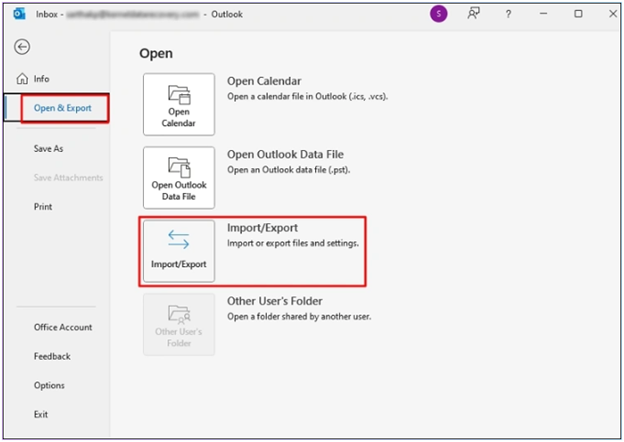
  • Click File > Open & Export after opening Microsoft Outlook.
  • Select “Import/Export” from the list now.
  • You are directed to “Select an action to perform” in a new dialog box. To continue, select “Export to a file” and then click “Next.”
  • A new dialogue box asking you to “Choose an action to perform” ought to appear. To continue, click “Export to a file” and then “Next.”
  • You will be requested to choose the file type to import on the next screen. To continue, choose “Outlook Data file (.pst)” and press “Next.”
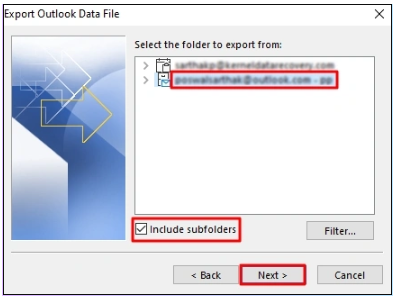
  • From now on, choose the folder to export. After selecting the files to be exported, click “Next” to continue.
  • After selecting “Allow duplicates to be created” from the options, click “Finish.”
  • After doing this, a new pop-up window asking for an optional password will appear. Without it, you can click “OK,” and your OST file will be automatically stored in PST format at the location of your choice.
  • The steps to create an archive mailbox are as follows:

  • You must first launch Microsoft Outlook and select the “File Menu,” located in the upper left corner of the program.
  • Select “Options” and then “Advanced.”
  • Click the “Auto Archive Settings” option.
  • Decide how many days the auto-archive will run.
  • Next, choose where to save the archive file by clicking the “Browse” option. Next, select “OK” to proceed.
  • The mailbox items are automatically saved to the PST file after the operation has begun.
    Drag & drag to a new PST file.
  • Open Microsoft Outlook and make a new Outlook profile PST file.
  • Select “New Items” from the toolbar to accomplish this. Select “Outlook Data File” under “More Items.”
  • In the optional password section, you can enter a password in addition to the file name.
  • The PST file will be created when you click the OK button.
  • The mail folders you wish to export should now be dragged and dropped into a mail folder within the new PST file.

Limitations of Manual Methods

The following are some of the disadvantages of manual OST to PST conversion methods:

  • They need a lot of work and take a long time.
  • They run the danger of losing data.
  • Human error is a possibility.
  • When the Outlook profile is deleted from the mailbox server, it stops working.
  • OST won’t work if it is orphaned or unavailable.


Conversion of OST to PST with the help of OST to PST Converter Software [Recommended]

GoldyTools OST to PST Converter Software is a reliable OST to PST converter that eliminates the possibility of human error and makes the OST to PST conversion process quick and simple. This program creates a PST file after retrieving all of the mailbox data from the OST file. No data is lost during the conversion process, and the mailbox hierarchy remains intact.

There are no file size limitations when using this approach to convert encrypted OST files and IMAP OST files. To assist you in finding and restoring important mail items quickly, it provides a free preview of calendar, email, and other mailbox items. The best part is that the first 20 emails in each folder can be converted from OST to PST for free.

In summary

There are a few manual methods for converting OST to PST, however they have certain limitations even though they are free. For example, you can manually convert OST to PST if you are using Microsoft Outlook with your local Exchange account. If you need to convert OSTs in volume, these manual methods won’t be appropriate because they take longer. With faster execution and complete functionality (multi-format output, batch conversion, etc.), the software technique is a more efficient method of converting single or numerous OST files to PST files.

Import PST to Microsoft 365 For Free- Network Upload Methods

The majority of companies and organizations choose to use Microsoft 365 because it is a popular cloud-based service provider. For businesses transitioning to a cloud-based environment, migrating mailbox data to Office 365 is an essential first step. The network upload method is one effective way to move big volumes of Outlook data. Administrators can upload PST files to Microsoft 366 using this approach. To guarantee a smooth data transfer from PST to Office 365, we’ll go over how to use the network upload method step-by-step in this post.

Why Is PST to Microsoft 365 Migration Necessary?

For a number of reasons, importing PST files into Office 365 is crucial, particularly for users switching from a traditional Outlook setup to a cloud-based Microsoft 365 environment. The following are the primary driving forces behind this process:

  1. Data accessibility: Office 365 is a cloud-based service that lets users access their calendars, contacts, and emails on any device and from any location.
  2. Better teamwork: Teams may collaborate more easily regardless of their geographical locations thanks to Microsoft 365’s real-time editing and project management features.
  3. Data backup and protection: Office 365 has strong data protection capabilities that guarantee the security and backup of important data.
  4. Simplified management: PST to Exchange 365 migration simplifies the management of emails and other data. Account setup and management are simple for users.
  5. Always current: Office 365 customers don’t have to wait for significant releases to take advantage of ongoing upgrades and enhancements. Users will always have access to the newest features and security improvements thanks to this.

Import PST to Office 365 Using Network Upload Method?

Use the Network Upload Method to import PST files into Microsoft 365 by following the detailed instructions.

  1. Access your Office 365 administrator account:
    • Open your browser and navigate to https://login.microsoftonline.com/ .
    • After entering the admin email address, press the Next button.
    • Click the “Sign in” button after entering the password.
  2. Assign the roles of mail recipients and mailbox import/export:

    We must assign the mailbox import export role and Mail Recipients to the admin or the users who will carry out the migration process after successfully logging into the admin account. For this:

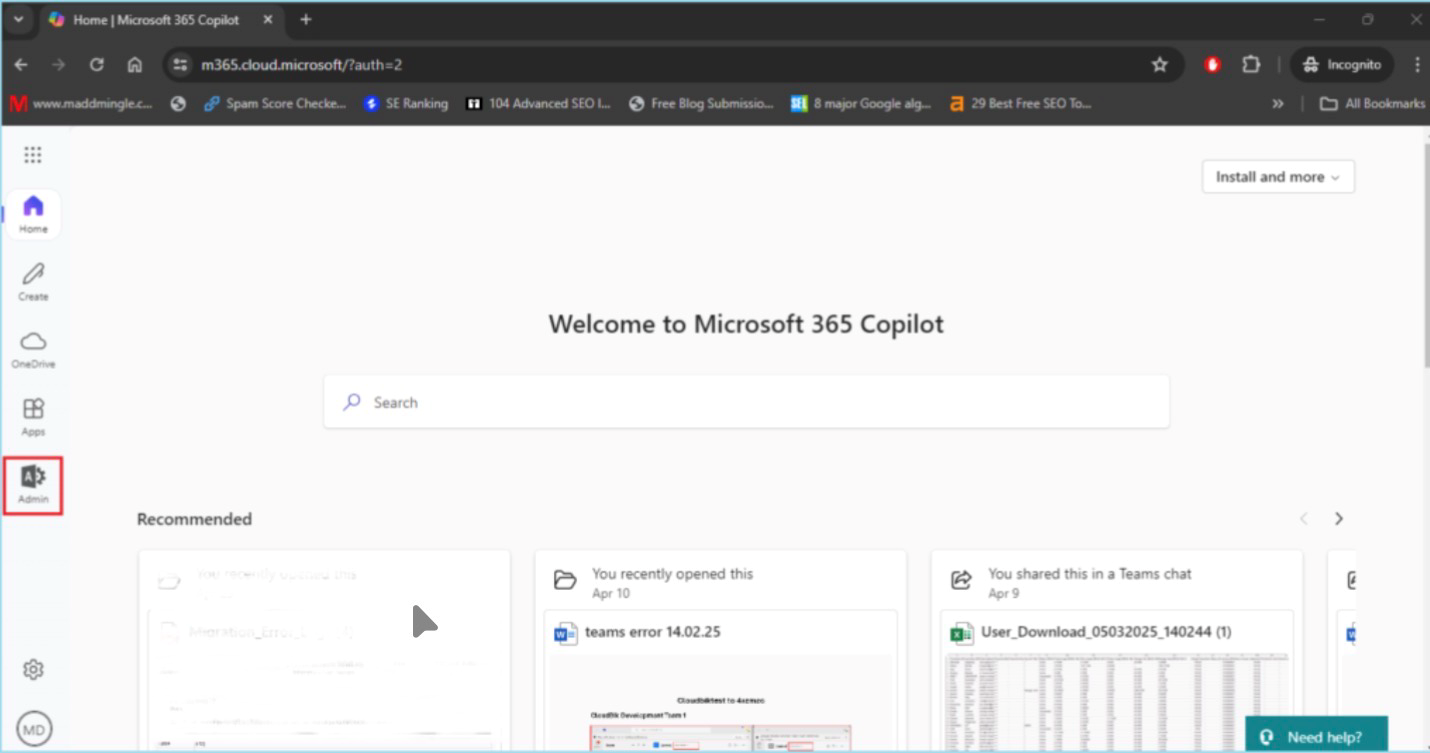
    • Click on Admin in Microsoft 365. Admin in Microsoft 365
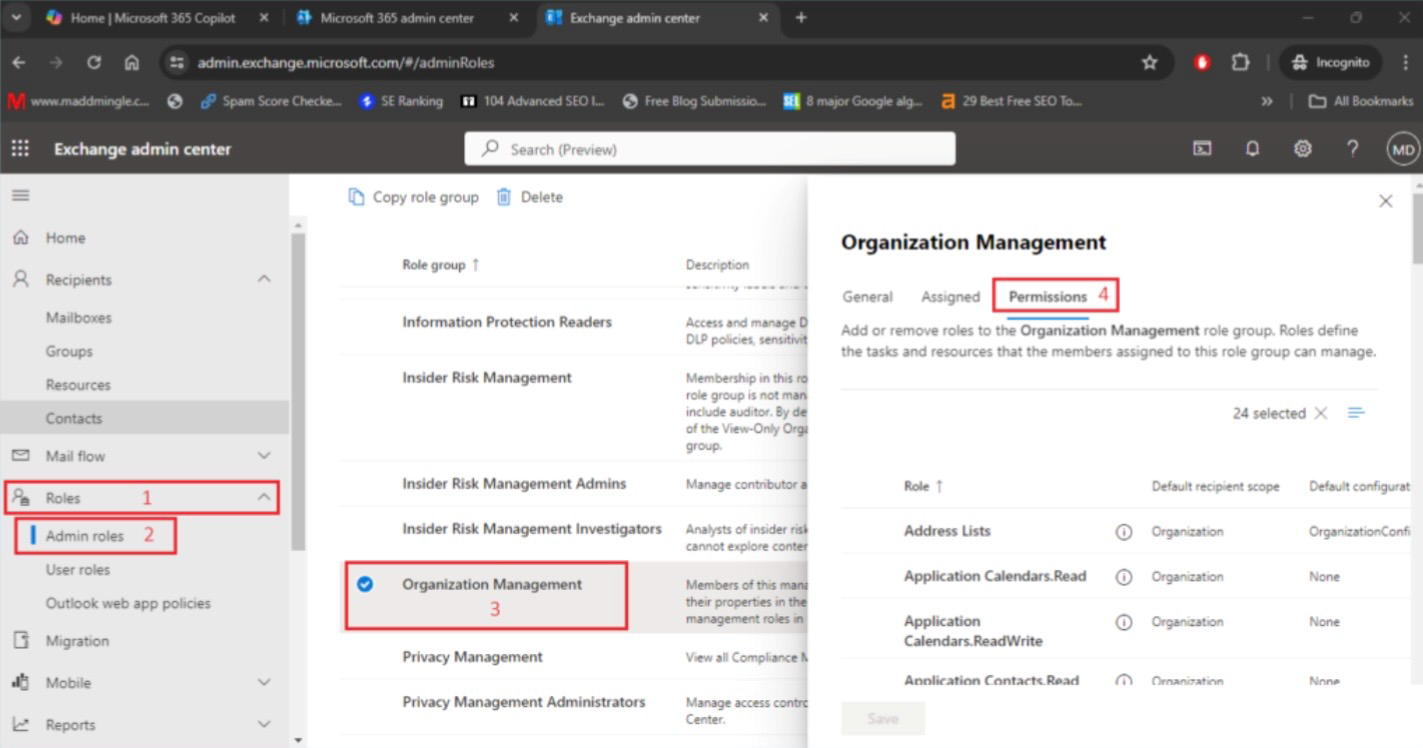
    • To access Exchange Admin Center, click Show All in the Admin panel and choose Exchange.
    • Click Role here, then choose Admin Role.
    • Select Organization Management and click on Permission.Select Organization Management
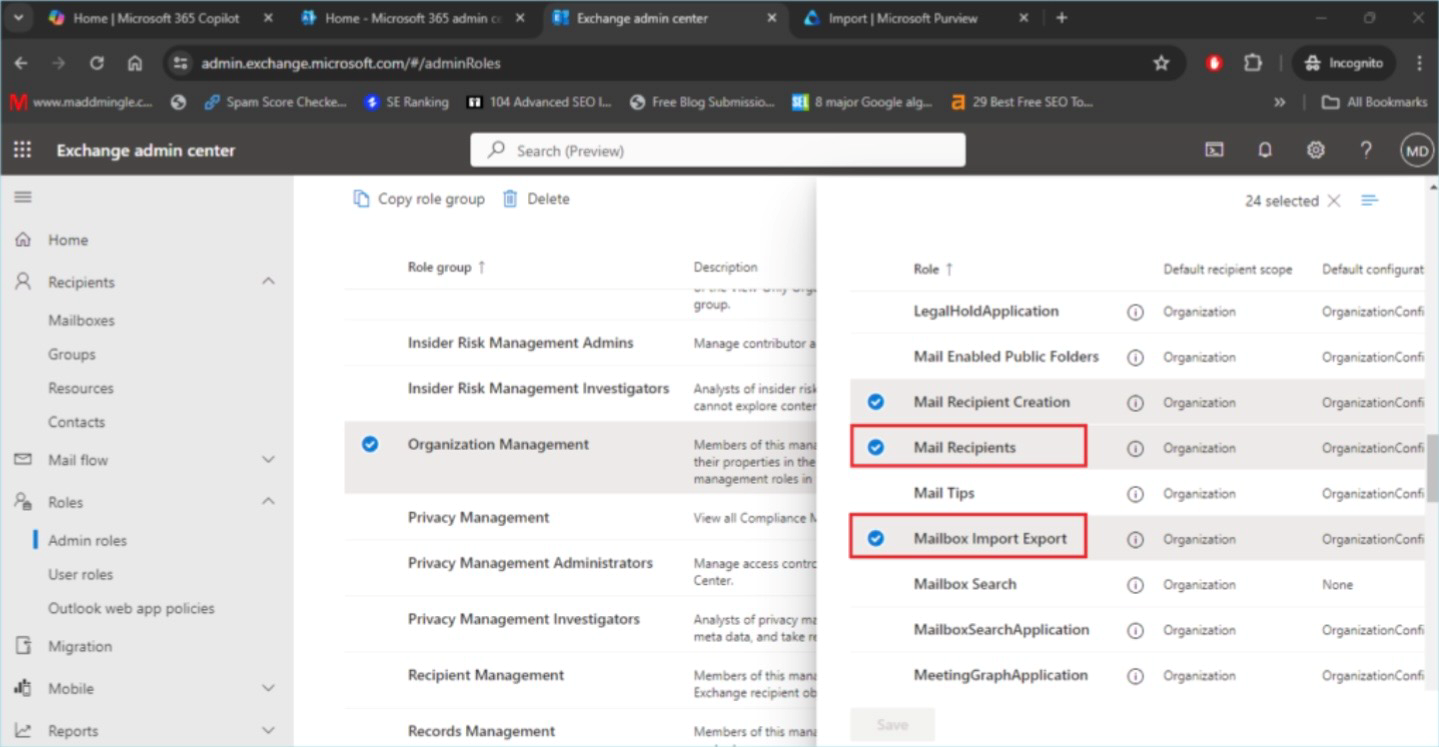
    • Here you should find and select Mailbox Import Export and Mail recipients and then click on SAVEselect Mailbox Import Export
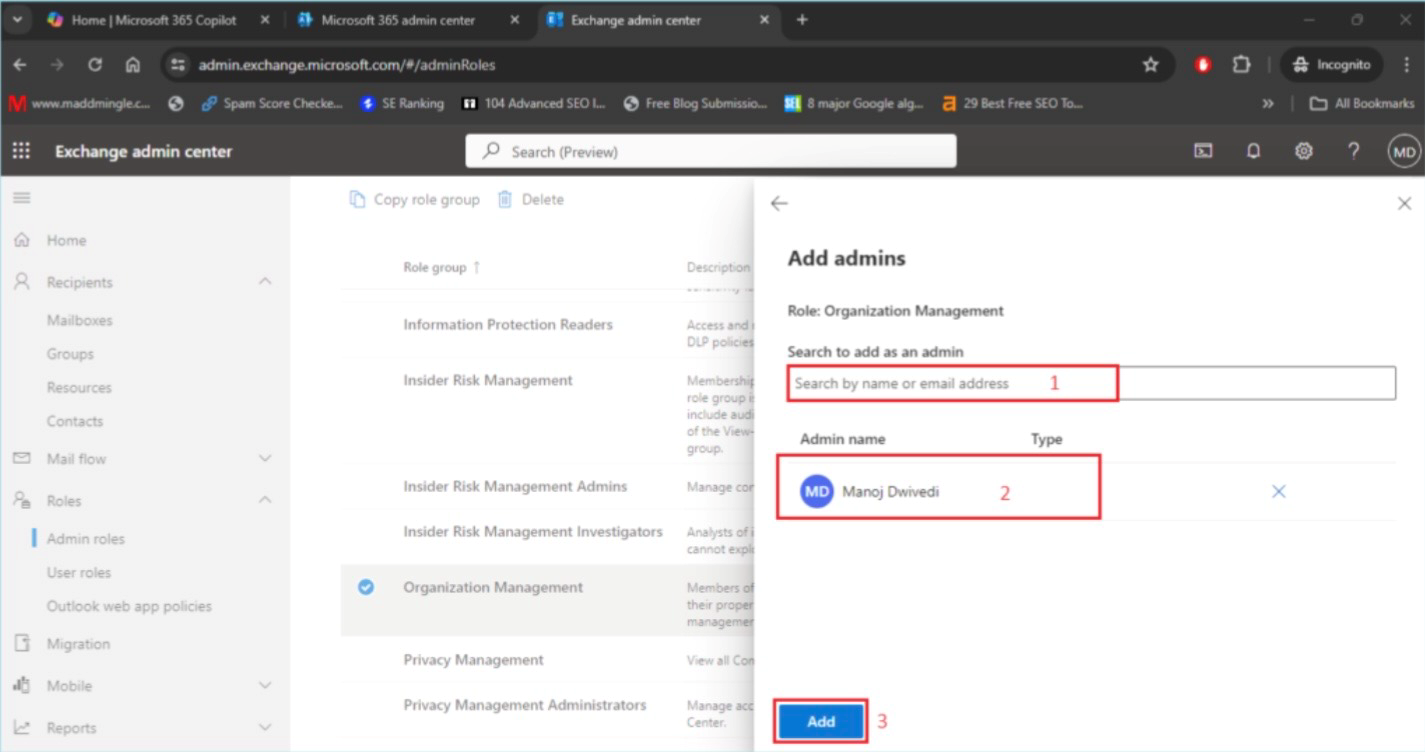
    • Click Assign now, then choose Add.choose Add
    • Click the Add button after searching for the Admin ID or choosing the users you wish to assign the Mailbox Import Export and Mail Recipients roles to.
  3. To import PST files into Office 365, create an import job.

    The import job must be completed before beginning the migration procedure. For this

    • Go to the Microsoft Exchange Admin Center and select Show All.Microsoft Exchange Admin Center
    • To access the Microsoft Preview panel, select Microsoft Preview now.select Microsoft Preview now
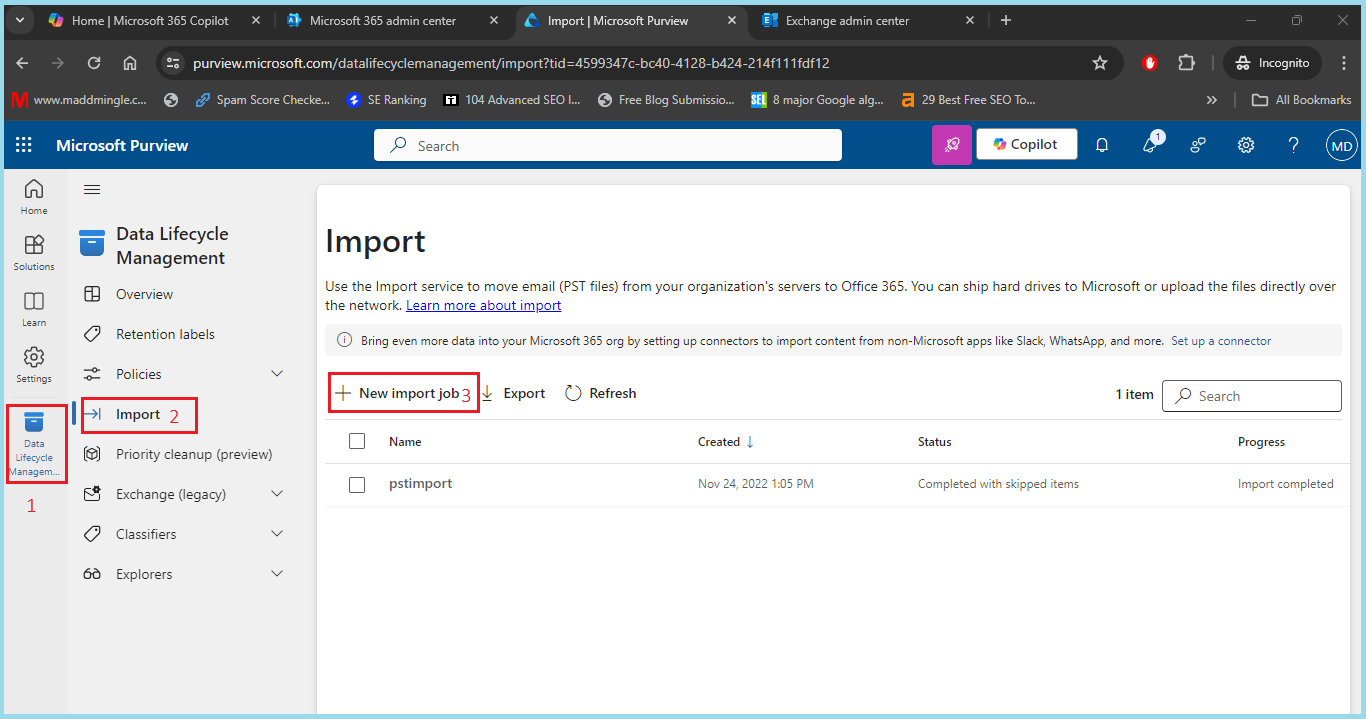
    • Here, choose Data Lifecycle Management. Then, choose Import. Finally, click New Import Jobclick New Import Job
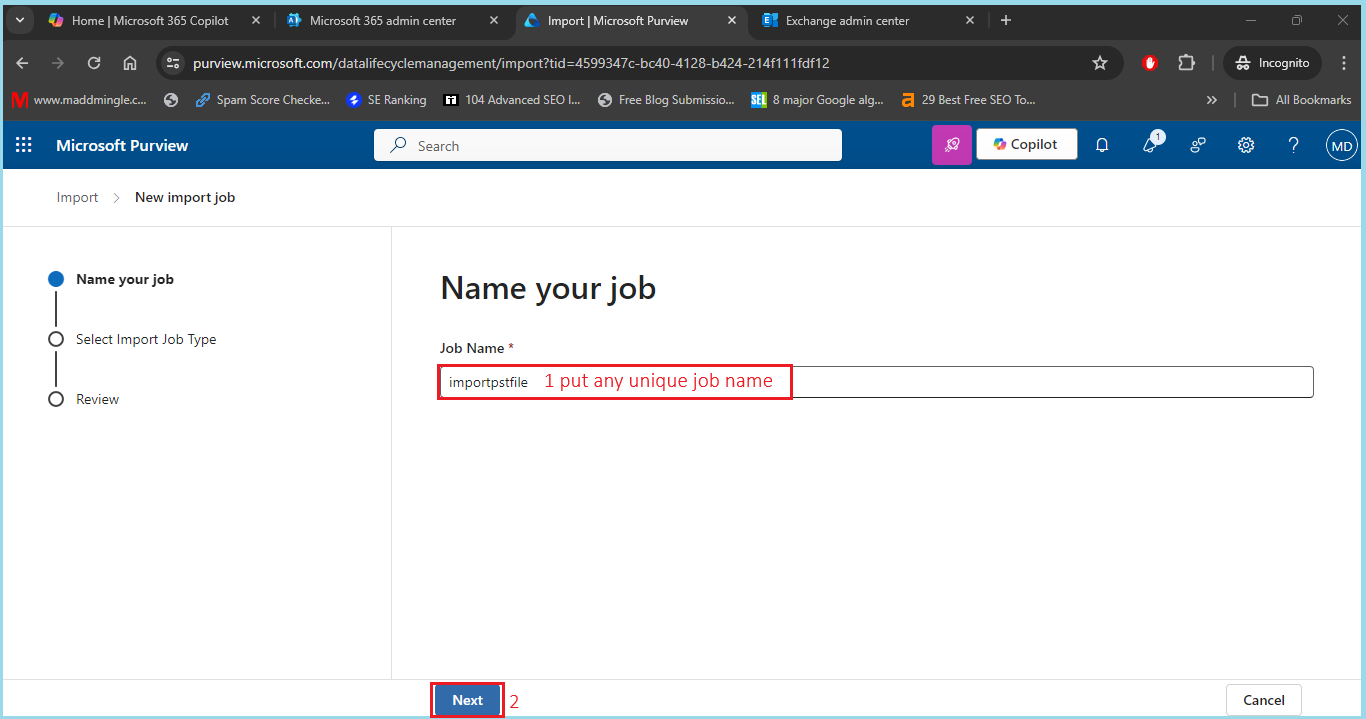
    • Next, provide a distinct Import Job Name and click the Next button.
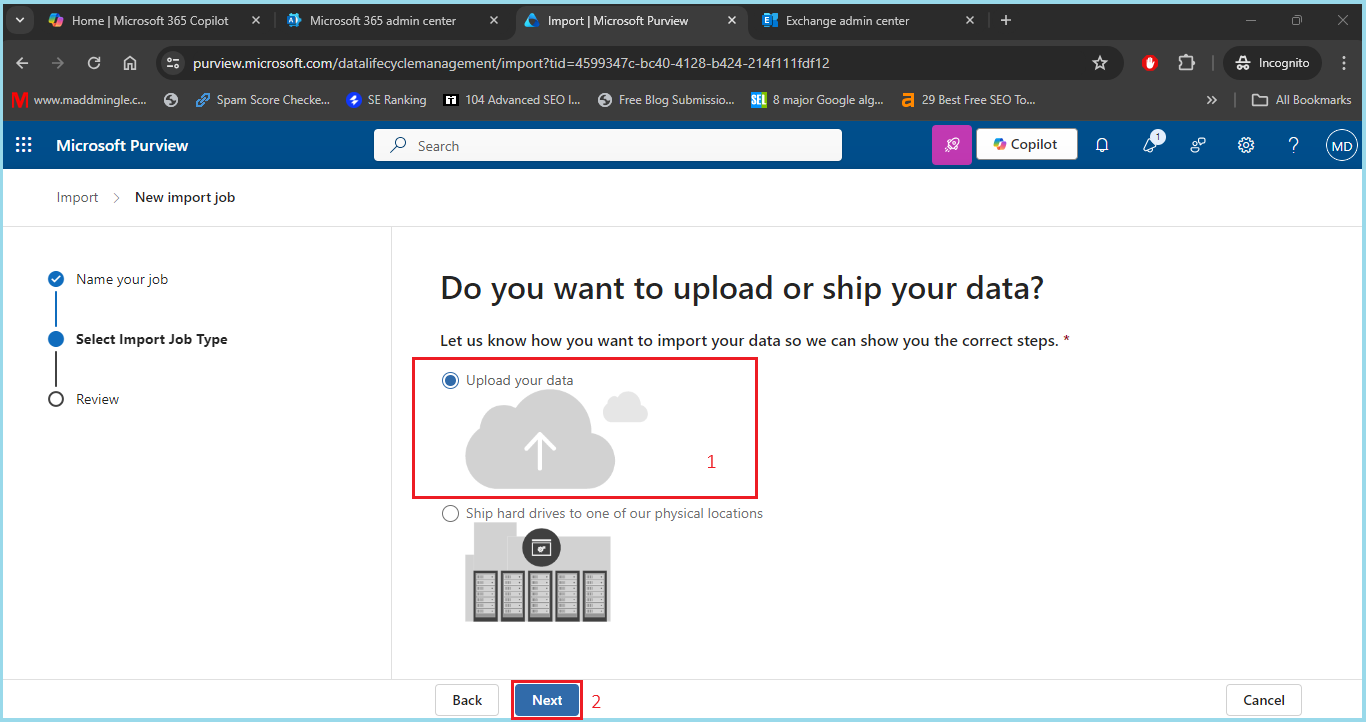
    • Click Next after choosing Upload your data.
    • Click “Show Network Upload SAS URL” now. Click on Download Azure AzCopy after copying the SAS URL.
    • Choose the AzCopy portable binary that works best for your system and download it.
    • Click on the downloaded unzip folder after unzipping the file. This file location’s path should now be copied and saved.
    • Run the copied route as a screenshot after opening the command prompt.
    • Go to the location of your PST file now. To export a PST file, right-click on it, select Properties, copy the PST file path, and update as a screenshot.
    • The command below should now be copied and updated. Add the SAS URL and the PST file’s copied source location.
    • azcopy.exe copy “<Source location of PST files>” “<SAS URL>”

    • Copy the command now, then execute it at the command prompt. Here, wait for the file to load.
    • Return to Exchange Preview now. Check the box that says “I’m done uploading the files and I have access to the mapping file.” Click the Next button now.
    • The CSV file has to be imported at this point. To obtain the example CSV file, click the provided link below.
    • https://go.microsoft.com/fwlink/p/?LinkId=544717

    • Open the CSV file now, then make an update similar to a screenshot.
    • To add the revised CSV file, click Upload file. After verifying it, click the Next button.
    • After confirming all the information, click the Next button.
    • The file will now be uploaded to the cloud. Click “Done” once the upload is complete.
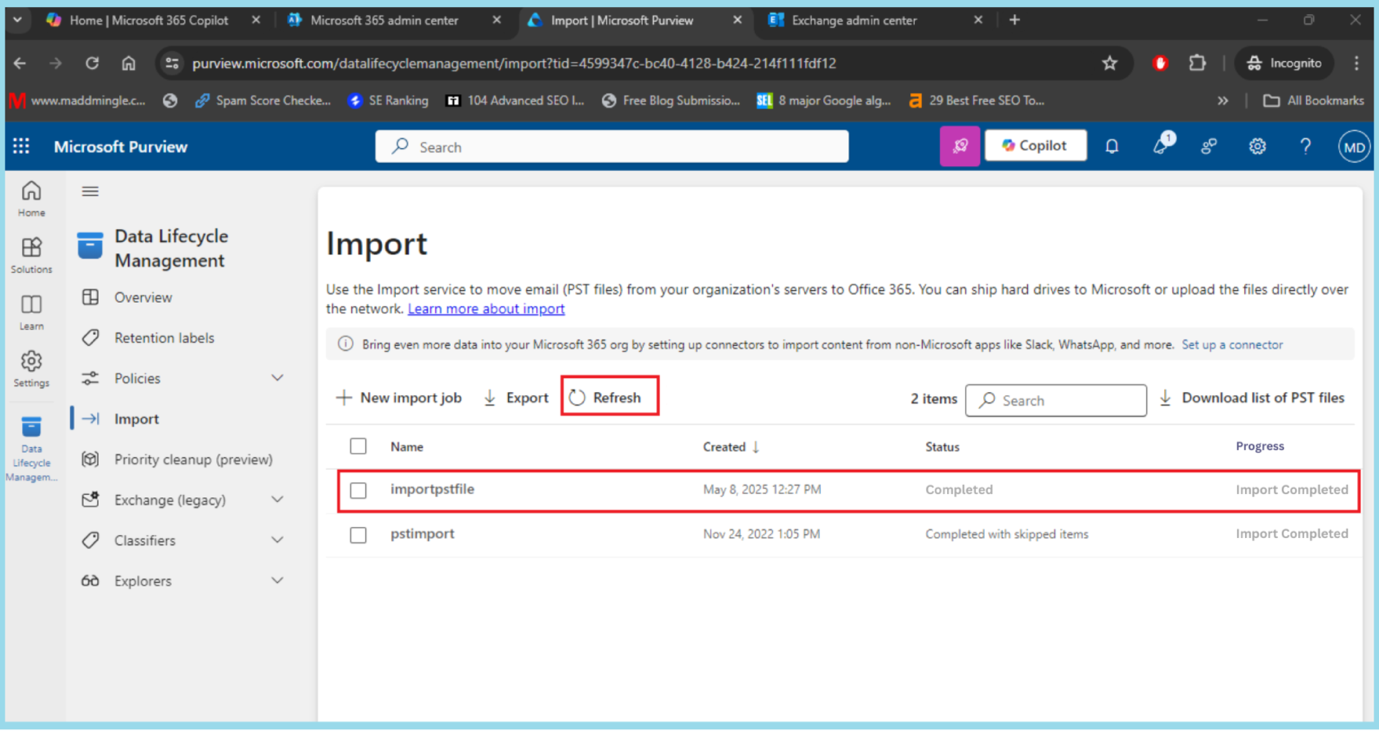
    • There is now an Import Job. Here, wait until the import job procedure is finished. You may view the current progress status by clicking the refresh button.
    • Once the import procedure is finished, click Import to Office 365 after selecting the created job.
    • If you wish to apply a filter, choose “I want to filter it before importing.” No, I want to import everything and hit the Next button.
    • The data size is now visible. Click “Submit” right here.
    • The upload to the cloud has now been completed. Click the “Done” button here.
    • Press the Refresh button. The import procedure has now begun.
    • Here, wait until the procedure is complete. You may view the current progress status by clicking the refresh button.procedure is complete

In conclusion:

This is how to use the Network upload method to import PST files into Microsoft 365. I think you may successfully import PST to Office 365 if you follow all the instructions. You can get in touch with us if you need assistance. Additionally, you can choose the potent GoldyTools PST to Office 365 Migration Tool if you’re looking for a straight approach and don’t want to complete all these processes. With this program, you can minimize the time it takes to upload PST files into Microsoft 365 and reduce the chance of data loss.

How to Change an OST File Name in an Version of Outloo?

Are you trying to figure out how to rename an OST file? Or would you like to know why renaming an OST file could be required? In this article, we will address a number of variables and situations. You will also gain additional knowledge about the OST file and its applications.

What is an OST file in Outlook?

Users of Outlook are aware that an OST file, which is produced when Cached Exchange Mode is enabled, is a local copy of their Outlook mailbox. Offline Storage Table, or OST, enables users to read, write, and open emails even when they are not connected to the internet. The OST file immediately synchronizes with the Exchange Server, Microsoft 365, or IMAP account when the user reconnects.

While OST files provide constant mailbox data synchronization with the server, Outlook also uses PST files to store data locally without server synchronization.

When do we need to rename OST file?

There are other reasons to rename an OST file than re-syncing data. Renaming the OST file can also be useful in a number of other circumstances, including:

  • The Outlook profile won’t load.
  • Even when you are online, the OST file is not synchronizing with the server.
  • The OST file is damaged or corrupted.
  • Outlook displays the “Disconnected” state.
  • Outlook operates slowly.
  • One Outlook profile is associated with several OST files.

You can rename the OST file and let Outlook download a fresh copy from the server if you run into any of these problems. This procedure frequently aids in fixing synchronization issues and local faults.

Is renaming the OST file safe?

Yes, unless your mailbox is accessible on the server (Exchange, Microsoft 365, or IMAP), it is completely protected. Outlook will just build a new OST file the next time you access it since all of your mailbox data is stored on the server.

NOTE: Because it doesn’t resync with the server, this doesn’t work with POP accounts.

Step 1 – Shut down Outlook

Shut off Microsoft entirely, even if it’s operating in the background.

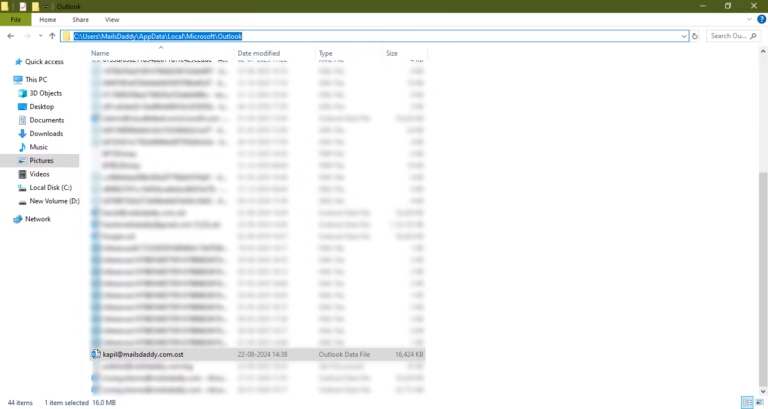
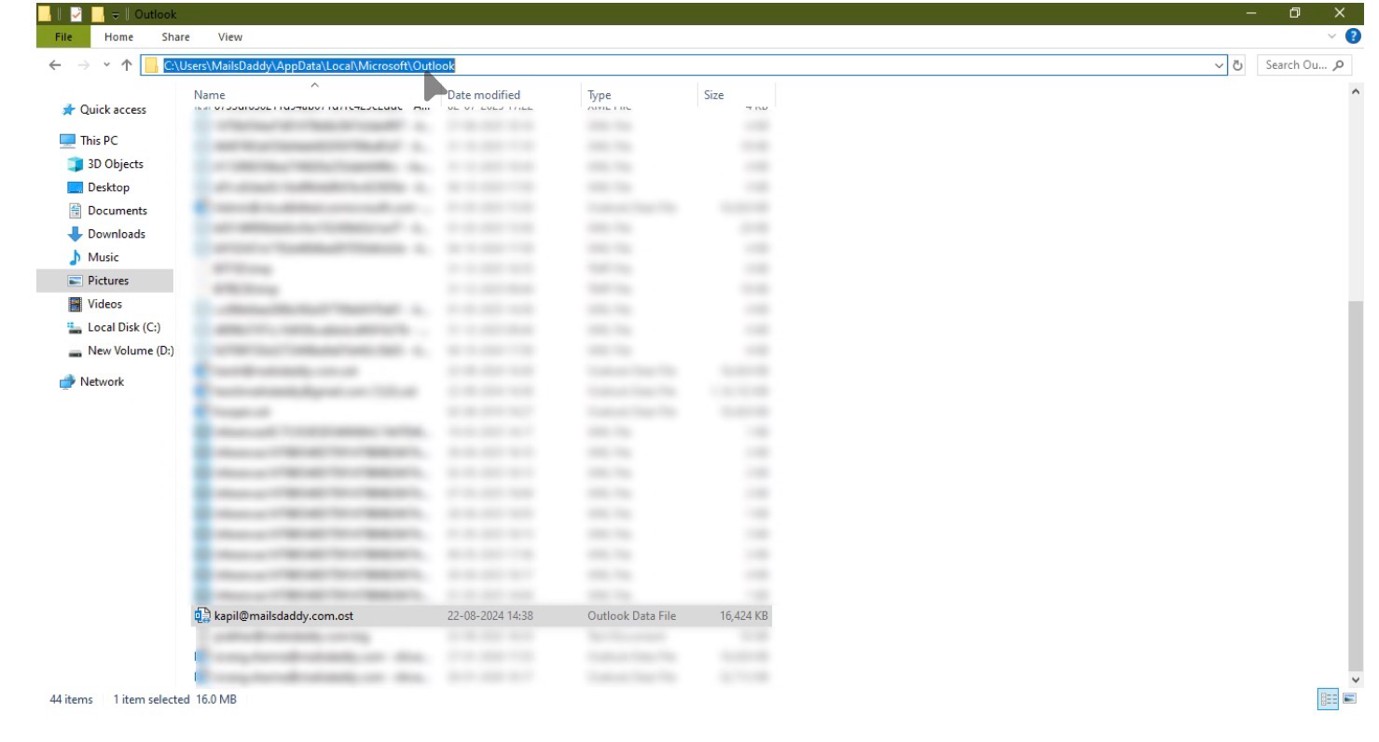
Step 2 – Locate the OST file

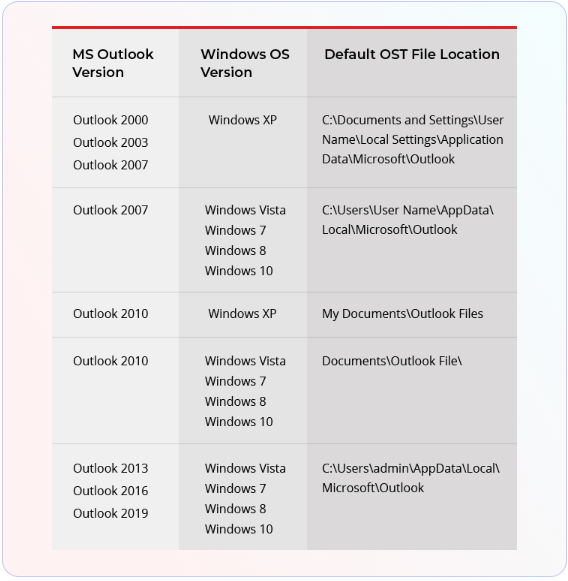
Location of the OST file (by default)

C:\Users\%username%\AppData\Local\Microsoft\Outlook\
ost location

Additionally, you can open “appdata” directly by using the “Run” command.

Note: Enable hidden items if you are manually browsing and the AppData folder is not visible.

Step 3 –  Select the appropriate OST file

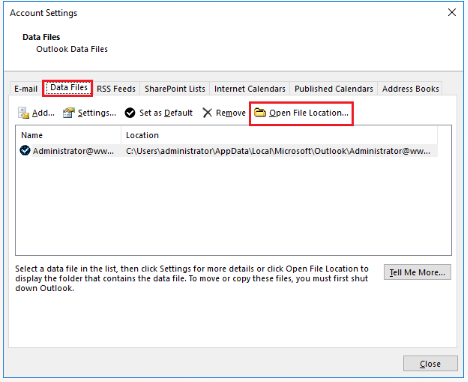
This is the most common step in selecting the right OST file. Select the appropriate account or profile if you have several. You can use account settings to examine the location of Outlook data files for that.

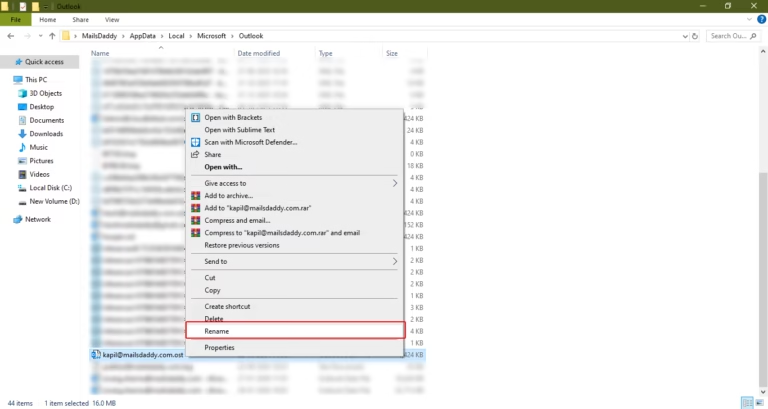
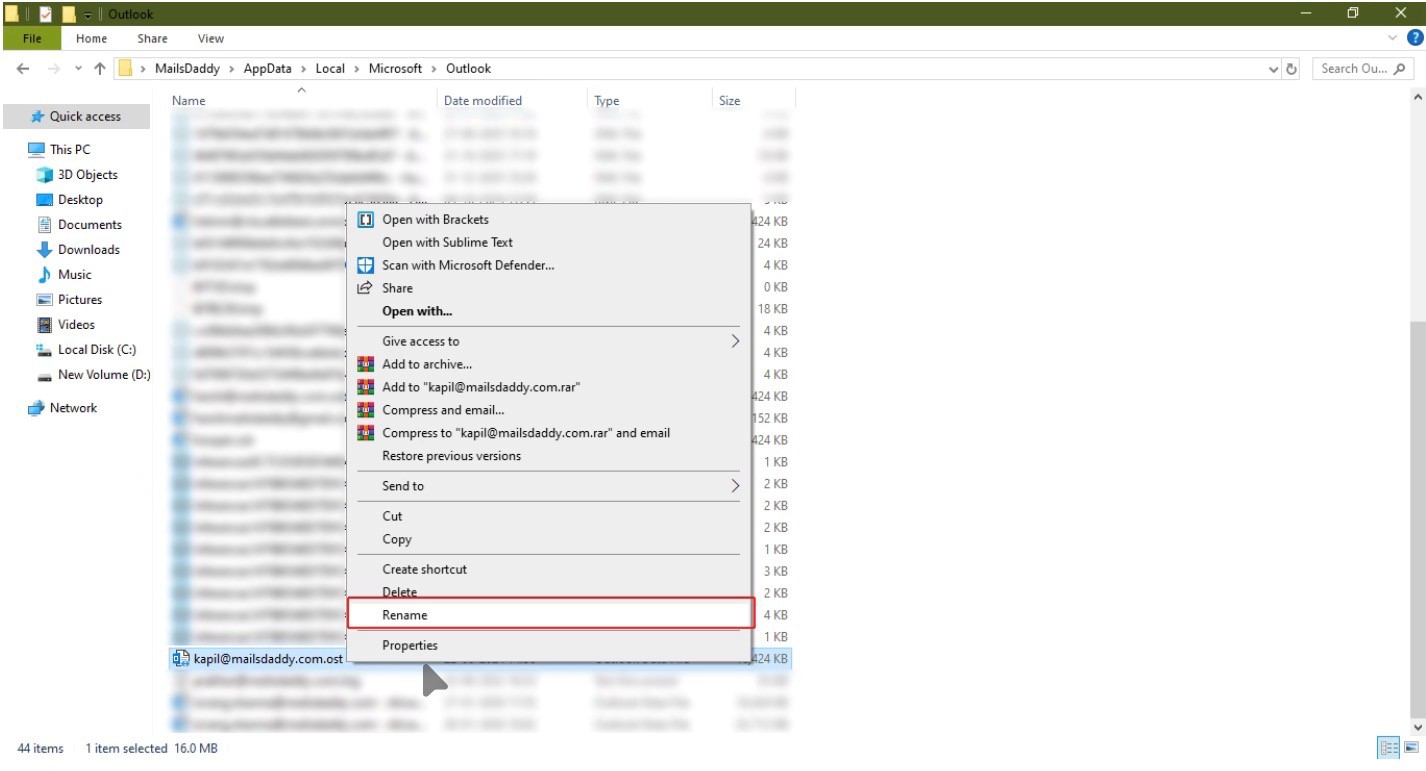
Step 4 -Rename the OST file

After locating the file, right-click on it and choose Rename. For instance, user_address.ost to user_address_backup.ost

rename ost

Step 5 – Restart Outlook

Now open Outlook to resync all of your inbox items and build a new OST file.

Final Decision

Unless there is a problem, renaming the OST file is not necessary. Users can create a new OST file from the server by following this step-by-step instructions. Use caution while following these instructions with a POP3 account, as this could lead to data loss. Before starting the renaming process, it is also advised to make a backup or export the OST file to a PST file.

Create a Distribution List in Outlook

For any developing company, email communication is essential. It must be done clearly and intelligently. It can be inconvenient to constantly enter various email addresses while sending emails to your staff, clients, or club members. Outlook distribution lists can help to simplify this process.

This is the main topic of our professional guide, which will explain how to manually establish a distribution list in Outlook. Additionally, we will inform you of the long-term significance of email backups.

Essential Information: For people who frequently communicate with a team, department, or external organization, Outlook’s distribution list feature is perfect. After then, users can utilize a single contact entry to send an email to a group of people. This capability is available in versions of Outlook Desktop, Web, and even Mac.

Top benefits of using the Distribution List in Outlook

Take a look at the following advantages of using the distribution lists:

  • Save time and effort by sending emails to several recipients without having to type each address again.
  • Addresses to eliminate errors or missing contacts.
  • Assists in maintaining efficient communication inside the company.
  • Provides easy, reliable, and effective email communication.

How to Create a Distribution List in Outlook?

Let’s examine the systematic method for generating a distribution list in several Outlook formats. Make a decision based on your needs. But make sure you follow the steps in the right order:

Scenario 1: In Outlook Desktop

To carry out the procedure in the Outlook Desktop version, follow these steps:

  1. Navigate to the lower left corner of the Outlook application after opening it.Select the “People” icon.Outlook application
  2. Select the New Contact Group option by performing a right-click on the area.
  3. Enter the group name in the Contact Group. Select one of the following options after selecting Members > Add Member:
    • From Contacts in Outlook: Add from the current address book.
    • From the Address Book: Increase the number of personnel in your company.
    • Add an email address manually to create a new email contact.create a new email contact
  4. Tap the “Save & Close” option after clicking OK.
  5. You can now use your distribution list. When writing an email, simply enter the group name in the To/CC/BCC field.

Scenario 2 : In Outlook Web [Office 365]

Examine the steps to properly execute the process:

  1. Enter your login information at Outlook.com.
  2. Open People by clicking the App Launcher in the upper-left corner.App Launcher
  3. Select “New Contact > New Contact List.New Contact List
  4. After giving your list a name and adding the appropriate email addresses, click the “Create” option.adding the appropriate email addresses

Scenario 3 : In Outlook for Mac

Do you want to use Outlook For Mac to manage distribution lists? Try the following actions:

  1. Click the People Icon > New Contact List when Outlook is open.New Contact List
  2. Provide the group a name. To create the group, add the members and select Save & Close.select Save

      Remark:

    • There are maximum recipient limits (500 for Outlook.com, email example).
    • Distribution lists are not immediately synchronized across all devices.
    • For more effective cooperation, have a look at Microsoft 365 Groups.

Do you want to share the list of distribution? Take a look now!

You must take the actions listed below in order to share the distribution list with someone:

  1. Locate the Contacts by opening Outlook.
  2. To share a distribution list, double-click on it.
  3. Next, select Forward Group > As Outlook Contact.
  4. Write a fresh message and forward it to the recipient.

    Must Know :

  • Adjust the Distribution list as necessary:
  • To edit, open the list, click Add Members, or choose which members to remove.
  • To rename, open the list and modify the title bar’s name.
  • To remove the list, do a right-click and select Delete.

Extra advice to get 100% success!

To address future annoyances, take into consideration the following advice:

  • If the lists aren’t showing up, try restarting or refreshing Outlook.
  • Check email formats when you find that sending/receiving emails is not working.
  • To prevent synchronization problems, make sure you are logged into the appropriate Microsoft account.
  • To keep the list current, examine and edit it frequently.
  • Make use of names that are descriptive so that you can quickly identify groupings.
  • Avoid packing lists too full. For organized communication, divide them into segments as necessary.

Do you worry about losing the emails? Give the sophisticated answer a try!

As technology advances, the likelihood of a cyberattack rises. Only by adopting preventative measures, including backing up data at many locations, can it be prevented. You can preserve your data for a long time by creating a local system backup of your emails. Additionally, use such information offline for private purposes like auditing. Concerned about data backup techniques?

You can use manual methods for data backup, but you won’t get adequate results due to their limitations and restricted facilities. Therefore, experts advise using an advanced OST converter instead of them.

GoldyTools OST to PST converter is unique in its category because of its sophisticated filters and high-tech capabilities. All of your OST-related problems just require this software. Whether it’s long-term security, corruption removal, or file format conversion.

Concluding Remarks

We have covered every aspect of creating an email group in Outlook using manual approaches, including how well they work in practical situations.

However, email security may still be a better choice in the long run. Therefore, think about using the suggested OST to PST conversion application to make a backup of important data so that you may remain stable even in strange circumstances

How to Repair Outlook Calendar When It’s Not Responding?

Users can set up meetings and arrange tasks using the Outlook calendar. But occasionally, if the Outlook calendar isn’t functioning, it needs to be corrected. When the Outlook calendar is not responding to day-by-day tasks, users must fix it. This expert article will outline a few easy fixes that users can employ to restore the broken Outlook calendar.

Reasons behind the calendar not responding:

The Outlook calendar may stop responding for a number of reasons. Let’s talk about a few of them in the points that follow:

  • Software faults or glitches can destroy Outlook calendars.
  • If the Outlook data file is corrupted, users may experience problems utilizing the Microsoft Outlook calendar.
  • If the Outlook profile is corrupted, users may experience this problem.
  • The calendar may not function if older Outlook software is being used.
  • The Outlook corruption issue can be brought up if you are having server problems.
  • Other problems that may be unique to each user can also cause the
    Outlook calendar to stop responding. We’ll explore to comprehend the fixes and discover how to fix Outlook calendar data.

What are the solutions to repair the Microsoft Outlook calendar?

To repair the corrupted Outlook calendar entries, users have a few options. The entire step-by-step process for each technique to fix the corrupted Outlook calendar data will be covered in this part.

# Fix: Use the Run Dialog Box to fix Outlook Calendar.

The corrupted Microsoft Outlook calendar entries can be fixed using the Run box. The following are the steps:

  • First, shut down Microsoft Outlook and ensure that any apps connected to Outlook have been shut off.
  • Next, go to the Start menu, look for the Run option, and press Enter.
  • After entering “outlook/cleanfinders,” press OK.
  • You must then reopen the Run box, type “outlook/resetfolders,” and click OK.

After that, you must open Microsoft Outlook and review the calendar entries to make sure the corruption problem has been fixed.

# Fix : Create a New Outlook Profile to Fix Calendars:

You can establish a new profile to resolve Outlook calendar problems if this is caused by a corrupted Outlook profile.

  • On your Windows device, open the Control panel.
  • The Mail option must then be selected from the Control panel.
  • To continue, tap the Show Profiles option after that.
  • To remove the infected profile, select it and click the Remove option.
  • Next, click the Yes box to confirm the deletion of your profile.
  • You must now press the OK button.
  • On your device, launch the Microsoft Outlook application.
  • Click the Add Account button after selecting the File tab.
  • Next, fill in the necessary information and press the Next button.
  • You must click the OK and Finish buttons to finish the process.

This method can also be used by users to fix calendar entries in Microsoft Outlook.

#Fix: Inbox Repair Tool ( ScanPST).exe Utility):

Users can also fix corrupted Outlook calendar items with the aid of the Inbox Repair Tool. The following procedures can be used to restore corrupted Outlook calendars.

  • Right-click on the ScanPST.exe application after locating it.
  • Next, select Run as administrator.
  • After that, you must use the Browse button to choose the damaged PST file.
  • To start the scanning process, tap the Start button.
  • Click the Repair option to start fixing the PST file if you discover any problems.

By using the ScanPST.exe software to process the PST file and fix Outlook calendar entries, the problem will be fixed.

#Fix : GoldyTools Outlook PST Repair Tool

Outlook calendar and other data may be quickly and error-free repaired with GoldyTools Outlook PST Repair Tool. This expert software allows users to process several PST files at once. It includes the ability to use the date range and item filters to add or remove the desired things from Outlook.

  • On your device, use the GoldyTools Outlook PST Repair Tool.
  • To fix calendar data, click the Add option and choose the corrupted PST file.
  • Click OK after making sure the advanced scan option is enabled.
  • To save recovered data to PST, you must then select the Outlook PST option.
  • Check or uncheck the directories and subfolders from the list after that.
  • Click Next after choosing whether to store the data to a new or existing PST file.
  • Tap the Next button after applying filters to include or eliminate the desired items.
  • The recovered email data will now be exported into an Outlook PST file.

You must click the Finish button after you’re finished.

This is how Outlook calendar entries can be fixed and saved to a different PST file using the Outlook PST Repair Tool.

The Blog’s Core!

Numerous ways for fixing Outlook calendar entries have been provided by this site. Every user needs the GoldyTools Outlook PST Repair Tool for precise and speedy solutions. Additionally, customers can utilize this expert third-party solution on their machine to process different Outlook PSTs. Before purchasing the full edition of this software, users can test it out for free on a Windows computer to better understand its features.

Outlook Archiving Not Working! What Should I Do to Fix it?

Are you having trouble with Outlook Archive not working as expected? Are you looking for a reliable way to solve Outlook Archive? You are on the right page and will know the best solution if your response is "yes." The entire procedure outlined in detail and the causes of the Outlook Archive’s malfunction will be covered in this blog post. Fix the Outlook Archive problems after reading it through to the conclusion.

What are the explanations for “Outlook Archive not working”?

Outlook Archiving issues can arise for a number of reasons. Let’s talk about similarities that underlying it.

  • Outlook’s Auto Archive is either disabled or improperly configured.
  • Outlook Archive may encounter issues if the whole size of the Archive PST file corrupts it.
  • Problems may also occur if the Archive location or permissions are incorrect.
  • Outlook Archive may not function properly due to corrupted Outlook profiles.

The cause of the "Outlook Auto Archive not working" problem may vary depending on
the user.

How do I make Microsoft Outlook stop archiving emails?

This paragraph will outline a few fixes for the Outlook Archive’s malfunction. We are going to
understand the entire, step-by-step process of each strategy.

1. Enable outlook Archive in Microsoft outlook

To activate Outlook Auto Archive and resolve the issue of Outlook not archiving emails, follow
these steps:

  • Open Outlook, select File, and then click Options.
  • Next, from the Outlook Options wizard, select the Advanced tab.
  • You must then proceed to the Auto Archive section.
  • Click the Auto Archive settings button after that.
  • Set the days and frequency and activate the Run Auto Archive feature.
  • To adjust settings to your preferences, change other choices.
  • Finally, you need to press the OK button.

2. Remove Faulty Outlook Add-Ins:

Users can improve the effectiveness of Outlook Archive by deleting the faulty Add-Ins from the Outlook email client. We will launch Outlook in safe mode for this.

  • To open Outlook in safe mode, put Outlook.exe /safe into the Run box (Windows + R) and
    click OK.
  • Select the File tab and press the Options button.
  • Next, navigate to the Add-Ins tab, choose Com Add-Ins, and press the Go button.
  • To disable Add-Ins, uncheck the Add-Ins box and click OK.
  • Restart Microsoft Outlook after you're finished.
  • After that, activate a single Add-In at a time and look for the one causing problems.
  • Once you’ve located it, permanently delete the Add-In from Outlook.

3. Fix the Microsoft Outlook Profile Corruption:

<>pA corrupted Microsoft Outlook profile is another reason why the Outlook Archive may not function. Therefore, users need to fix the corruption in their Outlook profile. The following are the steps:

  • Once Outlook is open, select the File menu.
  • Click Account Settings after navigating to the Account Settings drop-down menu.
  • Next, choose the email address whose profile is causing problems.
  • The Repair button must then be clicked.
  • Outlook will now begin identifying and fixing Outlook profile problems.
  • After that, launch Outlook and make that the Outlook Archive is operating.
  •  

The Archive PST may be corrupted if these fixes don't resolve Outlook Auto Archive’s malfunctioning problems. We will now discuss the best way to fix the issues with Outlook Auto Archive not functioning.

4. GoldyTools Outlook PST Repair

Damaged PST files and problems like "Outlook Archive not working" can be fixed using the GoldyTools Outlook PST Repair Tool. It permits processing multiple files without size restrictions and effectively restores data from corrupted archive PST files. All Outlook data types, including emails, contacts, calendars, and more, can be recovered with this tool.

  • Transforms recovered PST data into several formats, including EML, MSG, and HTML
    ETC .
  • Maintains email metadata and folder hierarchy after conversion.
  • Makes it possible to define specific size restrictions for the final PST files.
  • Facilitates the transfer of archive PST data to On-Premises Exchange or Office 365.
  • Offers options for filtering according to message class and date range.
  • This feature aligns source folders with target locations using folder mapping.
  • All versions of Windows OS and Microsoft Outlook are compatible.

Easy Steps to Fix Outlook Archiving Problems:

  • Open GoldyTools Outlook PST Repair Tool.
  • Select the damaged Archive PST.
  • Choose Outlook PST.
  • Look through the target folder to store the collected data.
  • Click Finish to recover Outlook PST.

Findings


Examples of various fixes for Outlook Archive's issue have been published in this blog. Users can test each of the given methods. If the issue is a corrupted Outlook PST file, use the GoldyTools PST Repair Tool. Additionally, users can process the first 50 items from each folder in the original PST file by downloading a free trial edition of this program.

Ways to Convert Exchange EDB to EML Files Format

EDB files are great for big businesses using Microsoft Exchange, but they have a major downside. You cannot open them without the Exchange server. This makes them difficult to use if you switch email programs or need to access data quickly.
But, EML files are much more flexible. They work with almost any email app including Apple Mail and Thunderbird. As they are lightweight and easy to move, converting your Exchange data to EML format is a smart move for backups and long term storage.
In this blog, you will see both the manual steps and professional tool to convert exchange EDB to EML files safely

Manual Methods to Convert EDB to EML
Method 1: Convert Exchange EDB to EML via Outlook and IMAP Configuration

  • Connect to Outlook: Firstly, link your Exchange mailbox to the Microsoft Outlook app by logging in with your account.
  • Add a Second Account: Then, set up another email account like Gmail in Outlook using IMAP settings.
  • Move Your Emails: Now, copy or drag the emails that you want to convert from your Exchange folders into the new IMAP account folders.
  • Open Thunderbird: Sign in to that same IMAP account using the Thunderbird email app. Wait for your emails to show up there.
  • Save as EML: In Thunderbird, highlight your emails, right click them and select Save As to download them as EML files.

Method 2: Two-Way Conversion Using PST Export

  • Use the Exchange Admin Center or simple commands to save your mailbox data as a PST file.
  • Import that PST file into the Microsoft Outlook app so that you can see your messages.
  • Open your emails in Outlook and use the ‘Save As’ option to store them individually as EML files.

Automated Tool to Convert Exchange EDB to EML Files in Bulk

The fastest and easiest way to change Exchange EDB files to EML is by using the Goldytools EDB to PST Converter software. This smart tool does the work for you by moving large amounts of data quickly and accurately with very little effort.

Key Features of Goldytools EDB to PST Converter Software

Goldytools is a helpful app that repairs broken or unreadable Exchange database files (EDB). It takes those files and turns them into a format called PST that you can easily open in Microsoft Outlook.This tool fixes broken Exchange files and saves your emails into Outlook (PST) files. It can even get back messages that were deleted or badly damaged.

  • Fixes broken files: It rescues data from Exchange folders that will not open.
  • Recovers deleted mail: It can find and bring back emails you accidentally deleted.
  • Easy to use: You do not need to be a tech expert; the screen is very simple to navigate.
  • Works with Outlook: It saves your recovered mail into new or existing Outlook files.
  • Try before you buy: There is a free trial version so that you can test it out first.

Conclusion

This blog covers several ways to turn Exchange EDB files into EML format. Manual steps work for a few emails but are slow, difficult and risky. But, the Goldytools EDB to PST Converter software is a professional tool that safely moves large amounts of data at once while keeping everything organized and original. It is very easy to use and you can download a free trial to see how it works before you buy it.

Errors Have Been Detected in the Outlook OST File

If you are seeing an error that says “Errors have been detected in the file Outlook.ost,” it basically means your Outlook data file is broken or confused.This error stops you from opening your emails or seeing your contacts. It usually happens if the file got damaged, the internet cut out while syncing or your computer crashed unexpectedly. In this blog, you will see the ways to fix errors have been detected in the Outlook OST file.

.
Manual Fixes for Errors Have Been Detected in the Outlook OST File

Use the ScanPST.exe Repair Tool

  • First of all, close Outlook and look for a file named SCANPST.EXE in your computer’s Program Files option.
  • Then, open it, select your broken Outlook file and click Start.
  • If it finds errors, click Repair and then restart Outlook.

Delete and Recreate the OST File (Easiest Method)

  • Firstly, go to Control Panel>Mail>Data Files and click Open File Location.
  • After that, delete the broken file.
  • Now, open Outlook again; it will automatically make a brand-new, healthy copy of your mail.

Restore OST File from a Backup

  • If you have a saved backup copy of your Outlook file from before it broke, replace the broken one with that backup.

Open Outlook in a Safe Mode

  • Hold the Windows Key + R, type outlook.exe /safe, and hit Enter.
  • If it works now, one of your “Add-ins” (extra plug-ins) is causing the crash. Turn them off in the File menu.

Create a New Outlook Profile

  • Go to Control Panel>Mail>Show Profiles.
  • Remove your old profile and click Add to make a new one.
  • Sign in again and Outlook will start fresh.

Disable Cached Exchange Mode

  • In Account Settings, find the box calledUse Cached Exchange Mode and uncheck it.
  • This tells Outlook to look at the internet version of your mail instead of the broken file on your computer.

Clear and Refresh

  • Here, you right-click your inbox folder, go to Properties, and click Clear Offline Items.
  • Then, click Update Folder at the top of Outlook to download everything again.

Update Microsoft Outlook

  • Go to File>Office Account>Update Options and click Update Now.
  • Sometimes a simple software update fixes the bug.

These manual tricks work for small issues, but they do not always work if the file is really messed up or if it is huge. If you have tried these steps and it is still broken, you should use a professional repair tool like Goldytools Exchange Recovery tool.

Key Features of Goldytools Exchange Recovery

  • Send fixed email data straight to Outlook, a live Exchange server or Office 365 while keeping all your folders exactly where they belong.
  • Move recovered mailboxes directly into your current work email accounts.
  • Quickly save all shared “Public Folders” into a standard Outlook file.
  • Fix and get your data back even if your database is offline or the server is broken.
  • Use simple filters to find exactly what you need like a specific contact or a lost calendar invite.
  • Automatically save each person’s mailbox into its own file named after them so that nothing gets mixed up.

Conclusion

Manual methods can fix small errors. They usually won’t work if your server is broken. Because of this, using a professional tool like Goldytools OST to PST Converter is the fastest and safest way for which you can also use its free version before you buy.

How to Fix “PST is Not an Outlook Data File” Error?

Outlook uses a file called a PST to save a copy of your emails, contacts and calendar directly on your computer. But, these files can sometimes break. One common problem is an error message that says PST is Not an Outlook Data File. When this happens, Outlook refuses to open the file and you will not be able to see any of your emails. Continue reading to know more.

Methods to Fix PST is Not an Outlook Data File Error
Method 1: Restart Your System

No matter how small the computer problem looks, the first thing you should always try is a restart.
When you reboot your computer, it refreshes the whole system and closes all the apps running in the background. Sometimes, another program might be trapped or stuck using your PST file by mistake. Restarting forces that program to let go, which often fixes the error immediately. If a quick restart does not do the trick, you can move on to the next step.

Method 2: Reduce PST File Size

Older versions of Outlook struggle if a PST file is bigger than 2GB, but newer versions have a limit of 50GB. If your file gets too big, it can cause errors. Check your file size. If it is over the limit, you need to shrink it.

Step 1:First of all, open Outlook, click File, then select Account Settings and click Account Settings again.

Account Settings

Step 2: After that, hit the Data Files tab and double click the PST file you want to fix.

Step 3: Now, tap the Compact Now button to shrink the file.

Compact Now
Apart from compacting, you can also use the Mailbox Cleanup tool by going to File>Tools>Mailbox Cleanup to delete old items and save space.

Mailbox Cleanup
Method 3: Update and Repair Outlook

To update Outlook, follow these steps: Open Outlook, click File>Office Account>Update Options>Update Now.

Update Now

If updating does not fix the problem, you can try repairing the entire Microsoft Office program:

Step 1: Firstly, open your Control Panel and click on Programs and Features.

Step 2: Then, find your Microsoft Office app in the list and right click it.

Step 3:Now, select Change then choose a repair method like Quick Repair or Online Repair.

Online Repair
Method 4: Repair PST with ScanPST

If the other methods did not work, your PST file might be corrupted. Follow these steps to use the built-in repair tool:

Step 1:First of all, find the Inbox Repair Tool which is also called ScanPST.exe on your computer and open it.

Step 2: TapBrowse and select the broken PST file.

Step 3: Click Start to scan the file for errors.

Step 4: If the tool finds errors, click Repair to fix them.

Repair

The ScanPST.exe tool only works for minor damage and files smaller than 2GB.
If your file is very large or badly broken, you should use a professional repair tool like Goldytools Outlook PST Repair. This tool is highly powerful and can fix major corruption without losing your data. It safely recovers your emails and keeps your folders exactly the way they were.

Conclusion

There are several ways to fix PST is not an Outlook data file error. Try the simple steps first to get your emails back. For minor damage, use the built-in ScanPST.exe tool. For larger or badly broken files, you can try the free version of Goldytools Outlook PST Repair to recover your data safely.

How to Fix Outlook Error 0x80049dd3 Easily?

There was a time when people get frustrated about Access Denied error code 0x80049dd3 in 2024 while using the Outlook desktop app. The error would not away even after reinstalling the app or trying to login many times.
This error simply stops you from signing in. Also, it prevents you from sending emails or syncing your calendar and contacts. It actually locks you out of your professional tools.In this blog, you will know about different methods to fix Outlook error 0x80049dd3right below.

Methods to Resolve Outlook Error 0x80049dd3

Method 1: Make a New Outlook Profile

If your Outlook is not working, the chances are your profile might be broken.
Creating a fresh one usually fixes this problem. So simply follow the steps given below:

  • First of all, open Control Panel and click on Mail – Microsoft Outlook in your computer.
  • After that, click the Show Profiles button and then click Add.
  • Now, give yourname for your new profile like New Mail.
  • Then, enter your name, email and password. Then, click Next and Finish.
  • You will see your new profile in the list.
  • At last, select prompt for a profile to use and click OK.

Whenever you open your Outlook, it will ask you which profile to use. You should choose your new one to see if the error is gone.

Method 2: Uninstall and Install Microsoft Office Again

If Outlook is still giving you the 0x80049dd3 error, it just needs a quick tune up. The first step is to repair the issue yourself by fixing small glitches. It will not delete any of your emails or files. Here is the way how to do it.

  • First of all, open the Control Panel and hit on Programs.
  • Then, tap Programs and Features or click the option Uninstall a program.
  • Find Microsoft Office in the list, right click it and tap option Change.
  • At last, simply follow the prompts on your screen to repair the app.

It is better to uninstall Microsoft Office completely and then reinstall it again from the beginning if this method does not work.

Method 3: Repair the Corrupt Outlook Data File

If your Outlook data files (OST or PST) get damaged, the app will stop working and you might lose your emails. To solve Outlook error 0x80049dd3, you need to repair these files. Microsoft has a free built-in tool called ScanPST.exe that can fix minor glitches and get you back into your inbox. But, if the damage is severe, the free tool might not be strong enough. In those cases, using a professional Goldytools Outlook PST Repair software is the best way to deeply clean the files, recover your lost data and get Outlook running smoothly again.

Conclusion

If Outlook error 0x80049dd3is blocking your sign in, the steps in this guide will help you get back online. If the problem is caused by damaged data files, start by using Microsoft’s free ScanPST.exe tool to repair them. Once fixed, you can simply import the file back into Outlook.
For more serious damage that the free tool cannot handle, you can try the free version of Goldytools Outlook PST Repair before you make a purchase for extra features. It can fix PST files of any size with total accuracy. It is designed to handle deep corruption and fully restore your mailbox which ensure that you do not lose any important emails.

10 Common Outlook Issues and How to Fix Them

Microsoft Outlook often runs into technical problems. Many people do not know how to identify these errors thus they try random fixes that can accidentally delete their important data. In this blog, we will help you identify the most common errors and provide safe ways to fix them. Most of these issues happen because your PST file (the file that stores your emails) is damaged. To fix this quickly and keep your data safe, you can see few effective ways right below.

10 Common Outlook Errors

Check out the most common 10 outlook issues given below.

  • Target Machine Refusal: This issue usually happens if you enter an incorrect IP address or an invalid server name.
  • Error 0x80070002 & 0x8004210B: The first error appears when setting up a new account and the second one occurs when sending emails fails.
  • Error 0x800ccc19: This indicates the server is not responding to Outlook’s requests.
  • Error 0x800ccc0d: It is a common sign of incorrect Account Settings which prevent you from sending or receiving mail.
  • Cannot Start MS Outlook: It is often caused by a broken navigation pane or a corrupted file showing as 0KB.
  • Not a Personal Folder File: This is a clear sign of PST file corruption which is often caused by shutting down your computer improperly.
  • Cyclic Redundancy Check (CRC): This issue occurs when you save emails to your PC and it is almost always due to PST corruption.
  • POP Error 0x8004210a: This happens when your email server fails to communicate with the POP server.
  • Error 0x800CCC0F: This error is normally triggered when an antivirus firewall blocks Outlook’s connection.
  • OST File in Use: This problem happens when another application conflicts with Outlook while you are trying to access your offline data.

Simple Solutions to Fix Outlook

If you are facing these common outlook issues, you can try these easy troubleshooting steps which are as follows:

  • Check Your Internet: Ensure that your cables are plugged in and your Wi-Fi is stable. A weak connection is a frequent culprit.
  • Clean Your Mailbox: An overcrowded Inbox can cause Outlook to lag or crash. Delete large and unnecessary emails to free up space.
  • Reinstall Outlook: Sometimes, a fresh start is all you need. Uninstalling and reinstalling the app can clear out minor software bugs.
  • Adjust Antivirus Settings: If your firewall is too strict, it might block Outlook. Check your antivirus settings to ensure that Outlook is “allowed.”
  • Use the Inbox Repair Tool (ScanPST.exe): Outlook includes a built-in tool to fix corrupted PST files. Search for “ScanPST.exe” on your computer and run it to repair minor data damage.

The Best Way to Fix Severe Outlook Issues

The built-in repair tool works for minor issues, but it often fails when files are severely damaged. In these cases, the Goldytools PST Repair Tool is highly recommended. It is a fast and reliable tool that recovers all items from your PST files and can even fix complex issues like Error Code 8.

Conclusion

Most Outlook errors occur from one major problem which is PST file corruption. By identifying the error early and using the right repair methods, you can protect your data. If basic troubleshooting does not work, using a professional Goldytools PST Repair Tool is the safest way to get back to work without losing your emails

PST to Microsoft 365 Migration Guide

If your company still has old Outlook data files (PSTs) scattered across random computers and servers, you are definitely not the only one. Even though it is 2026, these digital leftovers are everywhere.
These files were once helpful for saving space, but they are now a huge risk. They are easy to lose, hard to back up and a nightmare for security. Thus, most businesses now move these files into Microsoft Office 365. There are certain methods to import PST to Office 365 which you can see below.

How to Migrate PST Files to Microsoft Office 365?

Below given is the modern and updated way tomigrate PST to Office 365.

Step 1: Identify and Locate PST Files

You would be surprised how many old files are tucked away in corners of your network.

  • Where to look:Employee laptops, shared office folders, plug-in hard drives and old backup tapes.
  • The Smart Way: Do not hunt for them one by one. Use discovery tools (like Microsoft’s own scripts) to scan your network automatically. It saves days of manual work.

Step 2: Choose Your Migration Method

  1. The Official Microsoft Way (Best for most): You upload your files to a secure digital “loading dock” (Azure Storage), and Microsoft moves them into the right mailboxes. It is free, safe, and handles large amounts of data well.
  2. The Manual Way (Only for 1-2 people): An employee manually drags and drops the file into Outlook. This is slow, prone to mistakes and hard for IT to track. Avoid this for teams.
  3. The Third-Party Migration Tools (Best for Big Companies): If you have thousands of files, use paid tools like Goldytools Import PST to Office 365. They are faster, give better reports, and let you schedule the migration for after-hours.

Step 3: Prepare Microsoft 365 for PST Import

Before you start the migration, make sure the space is ready for the files:

  • Create the user accounts and give them licenses.
  • Set up Archive Mailboxes. If a file is huge (over 40GB), it is better to put it in an archive folder so that it does not slow down the user’s main inbox.

Step 4: Upload PST Files

  • Upload the files to the secure storage area.
  • Tell the system which file belongs to which person.
  • Start the job and watch the progress on your dashboard. Microsoft does the heavy lifting while you just monitor.

Step 5: Validate the Data

Once the move says Finished, don’t just take its word for it. Check a few mailboxes to ensure:

  • The folders look right.
  • Attachments and calendar invites are all there.
  • Pro Tip: Ask a few key users to look through their Legacy Folder to make sure their most important old emails made the trip.

Step 6: Archive or Delete Old PST Files

  • Delete the old files:

    Remove the PSTs from laptops and servers so they do not take up space or get stolen.

  • Lock it down: Change your settings so that employees cannot create new PST files in the future. This keeps everything in the cloud where it belongs.

Conclusion

There might be various methods to migrate PST files to office. But, it is always better to use third party tools like Goldytools for faster and better results. You can use the free version of Goldytools import PST to Office 365 free.

Unable to Load Outlook 365 Profile Problem

Outlook 365 is a popular choice for businesses as it offers more storage and better features than the older desktop version. It is a great all-in-one tool for handling emails, notes, and meetings quickly and easily. But, users sometimes run into an error where their profile do not load properly. You can see a few simple ways to fix Unable to Load Outlook 365 Profile problem and get you back to work.

How to Resolve “Unable to Load Outlook 365 Profile Problem?

Here is a simplified version of those troubleshooting steps:

Method 1: Run MS Outlook as Administrator

Giving Outlook extra permissions can sometimes bypass loading errors. So you can follow the below given steps.

  • First of all, type Outlook into your Windows search bar.
  • Then, right-click the Outlook icon and select Run as Administrator.
  • Now, click Yes to let the program open.

Method 2: Open Outlook in Safe Mode

This helps you find out if a plug-in (an extra feature) is crashing the app.

  • Press the Windows Key + R, type outlook.exe /safe, and hit Enter.
  • Once it is open, go to File>Options>Add-ins.
  • At the bottom, select COM Add-ins and click Go.
  • Then, uncheck all the boxes and click OK.
  • Now, restart Outlook normally and turn the add-ins back on one by one to see which one causes the crash.

Method 3: Create a New Microsoft Outlook Profile

If your current settings are broken, starting fresh usually works.

  • Firstly, open the Control Panel and click Mail.
  • After that, click Show Profiles, then click Add.
  • Name your new profile, follow the prompts to add your email, and click OK.
  • Open Outlook using this new profile.

Method 4: Turn Off the Internet Connection/Enable Airplane Mode

Sometimes Outlook gets stuck trying to connect to a server.

  • Turn off your Wi-Fi or turn on Airplane Mode in your computer’s settings.
  • Try opening Outlook while offline. Once it opens, you can turn the internet back on.

Method 5: Repair Your Profile Inside Outlook

  • If Outlook is open but acting up, you can try fixing your account settings directly.
    • Click the File menu at the top, then click Account Settings.
    • Choose Account Settings again from the list that appears.
    • On the Email tab, click on your account and hit the Repair button.
    • Follow the prompts by clicking Next, then Finish, and restart Outlook.

    Method 6: Uninstall and Reinstall Office 365

    If nothing else works, a clean start is best.

    • Uninstall Office 365 from your computer, then download and install the latest version from the official website. This fixes most hidden software bugs.

    Method 7: Fix Damaged Files

    Sometimes the actual file that stores your emails is corrupted.

      If your email file (PST or OST) is damaged, you will need to use a Repair Tool or a File Converter from Goldytools to fix the data so that Outlook can read it again.

    Method 8: Problem with Outlook Data Files

    An issue with Microsoft Outlook data file prevent profile from loading properly .Now PST repair or recover OST or PST file file first. To fix corruption PST file user use Goldytools PST Repair Tool. an Goldytools OST to PST Converter tool use recover and convert data into healthy PST format.

    Conclusion

    There are many ways to fix a profile that will not load. Try these steps one by one and you should be back to your emails in no time. The most suggested ways to use the tools of Goldytools. You can try their free version before you make a purchase.

    How to Find Outlook OST File Location in Windows?

    Finding your Outlook data doesn’t have to be a technical headache. When you use Outlook with accounts like Office 365, Exchange, or Gmail (IMAP), the app creates a special file on your computer called an OST file.
    This file is a local copy of everything in your inbox. It allows you to read emails, draft replies and check your calendar even when you are not connected to the internet. Once you go back online, Outlook syncs those changes automatically. Check out a simple guide on how to find Outlook OST file location and why it matters.

    How to Find OST File Location?

    OST file stored in AppData folder of Windows user Profile .However Exact location vary depending on version Microsoft Outlook and Windows operating system install on computer

    Browse to Default OST file Location

    You check table below to find default OST file location on Windows Windows XP, 7, 8, 8.1, 10, or 11 system

    Default OST file Location
    Methods to Find Your OST File

    Regardless of which version of Windows you use (XP, 7, 10, or 11), these are the fastest ways to find your data.

    Method 1: The “Right-Click” Shortcut

    This is the quickest trick and works for almost everyone

    • First of all, open Outlook.
    • On the left side of the screen, look at your Email Address (the top-level folder).
    • Then, right-click on your email address.
    • Now, select Open File Location.
    • A folder window will pop up that highlights your OST file immediately.

    Method 2: Using Outlook Settings

    If Method 1 does not work, you can find the path through the menu:

    For Outlook 2013, 2016, 2019, and 2021:

    • Firstly, click File in the top left corner.
    • Then, click Info, then Account Settings and select Account Settings again from the dropdown.
    • Account Settings

    • In the window that opens, click the Data Files tab.
    • Data Files
      For Outlook 2010:

      • First of all, go to File > Info > Account Settings.
      • After that, pick your account from the list and click Change.
      • Now, click More Settings and go to the Advanced tab.
      • Lastly, click Offline Folder File Settings to see the file path

      What If You Can’t Find the File?

      Sometimes the folders that hold these files are hidden by Windows. If you are struggling to see them, you might need a professional tool. Tools like Goldytools Converter for OST are designed to scan your computer and find these files automatically. They can also help you turn an OST file into a PST file which is easier to move to a different computer or a new email account.

      Important Tips for Safety

      • Do Not Delete It Blindly:

        If you delete an OST file, Outlook will try to download everything from the server again. You might lose your data if the server is empty.

      • Back it Up:

        Before you move or change your OST file, it is better to copy it to a USB drive or a different folder just in case.

      • Converting Data:

        If your Outlook do not open at all, you might need to use an online converter like Goldytools to get your emails out of the OST file so that you can read them again

      Conclusion

      Finding your OST file is mostly about knowing which menu to click. No matter you use the Right-Click shortcut or the Account Settings menu, the file is usually tucked away in your computer’s AppData folder. Once you get OST file location, you can manage your storage better or move your data to a brand new PC. If you do not get the file, you can try the free version of Goldytools OST to PST Converter to get them automatically

    How to Fix Outlook Error 0x80049dd3?

    Many Outlook users are currently facing a frustrating “Access Denied” error which is mainly identified by the code 0x80049dd3. This issue usually triggers when you try to open an email, sign into your account or sync your calendar and contacts. This error occurs when Outlook has trouble verifying your login credentials with the server which leads to a loop where the app asks you to sign in but then fails to complete the process. This blog explains why this verification failure happens and gives you easy steps to resolve the error.

    Troubleshooting Methods to Resolve Outlook Error0x80049dd3
    Method 1 – Repair or Reinstall Outlook (MS Office)

    If Outlook is acting up because its files are damaged, you can often fix it by repairing the app or reinstalling it. Here is how to do a repair:

    • Open the Control Panel:

      First of all, go to Programs, then Programs & Features and select Uninstall a program.

    • Select Office:

      Find Microsoft Office in your list of apps and click the Change button.

    • Follow the Prompts:

      Click through the instructions on your screen to let the computer fix Office and Outlook automatically.

    If repairing the app does not work, try uninstalling Microsoft Office and then installing it again for a fresh start.

    Method 2 – Clear Cached Credentials

  • If Outlook keeps having trouble logging you in, it might be because of old or broken login info saved on your computer. You can fix this by clearing out those saved passwords:
    • Open Credential Manager:

      Firstly, go to the Control Panel, click User Accounts and then select Credential Manager.

      Credential Manager

    • Find Office Entries:

      After that, click on the Windows Credentials tab and look for anything related to Outlook or Microsoft Office.

    • Remove the Info:

      Click on those entries to open them up and select Remove or Remove from Vault.

    • Restart and Sign In:

      Now, close and reopen Outlook. It will ask for your password again; just sign in normally to create a fresh, working connection.

    Method 3 – Repair Corrupt PST File

    Outlook saves your emails and data in a file on your computer called a PST file. If this file gets damaged, you won’t be able to see your messages. To fix this, you can use a built-in tool called ScanPST.exe to scan and repair the file. But, this tool only works for small, simple problems and often fails if the file is very large or badly broken.
    If the standard tool does not work, you can use a powerful Goldytools PST Repair tool. This software is designed to handle much tougher repairs, no matter how big the file is. It recovers everything like your emails, attachments, and calendar. Then, it puts them into a brand-new, healthy file while keeping all your folders exactly where they were. It works on any version of Outlook and is a reliable way to get your data back when the basic methods fail.

    Conclusion

    The 0x80049dd3 error can block you from opening your emails or sending and receiving messages. You have seen various ways above to fix this. But, if the problem is caused by a damaged PST file, the most reliable solution is to try the free version of Goldytools PST Viewer tool which helps you to safely fix your data and restores all your emails and folders without losing any data.

    How to Export Large Exchange Mailboxes to Multiple PST Files?

    Organizations often move old emails into PST files to keep servers fast, comply with legal rules, or switch to new systems. However, exporting large mailboxes is difficult as the huge amount of data can lead to corrupted files or lost information. Standard tools are not always powerful enough to handle these huge transfers efficiently and the process can take a very long time. In addition, these exports use significant server power and internet bandwidth which can slow down the network for employees. To prevent these problems, it is vital to plan carefully and run exports during off-peak hours when fewer people are working.

    Choosing Right Tool for Export

    Export large Exchange mailboxes to PST file are critical task for organizations that depend on Microsoft Exchange for email communication .Choosing right tool to ensure smooth ,reliable , and efficient export process with minimal effort and maximum accuracy. Several method available for this task such as Exchange Admin Centre (EAC) and the Exchange Management Shell and Third party tools
    Exchange Admin Center is web -based management console that enable administrator to perform many tasks, including export mailboxes to PST .Its user interface design for administrator who are not comfortable with script writing .However EAC not able large mailboxes. Export process slow and often require substantial manual effort .
    Exchange Management Shell is command -line interface that provide grater control and flexibility .It enable administrator to export mailbox to PST file using PowerShell command ,it handles large mailboxes. this approach support automation by scripts which reduce manual effort .However it require higher level of technical expert .
    Third-party provide alternative approach for exporting Exchange mailbox to PST file. These tool specifically design to export process and include advanced feature such filter and improve performance when handling large mailboxes .This usually offer easy user interface with reliable customer support.

    Using Exchange Admin Center (EAC)

      Step 1:

      Go to Recipients – On the left side of the dashboard, click Recipients to see a list of all available mailboxes.

      Step 2:

      Pick the Mailbox – Click on the mailbox you want to move. If you need more than one, select them, click the three dots and choose Export to a PST file.

      Step 3:

      Choose Where to Save It – A box will pop up asking for a “UNC path” (like \\Server\Folder\Name.pst). Make sure that the folder has enough room and that you have permission to save files there.

      Step 4:

      Select What to Export – Decide if you want everything or simply specific items like your calendar or contacts. You can also filter by date if you only need new or old emails.

      Step 5:

      Start the Process – Then, click Next to begin. You can check how it is going under the Mail Flow section in the Export Requests tab.

    Important Things to Remember

    Exporting through the web interface has some limits. It can be very slow for large mailboxes and the progress bar is not very detailed. You might need to use professional tools instead of this built-in tool.

    Using Exchange Management Shell

    Using the Exchange Management Shell (PowerShell) is often faster and more reliable than the web interface for large mailboxes. Here is how to do it in simple steps:

      Step 1:

      Open the Shell – Firstly, launch the Exchange Management Shell to start typing commands.

      Step 2:

      Give Yourself Permission – Before you start, you must make sure that your account is allowed to export data. Run this command: New-ManagementRoleAssignment -Role “Mailbox Import Export” -User “YourUsername”

      Step 3:

      Start the Export – Use this command to begin moving a mailbox to a specific folder: New-MailboxExportRequest -Mailbox “UserMailbox” -FilePath “\\Server\Share\UserMailbox.pst”

      Step 4:

      Check Progress – Since there is no progress bar, use this command to see how much of the export is finished: Get-MailboxExportRequest | Get-MailboxExportRequestStatistics

      Step 5:

      Clean Up – Once the status shows as “Completed,” remove the request from the system’s memory: Remove-MailboxExportRequest -Identity “UserMailbox\MailboxExport”.

      Conclusion
      Moving large Exchange mailboxes to PST files is a major task that requires careful planning and the right tools. By following the proper steps and using Microsoft’s built-in features correctly, you can protect your data and prevent service interruptions. The better option is to choose the professional tool from Goldytools EDB to PST Converter for extra features and ease of use. You can use the trial version of GoldyTools EDB Viewer products before you buy it.

    How to Split Large EDB Files during Export to Avoid Mailbox Size Limits?

    Managing a huge Exchange database can slow down your server, make backups take forever and be a nightmare to fix if it gets corrupted. To avoid these risks, administrators usually split big files into smaller and more manageable ones. This not only keeps the system running fast and makes data easier to organize, but it also prevents the database from automatically shutting down if it hits its size limit.

    Easy Methods to Split Large EDB Files
    Split EDB Using Exchange Server

    You can reduce the size of your database by exporting mailboxes into PST files. To do this, you can use the Exchange Admin Center (EAC) or the Exchange Management Shell (EMS).
    Before you start, make sure that you have these two things ready:

    • Permission:

      Your user account must be assigned the “Mailbox Import Export” role.

    • Storage Folder:

      You need to create a shared network folder (using a UNC path, like \\Server\Folder\) to save the PST files.

      Once these steps are complete, you can start splitting your large database files.

      Split Exchange EDB File through EAC
      Step 1:

      Firstly, open the Exchange Admin Center (EAC) on your server.

      Step 2:

      Then, go to Recipients and then click on Mailboxes.

      Step 3:

      Choose the mailbox you want to move. Now, click the More options icon (three dots) and select Export to a PST file.

      mailbox
      Step 4:

      Use the Browse button to pick the mailbox you want to export. Choose your export settings and click Next.

      export
      Step 5:

      Type in the network folder path (the UNC path) where you want to save the file and click Next.

      Step 6:

      If you want a confirmation email when it is done, check the box and select who should receive the alert. Click Finish to start the export.

      Click Finish
      Split Exchange EDB File through EMS

      If you prefer using commands, follow these simple steps:

      Step 1:

      Open the Exchange Management Shell.

      Step 2:

      Run this command:

      New-MailboxExportRequest -Mailbox “mailbox-name” -FilePath “\\Server\Folder\filename.pst”
      (Note: Replace “UNC-file-path” with the network folder path you set up earlier.)
      This method works for both ExchangeOffline and Exchange Online. Once the export is finished, you get a compact PST file that you can archive, share or move back into a live Exchange server

      Split EDB Using Outlook

      Outlook ’s built-in Import/Export feature use to Split Large EDB file .Your Outlook connect with Exchange Server Account associated with EDB file .You export mailbox to PST following steps below

      Step 1:

      Open Outlook click File tab and select Open & Export> Import/Export.

      Open & Export
      Step2:

      choose Export to file option and click Next

      Step3:

      Choose Outlook Data File (.pst), then click Next.

      Step4 :

      Choose mailbox to export and check Include subfolder and click Next.

      Include subfolder
      Step5:

      Select Browse , choose location to save PST file and click Finish

      Split EDB Files with a Professional Tool

      Manual methods are slow, strain your server, and cannot handle disconnected mailboxes. Use the professional Goldytools EDB to PSTconverter tool for a faster solution. It quickly converts large or corrupt EDB files from any Exchange version without data loss. You can filter specific data, save emails in various formats (like PDF or MSG) and use a built-in feature to automatically split large results into smaller, manageable PST files easily.

      Conclusion

      In this blog, you can choose whichever method works best for you. Keep in mind that manual steps are often slow and only work under specific conditions. For an easier and faster solution, try the trial version of Goldytools EDB to PSTconverter tool. It also works for data recovery which allow you to get back lost or deleted information from a corrupted database.

    How to Safe Splite Large OST file into Smaller PST files

    Large OST file can negative impact Outlook performance by slowdown ,crash and unexpected error .Splitting oversized OST files into small part for improve stability and smooth performance . This blog offer complete guidance for splitting oversized OST file s using both manual and automated methods.

    Understanding OST Files:

    In Microsoft Outlook ,an OST files plays a crucial role for locally storing mailbox data such as emails, contacts, calendars, tasks, and other items on system. OST file support offline access and ensure automatic synchronization of mailbox changes after reconnect to Exchange server.
    Mailbox data accumulate ,OST file become oversize, result in Outlook performance issue and unexpected error .Understanding when and how to split OST files for smooth Outlook function and effect data management.

    Common issue cause by Oversized OST files

    If OST file become too large ,it can cause performance slowdown and functional problem in Outlook ,including

    • Microsoft Outlook runs slowly or degraded performance .
    • Outlook often hang or stop responding during use
    • slow delivery of incoming and outgoing emails.
    • Issue synchronize Outlook data with Exchange Server
    • Unable to open OST file and add new data to it
    • Error notification appear frequently during mailbox operation

    Reason for Split or reduce Large OST file.

    Handle large OST file for Outlook better performance and improve data safety .Here why it matters:
    Improves Performance -Ensure smooth Outlook operation and minizine load times
    Prevents Data Corruption: Minimize risk of data corruption and file damage
    Reduce Sync Error: Improve connection with Exchange Server
    Easy of Manage: Smaller OST file are simple to manage and organize than working one massive file
    Optimize Disk Space Usage: Manage Large OST file by splitting it and enhances system efficiency .
    Reduce Crash and Freezing Issue: Managing OST file size reduce risk of Outlook hanging or crashing.
    Maintains Regulatory Compliance: Splitting OST file to mailbox size limit set by organization for consistent and reliable email delivery

    Manual Solutions to Repair or Split OST files

    When an Outlook OST file become oversize ,it cause performance slowdowns ,synchronization issue, and data corruption .Outlook include several built methods to manage or split OST files .Below are most effective techniques

    Method 1:: Archive Older Email to Manage OST File Size

    Archiving move older or infrequently use email to separate PST file,reduce size of OST file while keep your data secure.

    • Open Outlook and navigate to File >Info>Tools>Clean Up Old Items
    • Select mailbox or specific folder you want to archive
    • Define data range ,such as emails older than six months
    • Select location where you want save the archive PST file and click OK

    Method 2: Optimize OST file size by Compacting

    Compact reduce OST file by eliminating unused space without delete any data

    • Open Outlook and navigate > File > Account Settings > Account Settings.
    • In data Files tab ,select OST file and Click Settings
    • In the opened dialog box, click Compact Now to reduce the file size

    Method 3: Disable Unnecessary Add-ins

    Unnecessary add-ins can slow down Outlook performance and increase load time with large OST file

    • Open Outlook > Options > Add-ins.
    • Click Manage > COM Add-ins > Go
    • Disable any unnecessary add-ins and click OK.

    Method 4: Remove large Attachment and Empty Deleted items folder

    Email contain large attachment use lot of storage .Moving or deleing attachment outside Outlook reclaim space

    • Use search filter hasattachments : yes to find emails with large attachment
    • Save important attachment to your computer local storage
    • Remove email or attachment after saving
    • Empty the Deleted Items folder by right-clicking it and selectingEmpty Folder.

    Method 5: Disable Synchronization for Share Folders

    Shared folder increase OST file size because continues syncing .Disable them reduce unwanted data accumulation.

    • Open and navigate File > Account Settings > Account Settings
    • Choose your account and click Change > More Settings > Advanced.
    • Clear uncheck box for Download Shared Folders and click OK.
    • Close and Restart Outlook.

    Method 6: Utilize Outlook Data Export Option

    Using this method important mailbox data export to PST file, and reduce OST file size

    • Go to File > Open & Export > Import/Export.
    • Select Export to a File > Outlook Data File (.pst).
    • Select require folder for export and define designation path
    • Click Finish to save selected data into new PST file.

    Method 7: Disable Outlook RSS Feed

    RSS feeds unnecessarily increase OST file size .turn off them reduce mailbox clutter.

    • Go to File > Account Settings > RSS Feeds.
    • Remove and disable unwanted RSS feed subscription

    Disadvantages of Manual Methods

    Manual solution cost free and effective for basic maintenance ,but they come with several limitations

    • Archived or shared data not accessible offline
    • No automation is available ,making ongoing manage time-consuming
    • Not recommend for handling large ,heavily corrupted
    • Provide minimal space saving and performance enhancement.
    • Process carry a risk of accidental data lose or lost attachments

    Conclusion:

    In this blog we discuss cause of oversized OST file and various way to manage it. Manual method reduce OST file they have limitation and not prevent recurring issue.
    Reliable and efficient solution ,using Goldytools OST to PST convert is recommend.it automates OST file splitting ,prevent data loss and maintain smooth Outlook functionality with minimal effort

    Resolve “Outlook Data File PST Usage is Disabled on this Computer” Error

    Are you encounter “Outlook Data File PST Usage Is Disabled on This Computer” error in Outlook ?This issue can disruptive ,especially when you depend on Outlook .
    Today Many user using Outlook for its powerful features and performance .However some user encounter “Outlook Data File PST Usage Is Disabled on This Computer” error which disrupt your workflow and negatively impact your email communication experience.
    In this blog we explore all possible reason behind “Outlook Data Files (.pst) Usage Is Disabled on This Computer” error and discuss about manual and automated method to resolve issue quickly.

    Why you face Outlook data file PST usage is disabled error?

    Below are some common reason why “Outlook Data File (PST) usage is disabled” error occurs.”

    • When Outlook running safe mode restict access to PST file
    • PST file usage restricted due to configured Outlook group Policy settings
    • If PST file become corrupt, Outlook fail to open or access it
    • Outlook conflict with third -party add-ins ,limit access to PST file
    • Some time Antivirus or firewall unexpectedly block PST file access

    Manual method to resolve “Outlook data file (PST) usage is disabled on this computer” error

    Multiple free methods can help you for troubleshoot “Outlook data file (.pst) usage is disabled on this computer” error without losing important emails and attachment

    Method 1: Utilize Registry Editor

    This issue occur after making change in Registry Editor. Resolve it, that Registry editor setting are correctly configure to enable PST file usage on Computer

    Step 1: Press Windows + R to Open Run Dialog box
    Step 2:Type regedit in search bar and press Enter
    Run Dialog
    Step3: Go to HKEY_CURRENT_USER\Software\Policies\Microsoft\Office16\Outlook\PST
    HKEY_CURRENT_USER
    Step 4: Create a new DWORD value and name PSTDisableGrow.
    Step 5: Double -click PSTDisableGrow and set 0 Value
    Step 6: Save change ,navigate to HKEY_CURRENT_USER\Software\Policies\Microsoft\Office\16.0\Outlook and create new DWORD value name DisablePST
    Step 7:Set DisablePST value to 0 and save the change.

    Points to Remember:

    • When value is set 0, user permits to add new data and PST files by default.
    • 1 Value restricts add new content to exist PST file and block create new PST file.
    • When set 2, Registry value only exclusive PST data ,such as SharePoint PST files

    Method 2: turn off unused Outlook add-ins

    Incompatible , unnecessary ,or faulty add-ins pop up error “Outlook data file PST usage is disabled.” Disable all add -ins and check error resolved or not
    Step1: Close Outlook and Run dialog box
    Step2:In Run dialog box, type outlook.exe/safe and click OK.

    outlook.exe
    Step3:Click File ,then select Options.select Options
    Step 4:Go to Ads-ins section, then click next to manage
    Step5:In COM Add -ins windows ,uncheck unnesaary add-ins ,click OK
    In COM Add -ins
    Step 6. Restart Outlook and check “Outlook data file PST usage is disabled on this computer” resolve
    Outlook data

    Method 3:Reduce Outlook Mailbox Size

    This error occur due to oversized Outlook mailbox. Issue Fix by reduce PST file size.
    Step1:Open Outlook ,navigate to File>Info>Tool and click Clean Up Old items

    Info
    Step2:In Archive Wizard, select a folder ,choose location to save archived file and click OK to reduce mailbox size.
    Archive Wizard

    Method 4: Update Outlook

    An Outdated Outlook version can block PST file usage .Update Outlook to latest version to fix problem
    Step 1: Open Outlook and click on File>Office Account.
    Office Account
    Step2:Go to Update Options and Update NowUpdate Options
    After complete Outlook update ,restart application to to access latest features

    Method 5:Resolve Outlook Profile issue

    If your profile become corrupt ,you may encounter error “Outlook data file (.pst) usage is disabled on this computer. ” Repairing Outlook profile for remove corruption and can resolve issue

    Method 6:Resolve Outlook PST File Corruption

    When PST file become corrupted ,Outlook display this error. To resolve issue by repair corrupted PST file using ScanPST,exe .Follow below steps
    Step1:Fist close Outlook .Next run SCANPST.EXE and click Browse .
    Step2: click start button to begin repair process
    Step3:Tool scan PST file to detcted error and inconsistencies.
    Step4: Click Repair to begin resolve all detected error
    Step5:after repair process completed ,restart Outlook
    ScanPST ,exe can not repair severe corrupted PST file or file larger than 2GB

    Best Soluation for Instant Repair Corrupted PST files

    Goldytools Outlook PST Repair Tool is designed to repair severely corrupted PST file without data lose . it can easily fix corruption PST file .You can easily preview PST email with their attachment before recovery

    Top Advanced Feature of Outlook PST Repair Tool

    1. Fix broken ,inacessible ,damage and corrupted PST file
    2. Repair large and bulk PST file without limitation
    3. Multiple output save option including PST,MSG,EML,HTML,MHT,PDF and more
    4. Use various filters to selective save data from PST file
    5. Trial version fix and save 25 items per folder for free

    Conclusion

    Facing the “Outlook Data File PST Usage is Disabled on this Computer” error cab disrupted worked flow .You can use manual methods to effectively resolve issue If you follow then you carry certain risks .To minimize data lose and safely repair corrupted PST to use Trusted Goldytools Outlook PST Repair Tool.

    Repair and Restore Corrupt PST file with Outlook PST Repair Tool

    Microsoft Outlook is mostly email client used by organization worldwide.it provide a set of feature
    that many other email platform not match . Outlook store its data in two file format : OST and PST File .These files used to save emails ,calendar ,event ,contact and other items ,Users is access their data both online and Offline . In this blog, you learn How to repair PST file by using download Scanpst.exe and free PST repair tool .Before that understand Why PST file become corrupt?

    Common Reason Behind PST file Corruption

    There are several reason why PST file become corrupt .Some of most common cause include:

    • virus or malware attach
    • Power supply failure
    • Faulty or unstable network device
    • Damage of data storage device
    • Defect and issues within Outlook application
    • Failure of data storage device
    • PST file exceed it size limit
    • Improper termination of Outlook application

    Best way to repair corrupt PST file?

    Manual method to repair corrupt PST file using inbuilt utility call ScanPST.exe .You are not need to download ScanPST.exe ,it come with Microsoft Outlook .This tool san ,detect and repair corrupt PST files

    Repair corrupted PST file using ScanPST.exe

    • You can find location of scanpst.exe {C:/Program files/x86/ Microsoft Office/root/Outlook version}.
    • Run ScanPST.exe
    • Browse and select PST file you want to scan ,and then click on start
    • If scan detect any error ,click repair button to start fix them
    • Once repair process is complete ,create a new outlook profile link with repaired PST file

    Limitation of ScanPST.exe

    • ScanPST.exe fail to repair complete content of PST file It only repair issue in Header section in file
    • It can not repair severe corruption ; this utility repair only minor corruption in PST file
    • ScanPST.exe is generally repair only PST file smaller than 2GB
    • It is not a preferred method for recover PST file ,High risk of data loss and no guarantee of preserving data integrity

    By Using a Third party tool

    there are many PST repair utilities available on internet, But Goldy Outlook PST repair tool one of most effective solution for recover corrupted PST file. Goldytools Outlook PST repair tool repair damaged PST file and convert recovered file into multiple formats.

    • It allow user to add PST file and recover PST file items without altering original property .Tool impose no size limitation
    • It effectively maintains folder hierarchy and data integrity without changing original content.it support of all email items property ,including To/From, CC/BCC, contact details, attachments, tasks, calendars, date/time, and more.
    • In include a unique split feature designed to resolve large PST file issue. After you select specify desire file size, Software automatically divided oversized resultant PST file into multiple smaller PST
    • User can try free trial version of Goldytools PST repair software to evaluate it performance Trial version allow user to convert PST file and save first 25 items per folder without any limitations .we recommended to use trial version before purchase full version
    • Goldytools outlook PST repair tool is comapatible with Outlook 2010, 2013, 2016, 2019, and all other available version.”
    • Conclusion:

      For professional result ,Outlook PST recovery tool provide powerful feature and deliver efficient performance .A free trail version of Goldytools Outlook PST repair Tool is also available ,User to easily check it functionality before purchase.

    How Convert an OST file to PST without using Outlook?

    OST and PST file format use by Microsoft Outlook for store mailbox data. which serve as storage containers but function differently.PST file save Outlook data on local system and synchronization with various mail server . except Microsoft Exchange Server. OST Outlook user work offline and automatically synchronize change data with Exchange server once internet connection connect .However Some times user need to convert OST to PST without using Outlook -when access mailbox data to another platforms or create backup of OST file.

    Method Convert OST to PST Without Using Outlook
    Before answer this question ,First understand that there are two type of OST file- Many user not aware about it .Below describe two types OST file.
    Orphaned OST Files:

    These OST files no longer connect to Exchange Server, because associated Outlook profile deleted or server connection has lost. As a Result user Can not access these file if Outlook is available.

    Exchange -connected OST files:

    These OST file connect with Exchange server ,allow user to access their mailbox data. Outlook provide feature to convert data from these files .If you want to convert Exchange connect OST file to PST without using Outlook ,no method currently exits
    By Understanding different types of OST file .it clear that orphaned OST files not be convert to PST manually – whether Outlook is available or not. Convert Orphaned OST file to PST ,you use third -party OST to PST conversion tool

    Is it possible to open OST file with different Outlook profile?

    You can not open OST file with another users Outlook profile.OST file link with MAPI profile and Outlook block access if you often with different profile.OST file contain encrypted authentication token generated from Original Outlook profile ‘s unique ID.

    Method to Convert OST to PST without Outlook

    There is no manual method to convert OST file to PST without Outlook – whether OST file healthy or orphaned .therefore access OST data in PST format or migrate to new Outlook profile then you use third -party OST to PST converter tool

    Goldytools Microsoft OST to PST Converter

    Goldytools OST to PST Converter is unrestricting tool. enable user to process multiple OST files without any size limitation . Software is equipped with user -oriented features to deliver accurate result and provide efficient conversion experience.

    What make Goldytools OST to PST Converter a standout solution?

    1. Goldytools OST to PST Converter is designed for universal compatibility ,support all Windows operating system from XP to Windows 11and Outlook version from Outlook 2000 to Outlook 2019.
    2. Create both (ANSI and Unicode) PST file of Custom size : Goldytools OST to PST Converter is a standalone tool you can convert OST to PST without need Outlook installed .During conversion process ,user select PST file format – NASI or Unicode and define specific size for Output PST file.
    3. Recover Corrupt OST file and Deleted Items:
      Orphaned OST file become inaccessible and corrupted .Our Software repair damage OST file and restore delete mailbox items. It provide preview of recovered data, allow user to recover and convert – ensure complete control and accuracy during conversion process
    4. Software include advanced filter option .While converting OST to PST without Outlook ,user choose to include email or folder based date range .This allow you to convert only necessary data and skip unwanted items.
    5. We understand importance of data integrity -Our software work in read-only mode ,it do not modify or alter original OST file in any way ,it simply read data and maintains original mailbox structure in output PST file file

    These key feature make Goldytools OST to PST Converter and complete solution for Convert OST file to PST without Outlook. you use all major functionality using free trial version ,Below step-by-step process to use tool

    How to convert OST file to PST without Using Outlook

    • Launch free OST to PST Converter on your system
    • Click add OST file from ribbon bar
    • Browse and add OST file , selecting Advance scanning mode if need
    • Select or deselect OST folder/subfolder for conversion
    • Choose destination path to save resulting PST file.
    • Apply filter option to make conversion process preferer criteria

    Conclusion

    Reality is that there no manual method to convert OSt file to PST without Outllook .Whether OST file is healthy or corrupted .for conversion Third -party tool is require. Goldytools OST to PST Converter provide a reliable and error – free solution for converting OST file into PST format.

    How to fix Outlook keep Asking for Password issue

    Microsoft Outlook is most widely used email client, known for powerful feature and user -friendly interface ,it provide  platform to manage  email , contact ,calendar, task etc. However most common problem face by user  Outlook repeatedly asking password ,even  after it has enter correctly

    This common issue interrupted your workflow and face unnecessary frustration .Fortunately ,it resolved with few manual troubleshooting methods .or if require, using reliable third party tools.

    In this blog , we discuss possible issue, and provide step-step solution to help you resolve it

    Why Outlook asking for Password(and How to Fix it )

    Before describe solution ,Important to understand key reason why Outlook repeatedly for password:

    • Cached credential issues
    • Outdated Outlook version
    • “Remember Password” option not enabled
    • Network or firewall restrictions
    • Corrupt Outlook profile
    • Account security changes (such as multi-factor authentication)

    How to Fix “Outlook Keep Asking for Password” Issue
    Now I explore all common challenges behind Outlook password er

    Remove Cached Credentials

    Windows Credential manager store outdated credentials login details, which disrupt Outlooks authentication process.to Fix this this by clearing catch credentials .Follow below steps

    • Click Strat button and Open Control Panel
    • Navigate User Account >Credential Manager
    • Under Windows Credentials locate any entries to Outlook or Microsoft Office
    • Expand each entry and delete it

    Enable “Remember Password” option

    If Outlook “Remember Password” option is disable .you need enter password every time you connect

    • To enable Remember Password option
    • Launch Outlook
    • Go to File>Account Setting.
    • Select email account and click Change.
    • Check box lable Remember password
    • Click Next for Finish.

    Update Microsoft Outlook

    Keep Microsoft Outlook up to date resolve issue such as repeat passwords prompts ,since update critical bug fix, security patch and performance improvements.

    • To Update Outlook
    • Open Outlook
    • Click File Menu in Top-Left corner
    • Select Office Account
    • Under Update Option ,choose Update Now for install latest updates.

    Check Network connection

    Weak internet connection prevent Outlook from connected to email server. Repeated password prompts .To resolve improve current connection

    Resolve Profile issue in Outlook

    In some case ,Outlook fail to save your passwords due to corrupted profile .To fix it ,create new profile in Outlook

    To Create a new Outlook Profile

    1. Open Control panel and navigate Mail
    2. Click Show Profile then select Add
    3. Enter name for new profile
    4. provide your email account details and complete setup
    5. After Setup ,select Always use this profile, choose new profile and click OK

    Use an App Password (When Using Two-Factor Authentication)

    if your email provider uses two step verification(such as Gmail or Yahoo):

    • Log in your email account by web browser
    • Navigate to security Setting and generate App Password.
    • Enter new password when prompted by Outlook.

    Still Getting Password Prompt ? Time to reinstall Outlook.

    Before reinstall ,backup up your Outlook data files ,then uninstall Outlook from Your Pc.
    To recover data from file, you use Goldytools OST to PST Converter or Goldytools PST Repair Tool .These tool quickly scan corrupted file OST and PST files and recover data save into PST file Format. Reinstall Microsoft Outlook your PC and setup new outlook profile and import PST into Outlook .not require old Outlook password.

    Fix Outlook AutoComplete Not Working issue Quickly

    Outlook recognized for advance user-friend feature ,make it prefer choice for both person and professional communication . AutoComplete feature automatically suggest address in “To” field base on user’s email history. When this feature fail, user not access one of Outlook valuable convenience ,necessary to restore its functionality . This blog explain common cause of Outlook AutoComplete/Autofill issue and provide practical solution to fix them

    What do When Outlook AutoComplete is not working?

    “AutoComplete Not working” issue in Outlook occur when application fail to suggest previously used email address when composing a message .Normally you start typing ‘To,’ ‘Cc,’ or ‘Bcc’ fields , Outlook display a drop- down list of recently use contact .When this feature not working ,user forced to manually search for or type complete email address, unnecessary effort and wasted time.

    Why AutoComplete not working in Outlook ?

    Various factors can cause the Outlook AutoComplete function to stop operating correctly.

    • AutoComplete option disabled
    • Cache memory limit competed
    • Corrupted AutoComplete cache
    • A corrupted user profile
    • Use outdates version of Outlook
    • Damage roamCache folder
    • Oversized or corrupted OST file
    • Excessive mailbox size
    • Missing or Corrupted Outlook files

    How we resolve “Outlook AutoFill / AutoComplete Not Working” issue?

    Below are many manual troubleshooting steps to resolve AutoComplete issue in Outlook .Follow every step to determine which solution work best for your specific situation.

    Method 1:Enable AutoComplete Feature in Outlook

    Sometimes ,Users accidentally disable Outlook’s AutoComplete feature or default settings .When this feature disable, Outlook not suggest email address as you type. To resolve this, Enable AutoComplete feature by following these steps.

    • Open Microsoft Outlook and go to file menu.
    • Select Options ,then click on Mail tab
    • Select Send Message by scrolling down
    • check checkbox “Use Auto-Complete List to suggest names when typing in the To, Cc, and Bcc lines” select
    • Click Empty Auto-Complete list then confirm by yes.
    • Click Ok to apply change
    • Finally compose and send new email to see if issue resolved

    Method 2: Rebuild Outlook AutoComplete List

    If enable AutoComplete do not resolve issue, Problem stem from AutoComplete list itself. An overload or corrupted list cause malfunctions .Deleting current list and recreating it using steps below help.

    • Open Outlook and click File tab
    • From menu ,Select Options.
    • In Mail category ,scroll down to send message section
    • Click Empty AutoComplete List to clear current suggestion
    • Confirm action then select Ok to save changes
    • start sending email again – Outlook AutoComplete feature

    Method 3:Configure New Outlook Profile

    A corrupt Outlook profile cause AutoComplete issue, Create a new profile for resolve the problem .Follow below steps:

    • Close Outlook and open Control panel
    • Go User Account select Mail then click Show Profile and select Add
    • Enter name new profile ,configure email account and click OK to Save
    • Complete account Setup by following on screen instruction ,then Next and Finish.
    • After setup , set new profile as default or select “Prompt for a profile to be used.”
    • Click Ok and close Mail dialog Box

    Limitation of Manual Methods:

    • Not resolve issue if root cause data corruption or profile-related problems
    • Delete all save address , which inconvenient for user who reply on previous suggestions.
    • Time -consuming and result in loss local setting and preferences
    • Require stable internet connection and introduce new bugs
    • Provide temporary fix: issue may return if root cause not addressed.
    • Troubleshooting conflict add -ins time consuming and impact productivity if essential add-ins disabled.
    • Risk of data loss if unsinged change are present ;re-synchronization take extra time.

    Outlook not recreate OST file due to Exchange server crash or profile corruption ,convert OST to PST format is most effective solution. Goldytools OST to PST Converter provide a reliable solution for recover data from inaccessible or orphaned OST files. This method restore emails, contact and other items and enable seamless conversion to PST. User interface and powerful feature ensure fast , recovery without data loss make it prefect professional solution.

    Best two ways to Convert NSF Files to PST Format

    If you are planning to move from Lotus Notes to Outlook, this blog is for you. Here, you will know how to export emails and other data from NSF files to PST format.
    Lotus Notes and Microsoft Outlook are widely used email applications, but they work differently. Many people need to switch from one to the other for various reasons, such as changing jobs or organizations. But, moving data between these two email clients is not straightforward.
    For example, if you used Lotus Notes in your old company and now need to use Outlook in your new one, you cannot directly import NSF files into Outlook. This is because both programs use different file formats to save mailbox data. Thus, you need a proper method to convert NSF files into PST files.Continue reading to know more about it.

    NSF to PST Converter

    Lotus Notes and Outlook use different file formats, it is not easy to move emails between them. If you are trying to open your NSF files in Outlook, you must first convert them into PST format as Outlook only supports PST files.
    The best way to do this is by using a professional tool called an NSF to PST Converter. Many IT companies offer these tools, often with a free trial or demo version. However, you can also first try a manual method.

    How to Convert NSF to PST?

    First, you need to export your Lotus Notes emails into a file format like Comma Separated Value (CSV) or Structured Text. Then, you can import that file into Microsoft Outlook. Check out the steps below to convert NSF to PST.

    • First of all, open the Lotus Notes application on your computer and load the NSF file.
    • Then, go to the File menu and select Export.
    • In the Export window, choose a location to save the file. From the Save as type drop-down, pick a format.
    • You can select either Comma Separated Value (CSV) or Structured Text. Give the file a name and click Export.
    • Now open Microsoft Outlook on your computer.
    • Go to the File menu, click Open & Export, then choose Import/Export.
    • In the wizard, select Import from another program or file and then click Next.
    • Choose Comma Separated Values (Windows) as the format and click Next.
    • Browse and select the CSV file you exported earlier.
    • Pick the Outlook folder where you want to import the data and then click Next.
    • Wait for the import process to finish. It usually takes a few minutes.
    • Once done, click Finish to complete the process.

    Professional Solution to Convert NSF to PST

    If the manual method does not work for you, then it is better to use a professional tool. There are many Lotus Notes to PST Converter tools available online, but choosing the right one can be confusing. Most software providers offer a free demo version so that you can test the tool before buying it. One reliable option is the Goldytools NSF to PST Converter, which lets you easily convert NSF files to PST without the need of any technical skills.

    Conclusion

    Now you know the difference between Lotus Notes and Microsoft Outlook in this blog and had a look on how to convert NSF files to PST. You can do this in two ways: either by using the manual method described above or by using a professional tool like the Goldytools NSF to PST Converter. If you want, you can first try its trial version before you proceed to buy its paid plan. Make a note that you will get limited features in the free trial version.

    Goldytools EDB to PST Converter – Why and How to Use this Conversion Tool?

    An Introduction
    When it comes to Exchange Servers, we are all familiar with why it is used. It is commonly put into use for emailing, calendaring, and other purposes. Typical users would want to export Exchange EDB to Outlook PST for specific purposes. This blog offers an insight on how and when to use a professional EDB to PST converter. We’ll also know if there is a manual approach to complete this activity. Stick with the blog until the conclusion and then make a decision on how you would like to proceed with your conversion task.

    Why would you need the EDB to PST Converter Software?

    • To clear up storage space, users can convert EDB files to PST format for backup purposes.
    • Users can access data stored in PST files by simply adding them to any Outlook account.
    • Data saved in PST files is straightforward to access.

    Is there a way to manually convert EDB to PST?

    Although there is a manual approach to convert EDB to PST file format, it is both time-consuming and complicated. A manual approach to conversion is therefore not advisable as it may not be accurate and the outcome may not be as expected. The entire process becomes cumbersome and eats up a lot of your efforts and time.

    How can I use a Professional EDB to PST Converter?

    Professionals who seek an error-free and efficient program to help convert EDB to PST file format, Goldytools has come up with an exceptional EDB to PST Converter Tool to help cater to the common needs and requirements of most users. The tool offers numerous features to facilitate the EDB to PST conversion. Here is how and why you would want to use a professional EDB to PST converter:

    • Users can convert numerous EDB files of any size to PST.
    • The Goldytools EDB to PST Converter Tool can recover corrupted EDB files before converting them to PST format.
    • Goldytools EDB to PST Converter works with all Windows and Exchange Server versions.
    • The program also has a filtering function and an incremental export facility-like functionality.
    • This application maintains folder organization and data integrity.
    • The Goldytools EDB to PST Converter also provides users with free technical help.

    Conclusion

    This blog explains the benefits and effectiveness of converting EDB to PST file formats. In addition, a professional EDB to PST converter tool is explained. Although a manual approach exists but it is not commonly used by experts. A free demo version of this tool can also be downloaded. GoldyTools EDB Viewer also provides users with free technical help.

    Are you still unfamiliar with two most effective ways to convert NSF to PST Format

    If you are planning to move from Lotus Notes to Outlook, this blog is for you. Here, you will know how to export emails and other data from NSF files to PST format.
    Lotus Notes and Microsoft Outlook are widely used email applications, but they work differently. Many people need to switch from one to the other for various reasons, such as changing jobs or organizations. But, moving data between these two email clients is not straightforward.
    For example, if you used Lotus Notes in your old company and now need to use Outlook in your new one, you cannot directly import NSF files into Outlook. This is because both programs use different file formats to save mailbox data. Thus, you need a proper method to convert NSF files into PST files.Continue reading to know more about it.

    Download a trial version of Shoviv OST to PST Converter Tool to know in a better way.

    Free
    Download

    NSF to PST Converter

    Lotus Notes and Outlook use different file formats, it is not easy to move emails between them. If you are trying to open your NSF files in Outlook, you must first convert them into PST format as Outlook only supports PST files.
    The best way to do this is by using a professional tool called an NSF to PST Converter. Many IT companies offer these tools, often with a free trial or demo version. However, you can also first try a manual method.

    How to Convert NSF to PST?

    First, you need to export your Lotus Notes emails into a file format like Comma Separated Value (CSV) or Structured Text. Then, you can import that file into Microsoft Outlook. Check out the steps below to convert NSF to PST.

    • First of all, open the Lotus Notes application on your computer and load the NSF file.
    • Then, go to the File menu and select Export.
    • In the Export window, choose a location to save the file. From the Save as type drop-down, pick a format.
    • You can select either Comma Separated Value (CSV) or Structured Text. Give the file a name and click Export.
    • Now open Microsoft Outlook on your computer.
    • Go to the File menu, click Open & Export, then choose Import/Export.
    • In the wizard, select Import from another program or file and then click Next.
    • Choose Comma Separated Values (Windows) as the format and click Next.
    • Browse and select the CSV file you exported earlier.
    • Pick the Outlook folder where you want to import the data and then click Next.
    • Wait for the import process to finish. It usually takes a few minutes.
    • Once done, click Finish to complete the process.

    Professional Solution to Convert NSF to PST

    If the manual method does not work for you, then it is better to use a professional tool. There are many Lotus Notes to PST Converter tools available online, but choosing the right one can be confusing. Most software providers offer a free demo version so that you can test the tool before buying it. One reliable option is the Goldytools NSF to PST Converter, which lets you easily convert NSF files to PST without the need of any technical skills.

    Conclusion

    Now you know the difference between Lotus Notes and Microsoft Outlook in this blog and had a look on how to convert NSF files to PST. You can do this in two ways: either by using the manual method described above or by using a professional tool like the Goldytools NSF to PST Converter. If you want, you can first try its trial version before you proceed to buy its paid plan. Make a note that you will get limited features in the free trial version.

    Why is Outlook Offline ?Easy solution to Get Back Online

    When you face problem with Outlook show as Offline ?Is it disrupt your work for switching to offline mode? If yes, you need quick solution for solve this issue. In this blog you understand common reason why outlook display offline error and how resolve this error. Follow this step for bring online back online for smooth operation

    Understanding Outlook Offline Mode

    Outlook provide user to access their email without internet connection ,In simple word, you can switch between online and offline mode whenever you need. Sometimes Outlook may disconnect if sync failures ,disable profile or corrupted data files .Now we explore reason for Outlook going offline and when you are unable switch Outlook to Online mode

    Reason Why Outlook go into Offline Mode

    Several factor when Outlook to switch to Offline mode

    • Unstable Internet Connection :If your internet connection interrupted when Outlook switch to Offline mode .It not reconnect until network is stable state .Outlook appear disconnect when internet working ,Main issue with Outlook
    • Microsoft Exchange Server Issues: Outlook show Disconnected status if Exchange mail server temporarily unavailable due to maintenance or technical problem .If internet connection work fine but Outlook can not connect with mailbox server.
    • Account Credential Issue: Incorrect credential login credentials in outlook account setting stop connecting to mail server ,application stuck in offline mode.
    • Corrupted Outlook profile: A Damage Outlook profile prevent connection o mail server ,Causing Outlook to remain in offline mode
    • Cached Mode: If Cached mode enable ,Outlook sometimes appear offline due synchronization delay
    • Server Maintenance : Outlook switch offline mode if email server is down due to scheduled maintenance or unexpected downtime.
    • Malware or Virus Infection: If your system affect by malware or Virus .Outlook disconnect or remain offline mode .Malicious software interfere with Outlook process.

    We discuss common reason why Outlook not switch offline to online mode. Now we discuss different method to fix issue and get Outlook back online .
    There are many effective ways to fix Outlook issue when it go to Offline .Below we explore most reliable method

    Method1: Check and Stabilize Internet connection:

    A weak or unstable connection force Outlook switch to offline mode.SO you check your internet connection stable and working properly. Resolve issue by reset your router ,check your network setting or verify your net connection. verify connection by login Outlook Through web browser.

    Method 2: Verify Microsoft Exchange Mail Server Setting

    If your internet connection working properly but Outlook show offline, issue with Exchange server .Server relative problem prevent Outlook from connecting properly .To check and configure your Exchange server setting ,Ensure Outlook connect and manage network connection

    • In outlook ,Navigate File Menu ,select Account Setting, and then choose Account Setting
    • From Email tab select Microsoft Exchange Server account
    • Click Change to Open additional setting and adjustments
    • In Manually Control Connection State menu, select Connect with Network.
    • To finalize setup, choose OK, then Next, and finish by select Finish.
    • Select Close button to exit account Setting window

    Method3: Verify your Account Credentails

    If your account details not configure properly ,Outlook fail to connect to mail server and stay offline.To resolve issue follow below step

    • Sign In your Outlook email account
    • Then Check your Credential details.
    • Test connection by sending and recieving email

    Note: If server is unavailable ,please contact your administrator for resolving issue

    Method 4: Create New Outlook Profile

    Issue related to your current Outlook profile .In this case, In this case create new profile .Follow below steps

    • Open Microsoft Outlook application on Your system.
    • Click on File and navigate to Account Settings
    • Select Account Setting again, then choose Manage Profiles
    • Click on Show Profile ,then select Add to create new profile

    Show Profile

  • Enter profile name and Click OK to complete process
  • Click OK

    Once new profile create ,follow these step:

    • Open File menu in Outlook
    • Go to Account setting and choose Profile option
    • Restarting Outlook when close current session .
    • When it open select new create profile from dropdown list

    Method 9: Repair PST Files

    If PST files link to your Outlook account become corrupted .corrupt PST file disrupt Outlook performance in multiple ways So repair process essential . Corrupt Outlook PST file are most common cause of Outlook issue. Goldytools Outlook PST Repair tool provide advanced solution to repair corrupt PST file .
    We listed many effective solution to fix “Outlook Offline issue”.If these method not solve problem ,you can use advanced professional Goldytools Outlook PST Repair Solution which quickly and efficiently fix all Outlook -relative issue with few click

    Blog Overview:

    This blog explain many reason why Outlook switch to offline mode and provide multiple solution for back in online .If manual method fail to fix issue repairing PST file .For all solution for Outlook , Goldytools Exchange Recovery provide one -stop solution

    How to Extract Exchange Mailbox Data from EDB files to PST file.

    Extracting mailbox data from EDB files require deep knowledge in Exchange server .Some time Exchange Server issue such as database dismounting, corruption and Inaccessibility. Microsoft Exchange Server plays important role organizations manage daily email and collaborative activities .If any issue in EDB files disruption in organization operations .EDB file store Exchange server mailboxes data such as emails, contacts, calendars, tasks etc.
    When Exchange server face any issue ,accessing mailbox data become very challenge . Most reliable way to access data from EDB file .there are multiple methods and professional solution. In this article we explore common reason for EDB file issue and solution for extract mailbox data from EDB file.

    Why Extract mailbox data from EDB file is Necessary

    Exchange aware of practices use to extract mailbox data from EDB files .This process require in several situation where mailbox data is necessary .Below some common reason to extract data from an EDB mailbox

    1. To retrieve mailbox data from dismounted EDB files
    2. To backup business important data and uninterrupted workflow during downtime.
    3. To access share ,archive or public folders independently .
    4. To migrate mailboxes data to another database or different database.
    5. To archive entire or select Exchange Server data for future.
    6. To access EDB file without connection to Exchange Server.
    7. To retrieve and access data when Exchange database fails to mount
    8. Above scenario important of extracting Exchange data from files.

    Repair common Exchange Server issue

    Exchange database become corrupt due to many factors such as virus attack ,hard derive failure ,dirty shutdown or system failure.
    If you attempt to repair EDB file immediately using Microsoft’s built-in utility .Run ESEUTIL command for repair and restore EDB file

    1. Running Eseutil.exe
    2. To check Exchange database in Dirty shutdown or Clean Shutdown state ,run eseutil /mh command.

    However major corruption or damage repaired using EseUtil tool.So you familiar with both manual and automate method for Extract Exchange mailboxes data from EDB files

    Method for Extracting Exchange Mailbox from EDB file.

    Develop proper strategies to recover EDB file data .Below are three manual method to extract Exchange mailboxes data from EDB files

    Extract Mailbox using Exchange Admin Center

    you use Exchange Admin Center to export EDB mailboxes to PST. This method support new Exchange version such as Exchange Server 2013, 2016, and 2019.Follow below step to extract mailboxes from an EDB file.

    1. Step1.Sign in Exchange Online and open Exchange Admin Center .Navigate to Recipients >Mailboxes. A List of all available mailboxes display
    2. Mailboxes

    3. Step2.Right click mailbox you want to export and now select export to PST file
    4. click mailbox

    5. Step3:Export to PST dialog box appear on Screen on Screen .Browse and select mailbox which you want to export ,select require option and click Next.
    6. click Next

    7. Step4 :Choose destination folder where you want to save Exchange mailbox data and click Next to process
    8. click Next

    9. Step 5.Enable checkbox for email notification ,enter mailbox name that receive notification and click finish.

    This complete mailbox extraction process. After export finish , a confirmation message sent to specified mailbox.

    Limitations of Using Exchange Admin Center to Export EDB files to PST:

    • Require administrator privileges to perform export.
    • Unable recover data from corrupted mailboxes
    • Require fully operational Exchange Server environment.

    Conclusion

    Be prepared for a database disaster prevent significant data lose .This article provide method to extract EDB files and data lose Exchange Server data.
    Manual method have limitation and require advance technical expertise . For faster and error-free results .It recommend to use a professional EDB to PST Converter .
    Goldytools EDB to PST Converter is excellent solution for extract Extract mailboxes .It provide advanced features that ensure seamless ,secure and loss-free conversion process .Integration of advanced software to migrate EDB mailboxes to Offices 365.

    A suitable solution to open PST files without Outlook effectively

    Outlook saves emails and other data of users in PST files. These files are also useful for backup, archiving, or moving data. But sometimes users face issues when they want to open a PST file without having Outlook installed, or if the PST file gets damaged. In this blog, you will know easy ways to open PST files both with Outlook and without Outlook for free.

    Opening a PST File without Outlook

    There are various built-in methods to open a PST file without Outlook. One of them is using the Google GAMMO Tool, which you can see below.

    Steps to Use the Google GAMMO Tool

    It is a free tool from Google that allows you to export PST files into Gmail and access them without Outlook. You should have a Google account to use this tool.

    • First of all, download and open the Google GAMMO tool.
    • Then, give your Gmail address and click Continue.
    • Gmail address

    • The tool will open your browser and ask you to sign in.
    • sign in

    • After that, allow the required permissions.
    • required permissions

    • Now, choose your Outlook profile or PST file. Then select whether you want to migrate
    • want to migrate

    • everything or only new data and click Next.
    • migrate

    • In the next window, pick the data you want to move to Gmail and click Migrate
    • Gmail and click Migrate

    • Wait until the PST file is uploaded to your Gmail account. Once it is done, open Gmail, and you will be able to access your PST file without Outlook.

    How to Open PST File in Outlook 2010 and Above Versions?

    To open a PST file in Outlook 2010 or later versions, follow these steps:

    • Firstly, open the Outlook app on your computer and click on the File option in the top left corner.
    • File option

    • Then, go to Open & Export and select Open Outlook Data File.
    • Open & Export

    • Browse and select the PST file you want to open, and then hit OK.
    • OK

    • It is easy to open PST files in Outlook 2010 and later versions, but not if the file is corrupted. If the file is corrupted, you can use Goldytools Outlook PST Repair tool. The above given manual methods will only work with healthy PST files. If you want, you can still open and read corrupted PST files, but you will need a professional third-party PST viewer tool like Goldytools Outlook PST Viewer. Keep in mind that not all PST viewers support corrupted files. Below, you can see a PST viewer tool that can open them.

    Goldytools Outlook PST Viewer

    Goldytools PST Viewer is a free and easy tool to open both healthy and damaged PST files. It works with all versions of Outlook and lets you view emails, contacts, calendars, drafts, etc. through a simple interface. This tool can also handle corrupted or password-protected PST files using its advanced scanning feature.

    • Scan and check all data from both healthy and damaged PST files without the need of Outlook.
    • Open password-protected PST files.
    • Supports PST files from all versions of Outlook.
    • Easily preview emails and other mailbox items.
    • Repair large or badly corrupted PST files without issues.
    • Recover deleted emails from Outlook.
    • Restore important items like emails, tasks, calendars, notes, and attachments.
    • Preview email contents along with attachments.
    • No file size limit when using the PST Viewer tool.

    This blog shares ways to open PST files both with and without Outlook. With the Goldytools Outlook PST Viewer tool and Goldytools Outlook PST Repair tool, you can open, read, and repair corrupted PST files. Before buying the paid plans of these tools, you can try out their free trial versions with limited features.

    How to Convert MBOX to PST Manually?

    MBOX is a popular file format that comes after Microsoft Outlook’s PST format. It is used by around 20 email programs like Thunderbird, Apple Mail, Powermail, SeaMonkey, and others. But many users prefer Outlook as it is easy to use and offers more features.

    Download a trial version of Goldytools MBOX to PST Converter Tool to know in a better way.

    Free
    Download

    But what if your emails are saved in MBOX format? Do not worry, as you can convert MBOX to PST file format to use them in Outlook. This conversion process can be tricky and requires careful steps to avoid data loss. If you are a beginner, this blog will help you understand and perform the MBOX to PST conversion easily.

    Advantages of Converting MBOX to PST File Format

    Before you start, it is important to understand the benefits. Knowing why you should convert MBOX to PST will help you better understand the process. Here are some key advantages of switching from MBOX to PST format.

    • MBOX files only store emails, butPST files can store emails, contacts, calendars, tasks, notes, etc., which makes them more useful.
    • PST files work smoothly with Microsoft Outlook and keep everything organized, but MBOX files simply save emails and attachments.
    • PST files offer better security compared to MBOX. You can even add a password to protect your data in PST files

    How to Convert MBOX to PST Format?

    Have a look at the methods given below to convert MBOX to PST format.

    Method 1- Using The Inbuilt Gmail Loader Tool

    Gmail Loader is an in-built tool that helps move emails from Thunderbird to Gmail. You can follow the steps given below to do it:

    • First of all, add your MBOX file to Thunderbird and then transfer those emails to Gmail.
    • Then, set up your Outlook with the same Gmail account.

    Now follow the steps below for a detailed process:

    • Firstly, open Thunderbird and make sure that all folders are visible
    • After that, download Gmail Loader
    • Then, open the setup file to run Gmail Loader
    • Now, click on Configure Email File and then click the Findbutton
    • Look for the MBOX files you want to transfer, which are saved in Thunderbird’s storage
    • Click the Open button
    • Select the MBOX file under File Type in Gmail Loader
    • Choose either Mail I Sent or Mail I Received, which is essential
    • Then, enter your Gmail address
    • Finally, hit the Send to Gmail button to start the transfer

    Method 2 – Using Goldytools MBOX to PST Converter

    Using the Goldytools MBOX to PST converter, you can now convert multiple MBOX files to different formats like PST, EML, MSG, HTML, PDF, MHT, and DOC without losing any data. This tool safely transfers MBOX data from more than 20 email apps, including Apple Mail, Thunderbird, Zoho Mail, Eudora, WebMail, etc. It keeps your data safe and accurate during the process.

    • Converts MBOX files into PST, EML, and MSG formats
    • Shows a preview of email details before exporting to PST
    • Moves all emails from chosen MBOX files and folders
    • Easily changes MBX, MBS, and MBOX files into Outlook PST format
    • Converts orphan MBOX files to PST or other formats
    • Automatically detects mailboxes from commonly used email apps
    • Works in folder mode so that you can add a whole folder with many MBOX files at once

    Conclusion

    Manual methods can work well, but they are best for people who are comfortable with technical steps and fully understand the process. If you are a beginner, it is safer to use a reliable MBOX to PST Converter like the one given above. It makes the conversion process of MBOX files to PST format much easier and ensures that all of your data is completely safe.

    Solution to Overcome Issue when Outlook Keeps Asking for Your Password

    Microsoft Outlook is a popular email program that due to its great features and ease of use. It helps you manage your emails, contacts, calendars and tasks. But sometimes, a common problem occurs where Outlook keeps asking for your password again and again even if you have already enter it in correctly. This issue can interrupt your work and make you feel stuck.
    The good news is that there are ways to fix it by following simple steps or using third-party tools like Goldytools Outlook PST Repair if needed. In this blog, you will see why this happens and clear steps to solve it. So keep reading.

    Steps to Fix Outlook Password Error

    Have a look at the steps given below to repair the Outlook password error.

    Clear Cached Passwords

    Outlook might be using an old or incorrect password that is saved in Windows, and it can cause issues.

    • First of all, click the Startbutton and open Control Panel.
    • Then, go to User Accountsand thenCredential Manager.
    • Under Windows Credentials, find anything related to Outlook or Microsoft Office.
    • Expand each one and click Remove.

    Enable “Remember Password”

    If this option is off, Outlook will keep asking for your password.

    • Firstly, open Outlook.
    • After that, hitFile and then Account Settings.
    • Select your email account and click Change.
    • Then, tick the box ofRemember Password.
    • Lastly, click Next and then Finish.

    Update Outlook

    Using an outdated version can cause bugs and password problems.

    • First of all, open Outlook.
    • Then, click File, and after that, hit Office Account.
    • Under Update Options, click Update Now.
    • Let it check and install any updates.

    Check Your Network Connection

    A slow or weak connection can cause Outlook to lose contact with the mail server.

    • Make sure you are using a strong and stable internet connection.
    • Try switching networks or restarting your router if needed.

    Repair or Create a New Outlook Profile

    • Open the Control Paneland the Mail option.
    • TapShow Profiles and then Add.
    • Type a new profile name and add your email details.
    • Choose Always use this profile and select your new one.
    • At last, click OK.

    Use an App Password (If Using 2FA)

    • Log in to your email through a browser.
    • Then, go to Security Settings and create an App Password.
    • Use this special password in Outlook instead of your usual one.

    These steps should help stop Outlook from asking for your password again and again.

    How to Repair Corrupted Outlook Data Files? – Use Goldytools Outlook PST Repair tool

    If Outlook is still asking for your password again and again, it might be time to reinstall it. But first, make sure to back up your Outlook data file.
    You can use tools like Goldytools Outlook PST Repairtool.These tools help recover data from damaged files by converting them into a PST format, which you can easily open in Outlook.
    Once your data is backed up:

    • Uninstall Outlook completely from your computer.
    • Reinstall Outlook on your Windows system.
    • Create a new Outlook profile.
    • Import the PST file you saved earlier.

    This way, you will get a fresh Outlook setup and will not need your old password anymore.

    Conclusion

    It is quite annoying when Outlook keeps asking for your password, but do not worry, as it is usually easy to fix. In most cases, the problem goes away after you clear saved passwords or update Outlook. And for repairing corrupted Outlook data files, it is better to use a third-party tool like Goldytools Outlook PST Repair and free tool Goldytools Outlook PST Viewer. To get familiar with all the functionalities of the application, one can also access the trial version at free of cost.
    Tip: Always keep both Outlook and Windows updated. This helps protect your system, fix bugs, and make everything run more smoothly.

    How to Fix ‘Outlook Cannot Display the Folder’ Error in Easy Steps

    Outlook helps you keep your inbox tidy by letting you create different folders. But sometimes, you might face problems opening these folders. You might see errors like “Cannot display the folder” or “Unable to expand the folder. Client Operation failed.” These errors can stop you from accessing your emails and affect your work. This guide will explain the common reasons for these errors, show you different ways to fix them, and suggest reliable software like Goldytools OST to PST converter to help you manage Outlook smoothly. So continue reading.

    Ways to Fix Outlook Cannot Display the Folder

    Have a look at the ways given below to repair Outlook not displaying the folder.

    Delete or Rename the OST File

    If you get this Outlook error while using an OST file, it might be because of sync issues. To fix it, you can delete or rename the OST file.

    Note:

    Always back up the OST file first to avoid losing data. Also, make sure Microsoft Outlook is fully closed before you start.

    • Simply follow the steps right below to delete an OST File:
    • First of all, press Win + R on your keyboard to open the Run box.
    • Then, copy and paste the command given below.
    • A folder will open that show your OST file.
    • At last, find the damaged file, right-click on it, and select Delete.

    Change Folder Visible Permission if Outlook is Unable to Display the Folder

    This method works only if you have admin rights to the shared Outlook mailbox. It lets you fix the problem by managing who can access the folder.

    Note:

    You must have both an Exchange email account and a Microsoft Exchange Server.

    • Just follow these steps for the solution:
    • Firstly, right-click the public folder and selectProperties.
    • After that, go to the Permissions tab, choose Permissions, and set your permission level.
    • In the Other section, make sure Folder Visible is checked.
    • If you do not have permission, click Edit, allow the permission, and then click OK to save.

    Disable the Outlook “Anywhere” Protocol

    Here are the steps to fix this problem:

    • Open Outlook first and click on File.
    • Then, go to Info>Account Settings>Account Settings.
    • Now, select the email account you want to change.
    • Lastly, click More Settings>Connection and then turn off the Outlook Anywhere option.

    The Easiest Way to Fix “Outlook Cannot Display the Folder” Error

    You have now seen several ways to fix the issue. But if your OST file still does not work, the only option left is to repair it. For this, you can use Goldytools OST to PST Converter, which can safely fix the problem. It is made to repair damaged or corrupted OST files without losing any data. Check out the simple steps to fix the damaged OST File:

    • First of all, open the software on your computer.
    • Then, click Openand find the OST files on your system.
    • After that, choose the Recovery Mode and enter the OST file details.
    • Wait for the scan to finish and then click OK.
    • Choose the file format and location where you want to save the repaired OST file.
    • Click Save to store the repaired file on your computer.
    • Finally, click OK.

    Conclusion

    The “Outlook Cannot Display the Folder” error can happen for many reasons such as limited access permissions, damaged OST files, or sync problems. You can fix these issues either manually or by using the Goldytools OST to PST converter for a safe and reliable solution. You can also try the trial version of this Goldytools OST viewer before you subscribe to its pricing plans.

    Get familiar with manual ways to Export & Import Mails from OST into Outlook PST

    Many people usually ask; “How can I convert or import OST to PST in Outlook for free?” or “Is there any free tool to export emails from OST to PST?” The truth is that there are no completely free tools available for this task. Most software options you find online are paid, like Goldytools OST to PST converter. But, there are some manual methods also that you can use to do it yourself without spending any money. It is all up to you which method you would like to opt for.

    Reasons Users Import from Offline OST Files into Outlook PST

    There are several reasons why someone might want to export their Outlook data into a PST file:

    • Switching From One Email to Another: If you are changing your email account, for example, from a personal Gmail account xyx@gmail.com to a work account xyz@adtconsultants.com on Office 365, Outlook lets you easily move your emails between different accounts.
    • Moving Outlook to a New Computer: Suppose you were using Outlook 2007 on your old desktop and just bought a new laptop with Outlook 2013. You can export your data from the old Outlook and import it into the new one to keep all your emails, contacts, and calendar items.
    • Creating Regular Backups: It is a good idea to back up your Outlook data from time to time. You can export your emails, contacts, and calendars to a PST file and save it on your computer or an external hard drive for safety.
    • Backing Up Your Contacts: Sometimes, you might only want to save your contacts. Outlook allows you to export only the contact list in case you want a backup or need to move them somewhere else.

    How To Manually Import Mails From OST to PST in Outlook?

    You can use three simple methods to move your emails from an Outlook OST file to a PST file manually, and the last method is using the affordable software given below.

    Method 1: Using Export Feature

    • First of all, open Microsoft Outlook.
    • Then, click on ‘File’, then choose ‘Export to a file’ and click ‘Next’.
    • Now, select ‘Personal File Folder (.pst)’ and click ‘Next’.
    • Choose the folders you want to export, like Inbox, Sent Items, etc., and then click ‘Next’.
    • Pick the location where you want to save the file and click ‘Finish’.

    Note:

    This method will only work if your Outlook is connected to the Exchange server.

    Method 2: Using Goldytools OST to PST Converter

    Even though many users know about this manual option, they still prefer to use reliable third-party software like Goldytools OST to PST Converter to move their emails from OST to PST easily and without issues. Features of this tool are as follows:

    • Allows you to convert the first 20 emails from each folder for free.
    • Supports batch conversion to convert multiple OST files at once.
    • Converts all Outlook items like emails, calendars, contacts, tasks, journals, and notes.
    • Works with OST files from IMAP, Office 365, Exchange, Hotmail, and Outlook.com.
    • Can convert OST to PST without the need of an Exchange profile or server connection.
    • Repairs and converts damaged OST files into formats like PST, MSG, EML, HTML, MHT, and PDF.
    • Splits or compresses large PST files to make them easier to manage.
    • Also converts large and encrypted OST files to PST.

    Conclusion

    It is all up to you which method you want to choose. Using Goldytools OST to PST converter might be the best option as it is available with full features at an affordable rate. You can use its trial version first before you purchase it. Free version allows you to save 20 items per folder with a preview of the converted file.

    Convert NSF to PST: Top Methods & Best Practices in 2025

    Lotus Notes saves emails in NSF format, and Microsoft Outlook uses PST format. Thus, if you want to switch from Lotus Notes to Outlook, you must convert your NSF files to PST. This is not something people usually do, so it might be difficult. But do not worry, as in this blog, you will know how to convert or export NSF files to PST using two methods. Continue reading.

    What are the Ways to Convert Lotus Notes NSF to Outlook PST?

    You can use two methods:

    • Using the manual method
    • Using a professional NSF to PST converter

    How Can You Manually Import NSF files to Outlook?

    You can move NSF files to Outlook manually using both Lotus Notes and Microsoft Outlook. But before you start, it is important to create a backup of your NSF file to avoid losing any data during the process. There are two stages in this solution.

    • Export Lotus Notes NSF files to CSV format
    • Import CSV file into Microsoft Outlook

    Stage 1: Export NSF from Lotus Notes to a CSV file:

    • Open the HCL Lotus Notes email program on your computer after installation.
    • After that, click on File > Open > Lotus Notes Application.
    • Then, find and select the NSF file you want to export and hit Open.
    • Click the Export option to begin the export process.
    • Give the file a name and choose the folder where you want to save it.
    • Choose CSV (Comma Separated Values) as the file type.
    • Make changes if needed and then click OK.

    Your file will now be saved as a CSV in the location you chose.

    Stage 2: Import CSV file into Microsoft Outlook account:

    • First of all, open the Microsoft Outlook application.
    • Then, click on the File tab at the top.
    • Now, choose Open & Export and then select Import or Export.
    • Select Import from another program or file and tap Next.
    • After that, choose CSV (Comma Separated Values) as the file type and click Next.
    • Click Browse to find your CSV file, then click Next.
    • Choose the folder where you want to import the data and click Next.
    • Check the box under “The following actions will be performed” and then hit Finish.
    • Wait for Outlook to complete the import and check if all your data has been moved correctly.

    An Effective Way to Convert NSF Files to PST – Using Goldytools NSF to PST Converter

    The easiest way to convert NSF files to PST is by using the Goldytools NSF to PST Converter Tool. GoldyTools makes this process simple and efficient. This tool helps you convert Domino Notes NSF files into Outlook PST format quickly. It is designed to meet all your conversion needs easily. You can even split large NSF files into smaller PST files to save time and money.

    • Easily converts Domino Server NSF files to Outlook PST format.
    • Offers filters to select specific data for conversion.
    • Can split large NSF files into various smaller PST files.
    • Shows a clear preview of NSF items before saving them.
    • Allows saving NSF files in other formats like HTML, TXT, and RTF.
    • Works with all Lotus Notes versions like 10.0.1, 9.0.1, 9.0, 8.5, 8.0.2, 7.0, 6.5, and 6.0.
    • Keeps the original folder structure even after converting to PST.
    • Free trial lets you convert up to 10 items per folder from NSF to PST.

    Conclusion

    If you want, you can use any of the two methods given above. But, manual methods are not considered as efficient as professional converters. Thus, if you go with Goldytools NSF to PST converter, you will get a free trial version with some limited features to try before you buy. This tool can give you a smooth and fast conversion for free.

    How to Convert MBOX to PST Manually?

    MBOX is a popular file format that comes after Microsoft Outlook’s PST format. It is used by around 20 email programs like Thunderbird, Apple Mail, Powermail, SeaMonkey, and others. But many users prefer Outlook as it is easy to use and offers more features.

    But what if your emails are saved in MBOX format? Do not worry, as you can convert MBOX to PST file format to use them in Outlook. This conversion process can be tricky and requires careful steps to avoid data loss. If you are a beginner, this blog will help you understand and perform the MBOX to PST conversion easily.

    Advantages of Converting MBOX to PST File Format

    Before you start, it is important to understand the benefits. Knowing why you should convert MBOX to PST will help you better understand the process. Here are some key advantages of switching from MBOX to PST format.

    • MBOX files only store emails, but PST files can store emails, contacts, calendars, tasks, notes, etc., which makes them more useful.
    • PST files work smoothly with Microsoft Outlook and keep everything organized, but MBOX files simply save emails and attachments.
    • PST files offer better security compared to MBOX. You can even add a password to protect your data in PST files.

    How to Convert MBOX to PST Format?

    Have a look at the methods given below to convert MBOX to PST format.

    Method 1

    Using The Inbuilt Gmail Loader Tool

    Gmail Loader is an in-built tool that helps move emails from Thunderbird to Gmail. You can follow the steps given below to do it:

    • First of all, add your MBOX file to Thunderbird and then transfer those emails to Gmail.
    • Then, set up your Outlook with the same Gmail account.

    Now follow the steps below for a detailed process:

    • Firstly, open Thunderbird and make sure that all folders are visible
    • After that, download Gmail Loader
    • Then, open the setup file to run Gmail Loader
    • Now, click on Configure Email File and then click the Findbutton
    • Look for the MBOX files you want to transfer, which are saved in Thunderbird’s storage
    • Click the Open button
    • Select the MBOX file under File Type in Gmail Loader
    • Choose either Mail I Sent or Mail I Received, which is essential
    • Then, enter your Gmail address
    • Finally, hit the Send to Gmail button to start the transfer

    Method2

    Using Goldytools MBOX to PST Converter

    Using the Goldytools MBOX to PST converter, you can now convert multiple MBOX files to different formats like PST, EML, MSG, HTML, PDF, MHT, and DOC without losing any data. This tool safely transfers MBOX data from more than 20 email apps, including Apple Mail, Thunderbird, Zoho Mail, Eudora, WebMail, etc. It keeps your data safe and accurate during the process.

    • Converts MBOX files into PST, EML, and MSG formats
    • Shows a preview of email details before exporting to PST
    • Moves all emails from chosen MBOX files and folders
    • Easily changes MBX, MBS, and MBOX files into Outlook PST format
    • Converts orphan MBOX files to PST or other formats
    • Automatically detects mailboxes from commonly used email apps
    • Works in folder mode so that you can add a whole folder with many MBOX files at once

    Conclusion

    Manual methods can work well, but they are best for people who are comfortable with technical steps and fully understand the process. If you are a beginner, it is safer to use a reliable MBOX to PST Converter like the one given above. It makes the conversion process of MBOX files to PST format much easier and ensures that all of your data is completely safe

    Fix Outlook AutoArchive Not Working or Failing – Quick Guide

    Outlook’s AutoArchive feature helps save space by automatically moving older emails and items to an archive folder. But sometimes, AutoArchive stops working. This can slow down Outlook and even cause problems with your data. Thus, it is important to fix this issue quickly. In this blog, you will look at the possible reasons why AutoArchive is not working and how you can fix it. If the problem is due to a damaged PST file, you can use a PST Repair Tool. Keep reading to know more.

    Reasons Why AutoArchive is Not Working in MS Outlook

    Before you get into the solutions, it is important to know why AutoArchive might not be working. Check out some of the common reasons for this issue right below.

    • AutoArchive might be turned off or not set up properly.
    • Your Outlook profile may not be set up correctly.
    • Problems with the Outlook data file (PST/OST) can stop AutoArchive from working.
    • A poor or unstable internet connection can sometimes cause issues.
    • Using an old or incomplete version of Outlook may lead to errors.
    • Some add-ins may not work well with Outlook and cause problems.

    Importance of AutoArchiving in Microsoft Outlook

    AutoArchiving helps keep your mailbox size under control, makes Outlook run faster, and keeps your emails safe. If it is not working, Outlook might become slow and there is a higher chance of losing important data.

    Method To Fix Outlook AutoArchive Not Working

    In this section, you can see some steps to fix Outlook AutoArchive when it is not working. Pick the method that best fits your issue.

    Method 1: Enable AutoArchive in Outlook Settings

    You need to turn on the AutoArchive feature by yourself in Microsoft Outlook. It is a good idea to keep it on so that old emails are archived regularly and storage stays under control.
    Here is how to turn on AutoArchive if it is not working in Outlook:

    • First of all, open Microsoft Outlook and click on File.
    • From the left panel, go to Options and then click on Advanced.
    • Then, click on AutoArchiveSettings and check the box that says Run AutoArchive every X days.
    • After that, click Browse to choose where you want to save the archive PST file.
    • Finally, hit Applyto save the changes.

    Method 2: GoldyTools Outlook PST Repair

    Goldytools Outlook PST Repair is a powerful and easy-to-use tool that helps fix damaged PST files, no matter how big they are. It can recover all your important mailbox items like emails, contacts, calendar events, etc. This tool works with all major Outlook versions, including 2019, 2016, 2013, 2010, and older. With this tool, you do not have to worry about corrupt PST files anymore.

    • Quickly fix any damaged PST file, no matter how big or badly corrupted it is and recover deleted Outlook items easily.
    • Get back important mailbox data like emails, tasks, calendars, notes, attachments, etc.
    • See a clear preview of all recovered items before saving them.
    • Easily split large PST files or even smaller ones if needed.

    If Outlook AutoArchive is not working, it can cause trouble with saving old emails. You can try fixing it by updating Outlook, repairing data files, or changing AutoArchive settings. For an easier fix, the above given tool helps safely recover broken PST files and avoid losing any data.

    How to Fix Outlook AutoComplete Not Working Issue in 2025?

    Outlook is popular for its easy-to-use features and is a top choice for both personal and work emails. One helpful tool is AutoComplete, which suggests email addresses in the “To” field based on past emails. But when this feature stops working, it can be frustrating and slow things down. In this blog, you will know why AutoComplete might not work in Outlook and get simple steps to fix the problem right below.

    What Refers to the “Outlook AutoComplete Not Working” Issue?

    The “AutoComplete Not Working” issue in Outlook occurs when it does not suggest email addresses you have used before when writing a message. Normally, when you start typing in the ‘To,’ ‘Bcc,’ or ‘Cc’ fields, Outlook shows a list of familiar contacts. If this feature stops working, you have to find or type full email addresses yourself, which takes more time and effort.

    AutoComplete Not Working in Outlook: Why?

    • AutoComplete is turned off in settings
    • The cache memory is full
    • The AutoComplete cache is damaged
    • The user profile has errors
    • Outlook is not updated to the latest version
    • The RoamCache folder is corrupted
    • The OST file is too big or broken
    • The mailbox is too large
    • Some third-party add-ins are causing issues
    • Outlook files are damaged or missing

    Steps to Fix the “Outlook AutoFill / AutoComplete Not Working” Issue
    Method 1: Enabling the AutoComplete Option in Outlook

    Sometimes, users do not realize that Outlook’s AutoComplete feature is turned off because of default settings or accidental changes. When it is off, Outlook will not show suggested email addresses when you type. To fix this, check if the feature is turned on by following these simple steps:

    • Open Microsoft Outlook and click on the File menu.
    • Now, click on Options and then go to the Mail tab.
    • Scroll down to the Send Messages section.
    • Make sure that the box for ‘Use Auto-Complete List to suggest names when typing in the To, Bcc, and Cc lines’ is checked.
    • After that, tap on Empty Auto-Complete List and then click Yes to confirm.
    • Lastly, click OK to save the changes.
    • Now, try sending a new email to check if AutoComplete is working again.

    Methods 2: Using Goldytools OST to PST Converter

    The Goldytools OST to PST Converter is a helpful tool that lets you turn unreadable OST files into Outlook PST files. It safely extracts all mailbox items and converts them without losing any data. You can also save the files in other formats like MSG and EML.

    • Lets you convert the first 20 emails from each folder for free
    • Allows you to convert many OST files to PST at once
    • Converts all email items like emails, calendars, contacts, tasks, journals and notes
    • Supports OST files from IMAP, Office 365, Exchange, Hotmail, and Outlook.com
    • Works without needing an Exchange profile or server connection
    • Repairs and converts damaged OST files to formats like PST, MSG, EML, HTML, MHT and PDF
    • Allows you to split or compress large PST files easily
    • Allows searching OST data by field names like subject or date
    • Supports all Outlook versions from 2000 to 2019
    • Converts OST files from Hosted Exchange and Online Exchange
    • Converts large and password-protected OST files to PST format

    Conclusion

    Outlook’s AutoComplete helps you send emails faster, but sometimes it stops working due to things like cache problems or outdated software. If the issue is with a damaged OST file, a tool like OST to PST Converter like given above can be a perfect solution.

    Best Ways to Convert OST to MHT

    If you are looking easiest way to convert OST file to MHT format in a web browser ,this blog covered it. you discoverer reliable and efficient method to convert OST to MHT, and all important details relative this process.
    Microsoft Outlook is one of most use application for secure communication .It allow user too store emails and mailbox data in local system. Outlook use two primary file format for data storage :OST and PST.
    For open server side encrypted OST file ,Exchange profile and server connectivity require. if you want to read OST file email and other mailbox item without using Outlook ,Then convert OST file to MHT format.

    What are reason for Convert OST file to MHT format?

    There are several reasons to convert OST emails to MHT format:

    • MHT format stores emails in their original format with links and attachments.
    • MHT file open and view in common web browser such as Microsoft Edge, Internet Explorer ,etc
    • MHT file combine email and their attachments into a single file

    How to manual convert OST to MHT format

    Yes manual conversion of OST file items to MHT format possible .However OST file connected to an active Outlook profile then Manual method work
    Yes by Using manually method we convert OST file to MHT format .However this method require OST file connect to Outlook profile.

    • launch Microsoft Outlook on your system.
    • Select email you want to convert .
    • Click on File tab and choose Save As option.
    • In Save as Type option select .mht format.
    • Choose destination folder where you want to save file
    • Repeat this process for each OST email one by one

    Drawback of manual Method

    There are several limitation to use of manual method

    • Repeat process for each email ,it time consuming process
    • Risk of data loss or file corruption
    • Original format and email attributes missing
    • Its works only Outlook profile connected to Exchange Server

    Using Professional Tool for convert OST email to MHT format.

    Manual process comes with many limitation ,data loss ,formatting issue .We recommended to use professional solution Goldytools OST to PST converted .Powerful and user -friendly tool convert OST to MHT format .It support efficient exporting email along with attachment.

    Quick and Easy Method to convert OST to MHT Format

    • Install and launch recommended OST to MHT Convert tool .
    • Browse and select OST file you want convert to MHT format
    • Preview complete OST mailbox data display on screen
    • Choose MHT as output format and apply filter
    • Provide MHT file save location.
    • Press “Convert ” button for Conversion Process.
    • Once conversion complete ,all OST email save in MHT format.

    Top Features of Goldytools OST to PST Converter tool
    Independent Tool : Tool does not require Microsoft Outlook Connectivity with Exchange server
    User- Friendly Interface : Tool provide User – Friendly GUI and make it easy to operate without require technical expertise.
    Secure and Reliable Solution : Tool ensure a safe and error- free conversion of OST file to MHT format, preserve data integrity .

    No File Size Limitation : Software convert OST email message to MHT format without any file size limitations.
    Preserves Email Structure : During entire conversion process ,tool maintains original folder hierarchy .
    Conclusion

    In this post ,we covered both manual and professional automated solution .Due to limitation and risk of data lose we recommend user use professional tool. You use free demo version to explore its features and understand conversion process before purchase

    Manual Methods to Convert OST files to EML Format

    In this article, we explore manual method to convert OST to EML. Many user face problem when switch one email client to other another client. Especially Outlook store data in OST file format ,while many other client store data EML format.

    Before explore method to export OST to EML , First understand difference between these format.
    Difference OST to EML
    OST to EML
    Why convert OST to PST EML Format.

    Many reason need to migrate from OST file to EML format, which given below

    • System failure or system crash, inaccessibility of Outlook profile by Virus attacks. In such case backup of OST file need to convert OST file to EML.
    • Accidental delete OST file from Exchange Server Then take backup OST from Exchange server impossible. If user want to get deleted email then convert of OST backup OST file to EML then user get Delete email easily way.

    Manual Method Convert OST file to EML Format.

    There are three step export OST file to EML file format

    Step1: import OST file email into Gmail account .it’s simple drag and drop data file into Gmail mailbox .Create a copy select OST email in Your Gmail account.
    Step2: Now Configure Gmail account with Mozilla thunderbird email client. Once Gmail account success sync then all data become accessible within thunderbird.
    Step3:Now you export email in EML format from Thunderbird by follow simple step which given below:

    • Run Thunderbird application
    • Navigate folder contain email transfer from Gmail.
    • Select all email .press Ctrl + A on Your keyboard
    • Right- Click on select emails and choose “Save As ” option.
    • Next Browse to location where you want to store export files. Thunderbird automatically save each email in “.Eml ” format at choose location

    OST to EML conversion process successfully complete .If you wan convert only specific emails instead of all mailbox ,follow below steps

    • Select email in Thunderbird, transfer Gmail .Select specific email you want convert .Select all Ctrl+All.
    • Right click on select emails,choose “Save Selected Messages” and select “EML option”.
    • Browser to desire location where you wan save exported files .OST to EML conversion process successfully complete.

    These manual method for convert OST to EML format. However performing these process on multiple OST file ,it time consuming process.

    Alternatively ,you use Professional solution Goldytools OST to PST converter which convert OST to Multiple format such as PST ,EML,MSG,DOC,PDF,RTF,HTML,MHT format. Manual method is very complex .This perform conversion within second and ensure both security and integrity in process.

    Conclusion

    WE explore both manual and automate solution for OST to EML conversion . Manual method is free it ‘s very complex and time-consuming .we recommend you use Goldytools OST to PST converter to which OST convert OST file to multiple format and fester more reliable tools.

    How to mount and Dismount Database in Microsoft Exchange Server

    In this blog we understand simple and effective technique for mounting and dismounting Exchange database .This process performed by Exchange administrators during routine maintenance or restore data on Exchange Server version 2007,2010,2013,2016 and 2019.
    It important to follow plan approach when mounting or dismount EDB files. without a proper strategy ,you face many issue in Exchange mailboxes and distrust server functionality .We strongly recommend read this blog to end ,step-by-step method to mount or dismount EDB file and resolve mounting issue

    Understand right time to mount or dismounting Exchange Database

    There are many scenario where user need to mount or dismount Exchange database files. Explaining each time in detail its time- consuming ,we simple information in table below

    mount or dismount Exchange

    Now we explore when it necessary to mount and dismount Exchange Database file. Move on Step -by-step procedure for mounting and dismounting EDB files.

    Easy step to mount Exchange Server Database

    User choose between two method o mount Exchange EDB file :use Exchange Admin Center or PowerShell commands. In this blog we explore each method step by step simple and smooth mounting process

      1 Microsoft Exchange Admin Center:
    • Open your web browser and navigate Exchange Admin Center(EAC)
    • Next Sign using your administrator account credentials
    • From left panel ,select Server then clicks on Database options
    • Select database from mount list.
    • after select database , click more button and choose Mount from Available options.
    • A confirmation message appear – click Yes to process mounting with Exchange database .
    • Finally database successfully mount and user access Exchange data without any issue.

    By using Exchange Admin Centre ,user mount Exchange server files .Please note that this method user mount only one file at a time

    Easy step to mount Exchange Server Database by Microsoft PowerShell Commands:

    Following step guide user how to dismount Exchange database files using Exchange Power shell commands

    • Run Exchange Management Shell on Server
    • verify database status by following command

    mount  Exchange

    • Dismount Exchange database using command provide below .Replace “database Nmae ” with original name of database.

    Run following command to confirm whether database successfully dismounted
    Mounting and dismounting database using method which describe above if this command not execute properly .Then user face risk of data lose . User resolve common mounting relative which given below

    2.Common solution for Resolve Exchange Database Mounting Issue

    User may face certain issue while mount Exchange database files using method which describe above. To resolve these issue and common problem along with their solution in Section .these technique successfully mounting your database files

    MapiExceptionDatabaseError: Unable to Mount Database

    Cause: this error generate when database associate log file missing ,corrupted
    Solution:

    • Verify Log files: Ensure that all necessary log file present by checking log file associate with database
    • Check for Database Corruption: Use eseutil /mh command to examine exchange database corruption
    • If “eseutil /mh” command show that database is in Dirty shutdown state ,then you need to run following commons to repair database

    “eseutil /p “path_to_database_file””
    Note:Replace “path_to_database_file” original path of your exchange database file

    2Exchange Database missing

    This error generate when Exchange server database file missing. Incorrect file path or missing database file and database properly not registered in Exchange configuration

    Solution:

    Ensure that database and log file locate in designate path. Verify that file Directory correctly configure within Exchange Server Setting.

    If database file not registered ,you need to register it and resolve mounting issue

    3.Insufficient Permissions

    This error occur during mounting process if require permission are not properly assigned to Exchange server

    Solution:

    Assign roles that permission user necessary permission to manage database. Example you add user Exchange Organization Administrators group .use following command assign user to Organization Management group:

    Organization Management
    4.Database File Failure Detected

    This error indicate that database entered a failed state – due to multiple unsuccessful mount attempts

    Solution:

    • Use Eseutil command to repair database in solution for first error discuss
    • Check Event Viewer logs for specific error message to help identify database failure

    5.Active Directory Error Messages

    Why this error Occur::++ If any health issue with Active Directory then you failed to mount Exchange database file .First check health of Active Directory replication and following solution giving below

    Solution:

    • First verify that server properly connected to domain and domain controllers accessible.
    • Check health Active Directory replication by following command

    domain controllers
    Professional tool is reliable and recommended alternative tool.

    Mounting Exchange database complex and risk corrupt EDB file So we maintaining reliable backup plan is necessary . Goldytools EDB to PST Converter tool provide a reliable solution for backup and restoring Exchange EDB file. If data base mount or dismount this tool recovery data form EDB file and save it safe location .It quick and effective recovery of data from Corrupted Exchange database file.
    Software export data into PST Format .Software provide advanced filter option, allow to user save specific mailbox items for export.
    If you need for mount or dismount Exchange database for any reason .it is very complex task to maintain it first take backup for file. In case if EDb file corrupted or inaccessible ,Goldytools EDB to PST Converter tool provide reliable solution to recover EDB data and save in PST Format.

    Conclusion

    If you need for mount or dismount Exchange database for any reason .it is very complex task to maintain it first take backup for file. In case if EDB file corrupted or inaccessible ,Goldytools EDB to PST Converter tool provide reliable solution to recover EDB data and save in PST Format .
    This Blog highlight common issue relative mount or dismount Exchange database file and provide practical solution to resolve it. Choose reliable and User friendly solution to Recovered corrupted EDB file. Company provide trail version which process 50 items per folder and explore its feature.

    Maintain Folder Structure in OST file Conversion

    When convert OST file to PST or other formats, user present with numbers of solution .Maintain original structure of folder during conversation it most important task .there are many method that only perform conversion efficiently but also retain folder hierarchy.
    we explore effective solution to preserve folder hierarchy during OST file conversion .Our goal provide you effective and reliable solution for convert OST file without disrupt folder structure.

    Why convert OST file?

    there are many situation where convert OST file become necessary .Given below some common reason why user Covert OST file

    Data Recovery and Backup

    Convert OST file to PST file effective way to backup important data such as emails, contacts, notes, calendars etc. Storing this backup in PST format smooth and reliable solution in case Exchange server become unavailable

    Accessibility and Portability:

    Ensure data accessibility and portability when convert OST file to PST is necessary .PST file easily share and open in Outlook and user access all mailbox data.

    Archive Data

    Convert OST mailbox to PST format is an ideal solution for archive email data.PST file easy to store ,manage and access without require connection with Exchange server.

    Smart Data Management

    PST file more flexible and control data management compare to OST file .With PST or Other Format like EML or MBOX user can organize and easily handle their data

    Migration

    Data migration and transfer are easier with PST and other format compare to OST .As a result user want to convert IOST file to PST format.

    Best Method to Maintain folder structure during OST file Conversion

    There are several method available for Convert OST file .Choose method which preserve Original folder hierarchy during conversion process .In this we explore most effective solution detail

    Technique 1:Use Outlook Import/Export Feature

    Simplest method for convert OST file is by Using Import/Export feature Of Outlook .This method require Original Exchange account link with OST file

    • Run Microsoft Outlook on Your system
    • Navigate File>Open & Export >Import/Export.
    • In Import an Export Wizard ,Select Export to file and click Next
    • Choose PST file and Click Next.
    • Select folder from OST file that you want export then click Next
    • Click Browse button and choose designation path where you want save new PST file
    • Choose Do not export duplicate items and click Finish

    Technique 2: Use Professional Tool

    OST file conversion that maintains original folder hierarchy ,using professional tool like Goldytools OST to PST converter .tool Designed to convert OST file without data lose. Tool handle OST file size and convert it PST or Other format such as EML,MSG,PDF,RTF,DOC ,HTML. Software recovered corrupted file and inaccessible OST file while maintaining data integrity and folder structure

    Conclusion

    In this Blog we discuss two method for convert OST file. we strongly recommended to Professorial Goldytools OST to PST converter for safe and accurate conversion.It preserve original folder hierarchy and email components .To know more about tool like feature and performance user use trial version which provide free of cost and save 25 items per folder.

    Top 6 situations where Convert OST to PST is Necessary

    Before describe key reason for convert OST file to PST format, first under about OST and PST file.

    Undestand Difference between OST and PST files

    Microsoft Outlook use email client that provide range features to require communication need for business and organization. Outlook powerful information manager. OST and PST file both are Outlook data file format which use to store mailbox data items such as emails, contact calendar ,task etc. both use for similar purpose But they fundamentally different . OST file work offline and automatically sync with exchange server when connect with exchange server .
    IF you use Outlook application , it create PST file to store mailbox data.PST file mainly used for PO3,IMAP, and web-based email accounts,
    OST file generated when your Outlook profile connected to Microsoft Exchange Server and Cached Exchange Mode enabled. OST file contains copy mailbox data local computer but it allow you to work in offline mode

    Why need for Convert OST to PST?

    Now a days OST to PST conversion tool Highly demand Due to OST file Corruption .Conversion play important role for mailbox recovery and data migration .below six condition where import OST file into PST.

    • Exchange Server crash
    • Microsoft Exchange Server crash due to many reason such as virus attack, software corruption, unexpect shutdown, or power failure. hen Exchange Server crash ,then connection failed between Outlook and server .Server recovery process take long time .In meantime an inaccessible OST file store on local system .If user want immediate access to mailbox data then use convert OST file to PST format is practical solution.

    • Change Job or Organization
    • If your Outlook profile previously connect Exchange server in Your Organization .if you have OST file which contain all mailbox data. After move other Organization OST become inaccessible .It works work same Outlook profile . Other system it not work .If you regain access your emails ,contact ,contact and other mailbox item from OST file then effective solution to Convert OST to PST format.PST file import into Outlook account then get all data easily.

    • Data Migration
    • OST to PST conversion become essential when an organization relocate other location.OST file not use other system it open only original configuration. if you want access OST file data then use OST to PST conversion after conversion PST file import into Outlook on any system.

    • Exchange Server Under Maintenance
    • Regular maintain of Exchange server is important for smooth operation. During maintenance , Exchange Server temporarily unavailable , which disrupt access mailbox data for user .In this condition user urgent access to mailbox data during server downtime .best solution Convert OST to PST format

    • Recovering Deleted data from OST file
    • Accidentally delete important mailbox data from OST file? download fresh OST file from Exchange Server then user get deleted items. But when data permanently deleted from Exchange server In such case downloading fresh OST file then fail to recover to deleted data.
      If user want to access deleted data then user use third party software which recovered deleted data.

    • Mailbox Corruption
    • OST file corrupted due to many reason such as virus infection ,hard disk failure, insufficient storage space or Exchange server crash .In such situation .Microsoft provide a built in repair utility . ScanOST.exe tool resolve only minor corruption issue. if OST file highly corrupted then ScanOST.exe tool failed to recovered to OST file . in such condition user use Professional Goldytools OST to PST Converter Which recovered highly corrupted OST file and Save PST file Format

      How to Export OST to PST file

      There are two method Convert OST file to PST format: manual and third party solution.
      Manual method free and useful in simple scenario .it provide serval limitation- such risk of data loss ,limited sized size handling, minor corrupted file recovered.
      Third party Goldytools OST to PST converter provide secure and efficient solution. These designed with advanced features which recovered highly corrupted OST file and recovered inaccessible OST file

      Conclusion

      This article provide overview about OST and PST file, their difference and functionality within Microsoft Outlook .Define top 6 most common reason why convert OST to PST become necessary .article define importance of third party OST to PST convert too. for reliable and secure conversion.